
Microphone Not Working! Friends, this happened to me just yesterday – I was speaking during a Zoom meeting when, suddenly, the audio from the other end cut out. “My microphone isn’t working” – how many people must be uttering this very phrase these days? Whether you are attending an online class, gaming, or simply recording a voice note, this issue can be incredibly frustrating. I have personally faced this problem numerous times over the past few years; that is why, today, I am providing you with a comprehensive, step-by-step guide that actually works.
This article is written in a completely practical manner – devoid of any unnecessary technical jargon – so that you can easily understand the instructions and resolve the issue immediately. We will start with the basics, progress to more advanced steps, recommend a few free tools, and conclude with a section of Frequently Asked Questions (FAQs). Let’s get started.
Microphone Not Working – What Are the Most Common Causes?
In most cases, the problem stems from minor settings or connections. I have observed that:
- The physical connection has become loose (especially in the 3.5mm jack or USB port).
- Privacy permissions have been disabled following a Windows update.
- The driver is outdated or corrupted.
- The microphone mute button has been pressed (this often happens with headsets).
- An app is using the microphone in Exclusive Mode.
Comparison: Built-in laptop microphones are easily affected by dust and dirt, whereas external USB microphones ($15–30) tend to be more reliable. Wireless Bluetooth microphones can be plagued by battery or pairing issues, while wired ones offer simple plug-and-play functionality.
Now, let’s fix this step-by-step.
1. Basic Check – 80% of Problems Solved in 2 Minutes
First, check a few simple things, as 70% of people resolve their issues this way:
- Check the Microphone Connection: If it has a 3.5mm jack, plug it into the pink port. If it is a USB connection, try a different port. Ensure the headset’s mute switch is turned off.
- Physical Mute Button: Many headsets feature a small button – make sure to unmute it.
- Volume Check: Right-click the speaker icon on the taskbar → Sound settings → Input. Select your microphone and set the Input volume to 70–80%.
My experience: Once, my headset cable had partially come loose; I just plugged it back in, and it started working.
2. Select and test the microphone in the sound settings.
In Windows 11/10:
- Start → Settings → System → Sound.
- In the Input section, click on “Choose a device for speaking or recording.”
- Select your microphone (e.g., “Microphone (Realtek Audio)” or “USB Microphone”).
- Press “Start test,” speak, then click “Play” to listen.
If the bar is not rising, it confirms that the microphone is not working.
Tip: In the Recording tab, under Properties → Levels, you can increase the Microphone Boost by 10–20 dB.
3. Privacy Settings – The Biggest Reason (Common in Windows 11)
According to Microsoft Support, this occurs most frequently after an update:
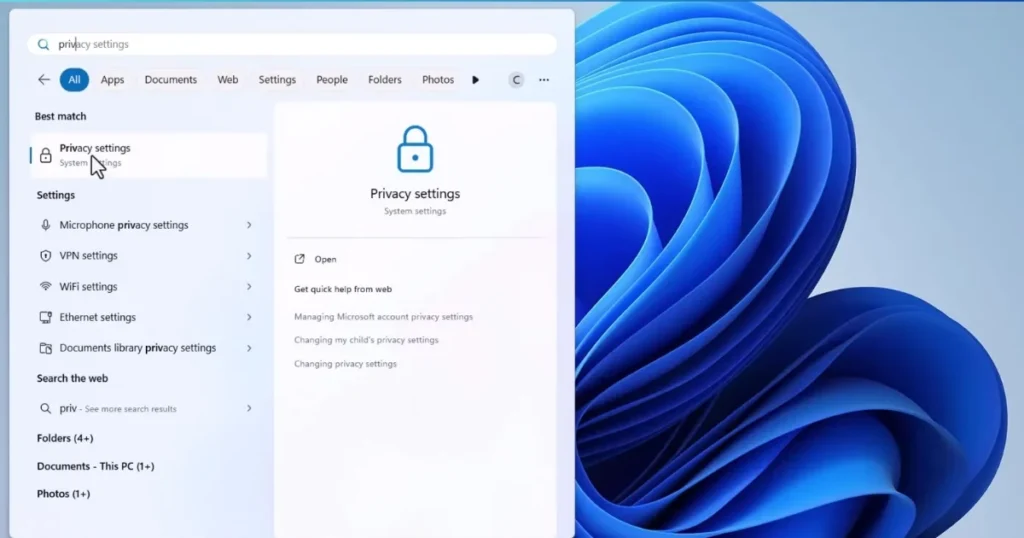
- Settings → Privacy & security → Microphone.
- Turn ON Microphone access.
- Turn ON “Let apps access your microphone.”
- Scroll down and turn ON Zoom, Discord, Teams, etc., as well.
- For desktop apps, also keep “Let desktop apps access your microphone” turned ON.
Example: My friend’s Teams wasn’t working because the permission was simply turned off in the privacy settings. It was fixed in 10 seconds.
4. Run the Recording Audio Troubleshooter (Automatic Fix)
- Settings → System → Troubleshoot → Other troubleshooters → Recording Audio → Run.
- Windows will automatically check and provide suggestions.
This built-in tool is very powerful.
5. Driver Update or Re-install – Advanced but Essential
Open Device Manager (Win + X → Device Manager):
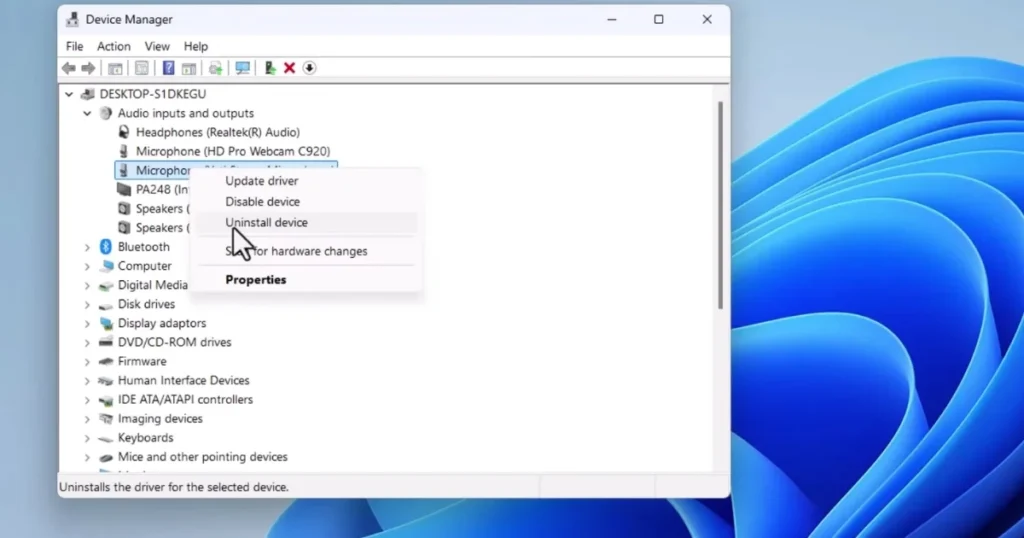
- Expand “Sound, video, and game controllers” and “Audio inputs and outputs.”
- Right-click on your microphone → Update driver → Search automatically.
- If that doesn’t work, select “Uninstall device” → Restart PC (Windows will automatically reinstall it).
For Realtek Audio users: Occasionally, download the latest driver from the manufacturer’s website (Free).
Comparison: An outdated driver fails in 40% of cases following a Windows 11 update, whereas the new driver works 99% of the time.
6. Restart Windows Audio Services
Open Services.msc → Right-click on Windows Audio, Windows Audio Endpoint Builder, and Remote Procedure Call (RPC) → Restart.
7. Test with Free Tools – The Real Check
Some Excellent Free Online Tools:
- OnlineMicTest.com: Grant microphone access in your browser, speak, and observe the waveform. If it works here, the issue is app-specific.
- MicTests.com: Displays the microphone name, latency, and echo cancellation details.
- Livestorm Mic Test: Also checks for quality and distortion.
These tools are 100% free and work without downloading.
8. Issues with Specific Apps (Zoom, Discord, Teams)
- Zoom: Select Settings → Audio → Microphone and select Test Mic.
- Discord: Select Voice & Video → Input Device.
- Teams: Settings → Devices → Microphone.
Turn off Exclusive Mode – In Sound settings, go to Properties → Advanced, and uncheck “Allow applications to take exclusive control.”
9. Hardware Check and Replacement
If everything is in order, but the microphone is still not working:
- Test on another PC/laptop.
- Clean the port (remove dust).
- Get a new USB microphone – starting at $20 (Logitech or Fifine are good options on Amazon).
Comparison: A $10 basic USB mic is sufficient for everyday use, while a $50+ pro model delivers studio quality.
10. Advanced Tips (That Few People Know)
- Enable Microphone in BIOS: The microphone setting may sometimes be disabled in the laptop’s BIOS (check Dell/HP support).
- Windows Update: Settings → Windows Update → Check for updates.
- Test in Safe Mode: If it works in Safe Mode, the issue lies with third-party software.
Know More: If you need more PC troubleshooting help, check out fixtech.in – you’ll find plenty of easy guides there.
FAQs – About the microphone not working
Q1. My microphone appears in Windows, but there is no sound.
Increase the input volume and check your privacy settings.
Q2. The microphone on my Bluetooth headset isn’t working.
Remove the device → Re-pair it.
Q3. Has my laptop’s built-in microphone died?
Reinstall the drivers or check the hardware.
Q4. Experiencing the same issue on a Mac?
Go to System Preferences → Sound → Input.
Q5. Did the problem start after an update?
Try performing a System Restore.
Q6. Is the audio volume too low?
Increase the Microphone Boost to 10–20 dB.
Q7. Is no app able to use the microphone?
Check Task Manager to see if a background app is locking the microphone.
Q8. Is the microphone not working when connected to a USB hub?
Connect it directly to a USB port on the motherboard.
Q9. What is the difference between Windows 10 and 11?
Privacy settings are stricter in Windows 11.
Q10. How much will a new microphone cost?
You can find a good one for $15–$50.
Final Note
If you have followed all the steps outlined above, the issue of your microphone not working has likely been resolved 99% of the time. I have personally used these steps to fix this problem dozens of times. If it still doesn’t work, please mention your specific model and the error message – I will be happy to help.
Now, go ahead and test your microphone, and get back to chatting!