
You leave in the morning with a 100% charge, but by 2 PM, only 30% remains. You have an evening meeting, need to book an Uber, and have to use Google Maps – yet your battery is in the “red zone” at 12%. You forgot your power bank, and there’s no charger nearby. This is a daily horror story for millions of smartphone users across India. And the most frustrating part? You bought this phone just 18 months ago – back then, it would last a full day; now, it struggles to make it through even half a day.
The problem here isn’t the battery percentage – the problem is battery health. This is the hidden metric that reveals what percentage of its original capacity your battery is still able to hold. A new battery equals 100% health. After 18 months, this typically drops to 85–90%. After 2.5 to 3 years, it falls to 70–75%. And once it drops below 70%? You find yourself having to charge your phone two or three times a day.
In India, phones in the ₹10,000–₹20,000 price range are the best-sellers – brands like Redmi, Realme, Samsung’s A-series, and Vivo’s T-series. These phones typically feature batteries with a capacity of 4,500–5,500 mAh; however, if the battery health has dropped to 75%, that 5,000 mAh battery effectively functions as a mere 3,750 mAh unit. That is precisely why you get the feeling that your “battery backup has diminished” – the battery itself may be physically sound, but its overall capacity has permanently decreased.
In this guide, we will provide you with the A-to-Z of battery health: how to check it, why it degrades, how to preserve it, and when it’s time to get it replaced. This knowledge could literally extend the lifespan of your phone by another 1 to 2 years.
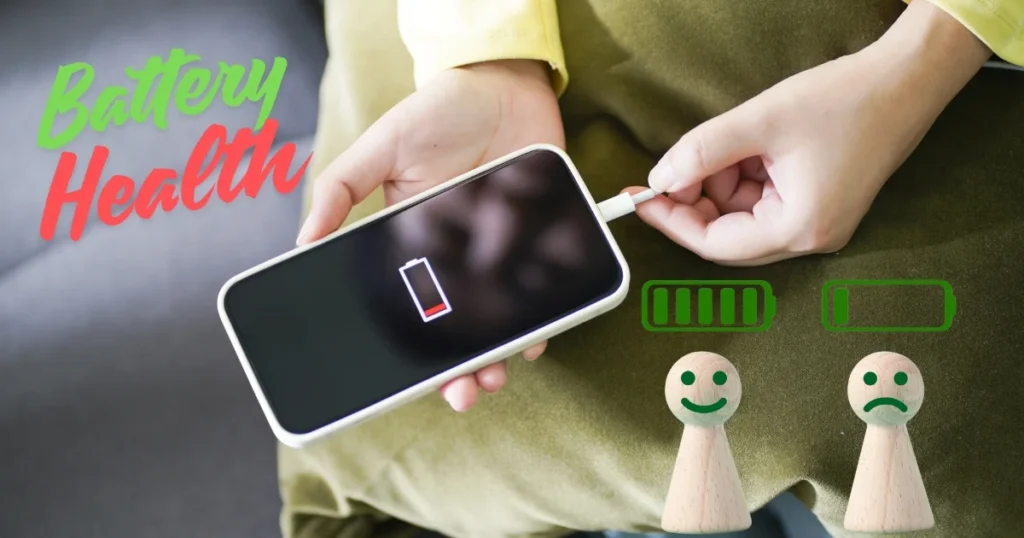
What is Battery Health? – Simple Science
Battery health basically indicates how well your battery retains its factory-new condition. It is measured as a percentage.
How Lithium-ion Batteries Work:
Your phone contains either a Lithium-ion (Li-ion) or a Lithium-polymer (Li-Po) battery. Inside it, lithium ions move between the anode and the cathode – moving in one direction during charging and in the opposite direction during discharging. Over time, this chemical process degrades; ions become permanently “trapped,” electrode surfaces get damaged, and the battery’s overall capacity gradually diminishes.
Charge Cycles:
One “charge cycle” equals a full charge from 0% to 100%. However, this is a cumulative process – if you charge from 50% to 100%, and then later from 80% to 100%, the combined total amounts to 70%, which is equivalent to approximately 0.7 cycles.
Typical Li-ion Battery: These batteries are designed to retain 80% of their health for up to 500–1000 full charge cycles. In India, the average user completes 1–1.5 cycles per day – meaning that 500 cycles are completed within a span of 12 to 18 months.
Battery Health Stages:
| Health % | Status | Experience | Action |
|---|---|---|---|
| 95–100% | Excellent | Like new | Maintain habits |
| 85–94% | Good | Slightly less backup | Normal, no worry |
| 75–84% | Fair | Noticeable drain | Optimize settings |
| 65–74% | Poor | Frequent charging needed | Plan replacement |
| Below 65% | Critical | Unusable without charger | Replace ASAP |
How to Check Battery Health on Android
On an iPhone, the battery health percentage is displayed directly under Settings > Battery > Battery Health. On Android, however, this is more complicated – most phones do not provide a built-in battery health indicator. Nevertheless, there are several ways to check it.
Method 1: Hidden Dialer Code
Type ##4636## into the phone dialer.
This opens the “Testing” menu (works on some phones, but not others).
- Tap on “Battery Information”.
- Check the “Battery Health” status – “Good” / “Overheat” / “Over Voltage” / “Cold”.
- Battery Level, Temperature, and Voltage are also displayed.
⚠️ This dialer code does not work on all phones. Samsung, Xiaomi, and certain other brands have disabled it. In such cases, use Method 2 or 3.
Method 2: AccuBattery App (Recommended)
AccuBattery – This is the most reliable and popular battery health monitoring app.
How to use:
- Install AccuBattery from the Play Store (the free version is sufficient).
- Setup: When opening it for the first time, enter the “Design Capacity” (refer to your phone’s specifications – e.g., 5000 mAh).
- Use your phone normally for 7–10 days – the app will analyze your charging and discharging patterns.
- “Health” tab: You will see your estimated battery health percentage.
What AccuBattery Reports:
- Estimated Capacity vs Design Capacity – actual vs original
- Charge Speed – real-time in watts
- Battery Wear per charge session
- Screen-On time vs Screen-Off time drain
- App-wise battery consumption
- Temperature monitoring
AccuBattery Free vs Pro (~$3.99):
| Feature | Free | Pro |
|---|---|---|
| Health monitoring | ✅ | ✅ |
| Charge alarm | ✅ | ✅ |
| Dark theme | ❌ | ✅ |
| Ads | Yes | No |
| Per-app stats | Basic | Detailed |
| History | 7 days | Unlimited |
Tip: The free version is sufficient for 90% of users. Let it collect data for 7 days – you will get an accurate reading.
Method 3: Samsung Users – Built-in Check
Battery health check is built into Samsung Galaxy phones:
- Open the Samsung Members app (pre-installed)
- Get Help > Interactive Checks > Battery > Battery Status
- Health status will appear: Good / Normal / Weak
Or: Settings > Battery and Device Care > Battery > Battery Information (in some models)
Method 4: Xiaomi/POCO Users
- Settings > Battery > Battery details
- In some MIUI/HyperOS versions, the “Battery Health” percentage is displayed.
- If you don’t see it, use AccuBattery.
Why Does Battery Health Deteriorate? – 8 Reasons
Battery health degradation is inevitable – it is a chemical process that cannot be stopped. However, certain habits can dramatically accelerate this degradation. These are the 8 biggest reasons:
1. Overheating – #1 Battery Killer
Heat is the lithium-ion battery’s greatest enemy. High temperatures accelerate chemical reactions, causing permanent damage to the battery cells.
Indian Context – Critical: Ambient temperatures of 40–45°C are common in India during the months of May through July. Outdoor phone usage combined with exposure to direct sunlight can easily drive the phone’s internal temperature above 50°C. This places extreme stress on the battery.
Overheating Causes:
- Charging + Heavy Use (gaming, video call while charging)
- Direct sunlight – car dashboard, window side
- Heavy phone case – heat trap
- Fast charging – generates more heat than slow charging
- Background apps – CPU continuous load
Impact: At consistent temperatures of 35°C+, the battery degradation rate is twice as fast.
2. Discharging Down to 0%
Deep discharge (0%) places stress on battery cells. In Li-ion batteries, chemical degradation accelerates when the cells are in a low-voltage state. Each deep discharge cycle causes more wear than a standard cycle.
3. Keeping the battery at 100% for extended periods
Maintaining the battery at a full charge (100%) results in high voltage stress. With overnight charging (leaving the charger plugged in for 8 hours) – the phone reaches 100% charge within just 2–3 hours, meaning it remains at 100% for the remaining 5–6 hours, which creates unnecessary stress.
4. The Overuse of Fast Charging
In India, fast charging speeds of 67W, 120W, and 150W have become commonplace – even in budget phones. Fast charging means higher current, which leads to increased heat, and consequently, greater degradation. While it is convenient, relying on fast charging on a daily basis comes at the cost of battery health.
5. Extreme Charge Cycles
If a phone is being charged 2–3 times a day (indicating a heavy user), charge cycles are completed much faster. The 500-cycle limit can be reached within 8–12 months.
6. Cheap/Duplicate Chargers
Roadside chargers priced between ₹100 and ₹200 are extremely popular in India. These devices deliver inconsistent voltage and current output – putting stress on the battery’s charging circuit and causing the cells to charge unevenly.
7. Extreme Cold
In hill stations (such as Ladakh, Shimla, and Manali), temperatures dropping below 0°C can temporarily reduce battery capacity by 30–50%. Repeated exposure to cold can cause permanent damage.
8. Aging – A Natural Process
Time passes, and chemistry degrades. This is inevitable – but by controlling the 7 factors mentioned above, you can significantly slow down the rate of degradation.
10 Proven Tips to Preserve Battery Health
Tip 1: Follow the 20–80% Charging Rule
This single tip is the most impactful for battery health. Always keep the battery within the 20–80% range.
- Avoid dropping below 20% – Low voltage stress
- Charging above 80% is unnecessary – High voltage stress
- Set an alarm at 80% in AccuBattery – “Charge Alarm” feature
- Brand-specific charging limits: Samsung (85% limit), ASUS (80% limit), OnePlus (Optimized Charging)
Practical Reality: It is impossible to maintain an exact 20–80% range every single time. This is a guideline, not a strict rule. Occasionally charging to 100% or letting it drain down to 5% is not a problem. Just avoid extreme levels on a regular basis.
Tip 2: Stop Overnight Charging
- Charge to 70–80% before going to sleep.
- Turn ON Adaptive Charging – this charges the phone slowly until your morning alarm time.
- If you don’t have Adaptive Charging, set a timer using a smart plug (~$5–$10 / ₹400–₹800).
Tip 3: Use Fast Charging Smart
- Emergency / When in a hurry: Fast charging
- Daily routine / At night: Normal charger (5W–10W) is better
- Remove your phone case while fast charging – aids heat dissipation
- Avoid gaming or heavy usage during fast charging – prevents excessive heat buildup
Fast vs Slow Charging – Battery Health Impact (2 Years):
| Charging Method | 2-Year Battery Health | Daily Convenience |
|---|---|---|
| Always Slow (5–10W) | ~92% | Low (slow charge) |
| Mixed (Fast when needed) | ~87% | High (recommended) |
| Always Fast (67W+) | ~80% | Very High |
| Always Fast + Overnight | ~73% | Highest convenience, worst health |
Tip 4: Manage the Temperature
- Charging time: Remove the phone case.
- Gaming + Charging = Never.
- Avoid car dashboards and direct sunlight.
- During Indian summers: Charge in an air-conditioned room whenever possible.
- Keep the temperature monitor enabled in AccuBattery – set an alert for 40°C+.
Tip 5: Use only the Original / Certified Charger
- Original charger (came in the box) = best
- Lost/damaged? Take a brand-certified replacement:
- MI/Redmi Original: ~$8–$12 (₹650–₹1,000)
- Samsung Original: ~$10–$15 (₹800–₹1,200)
- Anker (Third-party trusted): ~$10–$18 (₹800–₹1,500)
- ₹100–₹200 roadside chargers avoid – fire risk + battery damage
Tip 6: Optimize Screen Brightness
The display consumes the most battery power – directly affecting battery health (higher drain = more charging cycles = greater degradation).
- Auto-Brightness ON – adjusts according to the environment
- Indoor: 40–50% brightness is sufficient
- Dark Mode ON – 30–40% battery save on AMOLED screens
- Screen Timeout: 30 seconds – minimum practical
Tip 7: Identify and Fix Battery-Draining Apps
- Settings > Battery > Battery Usage – check which apps drain the most
- Facebook, Instagram, Snapchat – notorious battery drainers
- Fix: Restrict background activity – Settings > Apps > [App] > Battery > Restricted
- Use Lite versions: Facebook Lite, Instagram Lite – 60–80% less battery
- Location permission: Set “Only while using” for all apps
Tip 8: Optimize Connectivity Settings
Every active radio (WiFi, Bluetooth, GPS, NFC, Mobile Data) drains the battery.
- WiFi: Keep it ON at home/the office (battery-friendly); turn it OFF when you don’t need it outdoors.
- Bluetooth: Turn it OFF if no devices are connected.
- NFC: Turn it ON only when making payments.
- Location/GPS: Use “Battery Saving” mode (based on WiFi + Cell Towers).
- WiFi Scanning & Bluetooth Scanning: Go to Settings > Location > Turn OFF – these features scan constantly.
Tip 9: Use Battery Saver Mode Smartly
- Settings > Battery > Battery Saver – set auto-enable to 20–30%
- What Battery Saver does: background sync stop, location accuracy reduce, visual effects minimize, 5G → 4G switch
- ⚠️ Don’t keep it always ON – some features compromised (notifications delay, sync pause)
- Extreme Battery Saver – emergencies: only essential apps (call, SMS)
Top 10: Restart Phone Weekly
- Restart clears memory leaks, kills stuck processes
- Result: smoother performance, less CPU strain, less battery waste on stuck processes
- Every Sunday restart – simple habit, big impact over time
Battery Drain Fix – Software Level
If the battery is draining unusually fast (despite the battery health being good), these could be software-level issues.
Quick Drain Diagnosis:
Settings > Battery > Battery Usage – see last 24 hours/7 days drain breakdown.
Red Flags:
- Any app showing 25%+ drain (with the screen off) – Abnormal
- “Android System” or “Mobile Standby” at 20%+ – Network issue
- “Screen” at 40%+ – Brightness too high or excessive screen-on time
- “Google Play Services” at 15%+ – Sync issue
Software Drain Fixes:
Fix 1 – Background App Restrictions:
- Settings > Apps > [Suspected App] > Battery > “Restricted”
- This app blocks background activity
Fix 2 – Location Services Audit:
- Settings > Location > “App Location Permissions.”
- Review every app – change “Always” to “Only While Using.”
- Maps, food delivery – While using sufficient
- Social media – “Don’t Allow” (manually allow if needed)
Fix 3 – Sync Settings:
- Settings > Accounts > [Google Account] > Account Sync
- Unnecessary items OFF: Play Books, Play Movies, Play Games (if not used)
- Gmail, Contacts, Calendar – leave ON
Fix 4 – Network Mode:
- 5G causes unnecessary battery drain if coverage is poor.
- Settings > Network > Preferred Network > 4G/LTE (5G is not needed for most tasks)
- Turn 5G ON only for heavy downloads or streaming.
Fix 5 – MIUI/HyperOS Specific (Xiaomi Users):
Xiaomi phones perform aggressive battery optimization – but sometimes they overdo it, and it interferes with system processes.
- Settings > Battery > Ultra Battery Saver OFF (if ON)
- Settings > Additional Settings > Battery Manager > optimization level check
Brand-Specific Battery Features
Samsung – Battery Protection
- Settings > Battery > Protect Battery – Turn on 85% limit
- Adaptive Battery: learns usage patterns, limits rarely used apps
- Device Care > Battery > Power Saving: customizable modes
Xiaomi/Redmi/POCO – Battery Features
- Settings > Battery > Battery Protection (available on newer models) – 80% charging limit
- Battery-specific gaming settings in Game Turbo
- Thermal management settings – optimize heat during charging
OnePlus – Optimized Charging
- Settings > Battery > Optimized Charging – learns sleeping pattern, charges to 80% first, completes to 100% just before alarm
- Battery Health Engine (newer models) – actively monitors and protects battery health
Realme/Oppo – Battery Features
- Settings > Battery > Optimized Night Charging – similar to OnePlus
- Battery Lab features – some models show estimated health
When to Replace Your Battery – Signs and Cost
Replacement Signs:
- Battery health below 70% (AccuBattery)
- Requires charging 3+ times a day (with normal use)
- Unexpected phone shutdowns – with 15–20% battery remaining
- Battery bulging/swelling – causing the phone’s back cover to bulge SAFETY RISK
- Charging is very slow, despite using a good charger
- Phone becomes abnormally hot during light use
Free Tools – Monitor and Optimize Battery Health
| Tool | Work | Cost |
|---|---|---|
| AccuBattery | Health monitor, charge alarm | Free / Pro $3.99 |
| GSam Battery Monitor | Detailed drain analysis | Free |
| Samsung Members | Samsung battery diagnostics | Free (Samsung only) |
| Battery Guru | Charging optimization | Free |
| Ampere | Real-time charging current measure | Free |
FAQs – Battery Health Issues on Android
Q1: How do I check the exact battery health on Android?
Install the AccuBattery app (it’s free), use your phone normally for 7–10 days, and the estimated capacity will appear in the ‘Health’ tab. For Samsung phones, go to the Samsung Members app > Diagnostics > Battery. The dialer code ##4636## also works on some devices.
Q2: Is the “20–80% rule” really that effective?
Yes. Both research and real-world data confirm that charging within the 20–80% range significantly reduces the rate of battery degradation. Operating at extreme levels (0% and 100%) places unnecessary stress on lithium-ion cells.
Q3: Should I stop using fast charging entirely?
Don’t stop it—just use it smartly. Fast charging is perfect for emergencies or when you’re in a hurry ✅. For your daily routine, if you have the time, use a slower charger. Remove your phone case while fast charging. Gaming + fast charging = ❌. A mixed approach strikes the best balance between convenience and battery health.
Q4: How harmful is overnight charging?
Modern phones feature overcharge protection, so the risk of fire or safety hazards is negligible. However, maintaining a 100% charge for 5–6 hours creates unnecessary chemical stress on the battery. Enable “Adaptive Charging” or simply unplug your phone once it reaches 80%. While the impact per night is small, the cumulative effect over months or years can be significant.
Q5: My battery health has dropped below 80%—when should I replace it?
75–80%: Planning phase—follow tips to extend battery life and start budgeting for a replacement. Below 70%: Active replacement recommended—daily usage will be significantly impacted. Below 60%: Urgent—the phone is practically unusable without being constantly plugged in.
Q6: Is it a good idea to keep “Battery Saver” mode ON all the time?
No. Battery Saver mode compromises certain features—it may delay notifications, pause data syncing, and reduce location accuracy. The best approach is to set it to auto-enable when the battery level drops to 20–30%. Keeping it on full-time unnecessarily degrades your overall user experience.
Q7: Can a cheap charger cause my phone to explode?
It is rare, but possible. Unbranded chargers often provide an inconsistent voltage output. An inferior charger may also bypass the phone’s built-in overcharging protection mechanisms. Cases of this nature have been reported in India. Using an original or certified charger (such as Anker or MI) is always safer. Risking a ₹15,000 phone just to save ₹200 simply doesn’t add up.
Q8: Is battery calibration necessary?
“Battery calibration” (draining the battery to 0% and then charging it to 100%) is largely a myth in modern phones. Android battery statistics calibrate automatically. An occasional full cycle (once every 2–3 months) is fine, but deliberately draining the battery to 0% is harmful to its overall health.
Q9: What should I do if my phone’s battery starts swelling?
Safety Emergency! Turn off your phone immediately. Unplug the charger. Place the phone in an area free of any flammable materials. Go to an authorized service center right away and get the battery replaced. A swollen battery poses a risk of puncture or explosion. Attempting a DIY fix to save money is extremely dangerous.
Q10: How many years should a phone battery last?
With proper care, 3–4 years (maintaining 80%+ health). With average use (no special care): 2–2.5 years (health typically remains in the 70–80% range). With heavy or abusive use: 1–1.5 years (battery health drops rapidly). Since the battery is replaceable, the actual lifespan of the phone itself is longer than that of the battery.
Final Thoughts
So, that was the complete guide to Android battery health – how to check it, why it degrades, how to preserve it, and when to replace it. The biggest takeaways:
Top 3 Battery Health Savers:
- 20–80% Rule – single most impactful habit
- Overnight Charging OFF – Adaptive Charging ON
- Temperature Control – gaming + charging = ❌
Top 3 Battery Health Killers:
- ❌ 0–100% daily + overnight charging
- ❌ Fast Charging + Gaming simultaneously
- ❌ Cheap/unbranded chargers
In India, the battery of a phone priced between ₹10,000 and ₹20,000 can be replaced for ₹1,500–₹2,500 ($18–$30) – which is far cheaper than buying a new phone for ₹15,000 or more. However, if you actively maintain your battery health (by following the 20–80% rule, controlling temperature, and using the original charger), you can delay the need for a replacement by another 1–2 years. Install AccuBattery, set the 80% alarm, and adopt smart charging habits – your battery health will thank you. If you are facing any other tech-related issues, visit fixtech.in to read more guides – new solutions are added there daily.🔋✅