
Perhaps someone sends you a YouTube link on WhatsApp, but tapping it opens Samsung Internet instead. Or maybe a Twitter link opens in some random browser, even though you use Chrome. Or perhaps you tap an Instagram story link, and Google Photos opens up. These situations happen to everyone, and they can be truly irritating. If your Android links open the wrong app, it’s not a hardware issue – it’s a settings problem you can fix in a few minutes.
In this guide, we will walk you through, step by step, why Android’s default app settings get messed up, how to reset them, and how to set your preferred apps for different types of links.
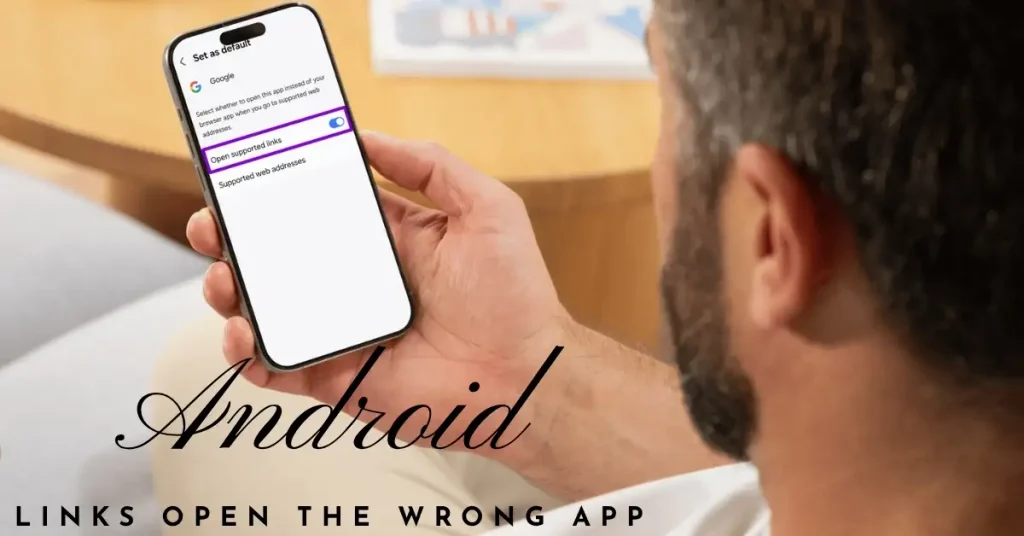
Why do links open in the wrong app on Android?
First, it is important to understand why this issue occurs.
When you tap a link for the first time, Android asks which app you would like to use to open it. If you select “Always” at that moment – whether intentionally or by mistake – Android sets that app as the default for all future instances.
Furthermore, some apps automatically designate themselves as the default for specific types of links upon installation. On phones from brands like Samsung, Xiaomi, and Realme in India, pre-installed browsers and apps often behave this way; for instance, Samsung Internet or Mi Browser may be set as the default as soon as you start using a new phone.
In Android 12 and later versions, Google has implemented a stricter “App Links” system, which allows apps to automatically handle links associated with their own domains – a process that can sometimes lead to confusion.
Method #1 – Reset the default settings for a specific app
This is the most targeted and clean fix. If you know which app is handling the links incorrectly, simply reset the settings for that specific app.
Step-by-step procedure:
- Open Settings
- Tap on Apps or Application Manager
- Find the app that is opening the wrong links (e.g., Samsung Internet, Mi Browser, or any other)
- Tap on the app → Go to “Open by default” or “Set as default”
- Tap on “Clear defaults” or select “Open supported links” → “Don’t open in this app”
The next time that link type is tapped, Android will ask again which app should be used to open it.
Specific path for Samsung phones:
Settings > Apps > [App Name] > Set as default > Clear defaults
For Xiaomi/Redmi devices:
Settings > Apps > Manage apps > [App Name] > Open by default > Clear defaults
Method #2 – Change the Default Browser
If the problem lies with browser links – which is the most common scenario – simply change your default browser.
On Android stock (Pixel):
- Settings > Apps > Default apps > Browser app
- Choose your preferred browser – Chrome, Firefox, Brave, etc.
On Samsung One UI:
- Settings > Apps > tap the three dots (⋮) in the top right corner > Default apps > Browser
- From here, select Chrome instead of Samsung Internet.
On Xiaomi/MIUI:
- Settings > Apps > Manage apps > Default apps > Browser
- Select Chrome or Firefox
On Realme/OPPO:
- Settings > Apps > Default App > Browser app
Pro Tip: After setting Chrome as your default browser, be sure to update it via the Play Store. An outdated version of Chrome can sometimes handle links in unexpected ways.
Method #3 – Control via the “Opening Links” setting in Android 12+
In Android 12 and later versions, Google has added a new “Opening Links” setting that allows you to control link behavior on a per-app basis.
If you are using Android 12 or a newer version:
- Go to Settings > Apps > [name of any app] > Open by default
- Here, you will find three options:
- “Open in this app” – The app will automatically handle its related links.
- “Ask every time” – It will ask each time.
- “Don’t open in this app” – This app will never handle these links.
For example – if you want YouTube links to always open in the YouTube app rather than in Chrome – then:
- Settings > Apps > YouTube > Open by default > select “Open in this app”
And if you want Twitter links to open in a browser, rather than in the Twitter app:
- Settings > Apps > Twitter > Open by default > select “Don’t open in this app”
This method is the most precise and flexible.
Method #4 – Learn to choose “Just Once” instead of “Always”
This is a preventive strategy that helps avoid future problems.
Whenever Android displays an app chooser pop-up for a link, you are presented with two options:
- “Just Once” – Will open in that app only this time
- “Always” – Will set that app as the default permanently
In India, most people tap “Always” in a rush and end up facing issues later. Always choose “Just Once” unless you are 100% sure.
If you accidentally tap “Always,” use Method #1 to clear the default settings for that app.
Method #5 – Reset All App Defaults at Once
If the settings for many apps have become messed up and resetting them one by one feels too time-consuming, there is an option to reset them all at once.
Note: This only resets app preferences – it does not delete your personal data, photos, or messages.
On Android stock/Pixel:
- Settings > System > Reset options > Reset app preferences
On Samsung One UI:
- Settings > General management > Reset > Reset all settings
On Xiaomi/MIUI:
- Settings > About phone > Reset settings
On Realme/OPPO:
- Settings > Additional settings > Back up and reset > Reset app preferences
Restart your phone after the reset. Now, whenever you tap a link, Android will display a fresh chooser.
Common Link Types and Their Fixes – India-Specific
Specific fixes for the types of links that most frequently open in the wrong app in India:
YouTube Links
If YouTube links open in Chrome even though the YouTube app is installed on your phone:
- Settings > Apps > YouTube > Open by default > Select “Open in this app”
- Now, all YouTube links will open in the YouTube app.
Google Maps Links
If Maps links open in the browser:
- Settings > Apps > Google Maps > Open by default > “Open in this app”
Instagram/Twitter/Facebook Links
If social media links open in your browser, but you want them to open in the app:
- Settings > Apps > [Instagram/Twitter/Facebook] > Open by default > “Open in this app”
Website Links in WhatsApp
If links in WhatsApp open in Samsung Internet but you would prefer them to open in Chrome:
- Select Settings > Apps > Default apps > Browser > Chrome
Payment links for services like Paytm, PhonePe, and GPay
If UPI payment links lead to the wrong app:
- Settings > Apps > [Paytm/PhonePe/GPay] > Open by default > Check and reset if necessary.
- In India, this issue occurs more frequently with UPI links because multiple payment apps are often installed.
Samsung-Specific: DeX and Link Pop-up Settings
Samsung users should check an additional setting that very few people are aware of.
Samsung devices include an option called “Open links in pop-up view,” which opens links in a floating window – something that can be confusing.
To disable this:
- Settings > Apps > [Any app] > Open by default
- Check the “Open links” option and disable any unwanted behavior.
Additionally, app defaults can also be affected within the Samsung Edge Panel. Go to the Edge Panel settings and remove any unwanted shortcuts.
Make Chrome Your Default Browser Properly – Complete Setup
If you want to set Chrome as your default browser correctly, simply changing the “Default browser” setting is not enough. A few additional settings are required:
Step 1: Settings > Apps > Default apps > Browser > Chrome
Step 2: Under “Open by default” for the Chrome app, select “Open in this app.”
Step 3: Go to Chrome → Settings → Privacy and Security → ensure that an option like “Open links in Chrome” is enabled (turned ON).
Step 4: For any apps that were previously handling links instead of Chrome, select “Clear defaults.”
Step 5: Restart your phone.
Following these five steps will properly set Chrome as your default browser and largely resolve the issue where Android links open in the wrong app.
Alternative browsers that are popular in India
If you are looking for a better experience than Chrome, try these browsers – all of them are free:
| Browser | Why use it? | Price |
|---|---|---|
| Chrome | Fast, Google integration | Free |
| Firefox | Privacy, extensions | Free |
| Brave | Ad-blocker built-in | Free |
| Edge | Microsoft tools, reading mode | Free |
| Opera Mini | Data saving, popular in India | Free |
In India, data saving is a major concern, which is why both Opera Mini and Brave are quite popular. Brave features a built-in ad blocker that not only saves data but also makes browsing faster.
Free tools that will help with this problem
- Default App Manager Pro (Free version) – Available on the Play Store – view and change all your app defaults in one place. Instead of adjusting settings for individual apps one by one, this tool provides centralized control.
- HTTP Shortcuts (Free) – play.google.com – A great tool for custom link handling, intended for advanced users.
- Chrome Browser (Free) – google.com/chrome – The most reliable option as a default browser.
- Brave Browser (Free) – brave.com – A privacy-focused browser that is fast and lightweight in India.
- Fixtech.in – fixtech.in – A detailed solution for Android settings, default apps, and all types of link-handling problems.
The Correct Order for Troubleshooting Link Handling
If you are unsure where to begin, follow this order:
- First – Check and change your default browser (Method #2)
- Second – Clear the defaults for the specific app that is opening the wrong links (Method #1)
- Third – On Android 12+, check the “Opening Links” setting for the individual app (Method #3)
- Fourth – If the issue affects many apps, perform a “Reset App Preferences” (Method #5)
- Finally – In the future, choose “Just Once” instead of “Always” (Method #4)
Advanced Tip: Understanding Intents and App Links
This is a bit technical, but it’s useful.
Android uses an “Intent” system to determine which app should handle a specific action. When you tap a link, Android sends out a broadcast – “Who can handle this?” – and any app registered for that type of link responds.
Before Android 12, any app could register itself to handle any type of link. From Android 12 onwards, Google introduced a “Verified App Links” system, where only an app that is the verified owner of a domain can handle links associated with that domain.
This means:
- Links from YouTube.com can only be handled by the YouTube app (if configured correctly).
- Links from Instagram.com can only be handled by the Instagram app.
- While this is better for security, it can sometimes conflict with your personal preferences.
That is why “Open by default” settings are so important – this is where you can override them.
FAQs – Android links open the wrong app
Q1. Why do Android links open in the wrong app – what is the most common reason?
The most common reason is having previously selected the “Always” option for a link, which causes Android to permanently set that app as the default. This can be fixed by going to the app’s settings: Settings > Open by default > Clear defaults.
Q2. Why do links still open in Samsung Internet even after setting Chrome as the default browser?
Samsung Internet may register itself for certain types of links. In addition to changing your default browser, go to the “Open by default” settings for Samsung Internet, select “Clear defaults,” and set “Open supported links” to “Don’t open in this app.”
Q3. Does “Reset app preferences” delete personal data?
No. “Reset app preferences” only resets app defaults, permissions, and notification settings. It does not affect your photos, messages, contacts, or other personal data.
Q4. How can I open YouTube links in a browser instead of the app?
Go to Settings > Apps > YouTube > Open by default and select “Don’t open in this app.” YouTube links will now open in your default browser.
Q5. How can I ensure that links received in WhatsApp always open in Chrome?
Go to Settings > Apps > Default apps > Browser and select Chrome. This will ensure that website links received in any app, including WhatsApp, open in Chrome.
Q6. Why does the “app chooser” popup appear every time?
If no default app has been set for a specific type of link, Android will ask you to choose one each time. To fix this, select “Always” when choosing your preferred app, or manually configure it via the “Open by default” settings for that specific app.
Q7. Where can I find default app settings on Xiaomi/Redmi devices?
Go to Settings > Apps > Manage apps > tap the filter icon (in the top-right corner) > Default apps. Here, you can manage all your default apps – such as your browser, email, or home screen – in one place.
Q8. Is it safe to manage default links using a third-party app?
Tools like “Default App Manager Pro” are safe and available on the Play Store. However, the built-in Android settings remain the most reliable option – avoid using a default manager installed via an APK from an unknown source.
Q9. What if links for payment apps (like Paytm or PhonePe) open in the wrong app?
Go to Settings > Apps > [Paytm/PhonePe] > Open by default > Clear defaults, and then set your preferred payment app under the “Open by default” option. This is a common issue in India due to the availability of multiple UPI apps.
Quick Reference: Where to find settings on different phones
| Phone | Default App Path |
|---|---|
| Pixel | Settings > Apps > Default apps |
| Samsung | Settings > Apps > ⋮ > Default apps |
| Xiaomi/Redmi | Settings > Apps > Manage apps > Default apps |
| Realme | Settings > Apps > Default App |
| OnePlus | Settings > Apps > Default app |
| Vivo | Settings > More Settings > Default App |
| OPPO | Settings > Apps > Default App |
Conclusion – Take control of your links
Android links opening in the wrong app is a common issue, usually caused by a simple setting. Whether you use a Samsung, Xiaomi, Realme, or Pixel device, every phone includes an “Open by default” or “Default apps” setting that gives you full control.
Want browser links to open in Chrome? Change your default browser. Are YouTube links opening in a browser instead of the YouTube app? Use the “Open by default” setting to fix it. Do payment links open in the wrong app? Simply “clear defaults.” You can handle all of this yourself, for free, without needing any extra apps.
Once your settings are configured correctly, keep one rule in mind for the future: when a pop-up appears for a link with the options “Just Once” and “Always,” don’t rush to tap “Always.” And if you ever run into any confusion regarding Android settings – whether it’s links opening in the wrong app or any other issue – visit fixtech.in, where you’ll find clear, easy-to-understand solutions for all kinds of Android problems.