
Have you ever felt dizzy while reading a message in a car? Or perhaps felt nauseous while scrolling through WhatsApp during a long journey? If so, you are not alone. Millions of people in India travel by bus, car, or train every day, and many experience motion sickness as soon as they look at their phones. Google has now introduced a solution to this problem: Android Motion Assist.
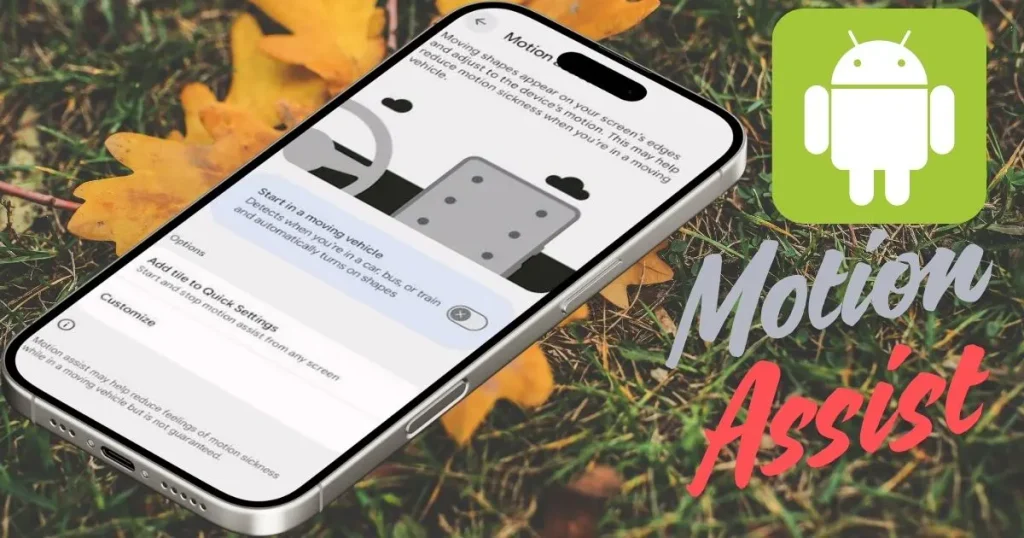
Google is rolling out a new Android feature called “Android Motion Assist.” It uses animated on-screen cues to help reduce motion sickness for passengers who use their phones while in a moving vehicle. This is not a third-party app, but a built-in Android feature that utilizes your phone’s sensors.
Why does motion sickness happen? – A bit of science
It is important to understand why looking at a phone in a car causes nausea. The root cause is a “sensory mismatch” – essentially, a confusion between what your eyes see and what your body feels.
When you look at your phone in a moving vehicle, your eyes perceive that you are stationary (because the screen remains still), while your inner ear senses that the vehicle is turning, slowing down, or accelerating. “Android Motion Assist” displays small, subtle visual bubbles along the edges of the screen. These bubbles move in real time, guided by the phone’s motion sensors; they shift in response to the vehicle’s turns, acceleration, or braking, helping your brain synchronize what your eyes see with what your body feels.
Simply put – these little dots convey the truth to your brain: “Yes, the vehicle is actually in motion!”
Who needs Android Motion Assist?
This feature is for anyone who:
- Experiences headaches or nausea when using a phone in a car, bus, or train
- Has to check WhatsApp, Instagram, or emails for work during long journeys
- Gives your phone to children to watch cartoons or play games while in a vehicle
- Commuting to the office daily by cab and needing to read something along the way
In a country like India, where traffic, winding roads, and long highway journeys are common, this feature will prove to be very useful.
How does Android’s Motion Assist work?
Google’s Motion Assist displays moving shapes along the edges of the screen, which helps reduce motion sickness when using your phone in a moving vehicle.
Using the phone’s built-in accelerometer, these dots move across the screen in a way that mirrors how your inner ear detects the vehicle’s movement.
As a result, your eyes and your body receive the same signal – eliminating the confusing sensory mismatch that causes motion sickness.
A useful point:
- These shapes appear along the left and right edges of the screen.
- The app you are using continues to run in the center, just as before.
- Motion Assist provides an additional visual clue for your eyes. Small shapes appear along the edges of the screen while you continue using an app in the center.
Which devices will get Android Motion Assist?
The first question that comes to mind is – “Will my phone get it?”
To use Motion Assist, you need to have Android 17 or a later version, along with updated Google Play Services.
Users will need Google Play Services version 26.33.32 or newer.
For now:
- Motion Assist has been rolled out to devices running Android 17. This option should be available in the settings on the Pixel 11 Pro XL or Samsung’s foldable flagship.
Note: If you don’t see it on your phone yet, don’t worry. There is no need to download a separate app. Google is rolling it out in stages via Play Services.
How to enable Android Motion Assist – Step-by-Step Guide
Google began rolling this out just last month, but it is now widely available. To find it, search for “motion assist” in Settings.
Method 1 – Search directly via Settings (the easiest way)
- Open Settings on your Android phone.
- Type “Motion Assist” into the search bar at the top.
- Tap on “Motion Assist” in the results.
- Turn on the toggle for “Start in a moving vehicle.”
Method 2 – Via Settings > Google Profile
Go to Settings > Your profile > All services, then scroll down to the ‘Personal & device safety’ section and select ‘Motion Assist’.
Step-by-step:
- Open Settings
- Tap your Google profile at the top
- Tap “All services”
- Scroll down → Personal & device safety
- Tap “Motion Assist”
- Turn on “Start in a moving vehicle”
Method 3 – Via the Quick Settings Tile (the fastest way)
Google allows you to add a ‘Motion Assist’ Quick Settings tile, which lets you turn the feature on or off at any time without needing to go into the Settings menu.
To do this:
- Go to Motion Assist settings
- Tap “Add tile to Quick Settings”
- Choose either “Small tile” or “Large tile”
- You can now toggle it at any time by swiping down from the notification bar
How to customize Motion Assist?
This feature is not limited to just turning it on or off. Google’s version also gives you the option to control the appearance of the cues – with settings for shape, size, color, and opacity.
You can adjust the following:
| Option | What can be changed |
|---|---|
| Shape | Dots, Bubbles, squares, etc. |
| Size | Small or large shapes |
| Color | A color of your choice |
| Opacity | How transparent should the shapes be? |
You can customize the color, shape, and opacity of the shapes, or set them to change randomly every few seconds.
Pro Tip: If you find the shapes too distracting, keep the opacity low. In light colors and smaller sizes, they are barely visible, yet they continue to send signals to your brain.
Automatic vs. Manual Mode – Which is better?
For the best experience, Google recommends keeping both automatic activation (for when you are in a moving vehicle) and the manual Quick Settings tile enabled.
- Automatic Mode: To have Motion Assist start automatically, enable “Start in a moving vehicle.” The phone will detect when you are in a car, bus, or train and automatically begin displaying moving shapes.
- Manual Mode: If you prefer to maintain control yourself, add a dedicated tile to your Quick Settings and toggle it on or off manually.
- Via Notification: When Motion Assist is active, Android displays a notification to let you know the feature is running. You can also turn it off by tapping this notification.
Does it actually work?
This is a perfectly valid question. Google is attempting to solve a very common problem using sensors that are already present inside your phone – no extra apps or accessories required.
From a scientific standpoint, the concept is quite solid. Apple launched “Vehicle Motion Cues” for the iPhone in 2024, and it received a very positive response.
However:
- Every person’s body is different.
- Some people experience immediate benefits, while others experience less.
- This feature reduces motion sickness; it does not eliminate it.
Fixtech Tip: If you encounter any other issues related to Android or Google settings, visit fixtech.in – you can find all kinds of tech help related to Android there.
Some Useful Free Tools and Resources for Android Motion Assist
If you’re looking for other ways to improve motion sickness and travel comfort in addition to Motion Assist, check out these free resources:
- Google Play Services – play.google.com
Motion Assist is provided through this; keep it up to date. - Android Settings Search – It’s a built-in feature; search for “Motion Assist” in Settings.
- Google Support Page – support.google.com/android
An official guide where you can find step-by-step instructions. - Quick Settings Editor – This is also built-in; access it from the notification shade.
- Fixtech.in – fixtech.in – A reliable source for Android problem solutions.
Motion Assist not turning on? – Try these solutions
Sometimes, Motion Assist doesn’t even appear in the settings. Don’t worry – try these steps:
- ✅ Check your Android version: Motion Assist requires Android 17 or higher to display dots across all system surfaces. You can check your Android version by going to Settings > About Phone.
- ✅ Update Google Play Services: If you don’t see Motion Assist, ensure that Google Play Services is updated to the latest version – version 26.33.32 or newer.
- ✅ Restart your phone: If the Motion Assist option still doesn’t appear in the menu, Google recommends restarting your smartphone and confirming that you have the latest version of Google Play installed.
- ✅ Wait for the staged rollout: This feature is not released to everyone simultaneously; it is being rolled out gradually.
- ✅ Use the search bar in Settings: You can also try searching for “Motion Assist” using the search bar at the top of the Settings app to locate the setting more quickly.
Safety Warning – Attention, Drivers!
Please note: This is a feature intended for passengers. It should absolutely not be used while driving.
If you are the driver, please set your phone to ‘Do Not Disturb while Driving’ mode. ‘Motion Assist’ is exclusively for those seated in the passenger seat.
FAQs – About Android Motion Assist
Q1. What is Android Motion Assist?
Android Motion Assist is a new feature designed to reduce motion sickness when using an Android phone in a moving vehicle.
Q2. Will it be available on all Android phones?
Android community engagement manager Mishaal Rahman has confirmed on X (Twitter) that Motion Assist is now generally available for all devices running Android 17.
Q3. Do I need to download a separate app for this?
This feature is provided through Google Play Services rather than as a standalone Motion Assist app. No separate download is required.
Q4. How will I know if Motion Assist is turned on?
A Quick Settings tile allows for manual activation. When active, a notification confirms that the feature is running; this same notification also serves as a switch to turn it off.
Q5. Can it be customized?
Yes! You can customize the shape, size, color, and transparency of the elements displayed.
Q6. Is there a similar feature on the iPhone?
Motion Assist functions similarly to Apple’s “Vehicle Motion Cues,” which was released for the iPhone in 2024.
Q7. Is this feature free?
Absolutely! It is completely free and built into Android 17. There are no subscriptions or charges.
Q8. Will it work on trains or buses as well?
Once activated, Motion Assist can launch automatically when the device detects that it is in a car, bus, or train.
Conclusion – Try Android Motion Assist
If you are someone who feels uneasy or uncomfortable when looking at your phone while in a car, Android Motion Assist could be a real solution for you. It isn’t just a “fancy” feature; rather, it is a practical, everyday tool that leverages your phone’s existing sensors to address a genuine problem.
Open your Settings, search for “Motion Assist,” and give it a try. On your next long journey – whether it’s from Delhi to Agra or Pune to Mumbai – using your phone could become much more comfortable. And if you ever need help with any Android-related issues, don’t forget to bookmark fixtech.in.