
Has your PC slowed down? Is the Start Menu taking too long to open? Are your apps taking an excessive amount of time to load? If so, you are not alone. Millions of users in India share the same question: What are the hidden Windows 11 settings that can restore system speed – without the need to purchase new hardware? The good news is that Windows 11 contains several such settings that are disabled by default; however, simply enabling them can make a world of difference in your system’s speed and responsiveness.
In this detailed guide, we will walk you through every essential hidden setting relevant to optimizing Windows 11 performance. Whether you are a gamer, a content creator, or simply use your laptop for everyday tasks, these tips are for everyone.
Why does Windows 11 slow down? Understand the real reason.
You bought a new laptop, installed Windows 11, and a few months later, it felt like the system wasn’t quite the same. This is a common complaint. Windows 11 has become a rather resource-heavy operating system, largely due to AI features like Copilot and background telemetry. Even on systems with 32GB of RAM and high-end CPUs, you might experience a half-second delay when opening the Start Menu, as Windows 11 consumes significant resources for AI prompts and background indexing.
Many users overlook hidden settings that directly impact system speed and performance. If your PC feels slow, laggy, or unresponsive, buying new hardware isn’t always the answer. Instead, you can achieve better speed, responsiveness, and stability by tweaking these hidden Windows 11 settings.
So, let’s explore – one by one – the settings that Microsoft has kept “hidden” from you.
1. Ultimate Performance Power Plan – A Hidden Performance Booster
This is arguably the most powerful hidden setting in Windows 11 – one that most people aren’t even aware of.
Windows features an aggressive power scheme known as “Ultimate Performance.” This mode was originally designed for high-end professional workstations – machines where performance consistency takes precedence over energy efficiency.
This hidden Ultimate Performance plan is tailored for workstations and eliminates even the slightest delay in CPU ramp-up times. To enable it, you will need to use the Terminal, as it does not appear within the standard Settings menu.
How to Enable:
- Run PowerShell as an administrator and enter the following command:
powercfg -duplicatescheme e9a42b02-d5df-448d-aa00-03f14749eb61 - Next, navigate to Power Options in the Control Panel and select it. This ensures that your CPU always operates at or above its base clock speed, thereby eliminating the “wake-up lag” often associated with modern chips.
Please note:
- The battery on a laptop will drain very quickly, so use it only when you are plugged in and sitting at a desk.
- Even on a desktop PC, the idling temperature will remain high despite good airflow.
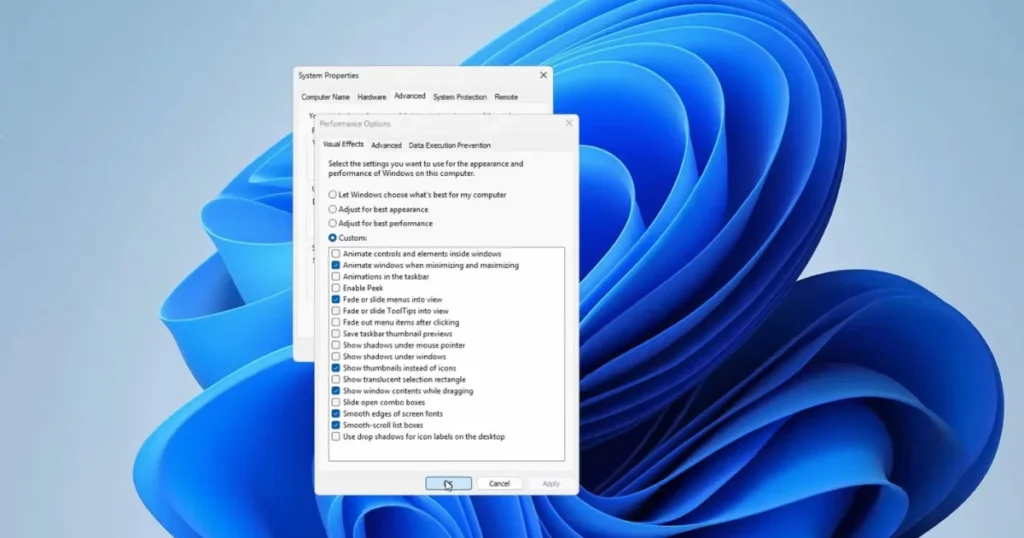
2. Disable Visual Effects – Instantly Boost Speed
Windows 11 looks very sleek – with its animations, shadows, and transparency – but all of these elements place a load on the GPU and CPU.
Windows 11 incorporates animations, shadows, and transparency effects that, while visually appealing, consume system resources. These visual effects can slow down performance, particularly on low-end and mid-range devices.
Windows 11’s glass-like aesthetic does not come without a cost. While modern GPUs can handle these effects with ease, they can still introduce micro-latencies that make the OS feel less responsive. Windows 11 utilizes two specific materials – Mica and Acrylic – which require the GPU to constantly re-render and apply blur effects.
How to Disable:
- Go to Settings > Personalization > Colors and turn off Transparency effects.
- Go to Settings > Accessibility > Visual effects and disable both Transparency effects and Animation effects.
- Type “Adjust the appearance and performance of Windows” in the Start menu and open it. In the Visual Effects tab, select “Adjust for best performance.”
When you disable visual effects, the system responds more quickly, apps open faster, and navigation feels smoother.
3. Control Startup Apps – Reduce Boot Time
This is the most basic but most effective tweak to the hidden settings of Windows 11.
Many apps start as soon as the PC boots, which increases startup time and consumes background memory.
How to manage:
- Open Task Manager by pressing Ctrl + Shift + Esc.
- Go to the Startup tab.
- Disable any apps that are not essential. Pay special attention to apps with a “High” startup impact.
Reducing the number of startup apps speeds up the PC’s boot time, and minimizing background processes improves system performance. These changes are clearly noticeable in everyday usage.
4. Enable Hardware-Accelerated GPU Scheduling
This is a hidden setting that can prove to be a game-changer for gamers and content creators.
Typically, the CPU sends graphics data to the GPU for rendering – these commands are processed one by one. With the Hardware-Accelerated GPU Scheduling feature, the GPU’s scheduling processor and VRAM handle this task themselves, rendering frames in batches. This reduces the load on the CPU, improves latency, and makes the PC run faster.
How to Enable:
- Open Settings by pressing Windows + i. Go to System > Display > Graphics. Select “Graphics” under “Related Settings.” Click on “Advanced Graphics Settings” and toggle on “Hardware-Accelerated GPU Scheduling.”
- Afterward, close the Settings app and restart your PC.
Please note:
- This setting will only appear if your graphics card supports it and supports WDDM 2.7 or higher.
- If you encounter any issues after enabling it, turn it back off.
5. Set Power Mode to “Best Performance.”
This is the easiest Windows 11 speed optimization trick that very few people know about.
By default, your PC is set to “Balanced” mode; while this offers good performance without excessive heat or battery drain, the “balanced” approach doesn’t deliver the full performance potential.
How to change it:
- Go to Settings > System > Power & Battery. Under Power Mode, select the “Best Performance” option.
- Selecting High-Performance Mode allows the CPU to operate at an optimal level, applications respond faster, and demanding tasks run smoothly.
6. Restrict Background Apps
Many apps continue to run in the background, consuming RAM, CPU, and battery resources. Controlling them is a crucial part of Windows 11’s hidden settings – one that most users tend to overlook.
How to do it:
- Go to Settings > Apps > Installed Apps. Set the background permission for each app to “Never” (unless necessary).
- Limiting background activity frees up resources, resulting in faster performance and improved battery life.
7. Turn on Storage Sense – Automatic Cleanup
When an SSD or hard drive fills up, the system begins to slow down. Storage Sense automatically resolves this issue.
Go to Settings > System > Storage > Storage Sense. Here, enable both “Cleanup of temporary files” and “Automatic User content cleanup.” Under the cleanup schedule, set “Run Storage Sense” to “During low free disk space.”
What this does:
- Automatically deletes old temporary files
- Empties the Recycle Bin on a schedule
- Removes old files from the Downloads folder
- Frees up space on the SSD to ensure the system runs smoothly
8. Turn Off Windows Tips and Notifications
Windows 11 constantly monitors your activity and provides tips about the OS. This monitoring can slow down your PC. It is best to turn it off.
How to Turn It Off:
- Go to Settings > System > Notifications.
- Turn off “Get tips and suggestions when using Windows.”
- Also, disable “Suggest ways to get the most out of Windows.”
This small change stops unnecessary processes from running in the background.
9. VBS / Core Isolation – Especially for Gamers
If you use your PC for gaming, there is a hidden Windows 11 setting that can make a real difference to your FPS.
Search for “Core Isolation” in Settings and turn off “Memory Integrity.” This disables VBS, which can lead to significant improvements in gaming performance and other demanding tasks. However, the trade-off here is that you are exchanging a layer of security for raw speed – a decision that many power users happily make.
Please note: This setting reduces security. If you engage in online banking or handle sensitive tasks, make this decision carefully.
10. Turn on “Optimizations for windowed games.”
This setting forces DirectX 10 and 11 games to utilize the modern flip model presentation. This allows the game to bypass the Desktop Window Manager buffer and flip its frames directly to the screen. As a result, you experience low-latency performance – comparable to full-screen mode – even while playing in a window.
Additionally, this toggle unlocks high-end display features such as Auto HDR and Variable Refresh Rate, which were previously limited to full-screen mode.
How to do it: Go to Settings > System > Display > Graphics and turn on “Optimizations for windowed games.”
11. Low Latency Profile – Windows 11’s New CPU Boost (2026)
This is a brand-new feature introduced in 2026.
Microsoft has released the Windows 11 KB5089573 (Build 26200.8524) optional update, which includes a significant performance upgrade. While the company describes it as a “[General Performance]” improvement, it is actually a feature called “Low Latency Profile” that speeds up app launches and core shell experiences – such as the Start Menu, Search, and Action Center.
Opening the Start Menu feels less choppy than before. The Action Center appears smoothly on the screen, and the rendering lag for right-click context menus has been significantly reduced.
How to enable it:
- Go to Settings > Windows Update > Advanced options > Optional updates to install the May 2026 update.
- If the feature does not activate automatically, you can manually force it on using a third-party utility called ViveTool.
12. Task Manager’s Efficiency Mode – Smart Resource Management
Efficiency Mode can speed up your PC and improve laptop battery life. It lowers the process priority of background applications.
How to use:
- Open Task Manager and click on the Processes icon. A list of running apps and processes will appear. Click on the app or process you want to put into Efficiency Mode, click the Efficiency Mode icon in the top right corner, and confirm.
This is especially useful for apps that consume a lot of CPU in the background – such as multiple Chrome tabs.
13. Optimize SysMain (Superfetch) and Windows Search
These are two services that can consume excessive resources on systems equipped with an SSD.
- Disabling SysMain (Superfetch) prevents unnecessary read-ahead caching on the SSD, which generates needless disk IOPS.
- Set Windows Search to Manual and index only essential folders, such as Documents – this improves search speed.
How to do:
- Press Win + R > Type services.msc > Press Enter
- Find SysMain > Right-click > Properties > Set Startup Type to “Disabled.”
- Do the same for Windows Search, or set it to “Manual.”
14. Disable Connected User Experiences and Telemetry
Disabling the “Connected User Experiences and Telemetry” service can save 100–300MB of network traffic daily.
This service continuously sends your usage data to Microsoft, placing a burden on both your internet speed and system resources.
How to disable it:
- Go to services.msc
- Search for “Connected User Experiences and Telemetry”
- Set the Startup Type to “Disabled”
15. Registry Priority Tweak – Boost Foreground Tasks
This is slightly advanced, but highly effective.
By navigating to HKEY_LOCAL_MACHINE\SYSTEM\CurrentControlSet\Control\PriorityControl in the Registry and setting the value of Win32PrioritySeparation to 26 (hex), you can boost foreground tasks.
Note: Always create a backup before making any changes to the Registry to avoid potential misconfigurations.
16. Disk Defragmentation and SSD Optimization
Optimizing your hard drive can improve PC performance. Go to Start, type “Defragment and Optimize Drives,” and open it.
- For HDD Users: Use the Defragment option.
- For SSD Users: Defragmentation is not recommended, as it can reduce the lifespan of the SSD. Click the Optimize button on the SSD, which executes the TRIM command.
Free Tools to Help Optimize Windows 11
If you would like to use some tools in addition to manual settings, here are some reliable and free options:
| Tool | Special feature | Price |
|---|---|---|
| Microsoft PC Manager | The safest starting point, as it was created by Microsoft itself. Cleanup, startup control, and basic security checks are all available within a single interface. | Free |
| CCleaner Free | It has been around for decades and removes “junk” that other tools miss. The 2026 updates focus on privacy protection and browser optimization. | Free (Pro: $29.95/yr) |
| Razer Cortex | The best free optimization software for gamers. It automatically suspends background processes when launching a game. | Free |
| Glary Utilities Free | Duplicate File Finder, Memory Optimization, and Disk Management | Free |
Visit fixtech.in for Windows 11 performance tweaks and troubleshooting guides – here, you will find step-by-step tutorials in Hindi.
Bonus Tip: Game Mode and Windowed Game Optimization
If you play games, be sure to check these two settings:
- Settings > Gaming > Game Mode – Keep it On (this reduces background activity while gaming)
- Settings > System > Display > Graphics > Optimizations for windowed games – Turn it On
This significantly reduces input lag, especially when multitasking while gaming.
Who will benefit the most from these settings?
These tweaks are particularly useful for hybrid work setups, gamers, and professionals who run multiple applications simultaneously.
- Budget Laptop Users (₹30,000–₹50,000 Range) – Disable Visual Effects, Reduce Startup Apps
- Gamers – Ultimate Performance, VBS Off, GPU Scheduling On
- Office/WFH Users – Disable Background Apps, Turn on Storage Sense
- Users with Older PCs – Disable SysMain, Turn off Telemetry
FAQs – About Hidden Windows 11 Settings
Q1: Are these hidden Windows 11 settings safe?
Yes, these settings utilize Windows’ built-in tools, PowerShell commands, and Registry edits. They do not alter hardware or violate standard warranty terms. Settings like “Ultimate Performance” and “GPU Scheduling” are fully supported by Microsoft.
Q2: Will these settings work on laptops, too?
Absolutely. Just keep in mind that enabling “Ultimate Performance Mode” and disabling VBS will result in faster battery drain. It is best to use “Best Performance” mode when the laptop is plugged in and “Balanced” mode when running on battery.
Q3: Will this make a difference on older PCs?
Whether you are optimizing a high-end laptop or breathing new life into an older desktop, these tweaks allow Windows to operate at its full potential.
Q4: Does Hardware-Accelerated GPU Scheduling work on all GPUs?
This feature improves GPU scheduling efficiency, but it requires a GPU that supports hardware acceleration and a graphics driver compatible with WDDM 2.7 or higher.
Q5: Do free optimizer tools actually work?
Microsoft PC Manager is the safest and most reliable free optimization tool available. Since Microsoft develops it, it integrates seamlessly with both Windows 11 and Windows 10 without compromising system stability.
Q6: How often should I perform optimization?
For most users, running a cleanup tool once a month is sufficient. Excessive daily cleaning (especially of the Registry) is unnecessary and can sometimes lead to issues.
Final Thoughts
Sometimes, the best PC upgrade isn’t new hardware. Properly configuring Windows 11’s hidden settings is enough to make your system fast again. From storage cleanup to GPU offloading, these adjustments unlock performance that makes the PC feel almost brand new, while also extending the lifespan of your SSD, CPU, and RAM.
So, the next time your PC feels sluggish, try these hidden Windows 11 settings first – you’ll notice the difference yourself!
Keep visiting fixtech.in for more Windows tips and troubleshooting guides.