
You press the Start button and type an app’s name – but the search bar just gives you a blank stare. You see “No results found,” or you type “Chrome” and, instead of the app, get a random web result. Apps not showing up in Windows 11 search is a very common and, honestly, very frustrating issue. In India, Windows Search has become a critical feature for everything from office work and college assignments to daily computing tasks; when it fails, productivity grinds to a halt.
The good news is that, in most cases, this is a software-level issue that you can fix yourself. In this troubleshooting guide, we’ll cover seven proven fixes, ranging from simple solutions to more advanced ones.
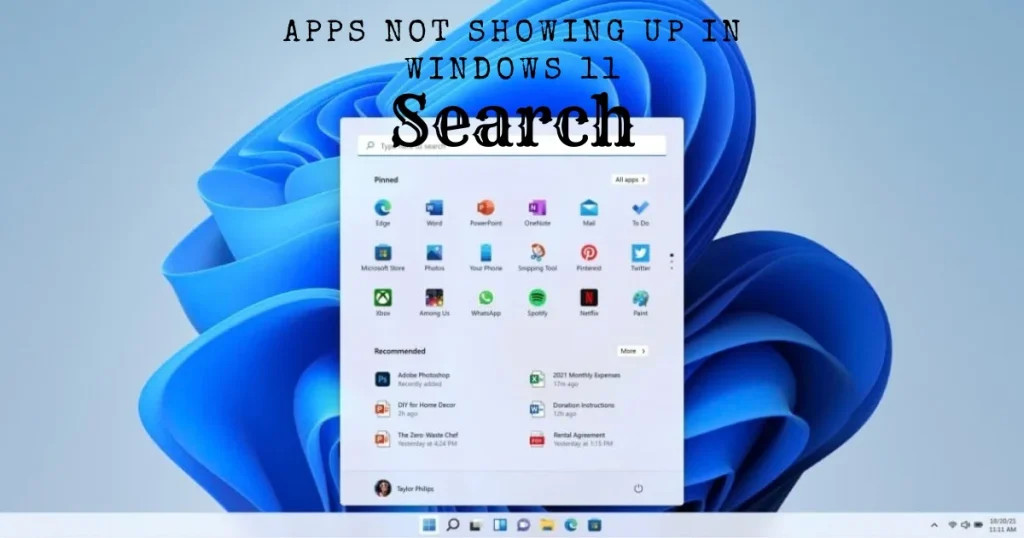
Why Does Windows 11 Search Fail? – The Real Reasons
Before moving on to the solutions, let’s understand the reasons why apps might not show up in Windows 11 search:
- Windows Search Indexing became corrupted – The search index is the database where all files and apps are listed; if it becomes corrupted, search returns blank results.
- Search service crashed – Windows Search is a background service; if it stops running, the search function fails to work.
- Bug following a Windows Update – Many users have reported that search breaks after specific Windows 11 updates.
- Cortana or the Search process hung/froze.
- Damaged system files – Files that affect search functionality.
- Group Policy or Registry conflict – Particularly on company-managed PCs.
A fix for each of these is provided below.
Fix 1: Restart the Windows Search Service – The First Step
When apps aren’t showing up in Windows 11 search, the first thing to do is restart the Search service. This takes just two minutes and often resolves the issue.
Method A – Via Task Manager:
- Open Task Manager by pressing Ctrl + Shift + Esc
- Go to the Details tab
- Find SearchHost.exe in the list
- Right-click on it → click End task
- Confirm – this process will restart automatically
- Try using Search after 30 seconds
Method B – From Services:
- Press Win + R → Type
services.msc→ Press Enter - Find “Windows Search” in the list
- Right-click → Click “Restart”
- If the service is stopped, click “Start”
Check the startup type:
- Double-click the Windows Search service.
- The Startup type should be set to Automatic (Delayed Start).
- If it is set to Disabled, change it to Automatic → Apply → OK.
Fix 2: Run the Windows Search Troubleshooter
Microsoft has included built-in troubleshooters in Windows 11 that automatically detect and fix common problems.
Steps:
- Open Settings (Win + I)
- Go to System > Troubleshoot
- Click on ‘Other troubleshooters’
- Find ‘Search and Indexing’ in the list
- Click the ‘Run’ button
- The troubleshooter will scan for problems – if any are found, it will offer an option to apply a fix
Run directly from PowerShell:
msdt.exe -id SearchDiagnosticThis troubleshooter automatically fixes these problems:
- Search service is not running
- Search results are not appearing
- Items are not being indexed
Fix 3: Rebuild the Search Index – The Most Effective Fix
A corrupt or incomplete search index is the most common and frustrating reason for apps not appearing in Windows 11 search. Rebuilding the index resolves the problem in most cases.
Steps to Rebuild the Index:
- Search for “Indexing Options” in the Start menu and open it.
- Click the “Advanced” button at the bottom of the window.
- Click the “Rebuild” button in the “Troubleshooting” section.
- A warning will appear – click “OK”.
- The index rebuild will begin.
Note: Rebuilding the index can take anywhere from 30 minutes to several hours, depending on the quantity of your files. Search results may be incomplete during this process; this is normal.
The process runs in the background – you can continue working normally.
Check the Index Status:
You can see “Indexing complete” or the progress at the top of the Indexing Options window itself.
Fix 4: Reinstall Windows Search (PowerShell Fix)
This fix is for users whose Search is completely blank – nothing appears, and no apps are found. In Windows 11, Search can be reset and reinstalled using PowerShell.
Steps:
- Find PowerShell in the Start menu
- Right-click → Run as administrator
- Run this command:
Get-AppXPackage -AllUsers | Where-Object {$_.Name -Like "*Windows.Search*"} | ForEach-Object {Add-AppxPackage -DisableDevelopmentMode -Register "$($_.InstallLocation)\AppXManifest.xml"}- Press Enter and let the process complete.
- Restart the PC.
Alternative – Cortana Reset:
If Cortana is affecting search:
Get-AppxPackage -allusers Microsoft.549981C3F5F10 | Remove-AppxPackage(This removes Cortana – Search starts working independently)
Fix 5: Check Windows Search Index Location and Permissions
Sometimes, the indexing location changes, or permission issues arise.
Check the Index Location:
- Open Indexing Options → Advanced
- Check the ‘Index location’ section – the default is C:\ProgramData\Microsoft\Search\Data
- If the location has been changed or there is an error, restore the default location using ‘Select New’
- Click OK, and the index will be rebuilt
Permissions Fix (Advanced Users):
- Win + R → Type
%ProgramData%\Microsoft\Search - Right-click the ‘Data’ folder → Properties > Security
- The ‘SYSTEM’ user must have ‘Full Control’
- If not, select Edit > Add > Add ‘SYSTEM’ > Grant ‘Full Control’
Fix 6: Run System File Checker (SFC) and DISM
Corrupted system files can also be the reason why apps do not appear in Windows 11 search. Microsoft’s built-in repair tools can fix these issues.
Step-by-Step:
Run DISM first:
- Open PowerShell or Command Prompt as Administrator.
- Run this command:
DISM /Online /Cleanup-Image /RestoreHealth- It may take 10–20 minutes – allow it to complete.
Then run SFC:
sfc /scannow- If “Windows Resource Protection found corrupt files and repaired them” – success
- If “could not perform the requested operation” appears, then try in Safe Mode
SFC in Safe Mode:
- Settings > System > Recovery > Advanced startup > Restart
- Troubleshoot > Advanced > Command Prompt >
sfc /scannow
Fix 7: Windows Search Registry Fix and Clean Boot
If none of the above fixes work, check the registry or identify the problem using a clean boot.
Registry Fix:
- Win + R → regedit → Enter
- Go to this path:
HKEY_LOCAL_MACHINE\SOFTWARE\Microsoft\Windows Search - Locate the ‘SetupCompletedSuccessfully’ value.
- If the value is 0, change it to 1 (double-click it and type 1 in the ‘Value data’ field).
- Close the Registry Editor and restart your PC.
Check for third-party conflicts using a Clean Boot:
- Win + R → msconfig → Enter
- Services tab → Check the “Hide all Microsoft services” box ✅
- Click “Disable all”
- Startup tab → Open Task Manager → Disable all startup items
- OK → Restart
- If search works in Clean Boot, it means there was a conflict with third-party software
- Enable services one by one to identify the culprit
Common Culprits:
- Third-party antivirus (conflict with Windows Defender)
- VPN software that restricts network access
- Old Windows 7/8 era software that interferes with indexing service
Bonus Fix: Update Windows 11
Apps not showing up in Windows 11 search – this was a known bug in specific Windows builds, and Microsoft has released patches.
Check for updates:
Settings > Windows Update > Check for updates
Known Search-related patches:
- KB5019157 – Search indexing fix
- KB5020044 – Search results improvement
- 24H2 update – Major Search improvements
If an update is pending, install it, and after restarting, perform a search test.
Don’t want Windows Search? Use this alternative.
If Windows Search keeps causing issues, there is a permanent solution: ‘Everything’ by Voidtools – a free third-party search tool that is completely independent of Windows Search.
Everything Search:
- Reads the NTFS Master File Table directly
- Finds files on a 1-terabyte drive in milliseconds
- Does not depend on the Windows Search index
- Completely free
Download: voidtools.com – Absolutely free.
PowerToys Run is also an option:
- Instant launcher with Alt + Space
- Apps, files, calculator, web search – everything in one place
- Download: github.com/microsoft/PowerToys – free.
Visit fixtech.in for more information on Windows search issues, PC troubleshooting, and productivity tips – you will find step-by-step guides there that solve specific problems.
Improve Search Indexing – Settings You Haven’t Seen Before
Add More Folders to the Index:
By default, Windows only indexes a few folders.
- Open Indexing Options
- Click the Modify button
- Check (✅) the folders you want included in the search
- Downloads, Desktop, and Documents are usually indexed
- Add external drives or custom folders
Enable Enhanced Indexing:
Settings > Privacy & security > Searching in Windows:
- Classic – Limited folders only
- Enhanced – The entire C drive is indexed
Selecting ‘Enhanced mode’ significantly improves search results, though it has a slight impact on the laptop’s battery.
Quick Reference – Which Problem, Which Fix
| Problem | Best Fix |
|---|---|
| The search bar doesn’t open. | Fix 1 – SearchHost.exe restart |
| Apps don’t show up; files do. | Fix 3 – Index Rebuild |
| Search completely blank | Fix 4 – PowerShell reinstall |
| Broken after the update | Fix 7 – Update check |
| A permanent fix | Everything by Voidtools |
| It is not working on the company PC. | Contact the IT admin |
FAQs – Apps not showing up in Windows 11 Search
Q1. Apps aren’t showing up in Windows 11 search – how long will it take to fix?
In most cases, the problem is resolved by either Fix 1 (service restart) or Fix 3 (index rebuild). Restarting the service takes just 2 minutes. Rebuilding the index can take anywhere from 30 minutes to a few hours, depending on the drive size.
Q2. Does rebuilding the index delete files?
Absolutely not. Rebuilding the index simply recreates the search database; your files, documents, and settings remain completely safe.
Q3. Will enabling Enhanced Indexing slow down the laptop?
There will be some CPU and disk usage while the index is being built, but this is temporary. Once the index is created, normal performance is restored; it runs quietly in the background.
Q4. Are Start menu search and File Explorer search different?
The search performed using Ctrl+F in File Explorer does not use the Windows Search index – it is a real-time scan. Start menu search, however, relies on the index. Consequently, it is possible for File Explorer search to work while apps fail to appear in the Start menu search.
Q5. I got a “could not perform the requested operation” error during the SFC scan – what should I do?
Restart your computer in Safe Mode and run the SFC scan from there. Fewer Windows components load in Safe Mode, making the repair process more effective.
Q6. Can I run “Everything Search” and Windows Search simultaneously?
Yes. “Everything” does not replace Windows Search; it runs alongside it. Start menu search will continue to use Windows Search, while “Everything” operates in its own window that can be opened using a hotkey.
Q7. Search still isn’t working after a Clean Boot – what next?
In this case, try resetting Windows: go to Settings > System > Recovery > Reset this PC > Keep my files. This reinstalls Windows while keeping your personal files safe.
Final Thoughts
Not being able to find apps in Windows 11 Search is a common issue, but it is also easily fixable. Try the 7 fixes outlined in this guide in the given order – Fix 1 is the simplest, while Fix 7 is the most advanced. In 90% of cases, Fix 1, 2, or 3 resolves the problem. However, if you want to ditch Windows Search for good, “Everything” by Voidtools is a permanent and far superior alternative that never fails. Bookmark this guide so you have it handy the next time you encounter issues finding apps in Windows 11 Search.