
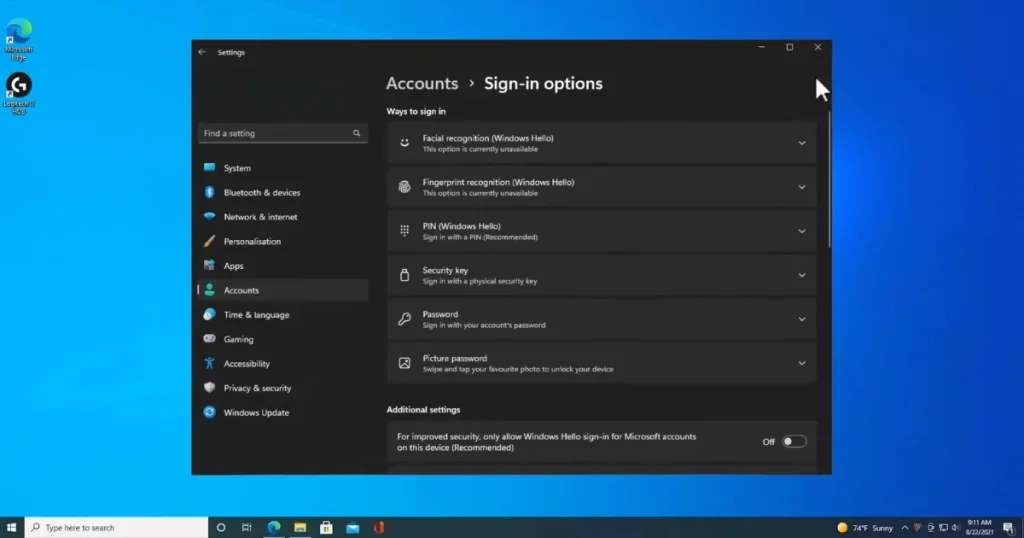
It is a bit of a strange situation: you open Settings, navigate to Sign-in options, and the option that used to be there is simply nowhere to be found. Many users in India – especially those who upgraded from Windows 10 to Windows 11 and previously used this feature regularly – are reporting that they cannot find the “Picture password” option in Windows 11. Where did it go? Did Microsoft remove it? Is it a bug? Or is there another reason? In this article, we will answer all these questions and explain what you can do if you are unable to locate the picture password feature.
What was the Picture Password? – For those who don’t remember
The Picture Password feature was introduced in Windows 8. It allowed you to choose a photo – any personal photo – and draw three gestures on it: circles, straight lines, or taps. This specific combination served as your login password.
Who liked this feature:
- Touchscreen laptop and tablet users – for whom gestures were easier than typing
- People who struggled to remember traditional passwords
- Home users seeking a quick and casual login experience
- Laptops for kids and family-shared PCs
The idea for the feature was creative: you’d circle the baby’s face in a family photo, draw a line, and then tap a corner – that was the unlock sequence. It was visually memorable and hard to guess.
Can’t find the Picture Password feature in Windows 11? What is the real reason?
If you cannot find the Picture Password feature in Windows 11, there could be several reasons for this. Let’s look at them one by one:
Reason 1: Microsoft has officially deprecated the Picture Password feature.
This is the primary and most straightforward reason. Microsoft has decided to gradually phase out the Picture Password feature in Windows 11.
Picture Password is listed on Microsoft’s official deprecation list. The company believes that:
- Windows Hello (biometric – face or fingerprint) is more secure.
- A PIN is simple and equally convenient.
- Picture passwords were relatively easy to compromise via brute-force attacks or shoulder surfing.
- Under modern security standards, gesture-based authentication falls into the “weak” category.
That is why, in later builds of Windows 11 – especially 23H2 and 24H2 – this option either does not appear in Settings or is very restricted.
Reason 2: The option is hidden when logged in with a Microsoft Account
Here is another practical observation. If you are logged into Windows 11 using a Microsoft Account, the ‘Picture Password’ option will not appear in Settings – Microsoft has deliberately implemented this policy.
- With Microsoft Account: Picture Password unavailable
- With Local Account: Picture Password available (in some builds)
The logic behind this is that Microsoft Accounts adhere to online security standards where gesture-based authentication is not acceptable.
Reason 3: Blocked by Group Policy
IT administrators often disable the Picture Password feature via Group Policy on managed PCs in corporate or educational institutions. If you are using an office laptop, this is the likely reason.
Reason 4: The Windows 11 Build is Very Recent
The Settings UI entry for Picture Password has been officially removed in Windows 11 version 24H2. It has now become a legacy feature. If you have recently updated to version 24H2, this is the reason.
How to check why the picture password is missing?
Check your account type:
- Win + I → Settings → Accounts → Your info
- Check: Microsoft Account or Local Account
If you have a Microsoft account and want a picture password:
- Switch to a local account (we will explain the steps later).
Check Windows Build:
- Win + R →
winver→ Enter - View build number:
- 22621.x (22H2) – It could be a picture password.
- 22631.x (23H2) – Partial support
- 26100.x (24H2) – Mostly removed
Check Group Policy (Pro/Enterprise):
- Win + R → gpedit.msc → Enter
- Navigate to: Computer Configuration > Administrative Templates > System > Logon
- Check “Turn off picture password sign-in” policy
- If Enabled – This is what is blocking it
Attempting to enable Picture Password – If you still want to
There are a few methods you can try to bring back Picture Password on certain Windows builds:
Method 1: Switch to a Local Account
If you cannot find the Picture Password option in Windows 11 due to your Microsoft Account, try using a Local Account:
- Settings (Win + I) → Accounts → Your info
- Click on “Sign in with a local account instead”
- Follow the process; the PC will restart
- Now go to Settings → Accounts → Sign-in options
- Check if the Picture password option has appeared
Note: Switching to a local account means Microsoft services (OneDrive, Microsoft Store purchases) will not sync. It is a trade-off.
Method 2: Enable via Group Policy (Pro/Enterprise)
If it has been disabled via Group Policy:
- Open gpedit.msc
- Path: Computer Configuration > Administrative Templates > System > Logon
- Double-click on “Turn off picture password sign-in”
- Select Not Configured or Disabled
- Apply → OK
- restart pc
Method 3: Registry Edit (For Home Users)
Group Policy Editor is not available in the Home edition. Make the same change via the Registry:
- Win + R → regedit → Enter
- Navigate to:
HKEY_LOCAL_MACHINE\SOFTWARE\Policies\Microsoft\Windows\System - Locate the BlockDomainPicturePassword value.
- If the value is 1, change it to 0.
- If the value does not exist, the Picture Password is missing for some other reason.
Important: Take a backup before editing the registry. Win + R → regedit → File → Export.
Method 4: Feature present in older builds – but not anymore
If you have updated to Windows 11 24H2 and the Picture Password feature – which was previously available – is now missing, this is expected behavior. Microsoft has removed it from the UI.
In this case, it is not possible to restore the feature without downgrading Windows, which is not recommended.
The Security Reality of Picture Password – Why Did Microsoft Remove It?
It is important to know this so you can choose a suitable alternative.
Weaknesses of Picture Password:
- Smudge Attack – Fingerprint smudges remain on the touchscreen after performing a gesture. Someone could guess the pattern by looking at the screen.
- Shoulder Surfing – Another person can see where you are making the gesture.
- Limited Combinations – The correct pattern can be discovered via brute force from the limited combinations of three gestures.
- No Biometric Verification – Unlike a face or fingerprint, this is not biologically unique.
Why Windows Hello is better:
- Face recognition uses an infrared camera – it cannot be bypassed using a photo.
- Fingerprint security operates at the hardware level.
- The PIN is stored in the TPM chip – a brute-force attack is practically impossible.
Microsoft’s decision is technically sound, even though it was a convenient feature.
Best Alternatives – What to use instead of Picture Password?
If you cannot find the Picture Password option in Windows 11, choose from these alternatives based on your needs:
Alternative 1: Windows Hello Face (Best for Touchscreen Laptops)
If your laptop has an infrared camera:
- Settings → Accounts → Sign-in options
- Face recognition (Windows Hello) → Set up
- Look at the camera; setup complete
- Now, sit in front of it – the PC will unlock
This is more convenient than a Picture Password – you don’t even have to make a gesture.
Check if the camera is compatible:
- msinfo32 → Components → Camera
- “IR Camera” or “Windows Hello Camera” is listed
Alternative 2: Windows Hello Fingerprint
If there is a fingerprint sensor (found in most modern Indian laptops):
- Settings → Sign-in options → Fingerprint recognition
- Scan your finger during setup (multiple angles)
- Done – log in using your fingerprint
Fingerprint sensors are standard on mid-range and premium laptops from HP, Dell, and Lenovo in India.
Alternative 3: Short PIN (Most Convenient)
Why is a PIN better than a password?
- The PIN is device-specific – even if the PIN is compromised, it will not work on another device.
- A password travels over the internet; a PIN does not.
- It is stored in the TPM chip.
Set up:
- Settings → Sign-in options → PIN (Windows Hello)
- Verify your old password
- Set a 4-6 digit PIN
Alternative 4: Dynamic Lock (Unique Option)
This feature is not a replacement for Picture Password, but it is an interesting alternative:
- Pair your phone with your PC via Bluetooth.
- When you move away from the PC (with your phone), Windows will automatically lock.
Setup:
Settings → Accounts → Sign-in options → Dynamic lock → Pair Phone
It is convenient for a touchscreen tablet or a shared home PC.
India-Specific Context – What matters to users here?
Laptops in Educational Institutions:
For CBSE and state boards, as well as coaching institutes that provide shared laptops to students, the Picture Password used to be convenient. Now, the Windows Hello PIN is a more practical alternative.
Budget Laptops without IR Cameras:
In India, IR cameras are rare in laptops within the ₹20,000–₹35,000 price range. Windows Hello Face will not work on these devices; a PIN or fingerprint scanner are the best option.
Senior Citizens and Less Tech-Savvy Users:
In many Indian families, older adults used to rely on Picture Passwords because performing gestures on a photo felt intuitive. For them, a PIN is the best option – it is simple and easy to remember.
Privacy Concerns:
Some Indian users are uncomfortable with face recognition technology. For them, a fingerprint or PIN serves as a safe alternative.
Quick Fix Table – A solution tailored to your situation.
| Problem | Reason | Solution |
|---|---|---|
| It does not appear on the Microsoft Account. | Microsoft policy | Switch Local Account |
| Disappeared after the 24H2 update | Feature deprecated | Use a PIN or Windows Hello. |
| Not on a corporate laptop | IT Group Policy | Make a request to the IT admin. |
| Home edition, no Group Policy | Windows Home | Registry edit or PIN |
| It used to be on the touchscreen; now it isn’t. | Build update | Try Windows Hello Face. |
Free Tools and Resources
Microsoft PC Health Check (Free):
Checks your PC’s Windows Hello compatibility.
- Built-in to Windows 11 or downloaded from the Microsoft website.
Windows Security App (Built-in, Free):
The central hub of sign-in security status and Windows Hello setup.
- Start → Windows Security → Account protection
NTLite (Advanced Users – Free tier available):
To create a custom Windows image – if you want a specific build.
- Website: ntlite.com – Free tier available; Personal $19.99
You will find detailed guides on Windows 11 sign-in options, security features, and troubleshooting on fixtech.in – complete with step-by-step tutorials.
FAQs – Windows 11 Picture Password missing
Q1. I can’t find the Picture Password option in Windows 11 – is it a bug?
No, it is not a bug. Microsoft has intentionally deprecated the Picture Password feature in Windows 11. This is a planned removal, not an error. It has been officially removed from the Settings UI in Windows 11 version 24H2.
Q2. Will Picture Password ever return?
Unlikely. Microsoft is focusing on Windows Hello (biometrics), PINs, and Passkeys. Picture Password is officially on a path to deprecation.
Q3. What happens if I switch to a Local Account?
Microsoft services such as OneDrive sync, Microsoft Store apps, and cross-device settings synchronization will stop working. However, your local files, programs, and settings will remain intact.
Q4. My laptop doesn’t have a fingerprint sensor or an IR camera – what should I do?
A PIN is the best option. Set a memorable 4-6 digit PIN. It is cryptographically secure and device-specific. You can also add Dynamic Lock (using your Bluetooth phone) alongside it.
Q5. Is a PIN less secure than a password?
No – in fact, it is more secure in some ways. A PIN is device-specific and stored within the TPM chip. A password can be transmitted over the internet, whereas a PIN cannot. Brute-forcing a PIN is practically impossible.
Q6. Windows 10 had Picture Password but Windows 11 doesn’t – should I downgrade?
It is not recommended. Mainstream support for Windows 10 is ending. Adapting to a PIN or fingerprint login is a better long-term decision.
Q7. I need Picture Password on a company-managed PC – can the IT admin enable it?
Technically, yes – via Group Policy. However, most IT admins will not enable it due to security reasons. Requesting the use of a PIN would be more productive.
Final Thoughts
Not finding the Picture Password feature in Windows 11 can be frustrating, especially if you were accustomed to using it. However, honestly, Windows Hello and PINs are more secure and viable options for the long term. Microsoft’s decision is technically justified, even if users didn’t appreciate the sudden change. If you use a Microsoft Account, a PIN is your best bet. If you have a fingerprint scanner or an IR camera, set up Windows Hello; once configured, you will find it even more convenient than the Picture Password. The unavailability of the Picture Password in Windows 11 may feel like a door closing, but it opens the way to several better options.