
Having your desktop files disappear after disabling OneDrive backup is an issue that strikes without any warning. You might have thought you were simply turning off a setting, but upon looking at your screen, you find your desktop completely empty – no old files, no shortcuts, nothing. The result of hours of hard work vanishes in an instant. This problem is quite common in Windows 11, especially for those configuring OneDrive manually for the first time. Don’t panic, though; in most cases, the files haven’t actually been deleted – they have simply been moved to a different location.
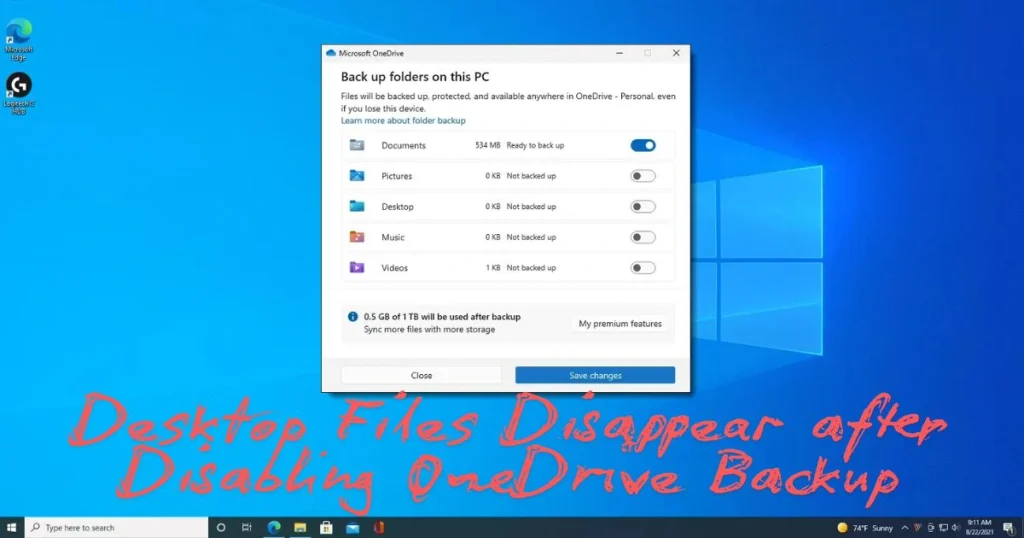
Difference Between Local Desktop and OneDrive Desktop
This entire confusion stems from the existence of two separate Desktop folders – something that Windows never clearly explains.
When you enable the backup for the Desktop folder in OneDrive, Windows changes the actual location of your Desktop:
- Before backup is enabled: The Desktop is located here –
C:\Users\YourName\Desktop - Once backup is enabled, the Desktop moves here –
C:\Users\YourName\OneDrive\Desktop
When you later disabled OneDrive backup, Windows did not automatically revert the Desktop location to the local path. The files remained inside the OneDrive\Desktop folder. As a result, the Desktop appeared empty – but the files hadn’t disappeared; the path had simply changed.
This is a design limitation in Windows, not a bug – yet it is neither clearly explained nor is any warning provided.
The dialog box that most people ignore when stopping OneDrive backup
When you go to OneDrive → Settings → Sync and backup → Manage backup and turn off the backup for your Desktop, a dialog box appears that offers two options:
- “Keep files in OneDrive only” – files will remain in the cloud and will not be stored on your local desktop.
- “Download files from OneDrive” – files will be downloaded to your local storage.
Many people, in their haste, select the first option or click “OK” without reading the dialog box. This single action can result in an empty desktop.
Another scenario arises if you unlink or disconnect your OneDrive account without first downloading your files; if any files were set to “online-only” (indicated by a cloud icon), they did not exist locally on your device to begin with. Consequently, they simply disappear from your local storage.
Step-by-Step: First, determine where the files have gone
Before starting the recovery process, confirm the current status of your files:
Step 1 – Check the OneDrive\Desktop folder locally
Open File Explorer, type the following into the address bar, and press Enter:
%UserProfile%\OneDrive\DesktopIf your files appear here – that’s great; the files are safe!
Step 2 – Check online in the OneDrive cloud
Open onedrive.live.com in your browser, log in, and go to the Desktop folder. If the files are visible there, it means they are in the cloud and simply need to be downloaded.
Step 3 – Check the OneDrive Recycle Bin
If it seems that files have been deleted by mistake:
- onedrive.live.com Go to
- Click on Recycle Bin in the left sidebar.
- Personal account: Files remain here for up to 30 days.
- Work/School account: Files remain available for up to 93 days.
Recovery Checklist – 11 Essential Steps to Follow in Order
The disappearance of desktop files after disabling OneDrive backup is a systematic issue; therefore, please follow each step carefully; do not skip any of them:
- 1.
%UserProfile%\OneDrive\DesktopPath locally: open and view the files - 2. onedrive.live.com → Check the Desktop folder in the cloud.
- 3. View the OneDrive web Recycle Bin (30-day or 93-day window)
- 4. In File Explorer, expand OneDrive in the left sidebar and locate the Desktop subfolder.
- 5. Also check the local Windows Recycle Bin (the dustbin icon on the desktop).
- 6. Open the C:\Users\YourName\Desktop path directly in File Explorer.
- 7. Everything Search (voidtools.com): Search for the filename across the entire PC
- 8. Download online-only files first (right-click → “Always keep on this device”)
- 9. Copy the files – do not move them – and paste them onto the local desktop.
- 10. Verify that files open correctly on the local desktop.
- 11. Only after everything is confirmed should you manage the cloud copy or reset the desktop path.
How to reset the Desktop folder location back to the local path
This is the most important fix. If this isn’t done, the Desktop will continue to point to the wrong path.
Method 1 – Via Folder Properties (the easiest and safest method)
- Open File Explorer.
- Right-click on “Desktop” in the left sidebar.
- Go to Properties → Location tab.
- If the path is C:\Users\YourName\OneDrive\Desktop, you need to change it.
- Click the “Restore Default” button.
- Windows will ask if you want to move the files – select “Yes” so that the files are moved there as well.
Method 2 – Via the Registry (for advanced users only)
⚠️ Be sure to take a backup before editing the registry.
- Press Win + R → type regedit → Enter
- Navigate to this path:
HKEY_CURRENT_USER\Software\Microsoft\Windows\CurrentVersion\Explorer\User Shell Folders - Locate the ‘Desktop’ value.
- Change its data to the following: %USERPROFILE%\Desktop
- Restart your PC – the Desktop will now point to the local path.
“Restore your OneDrive” feature – will it work?
OneDrive includes a feature that allows you to restore your entire OneDrive to a previous date. However, there is an important point to note:
This feature is available only to Microsoft 365 subscribers.
- Microsoft 365 Basic (100GB storage): ~$1.99/month
- Microsoft 365 Personal (1TB + Office apps): ~$9.99/month
If you are on the free 5GB plan, this feature is not available to you. In that case, the manual steps provided above are your only options.
Find Missing Files with Everything Search – The Fastest Method
If you remember the file name – or even just a partial name – Everything Search is the most reliable option.
voidtools.com: Go there and download it for free. A portable version is also available – no installation required.
Why is this tool so useful:
- Windows NTFS file index is read directly.
- Searches across the entire PC are completed in 1–2 seconds.
- Type any part of a filename – such as .xlsx, “project,” or “resume” – and get instant results.
- Completely free, ad-free, and very lightweight.
How to use:
- Open Everything Search
- Type the file name or extension in the search bar.
- If the file is anywhere on the PC, it will appear here
- After seeing the location of the file, go directly to that folder.
What to do with “online-only” files – Move them from cloud to your local device
When files in OneDrive are set to “online-only” (indicated by a cloud icon), they are not stored locally. Consequently, if you disconnect OneDrive, these files will no longer exist on your local device.
Here is how to recover them safely:
- onedrive.live.com: Go to the location
- Open the Desktop folder
- Select all files → Download them – they will arrive as a ZIP file
- Extract the ZIP file
- Copy (do not move) the files to C:\Users\YourName\Desktop
- First, verify that the files open correctly
- Once everything is confirmed, then decide on the cloud copy
Always remember this rule: download first, verify first, and only then deal with the cloud. Moving data in a rush carries the risk of further data loss.
For the future – ensure this problem does not recur.
- Check your Desktop folder location: Periodically (every few months), verify it via Desktop Properties → Location tab.
- Understand OneDrive selective sync: Files in folders that are not selected for syncing will not be uploaded to the cloud.
- Keep your Desktop clutter-free: Create a dedicated local folder (e.g., C:\MyWork) for your critical files.
- Maintain a local backup: Perform a monthly backup to an external drive.
- Before disabling OneDrive: Always select the “Download files” option – do not choose “Keep in OneDrive only.”
For more common Windows 11 issues and practical solutions, visit fixtech.in – you will find detailed troubleshooting guides, written with the specific problems faced by real users in mind.
Free tools that will be useful for this problem
| Tool | Feature | Link |
|---|---|---|
| Everything Search | Instant file search across the entire PC | voidtools.com |
| OneDrive Web | Cloud files and Recycle Bin access | onedrive.live.com |
| Recuva | If the files have been deleted locally | recuva.com |
| WinMerge | Compare the files in two Desktop folders | winmerge.org |
Learn about Recuva: download it for free from recuva.com. It attempts to recover locally deleted files from your hard drive. A portable version is also available. If files were deleted locally and no new data has been written to the drive, there is a good chance that Recuva can recover them.
Learn about WinMerge: winmerge.org – If you have two desktop folders (one local and one in OneDrive) and want to compare their contents to see which files are present and which are missing, WinMerge allows for a side-by-side folder comparison. It is open-source and completely free.
FAQs – Desktop Files Disappear After Disabling OneDrive Backup
Q1. Where do Desktop files go after disabling OneDrive backup?
They remain in C:\Users\YourName\OneDrive\Desktop. Your local Desktop appears empty because the Desktop folder location was pointing to the OneDrive path. You can navigate to that path manually in File Explorer or check the cloud version at onedrive.live.com.
Q2. Have the files been permanently deleted?
In most cases, no. First, check the OneDrive\Desktop folder and the OneDrive web Recycle Bin. If you still cannot find them, try scanning your local drive using a tool like Recuva.
Q3. How long does the OneDrive Recycle Bin keep files?
For personal free accounts, it keeps them for 30 days. For Microsoft 365 work or school accounts, files remain available for up to 93 days.
Q4. What is the “Restore your OneDrive” feature, and is it free?
This feature restores your entire OneDrive to a previous point in time. It is available exclusively to Microsoft 365 subscribers; it is not available to users on the free 5GB plan.
Q5. How can I change the Desktop folder location back to the local path?
In File Explorer, right-click on “Desktop” → select “Properties” → go to the “Location” tab → click the “Restore Default” button. This is the safest and easiest method – no registry editing is required.
Q6. Can you fix the Desktop path without editing the Registry?
Yes. Using the “Restore Default” option within the folder’s “Properties” → “Location” tab fixes it without needing to touch the registry. The registry method is only necessary if the option does not appear in the folder properties.
Q7. What is “Everything Search” used for?
It reads the Windows NTFS file index to perform a search across your entire PC in just 1–2 seconds. You can download it for free from voidtools.com. If a file exists anywhere on your PC, this tool will find it.
Q8. What should have been done before disconnecting OneDrive?
Before disconnecting, you should have gone to OneDrive Settings → “Sync and backup” and set all files to “Always keep on this device” to ensure they were downloaded locally. Only then should you have proceeded to disconnect.
Q9. Recuva didn’t find the files either – what are the options now?
If the files aren’t in the cloud and Recuva didn’t work, try contacting Microsoft Support (support.microsoft.com). Another option is a professional data recovery service, though this can be costly.
Q10. Is it necessary to purchase Microsoft 365 to resolve this issue?
No. All the manual recovery steps mentioned above are free. Microsoft 365 is only required if you need the “Restore your OneDrive” feature or additional storage (100GB or 1TB).
One final Word – don’t panic; just follow the right steps
This situation may seem alarming, but it is not as serious as it appears. In most cases, the disappearance of desktop files after disabling OneDrive backup is simply a matter of path confusion – your files remain safe; their location has merely changed. Follow the 11-point checklist provided above in the correct order: first check the cloud, then download and verify your files, and only then proceed to delete or move anything. Next time you adjust your OneDrive settings, read the dialog box carefully and be sure to select the “Download files” option. With a little bit of caution, you can prevent a situation where desktop files go missing after disabling OneDrive backup.