
Camera Not Working! Hey guys, if your Android phone’s camera isn’t working, you’re not alone who facing this problem. I’ve experienced this problem many times myself – sometimes a black screen, sometimes an app crash, sometimes only the front camera opens, but the back camera refuses to work. This problem can occur on any brand of phone, be it Samsung, Google Pixel, OnePlus, or Redmi. First of all, don’t worry; in most cases, it can be fixed at home. Today, I’m giving you a step-by-step guide based on real user experiences and the latest trends from 2025-26.
Android phone camera not working – most people who search for this question ask why a black screen appears, why apps crash, or why photos won’t save. Let’s start with the root causes and then explain each fix in detail.
Android Phone Camera Not Working – What Are the Common Causes?
First, figure out where the problem is coming from. I’ve found that 70-80% of cases are software-related, while the rest are hardware or minor settings.
- Software glitch or issue after update: Many users reported a camera black screen after the March 2025 Pixel update.
- Cache and data overflow: The camera app’s cache becomes outdated, preventing the app from opening.
- Permission blocked: An app has revoked camera permissions, or the camera tile in Quick Settings is off.
- Storage full: The camera doesn’t work if there’s no space to save photos.
- Overheating or low battery: The camera consumes too much power, and the phone shuts down for safety when it gets hot.
- Conflict with other apps: The default camera app crashes when using the Instagram, Snapchat, or WhatsApp camera.
- Hardware issue: The lens is dirty, the connection is loose due to a drop, or the sensor is damaged.
Now, after knowing all these reasons, you can easily target and fix it.
Beginner Steps: Try These Easy Fixes in 5 Minutes
Most of the time, simple steps can fix your Android phone’s camera not working. I always try these first.
- Restart the phone: Press the power button and select Restart. This refreshes the system and works in 90% of cases. When my Pixel 7a was giving a black screen, a simple restart fixed it.
- Charge the phone and let it cool down: The camera is limited when the battery is below 30%. Charge the phone to 100% and, if it’s hot, leave it in a cool place for 10-15 minutes. Manufacturers turn off the camera to prevent overheating.
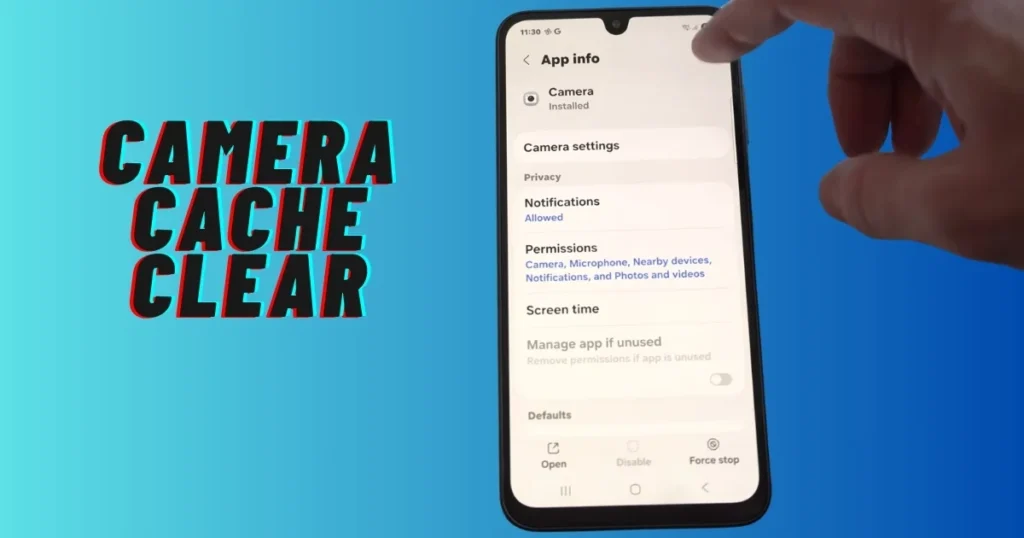
- Force stop the camera app: Settings > Apps > See all apps > Camera > Force Stop. Then open it again. This clears temporary glitches.
- Clear the cache: In the same Camera app, go to Storage & Cache > Clear Cache. If the problem persists, clear data (settings will be reset, but photos will be preserved).
- Check quick settings: Swipe up from the top of the screen and turn on the camera tile. Sometimes it stays off and displays a black screen.
After following these steps, check your camera. If it still doesn’t work, proceed further.
How to fix Camera app settings and permissions
Now let’s talk about permissions. This is often the reason why your Android phone’s camera isn’t working.
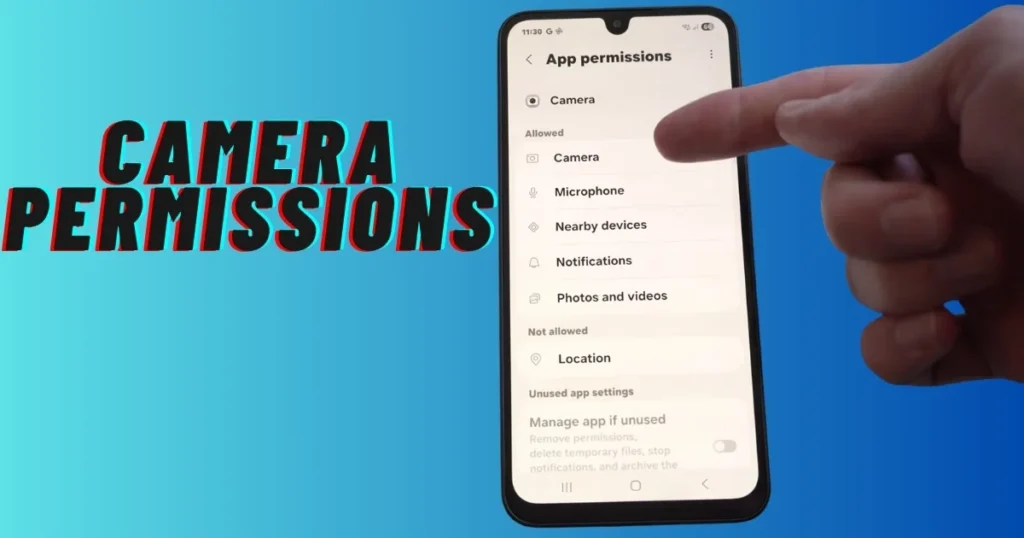
- Settings > Apps > Camera > Permissions > Allow Camera. Also, check the location and the microphone if you want video recording.
- Allow camera permissions for other apps like WhatsApp and Instagram.
- Check in Safe Mode: Long-press the power button, then Restart > Safe Mode. If the camera works in Safe Mode, a third-party app is causing the problem – uninstall it.
Example: My friend’s default camera went black after using the Snapchat camera on his Redmi Note 13. Safe Mode revealed that a Snapchat update was needed.
Resolve software updates and app conflicts
Several updates in 2025-26 fixed camera bugs.
- Go to Settings > System > Check and install System Updates.
- Update the Camera app from the Play Store (if you’re using a different camera app, like GCam).
- Close other apps that use the camera – Clear All from Recent Apps.
Comparison: “Camera Failed” errors are more common on Samsung Galaxy phones, while software issues after updates are more common on Pixel phones. Updates are the biggest fix for both.
Solve storage problems – using free tools
Due to full storage, the camera is unable to save photos.
- Open the Google Files app (free) > Clean > Delete Junk Files.
- Settings > Storage > Empty the Trash.
- Uninstall unused apps.
Free tool suggestion: Download “Files by Google” from the Play Store – it’s free and provides smart cleaning. If you need more cleaning, you can also try the free version of “CCleaner.”
Hardware-related issues and temporary fixes
If it still doesn’t work after trying everything above, check the hardware.
- Clean the camera lens – gently with a microfiber cloth.
- Tap the phone lightly (temporarily only) – sometimes the connection becomes loose.
- Check if a case or screen protector is blocking the camera.
Example: A user put on a new case, and the front camera was blocked – fixed once the case was removed.
If hardware damage is present, professional repair is necessary. Camera module replacement costs $50 to $200 (depending on the model and brand). A Samsung or Pixel service center can easily cost $80-150.
Last resort: Factory reset (carefully)
If all else fails, factory reset.
- Settings > System > Reset options > Erase all data (factory reset).
- Back up first – on Google Drive or PC.
This software completely clears the bugs, but the data is lost.
When to seek professional help and how much it costs
If the problem persists after a reset, go to a service center. It may be free under warranty. External repairs can cost $100-250. I always recommend an official center, as local shops are cheaper but carry a higher risk.
Avoid future camera problems – Prevention Tips
- Install regular updates.
- Clear the cache every 15 days.
- Don’t let your phone overheat – limit your usage in the summer.
- Use a good case and screen protector.
- Keep more than 20% of your storage free.
Know More: If you have other Android phone problems like app crashes or touchscreen issues, be sure to check out FixTech – we have simple and working solutions.
FAQs – Android phone camera not working FAQs
Q1. Why does the Android phone camera display a black screen?
It could be due to permissions, cache, or overheating. Follow the steps above.
Q2. What if only the front camera isn’t working?
Check permissions and try switching cameras.
Q3. What if the camera app keeps crashing?
Clear the cache and update.
Q4. Getting a “Camera Failed” error on your Samsung phone?
Software update first.
Q5. Is a factory reset necessary?
Only as a last resort.
Q6. Problems with the GCam app?
Reinstall GCam or try the stock camera.
Q7. How much will the repair cost?
$50-$200, depending on the model.
Q8. Why is an Android camera fix better than an iPhone?
Android has more customization options.
Q9. Is the camera not working for video recording?
Check microphone permissions.
Q10. What if the problem keeps recurring?
Get your hardware checked.
These FAQs are mostly based on real user questions.
Friends, fixing an Android phone’s camera not working isn’t difficult if you follow the right steps. I’ve explained everything in detail above, so you can solve it at home without visiting a service center. Remember, even small settings can solve big problems. Now go try your camera and click amazing photos!