
Try to delete an important file, and Windows might tell you, “The action can’t be completed because the file is open in another program.” The same error pops up if you try to rename or move it. Task Manager doesn’t help, and even after you close everything, the file still won’t budge. Millions of Windows users in India face File Lock Issues every single day. Fortunately, there are free tools available that can identify exactly which program is using a file – and they can do it in a matter of seconds.
In this article, we provide a detailed guide to the best free Windows tools that can detect locked files, release them, and put you back in control of your files.
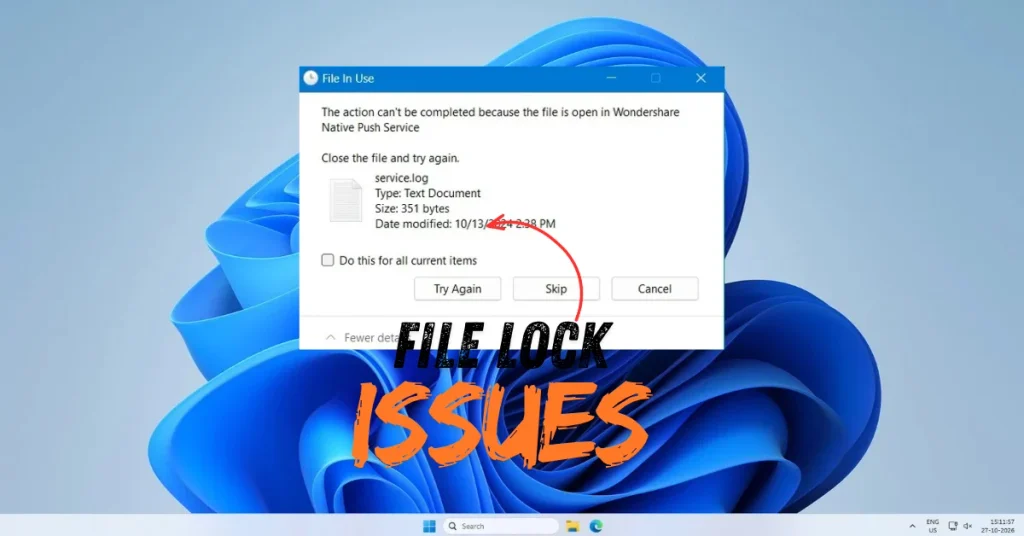
Why does file locking occur? – Let’s understand this first.
In Windows, when a program opens a file, it “locks” it. This means that no other program can delete, rename, or move that file until the first program releases it.
This lock occurs in the following situations:
- Background processes: A program may appear closed but continues to run in the background.
- Antivirus scanning: Antivirus software locks a file while scanning it.
- Windows Explorer: Files are locked when thumbnails or previews are being generated.
- System processes: Certain Windows services maintain a constant hold on specific files.
- Incomplete shutdown: A program may crash without releasing its file handles.
- Adobe, Office apps: Large software applications may keep files open – sometimes even after the application has been closed.
A common scenario in India: an antivirus program has quarantined a file, or an Office document has been locked by Word – even though it doesn’t appear on the taskbar.
Method #1 – Resource Monitor (Windows Built-in) – Without installing anything
Find out which program is using a file on Windows – start by trying the built-in tool provided by Windows.
Step-by-step:
- Press Windows key + R → type “resmon” → press Enter
- Resource Monitor will open
- Go to the CPU tab
- Type the file name into the “Search Handles” box (not the full path, just the file name)
- The processes using that file will appear below in the “Associated Handles” section
How to kill that process:
- Right-click on the process
- Select “End Process”
- Now try to delete/move/rename the file
Limitations:
- Not every file lock is visible here.
- Finding deep system processes can be difficult.
- The interface feels a bit technical.
Still, this is the safest first step because it doesn’t require installing any third-party software.
Method #2 – Process Explorer (Free, a Microsoft tool) – The most reliable option
Process Explorer is a tool from Microsoft Sysinternals – meaning it was created by Microsoft itself; it is completely trusted and free to use.
- Download: learn.microsoft.com/sysinternals/downloads/process-explorer
- Size: 5MB
- Price: Completely free – $0
- Portable: Yes, do not install – run it directly.
Why it is the most reliable:
Process Explorer is an advanced version of Task Manager. It includes a feature that resolves file lock issues in a matter of seconds.
Step-by-step:
- Download procexp.exe and run it (with admin rights).
- Go to the menu and select Find > Find Handle or DLL.
- Type the name of the locked file into the search box.
- Click Search.
- The results will show the process that is using the file.
How to release a file:
- In the results, click on the process – it will be highlighted below.
- Right-click on that handle.
- Select “Close Handle” – this will release the file without terminating the process.
- Alternatively, right-click on the process and select “Kill Process” – this will terminate the entire process.
Useful extra features:
- VirusTotal integration: Check suspicious processes directly on VirusTotal
- Process tree view: View processes in a parent-child relationship
- Color coding: Suspicious processes are automatically highlighted in a different color
Best use case in India: If an unknown process has locked a file and you need to determine whether that process is malware or legitimate, Process Explorer can help you find out.
Method #3 – Autoruns (Free, Microsoft Sysinternals) – For Startup Locks
If a file remains locked even after restarting the computer, it means a startup program is using it.
- Download: learn.microsoft.com/sysinternals/downloads/autoruns
- Size: 4MB
- Price: Free – $0
- Portable: Yes
What Autoruns does:
It displays every program that launches automatically when Windows starts. If any of these files are causing a lock, they can be disabled from here.
When to use it:
- Files appear locked after every restart
- Presence of an unknown startup entry that seems suspicious
- Behavior resembling a malware infection, even with an antivirus installed
Method #4 – Unlocker (Free) – One-Click Solution
Unlocker is a dedicated tool that does just one thing – it unlocks locked files. And it does this job exceptionally well.
- Download: emptyloop.com/unlocker or on Softpedia
- Size: 2MB
- Price: Completely free – $0
- Windows version: Windows 7, 8, 10, 11
How Unlocker works:
After installation, it gets added to the Windows Explorer right-click menu.
Step-by-step:
- Right-click on the locked file.
- Click the “Unlocker” option.
- A window will open, showing which process is holding the file.
- You now have the following options:
- Unlock – Release the file while keeping the process running
- Kill Process – Terminate the process
- Unlock All – Remove all locks at once
- After selecting an action, you can also perform Delete, Rename, or Move operations directly from within Unlocker.
Unlocker’s specialty:
- If a file cannot be unlocked immediately, you can schedule it for deletion upon the “next reboot” – the file will be removed automatically once Windows restarts.
- It can handle multiple locked files simultaneously.
⚠️ Important Note: During the download process, you may be offered bundled software (such as a toolbar) – please decline it. It is recommended to choose the clean version from Softpedia.
Method #5 – LockHunter (Free) – A Modern Alternative to Unlocker
Unlocker sometimes causes issues on Windows 11. LockHunter is a modern and more compatible alternative to it.
- Download: lockhunter.com
- Size: 3MB
- Price: Completely free – $0
- Windows 11 compatible: ✅ Yes
Features:
- Shell integration: Appears directly in the right-click menu.
- What’s locking the file: Clearly displays the process name, PID, and file path.
- Kill process: Terminate a process with a single click.
- Unlock and Delete: Deletes the file immediately upon unlocking it.
- Scheduled delete: Schedule the file for deletion upon the next reboot.
- Safe: Although not digitally signed by Microsoft, it is widely trusted.
LockHunter vs Unlocker:
| Feature | LockHunter | Unlocker |
|---|---|---|
| Windows 11 | ✅ | ⚠️ Limited |
| Right-click menu | ✅ | ✅ |
| Scheduled delete | ✅ | ✅ |
| 64-bit support | ✅ | ✅ |
| Last update | Recent | Older |
| Price | Free | Free |
Recommendation for India: If you are using Windows 11, prefer LockHunter. For Windows 7/8/10, Unlocker is also a good option.
Method #6 – Process Monitor (Free, Sysinternals) – For in-depth investigation
This advanced tool is for those who want to understand exactly when, how, and by whom a file was accessed.
- Download: learn.microsoft.com/sysinternals/downloads/procmon
- Size: 4MB
- Price: Free – $0
- Portable: Yes
What Process Monitor does:
It logs every file system operation, registry change, and network activity in real-time.
To find a locked file:
- Open Process Monitor (with admin rights)
- Go to the Filter > Filter menu
- Path → contains → [name of the locked file] → Add → OK
- Now, only operations related to that file will be displayed
- Identify which process is repeatedly accessing the file
Who is this tool for:
- IT professionals and system administrators
- Developers who are debugging application behavior
- Security researchers who analyze malware
For regular users, Process Explorer or LockHunter are more suitable.
Method #7 – Command Prompt (Built-in) – Technical but Effective
If you do not wish to install any software and the Resource Monitor does not get the job done, you can also use the Command Prompt to determine which program is accessing a file on Windows.
Step-by-step:
- Open Command Prompt in Administrator mode (Right-click > Run as administrator).
- Type this command:
openfiles /query /fo table. This displays all open files and the processes using them. - To find a specific file:
handle.exe [filename](Requires downloading the Sysinternals Handle tool).
From Handle.exe:
- Download: learn.microsoft.com/sysinternals/downloads/handle
- Command: handle.exe “filename.txt” – this will show the exact process
Which Tool to Use in Which Situation – A Quick Guide
| Situation | Best Tool |
|---|---|
| Simple file lock, quick fix | LockHunter |
| Old locked file on Windows 10/7 | Unlocker |
| If a process seems suspicious, a virus check is required. | Process Explorer |
| The file gets locked every time after startup. | Autoruns |
| I need the exact file access logs. | Process Monitor |
| Nothing to install | Resource Monitor (Built-in) |
| I prefer the command line. | Handle.exe |
After Unlocking a File – Delete It the Right Way
Still can’t delete a file even after unlocking it? Try this:
✅ Use Shift+Delete:
This bypasses the Recycle Bin and deletes the file directly – sometimes this works.
✅ Delete it in Safe Mode:
- Windows key + R → msconfig → Boot tab → Check ‘Safe boot’ → Restart
- In Safe Mode, most background processes do not run.
- Delete the file.
- Go back to msconfig, uncheck ‘Safe boot’ → Normal restart
✅ Change ownership:
- Right-click on the file → Properties → Security → Advanced → Owner: Change
- Set your user account as the owner
- Grant ‘Full Control’ permissions
- Now, delete it
✅ Scheduled deletion (using LockHunter/Unlocker):
If the file cannot be unlocked right now, use the “Delete on next reboot” option. The file will be removed automatically once the computer restarts.
Common Scenarios and Their Solutions – India-Specific
Scenario 1: File locked by WhatsApp Desktop
WhatsApp Desktop continues running in the background, which can cause media files to become locked.
→ Right-click the WhatsApp icon in the system tray → Select ‘Quit’ → Then, delete the file.
Scenario 2: File locked by antivirus software
Antivirus programs like Kaspersky, Quick Heal, or Avast may lock files during a scan.
→ Temporarily pause your antivirus (turn off real-time protection) → Delete the file → Re-enable the antivirus.
Scenario 3: File locked by an MS Office document
Word or Excel may keep a file open in the background, even if the application window appears closed.
→ Open Task Manager, locate ‘WINWORD.EXE’ or ‘EXCEL.EXE’ → Select ‘End Task’ → Then, delete the file.
Scenario 4: File locked by torrent software
Torrent clients like uTorrent or BitTorrent may keep a file locked while it is being seeded.
→ Remove the file from your torrent client (ensure you select the option to delete the associated data) → Then, delete the file manually.
Scenario 5: File locked by Windows Explorer (thumbnails)
This often occurs in folders containing large images or video files.
→ Open Task Manager → Locate ‘Windows Explorer’ → Select ‘Restart’ → Then, delete the file.
Free Tools and Resources – Everything in One Place
- Process Explorer – learn.microsoft.com/sysinternals – Microsoft’s trusted tool
- LockHunter – lockhunter.com – Windows 11 compatible, free
- Autoruns – learn.microsoft.com/sysinternals/downloads/autoruns – Manage startup programs
- Process Monitor – learn.microsoft.com/sysinternals – Deep file activity monitoring
- Fixtech.in – fixtech.in – Find out which program is using a file on Windows – a step-by-step solution for all related problems.
FAQs – About File Lock Issues in Windows
Q1. How can I find out which program is using a file on Windows – what is the easiest way?
Install LockHunter. Right-click on the file and select “What is locking this file?” You will get the answer in seconds, and you can unlock it with a single click.
Q2. Why does the “File is open in another program” error occur?
When a process keeps a file open in “exclusive access” mode, Windows prevents other programs from modifying, deleting, or moving it. This is a protective mechanism in Windows designed to prevent file corruption.
Q3. Does restarting the computer unlock a file?
In most cases, yes. When you restart, all processes are closed, and file handles are released. However, if a startup program locks the file immediately upon boot, it will remain locked.
Q4. Can system files be unlocked using Process Explorer?
Unlocking system files is risky. You should never force-delete core Windows files, as this could corrupt your system. Tools like LockHunter and Unlocker provide warnings when dealing with such files.
Q5. Which is better: Unlocker or LockHunter?
LockHunter is the better choice for Windows 11. Both work on Windows 7, 8, and 10, but LockHunter receives more frequent updates.
Q6. Are these tools free?
Yes, all the tools mentioned in this article—Process Explorer, LockHunter, Unlocker, Autoruns, and Process Monitor—are completely free ($0).
Q7. Could a file-locking issue be a sign of malware?
Yes. If an unknown process locks a file, use Process Explorer to check it via VirusTotal. A suspicious process name (consisting of random characters) can be an indicator of malware.
Q8. Why can a file be deleted in Safe Mode when it cannot be deleted during normal operation?
In Safe Mode, Windows loads only essential services and drivers. Most third-party programs and background services do not run, which allows file handles to be released.
Q9. Is “Scheduled Delete” safe?
Yes. The “Delete on next reboot” feature in LockHunter and Unlocker is safe. The file is deleted after the Windows restart, but before programs are loaded.
Q10. Can a file be unlocked without admin rights?
To a limited extent. Resource Monitor and basic tools may work in some cases without admin rights, but admin rights are required for system-level locks.
Quick Reference – The Fastest Solutions
Fastest Fix:
→ right-click on the file → LockHunter → “What’s locking?” → Kill process → Delete
No software installation required:
→ Windows key + R → resmon → CPU tab → Search Handles → Process kill → Delete
Best on Windows 11:
→ LockHunter – lockhunter.com
To check for suspicious processes:
→ Process Explorer – Sysinternals
Remain locked even after a reboot:
→ Disable startup programs using Autoruns
Conclusion – File Lock Issues Are Never a Major Problem
The “File is open in another program” error may seem frustrating, but it is actually not that difficult to resolve. You don’t need any paid software to identify which program is using a file on Windows. Simply install a tool like LockHunter or Unlocker, right-click on the file, and the issue can be resolved in seconds.
For those in India who use a PC daily – whether students, professionals, or home users – it is a smart idea to keep these tools handy (for instance, on a USB drive). Windows already includes the “Resource Monitor,” and tools like Process Explorer and LockHunter are available for free; together, they can handle virtually any type of file lock issue. And if you ever encounter a situation that these tools cannot resolve, or face any other technical problem related to Windows, visit fixtech.in. There, you will find practical, clear, and easy-to-understand solutions – for issues like identifying which program is currently using a file.