
Have you ever downloaded an APK file, hit the install button, and seen the message “App not installed” pop up on your screen? That’s exactly where the fun ends. The app doesn’t install, and there’s no clear explanation given. To make matters worse, if you search online, most people simply suggest a “factory reset.” But let’s be real – resetting your phone is no small matter; you’d lose all your photos, chats, apps, and settings. So, if you’re dealing with this frustration, hold on. In this guide, we’ll walk you through – step-by-step and in simple language – how to fix the “App not installed” error without a factory reset or any unnecessary hassle.
This guide is specifically tailored for Android users in India who frequently install third-party APKs and often encounter this issue.
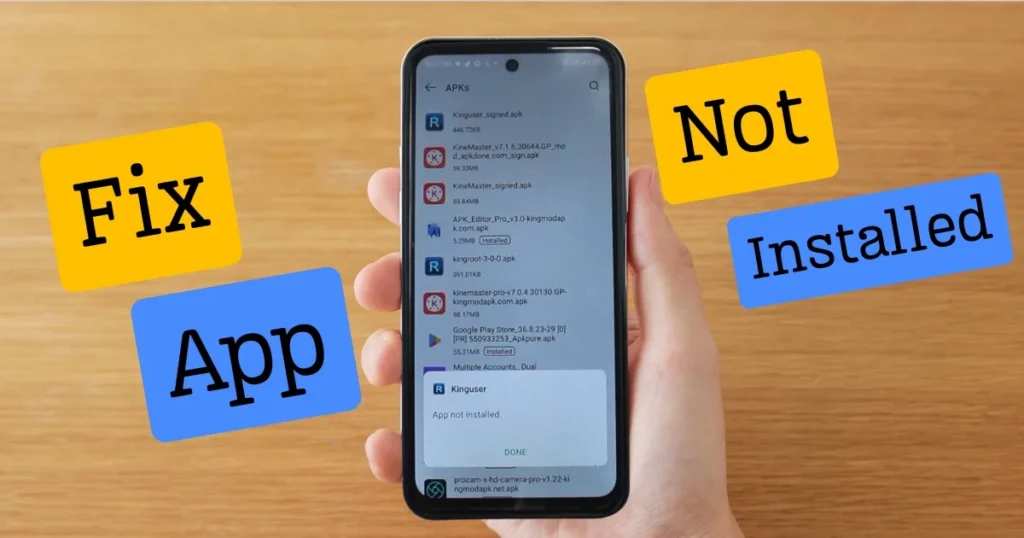
What exactly is the “App Not Installed” error?
When you try to install an APK file on your Android phone, and the phone rejects it, a message appears on the screen: “App Not Installed.” This error indicates that, for some reason, the phone has refused to install the app.
So, what could be the reason? There isn’t just one cause; there could be several, and each requires a different solution. Let’s first understand why this error occurs, and then we’ll discuss how to fix it.
What are the main reasons for the “App not installed” error?
There can be several reasons behind this error. Listed below are the most common causes that trouble the majority of Android users in India:
1. Insufficient Storage Space
This is the most common reason. If your phone’s internal memory is nearly full, new apps will not install. Many people assume that having 500MB to 1GB of free space is enough, but app installation often requires additional space for temporary use.
2. Corrupt APK File
If an APK file does not download correctly – for instance, if the internet connection drops midway or the file is incomplete – it becomes corrupt. A corrupt file will not install.
3. Disabling the ‘Unknown Sources’ permission
By default, Android does not allow the installation of apps from sources other than the Google Play Store. Unless you enable this setting, you won’t be able to install an APK.
4. App Signature Mismatch
Suppose you already have an app installed on your phone and are trying to install a different version of the same app (perhaps a modified one or one from a different source). If their digital signatures do not match, Android will block the installation. This is a security measure.
5. Android Version Compatibility Issue
Some apps run only on Android 10 or higher. If your phone is running Android 8 or 9, the app will not install at all.
6. SD Card Issue
On some phones, apps are installed on the SD card. If the SD card is faulty, not mounted, or in read-only mode, the installation fails.
7. Google Play Protect is blocking it.
Google Play Protect sometimes blocks even safe apps, mistaking them for dangerous ones – especially if the APK was downloaded from an unknown website.
Ways to fix the “App not installed” error without a factory reset
Now, let’s get to the main point. Each method is explained step-by-step below. Try them one by one, starting from the top. In most cases, the issue gets resolved within the first 3–4 methods.
Method 1 – Check and clear your phone’s internal storage
First, check how much space is left on your phone.
- Go to Settings > Storage.
- Check how full the internal storage is.
- If it is more than 85–90% full, free up some space first.
Easy ways to free up space:
- Delete old and unused apps
- Remove old WhatsApp media (videos, photos) – this takes up the most space
- Clear the Downloads folder
- Back up photos to Google Photos and delete them from your phone
- Use the ‘Files by Google’ app (free) – it identifies and lists junk files and duplicate files
Try to keep at least 2-3 GB of free space. This will ensure the phone runs smoothly and prevent issues with APK installations.
Method 2 – Enable permission for ‘Unknown Sources.’
If you are installing an APK file from outside the Play Store – such as from a browser, Telegram, or a file manager – you will need to grant permission to that source.
For Android 8 and later versions:
- Go to Settings > Apps & Notifications > Special App Access > Install Unknown Apps.
- Turn on “Allow from this source” for the app you are using to install the APK (e.g., Chrome, File Manager, Telegram).
For older Android versions (7 or below):
- Settings > Security > Unknown Sources – Turn this on.
Just doing this fixes the ‘App Not Installed’ error for many people.
Method 3 – Uninstall the old version, then install the new one
This is a very common issue. Suppose you already have version 2.0 of an app installed on your phone, and you are trying to install version 3.0 by downloading its APK. If the digital signatures of the two versions differ, Android will block the installation.
What to do:
- First, completely uninstall the old version.
- Go to Settings > Apps, find the app, and tap Uninstall.
- Now, install the new APK.
Note: Back up important data, such as chat history or game progress, before uninstalling.
Method 4 – Download the APK file again
It often happens that the APK file does not download correctly. Perhaps the internet was slow, the connection dropped midway, or the website provided an incomplete file.
What to do:
- Delete the previously downloaded APK file.
- Download it again from a trusted source.
- Websites like APKMirror and APKPure are considered trustworthy.
- Use a Wi-Fi connection during the download to prevent the file from getting corrupted.
One more thing – check the APK size. If the original app is 50MB and your downloaded file is 15MB, it is clear that the file did not download completely.
Method 5 – Temporarily turn off Google Play Protect
Google Play Protect is a security feature that scans apps. However, it sometimes becomes overprotective and blocks even safe apps.
Steps:
- Open the Google Play Store
- Tap your profile picture at the top right
- Go to Play Protect
- Tap Settings (gear icon)
- Turn off “Scan apps with Play Protect”
Now install the APK. Turn it back on after installation – this is necessary for security.
Method 6 – Clear App Cache and Data (for Package Installer)
This is slightly technical but very useful. Android has a system app called “Package Installer” – this is the app responsible for installing every APK. If its cache becomes corrupted, the installation will fail.
Steps:
- Settings > Apps > Show System Apps (from the three-dot menu)
- Find “Package Installer”
- Tap on Storage
- Tap both “Clear Cache” and “Clear Data”
Similarly, clear the cache for “Download Manager” as well.
This simple step often resolves APK installation issues.
Method 7 – Check the SD card or remove it before installing
If your phone has an SD card inserted and apps are being installed onto it, a faulty SD card could cause the “App not installed” error.
What to do:
- Remove the SD card
- Restart the phone
- Now try to install the APK
- If it installs, reinsert the SD card
If removing the SD card solves the problem, it means the SD card is faulty. In that case, insert the SD card into a computer and format it, or get a new SD card.
Method 8 – Move the APK file to internal storage
Often, the APK file gets saved to the SD card, which causes issues during installation.
- Open the file manager.
- Copy the APK file from the SD card to the internal storage.
- Now, install it from the internal storage.
This is a simple trick, but it proves useful for many people.
Method 9 – Install via ADB with USB Debugging enabled
If the methods above didn’t work, here is a slightly more advanced method. You can install an APK from your computer using ADB (Android Debug Bridge).
Requirements:
- Computer/Laptop
- USB cable
- ADB tool (free download – from developer.android.com)
Steps:
- Enable Developer Options on the phone (Settings > About Phone > Tap ‘Build Number’ 7 times)
- Enable USB Debugging
- Connect the phone to the computer using a USB cable
- Open Command Prompt on the computer
- Type this command: adb install filename.apk
- Press Enter
In most cases, this method works because ADB can bypass certain Android restrictions.
Method 10 – Check app compatibility
Not every app runs on every phone. Here are a few things to check:
- Android Version: What is the minimum Android version required to run the app? (Settings > About Phone > Android Version)
- CPU Architecture: Some APKs are designed only for ARM64; they will not work if your phone uses ARM (32-bit).
- Screen Resolution and DPI: Some apps are designed specifically for certain devices.
Free Tool: Use “Droid Hardware Info” (a free app available on the Play Store) to find out your phone’s CPU architecture. When downloading the APK from APKMirror, select the version with the correct architecture (arm64-v8a, armeabi-v7a, or x86).
Method 11 – Restart your phone (Yes, basic but effective)
Sometimes, the simplest solution works best. Turn your phone off and then back on. This clears background processes, frees up RAM, and often resolves installation errors automatically.
Method 12 – Install APKs in Safe Mode
Only system apps run in Safe Mode; no third-party apps interfere. If an antivirus or security app is blocking the APK installation, that issue will not occur in Safe Mode.
How to enter Safe Mode:
- Press and hold the power button.
- Long-press the “Power Off” option.
- The “Reboot to Safe Mode” option will appear – select OK.
- Install the APK in Safe Mode.
- Restart the phone normally after installation.
Some free tools that help with APK installation.
| Tool name | What does it do | Price |
|---|---|---|
| Files by Google | Cleans junk files, frees up storage. | $0 (Free ) |
| APK Installer (by Braveheart) | Easily manages and installs APK files. | $0 (Free ) |
| Droid Hardware Info | It displays the phone’s CPU, RAM, and architecture. | $0 (Free ) |
| SD Maid | Cleans cache and system junk. | $0 (Free version available) |
| ADB (Android Debug Bridge) | Tool for installing APKs from a computer | $0 (Free ) |
For more detailed guides and technical assistance, visit fixtech.in – you will find many useful Android-related resources there.
Some important points to keep in mind
Always remember a few things to avoid issues with APK installation:
- Download APKs only from trusted sources. Downloading an APK from a random website can be risky, as it may contain malware, viruses, or spyware.
- Always verify the APK’s size and version. Check the official website to see the app’s original file size.
- Keep at least 15–20% of your phone’s storage free. This ensures smooth performance and prevents issues during app installation.
- Keep your Android system updated. Older Android versions can lead to security and compatibility problems.
- Avoid modified (MOD) APKs. These often cause signature mismatches and result in “App not installed” errors.
Does the “App not installed” error occur only with APKs?
In most cases, yes; this error appears when you manually install an APK file. It rarely occurs when downloading apps from the Play Store – but if it does happen there too, then:
- Clear Play Store cache and data
- Remove your Google account and add it again
- Uninstall Play Store updates (Settings > Apps > Google Play Store > Uninstall Updates)
What should you do when nothing else works?
If you have tried all the methods mentioned above and the “App not installed” error persists, here are a few final options:
- Install an older version of the app. Older versions are available on APKMirror. The latest version might not be compatible with your phone, but an older version might work.
- Use the ‘Lite’ or web version of the app. Many apps have ‘Lite’ versions that take up less space – such as Facebook Lite or Spotify Lite.
- Try it on another phone. If the same APK installs successfully on another phone, the issue lies with your device – possibly a software-related problem.
Still not working? Then visit fixtech.in and search for your specific problem. You might find device-specific solutions there.
FAQs – About App Not Installed
Q1: What is the difference between “App not installed” and “App not installed – an existing package”?
The first one is a general error that can occur for various reasons. The second one means an app with the same name is already installed, but the signature is different. Uninstall the old app and install the new one.
Q2: Is it safe to install an APK?
If you get the APK from a trusted source (like APKMirror), it is generally safe. However, downloading APKs from unknown websites can be risky. Be sure to scan it with Google Play Protect before installing.
Q3: Does this error occur on iPhones, too?
No. APKs do not run on iPhones—they are exclusively for Android. Apps on iPhones are installed only via the App Store (unless the device is jailbroken).
Q4: My phone has enough storage and the settings are correct, yet I’m still getting the error—what should I do?
Try the ADB method (Method 9) or install it in Safe Mode (Method 12). If it still doesn’t work, the APK file itself might not be compatible with your device.
Q5: Is a factory reset the only solution?
Absolutely not. As explained in this guide, there are several ways to fix this error without resetting. A factory reset is a last resort and is rarely needed.
Q6: Can an antivirus app block APK installation?
Yes, some antivirus apps—such as Avast, Norton, or Kaspersky—might flag the APK file as dangerous and block it. Temporarily disable the antivirus while installing the APK, then turn it back on afterward.
Q7: Do I need to change any specific settings on Xiaomi/MIUI devices?
Yes. On MIUI, go to Settings > Privacy > Special Permissions > Install Unknown Apps. Also, enable “Install via USB” under Developer Options. MIUI sometimes imposes extra restrictions.
Final Thoughts
While the “App Not Installed” error might sound serious, the solution is usually quite simple; it just requires identifying the root cause and applying the right fix. One of the 12 methods outlined in this guide is sure to work for you – without needing to reset your phone or lose any data.
If you run into trouble installing an APK again, be sure to bookmark this page. Also, share it with your friends – after all, almost every other Android user in India encounters APK installation issues at some point. No one needs to be frustrated by the “App Not Installed” error anymore!