
Let’s get straight to the point: you turned on your computer, entered your password, and the screen displayed, “The User Profile Service Failed the Sign-In. User profile cannot be loaded.” That was it – everything came to a halt. No desktop, no files opening, and you couldn’t do a thing. Seeing a “User Profile Service failed” message is enough to drive anyone crazy. This exact thing happened to a friend of mine last month. He had to give a presentation at the office, opened his laptop, and – bam – this error. The poor guy had to manage the entire meeting using just his phone. If you are facing the same problem, don’t worry. In this guide, I’ll explain exactly why this error occurs and how to fix it – covering every step and method in simple, easy-to-understand language.
This guide is specifically for users in India who are using Windows 11 and have suddenly run into this error.
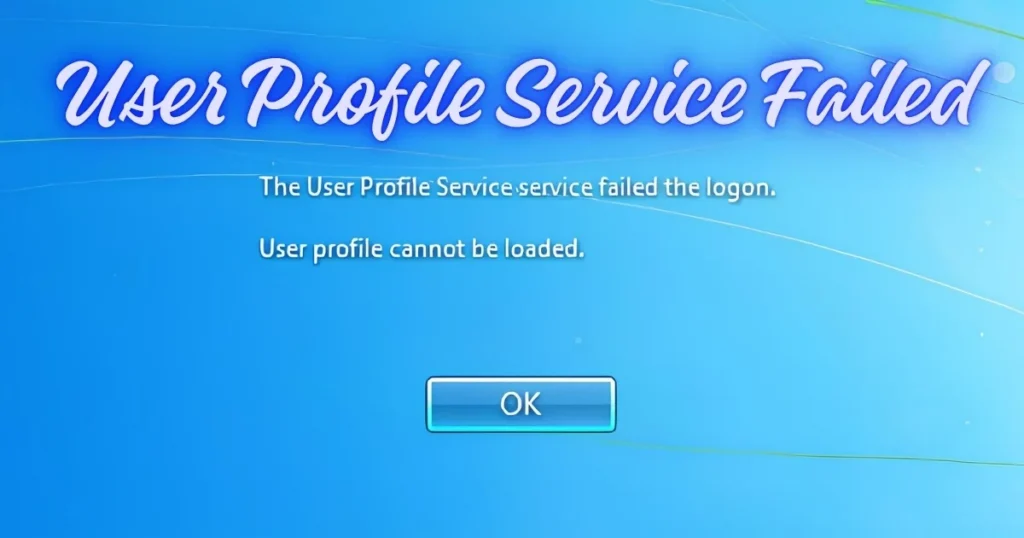
“User Profile Service failed” – what exactly is this error?
When you log in to Windows, the system loads your user profile. This profile contains all your settings – desktop wallpaper, Start Menu customizations, app settings, paths for Documents and Downloads, and much more. All this data is stored in a specific folder and registry entry.
When Windows fails to load this profile – for any reason – it displays this error: “The User Profile Service Failed the Sign-In.”
Simply put, Windows is unable to recognize you. Your account exists, and the password is correct, but the profile isn’t loading.
Why does this error occur? – Main reasons
There could be several reasons behind this error. Let’s understand them one by one:
1. Corrupt User Profile
This is the most common reason. If a Windows update gets interrupted midway, the power suddenly goes out (power cuts are common in India), or the system crashes, the user profile can become corrupt.
2. Registry Issues
The Windows Registry contains an entry for every user profile. If this entry becomes incorrect, gets deleted, or is duplicated, the profile will not load.
3. Interference from Antivirus Software
Some antivirus programs (especially free ones) sometimes mistakenly block or quarantine user profile files. This causes issues with loading the profile.
4. Incomplete Windows Update installation
Windows 11 receives frequent updates. If an update is not installed correctly, the User Profile Service can be affected.
5. Insufficient Disk Space
If there is very little free space left on the C: drive, Windows fails to load the profile correctly. This issue mostly affects users whose laptops are equipped with 128GB or 256GB SSDs.
6. Third-party software conflict
Installing new software that alters system settings can also cause the error.
Essential preparations before fixing
Before we move on to the fix, let’s cover a few points:
- Most methods will require Safe Mode or a different account, since you are unable to log in to your primary account.
- If your PC has another Administrator account, log in using that one – it will make the process easier.
- If there is no other account, you will need to proceed using Safe Mode.
How to boot Windows 11 into Safe Mode
Since you are unable to log in, the method to enter Safe Mode will be slightly different:
Method A – From the login screen:
- On the login screen, press and hold the Shift key, then click the Power icon > Restart at the bottom right.
- The “Choose an option” screen will appear.
- Click Troubleshoot > Advanced Options > Startup Settings > Restart.
- After restarting, press F4 (Safe Mode) or F5 (Safe Mode with Networking).
Method B – Force restart 3 times:
- Turn on the computer.
- As soon as Windows starts to load, press the Power button to turn it off.
- Repeat this process three times.
- On the fourth attempt, Windows will enter Automatic Repair mode.
- From there, select Troubleshoot > Advanced Options > Startup Settings > Restart, and then press F4.
Method 1 – Fix the user profile via the Registry (most effective)
This is the most effective method. It works in 70% of cases involving the “User Profile Service failed” error.
Steps:
- Boot into Safe Mode (using the method described above)
- Press Win + R, type regedit, and press Enter
- Registry Editor will open
- Navigate to this path:
HKEY_LOCAL_MACHINE\SOFTWARE\Microsoft\Windows NT\CurrentVersion\ProfileList
- Here, you will see several entries starting with “S-1-5-“.
- Click on each entry and look for “ProfileImagePath” on the right side.
- The entry containing the path to your username (e.g., C:\Users\YourName) is your profile.
Now, there are two possible situations:
Situation A – Two entries are visible (one with .bak, one without):
- Right-click the entry that does not have .bak, select Rename, and add .old to the end.
- Right-click the entry that has .bak, select Rename, and remove .bak.
- Now, delete the entry with .old (you can also keep it if you wish).
Situation B – There is only one entry with .bak:
- Right-click on it > Rename
- Remove .bak
Now, in both situations:
- Click on that entry (the one you just renamed).
- Find the value named “State” on the right side.
- Double-click on it.
- Change the “Value data” to 0 (if it is set to anything else).
- Click OK.
- Also, find the value named “RefCount”.
- Double-click on it and set the “Value data” to 0.
- Click OK.
- Close the Registry Editor.
- Restart the computer.
Hopefully, you will now be able to log in normally.
Method 2 – Activate the Built-in Administrator account
If you are unable to log in even in Safe Mode, you will need to activate the hidden Windows Administrator account.
Steps:
- Enter Automatic Repair mode (force restart 3 times)
- Click on Troubleshoot > Advanced Options > Command Prompt
- Type this command:
net user Administrator /active:yes
- Press Enter
- Restart the computer
- A new account named “Administrator” will now appear on the login screen
- Log in using this account (there is no password – simply press Enter)
- Now, follow Method 1 (Registry fix) using this account
Do not forget to disable the Administrator account after the work is done:
- Open Command Prompt (Admin)
- Type: net user Administrator /active: no
- Press Enter
Method 3 – Run SFC and DISM scans
This method repairs corrupted Windows system files. The “User Profile Service failed” error often occurs due to system file corruption.
Steps:
- Boot into Safe Mode or log in with an Administrator account.
- Right-click the Start button > Open Terminal (Admin) or Command Prompt (Admin).
- Run this command first:
sfc /scannow
- This may take 10–15 minutes – let it complete.
- If it fixes an error, restart and try logging in.
- If SFC doesn’t work, run this command:
DISM /Online /Cleanup-Image /RestoreHealth
- This may take 20–30 minutes – an internet connection is required.
- Run
sfc /scannowagain after it completes. - Then restart.
Method 4 – Create a new user profile and transfer data
If the methods above do not fix the old profile, you can create a new user account and copy your data to it.
Steps:
- Log in using Safe Mode or an Administrator account
- Go to Settings > Accounts > Other users > Add account
- Click on “I don’t have this person’s sign-in information”
- Click on “Add a user without a Microsoft account”
- Enter a new username and password
- The account will be created
Make this an administrator:
- Settings > Accounts > Other users
- Click on the new account > “Change account type”
- Select Administrator > OK
Copy old data to the new account:
- Open File Explorer
- Go to the C:\Users[old_username] folder
- Copy these folders: Documents, Desktop, Downloads, Pictures, and Videos
- Paste them into C:\Users[new_username]
Note: Settings for some apps (such as Chrome bookmarks and Outlook profiles) will need to be transferred separately.
Method 5 – Run the Windows Update Troubleshooter
If the error is caused by an incomplete Windows Update, this method might help.
Steps:
- Boot into Safe Mode (with Networking)
- Go to Settings > System > Troubleshoot > Other troubleshooters
- Click “Run” next to “Windows Update”
- The troubleshooter will automatically detect and fix the problem
- Restart
Method 6 – Disable Antivirus temporarily
Some antivirus programs block user profile files. Especially trial versions of free antivirus like Avast, AVG, or McAfee.
What to do:
- Boot in Safe Mode
- Control Panel > Programs > Uninstall a Program
- Uninstall the antivirus (or temporarily disable it)
- Restart and try to log in
If you can log in, then the antivirus was likely the culprit. Windows 11 comes with Microsoft Defender, which is excellent – there is no need for a separate antivirus. Microsoft Defender costs $0; it is completely free and built-in.
Method 7 – Use System Restore
If you previously created a System Restore Point (or Windows created one automatically), you can roll back the system to an earlier state when everything was fine.
Steps:
- Enter Automatic Repair mode
- Click on Troubleshoot > Advanced Options > System Restore
- Select a restore point from before the error occurred
- Click Next > Finish
- Windows will revert to that state
Note: System Restore will not remove your personal files (documents, photos). However, software installed after the restore point may be removed.
Method 8 – Free up space on the C: drive
If the C: drive is full, Windows cannot load the profile.
Ways to free up space in Safe Mode:
- Win + R > Type “cleanmgr” > Select the C: drive
- Run Disk Cleanup – Clear temporary files, Windows Update files, and the Recycle Bin
- Click on “Clean up system files” as well – this will free up more space
- Check the Downloads folder – remove old installers and files
Try to keep at least 10-15 GB of free space on the C: drive.
Method 9 – Perform a Repair Install of Windows 11
This is the last resort – when nothing else works. A Repair Install (In-place Upgrade) reinstalls Windows without removing your data and apps.
Requirements:
- Windows 11 ISO file (Free download from Microsoft.com, $0)
- Or Windows 11 USB Installation Media
Steps:
- Log in using Safe Mode or an Administrator account
- Mount the Windows 11 ISO (double-click it)
- Run Setup.exe
- Select the “Keep personal files and apps” option
- Allow the installation to complete (this may take 30–60 minutes)
- Try logging in normally after restarting
Free tools that help fix this error
| Tool name | What does it do | Price |
|---|---|---|
| SFC (System File Checker) | Fixes Corrupt System Files | $0 (Built-in to Windows) |
| DISM Tool | Repairs the Windows image. | $0 (Built-in to Windows) |
| Disk Cleanup | Frees up space by removing junk files. | $0 (Built-in to Windows) |
| Autoruns by Sysinternals | StaChecks/stops services that run at startup. | $0 (Free from Microsoft) |
| Windows 11 ISO | For a repair install | $0 (Free download from Microsoft.com) |
For more detailed guides and Windows troubleshooting tips, visit fixtech.in – you will find plenty of useful guides related to Windows 11 there.
Some important points to keep in mind
1. Back up the registry before editing it
Before making any changes in the Registry Editor, be sure to back up the registry by selecting File > Export. If something goes wrong, you can restore it using the backup.
2. Create Restore Points regularly.
Control Panel > System > System Protection > Create – Make it a habit to create a Restore Point every week. If any issues arise in the future, you can easily revert to this state.
3. Use a UPS or an inverter.
Power outages are a major issue in India. A sudden loss of power can corrupt Windows files. It is wise to get a basic UPS ($25–$40).
4. Do not interrupt Windows Update.
If an update is in progress, let it complete. Shutting down the computer midway is a major mistake that can lead to user profile corruption.
5. Always keep 15–20% of the space on the C: drive free.
If you have a 256GB SSD, keep at least 40–50 GB free. This ensures Windows runs smoothly and prevents issues with loading profiles.
Which Windows versions does this error affect?
“The User Profile Service failed the logon” – this error occurs not only in Windows 11 but also in Windows 10, Windows 8, and Windows 7. The methods in this guide work for Windows 10 as well – though the steps to enter Safe Mode might differ slightly.
FAQs – About User Profile Service failed
Q1: Will this error cause my data to be deleted?
No. Your data—documents, photos, downloads—remains safe in the C:\Users\[YourName] folder. Only the profile is failing to load; the data has not been deleted. You can create a new profile and copy your old data over to it.
Q2: Is editing the registry safe? Could something go wrong?
If you follow the steps exactly as described, there won’t be any issues. However, always back up the registry first. Avoid making indiscriminate changes to the registry—only modify what is specified in the guide.
Q3: I can’t log in even in Safe Mode—what should I do?
Try Method 2: activate the built-in Administrator account via Command Prompt. Alternatively, use System Restore (Method 7).
Q4: Will creating a new account transfer my old account’s app settings?
No. Creating a new account only copies files. App settings, Chrome bookmarks, and Outlook profiles will need to be transferred separately. If Chrome sync is enabled, simply log in with your Google account, and everything will be restored.
Q5: Will a Windows Reset (using the “Keep my files” option) fix this error?
Yes, in most cases, it will. However, resetting will remove all installed software. Therefore, try the other methods first and keep the Reset option as a last resort.
Q6: It’s a work laptop, and I don’t have admin access—what should I do?
If it is a company laptop and you lack admin access, contact your IT department. They can fix the issue using Remote Desktop or company tools. Editing the registry yourself is not advisable in this situation.
Q7: Could this error be caused by a virus?
Yes, certain malware can corrupt user profile files. Run a full scan using Windows Defender while in Safe Mode. Or check the malware removal guide on fixtech.in.
Final Thoughts
Encountering the “User Profile Service failed” error might seem like a major crisis, but the solutions are actually not as difficult as they appear. This guide outlines every method – from registry fixes to creating a new account – step by step. The key is to stay calm, avoid panic, and try the methods one by one. If anyone encounters this error on Windows 11, do share this article; in India, where power outages and sudden shutdowns are common, anyone could easily run into the “User Profile Service failed” error at some point.