
You open your laptop, enter your password, and a notification pops up: “We can’t sign into your account.” The desktop loads, but everything looks wrong – the wallpaper is gone, pinned apps have vanished, the Start Menu is empty, and settings have been reset. Your immediate reaction is panic: “Have I lost all my data?” followed by the worry: “What will happen when I log in next time?” While the “We Can’t Sign Into Your Account” error might seem minor, it often indicates a temporary or permanent issue with the user profile. This problem has become increasingly common among Windows 11 users in India, particularly due to sudden power outages, Windows updates, or Microsoft account synchronization issues.
In this troubleshooting guide, we will fully explore this error and carefully explain every possible fix.
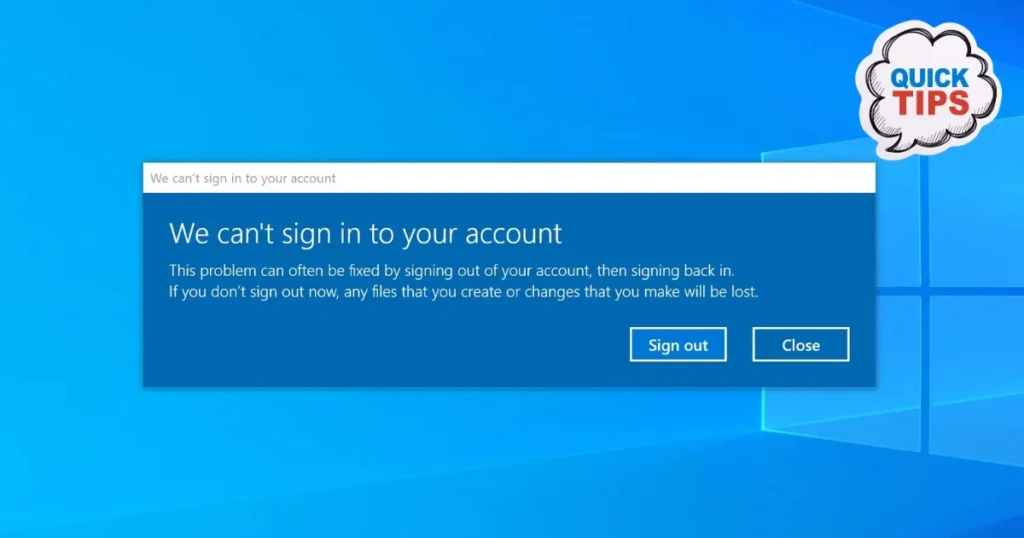
What does the “We Can’t Sign Into Your Account” error mean?
When this error occurs, Windows logs you into a temporary profile. This means:
- Your actual profile could not be loaded.
- Desktop settings, pinned apps, and personalization all revert to default.
- This is a temporary session; no changes will be saved upon logging out.
Windows usually shows this full message:
“We can’t sign into your account. This problem can often be fixed by signing out of your account and signing back in. If you don’t sign out now, any files you create or changes you make will be lost.”
Important: Your actual data – Documents, Downloads, Pictures – remains safe. Just the profile is not loading.
Why does this error occur?
1. User Profile Corrupted
A user profile can get corrupted due to a sudden shutdown, a power outage (very common in India), or the system turning off during a Windows update.
2. Profile Entry in the Registry is Corrupted
The Windows registry contains a profile entry for every user. This error occurs if that entry becomes corrupted or duplicated.
3. Low space on the C: drive
If there is very little space on the system drive, Windows cannot load the profile properly.
4. Profile Issue After Windows Update
Sometimes, problems with profile synchronization occur after a major Windows update.
5. Microsoft Account Sync Issue
If you are logged in with a Microsoft account and experience internet connectivity issues, synchronization may fail.
6. Antivirus quarantined the profile files.
Sometimes, antivirus software flags profile files as suspicious.
7. NTFS File System Error
If there is a file system error on the disk, profile files are not read correctly.
Ways to fix the “We Can’t Sign Into Your Account” error
Fix 1 – Sign Out and Sign In Again
This is what Windows itself suggests – and it works in 40-50% of cases.
Steps:
- Click the “Sign out” button in the error notification.
- Or go to Start > Profile icon > Sign out.
- Return to the login screen.
- Enter your password/PIN and log in.
If it doesn’t work the first time:
- Try 2-3 times.
- Restart the PC and then log in.
If the work gets done:
- Back up important files immediately.
- Fix the profile again (using the steps below).
Fix 2 – Restart the PC (Clean Restart)
A simple restart often resolves temporary profile issues.
Steps:
- Start > Power > Restart (not Shutdown)
- Allow it to boot up fully
- Log in
If Fast Startup is on:
- Control Panel > Power Options > Choose what power buttons do
- Uncheck “Turn on fast startup”
- Save
- Shut down and manually power on
A full shutdown and restart re-initializes the Windows profile from scratch.
Fix 3 – Repair the Corrupt Profile via the Registry
This is the most effective fix, but it is somewhat technical. Follow the steps carefully.
First, log in using a different Administrator account.
If you do not have another account, perform Fix 5 first.
Steps:
- Win + R > regedit > Enter
- Create a backup by selecting File > Export (important!)
- Go to this path:
HKEY_LOCAL_MACHINE\SOFTWARE\Microsoft\Windows NT\CurrentVersion\ProfileList- Look for entries starting with S-1-5- here.
- Click each entry and check the ProfileImagePath on the right.
- Find the path containing your username (e.g., C:\Users\YourName).
Case A – There are two entries (one with .bak, one without):
- Rename the entry with .bak – remove .bak
- Rename the entry without .bak – add .old
- Set the “State” value to 0 for the entry that had .bak (now without .bak)
- Set the “RefCount” value to 0 as well
- Click OK
Case B – There is only one entry with .bak:
- Rename it – remove .bak
- “State” value: 0
- “RefCount” value: 0
Restart and try to log in.
Fix 4 – Free up space on the C: drive
If the C: drive is more than 90% full, this error may occur.
Quick cleanup:
- Win + R > cleanmgr > Enter
- Select the C: drive
- Click “Clean up system files”
- Check all boxes, then click OK
In the Administrator Command Prompt:
del /q/f/s %TEMP%\*An alternative to Files by Google (for PC, not Android):
- Enable Storage Sense in Windows:
- Settings > System > Storage > Storage Sense > On
Keep at least 10–15 GB of free space on the C: drive.
Fix 5 – Create a new Administrator account
If you are unable to log in to the main account:
Create a new account from Safe Mode:
- Click Shift + Restart on the login screen
- Troubleshoot > Advanced Options > Startup Settings > Restart
- Press F4 (Safe Mode)
In Safe Mode:
- Settings > Accounts > Other users > Add account
- “I don’t have this person’s sign-in information”
- “Add a user without a Microsoft account”
- Set username and password
- Create Account type: Administrator
Restart in Normal mode and log in with the new account.
Now, perform Fix 3 (Registry fix) and Fix 6 (Profile transfer) using this account.
Fix 6 – Copy data from the old profile to the new account
If the old profile has become completely corrupt:
Steps:
- Log in with the new Administrator account.
- Go to File Explorer > C:\Users.
- Locate the folder for the old profile (e.g., C:\Users\OldName).
- Copy these folders from it:
- Documents
- Desktop
- Downloads
- Pictures
- Videos
- Music
- Paste them into the corresponding folders of the new account (C:\Users\NewName).
If a permissions issue arises:
- Right-click on the folder > Properties > Security
- Add your new account and grant Full Control.
Fix 7 – Repair System Files using SFC and DISM
Corrupt Windows system files can affect profile loading.
In an Administrator Command Prompt:
sfc /scannowUpon completion:
DISM /Online /Cleanup-Image /RestoreHealthRestart the PC after both are complete.
Official Microsoft guide:
System File Checker
Fix 8 – Fix Disk Errors using CHKDSK
NTFS file system errors can cause profile corruption.
In the Admin Command Prompt:
chkdsk C: /f /r /xIf C: drive is currently in use:
YType it and press Enter. An automatic scan will run upon restarting.
Try logging in after the scan is complete.
Fix 9 – Switch from a Microsoft Account to a Local Account
If this error keeps occurring while signed in with a Microsoft account:
Steps:
- Settings > Accounts > Your info
- “Sign in with a local account instead”
- enter password
- Set local account username
- Sign out and finish
There are no sync issues with a local account – the profile is stored locally.
Then, once it is stable:
- You can connect back to your Microsoft account.
- Settings > Accounts > Your info > Sign in with a Microsoft account
Fix 10 – Check the Windows Profile Service
Check whether the User Profile Service is running correctly.
Steps:
- Win + R > services.msc > Enter
- Find “User Profile Service”
- Status should be “Running”
- Startup type should be “Automatic”
If stopped:
- Right-click> Properties
- Startup type: Automatic
- Click Start button
- Apply > OK
Restart the PC.
Fix 11 – Check Antivirus
If the antivirus has quarantined the profile files:
Steps:
- Open the antivirus.
- Check the Quarantine or Vault section.
- Restore any files related to the Windows profile.
- Add the Windows profile folders to the antivirus exclusion list:
- C:\Users[Username]
Temporarily disable third-party antivirus software and try logging in.
Fix 12 – Use System Restore
If the error started recently and a restore point is available:
Steps:
- Win + R > rstrui.exe > Enter
- Select “Choose a different restore point”
- Choose a restore point from before the error occurred
- Next > Finish
Windows will revert to that state.
Note: Software installed after the restore point may be removed. Personal files remain safe.
Useful Free Tools
| Tool | Feature | Price |
|---|---|---|
| SFC (System File Checker) | System files repair | $0 |
| CHKDSK | Disk errors fix | $0 |
| DISM | Windows image restore | $0 |
| Autoruns (Sysinternals) | Managing startups and services | $0 |
| Windows Memory Diagnostic | RAM errors check | $0 |
Sysinternals tools: learn.microsoft.com/sysinternals
Visit fixtech.in for more Windows troubleshooting guides.
FAQs – About We Can’t Sign Into Your Account Error
1. Does the “We Can’t Sign Into Your Account” error cause data loss?
No. Your files remain safe in C:\Users\[Username]. Only the profile session is temporary.
2. I get this error every time I log in – what should I do?
Try Fix 3 (Registry fix) or Fix 9 (Switch to a local account). A persistent error indicates profile corruption.
3. Is it safe to remove the Microsoft account?
Yes. You can switch to a local account and re-add the Microsoft account later. A Microsoft account is required for OneDrive syncing.
4. What if something goes wrong during the registry edit?
That is why you should first create a backup using File > Export. Double-clicking the backup file restores the registry.
5. Will I be able to access data from the old profile if I create a new account?
Yes. All data is located in the C:\Users\[OldUsername] folder and can be copied manually.
6. Is a factory reset necessary?
Only in very rare cases. Try all 12 fixes mentioned above first
Final Note
There is no need to panic if you encounter the “We Can’t Sign Into Your Account” error – your data is safe. Start with a simple restart, then try the registry fix, and if necessary, create a new account and transfer your data. For most Windows 11 users in India, one of the following solutions – Fix 1 (sign out/in), Fix 3 (registry), or Fix 9 (switching to a local account) – permanently resolves the “We Can’t Sign Into Your Account” error.