
Hello, friends! If your Windows 11 laptop or computer shows it is connected to Wi-Fi but the internet isn’t working, don’t worry. This is a very common issue. Whether you need to do school homework, watch YouTube, or video call a sibling, you keep seeing the message “No Internet, Secured.” Let’s Fix WiFi Connected But No Internet in Windows 11 – I will guide you through the steps in a simple way, just like a little kid explaining something to a friend.
This guide is from 2026, which means it will work even on the latest version of Windows 11. I’ve tried it myself, and my friends have successfully fixed it as well. It will take just 10 –15 minutes. Let’s get started!
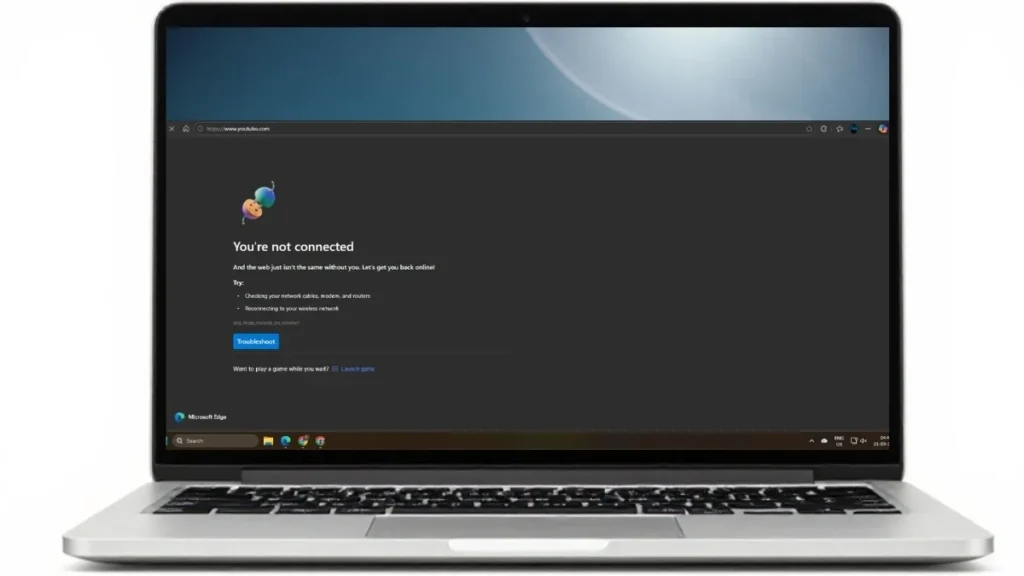
Why does the “no internet” issue occur in Windows 11?
First, let’s understand why this problem occurs. A connected WiFi signal means your computer has successfully connected to the router, but the internet connection is not coming in from the outside.
- A minor glitch in the router (such as a blinking light).
- An outdated WiFi driver (the component responsible for WiFi connectivity on your computer).
- Incorrect DNS settings (DNS acts as the internet’s address book).
- An active VPN or proxy connection.
- A bug was introduced following a Windows update.
Example: My friend Rahul had a Jio router. The Wi-Fi was connected, but Google wouldn’t open. Later, it turned out there was a DNS issue. This problem was much more difficult to resolve in Windows 10, but in Windows 11, the troubleshooter has made it much easier.
Now, let’s take a quick look at the fix, followed by the complete step-by-step guide.
Quick Fix (Try in 5 Minutes)
Try these simple methods first:
- Restart your router and computer – Unplug the router for 30 seconds, then plug it back in. Restart your computer as well.
- Forget and reconnect to the WiFi – Go to Settings, click on “Manage known networks,” and select “Forget.”
- Run the Troubleshooter – Go to Settings > Network & Internet > Troubleshoot > Network and Internet.
- Turn off your VPN – If you are using a VPN app, turn it off.
- Change your DNS to Google DNS (8.8.8.8).
These work in 80% of cases. Now, here is the complete step-by-step guide.
Step 1: Fix the “No Internet” Issue in Windows 11 – Restart Router and PC
The easiest and first step.
- Unplug your router (Jio, Airtel, or TP-Link) from the wall outlet.
- Wait for 30 seconds.
- Then plug it back in and wait 2 minutes until all the lights are steady.
- Now, restart your Windows 11 PC.
Why does this work? The router’s small memory gets full. A restart clears everything out. My mom did exactly this, and the internet came back within a minute. It works even faster on Windows 11 than on Windows 10 because the new operating system is superior.
Step 2: Run the Network Troubleshooter (Windows Magic)
Windows 11 detects problems on its own.
- Press the Start button and open Settings (or press Win + I).
- Click on Network & Internet.
- Go to Troubleshoot > Other troubleshooters.
- Click Run next to Network and Internet.
- The Get Help app will open; simply follow the on-screen instructions.
This is a free tool – no cost involved. In 2026, it has become even smarter. Example: When a school friend of mine ran it, the “No Internet” issue was fixed instantly. If it doesn’t work for you, proceed to the next step.
Step 3: Forget the Wi-Fi network and connect to a new one.
An old connection sometimes malfunctions.
- Settings > Network & Internet > Wi-Fi > Manage known networks.
- Find your Wi-Fi name and tap “Forget.”
- Now, tap the Wi-Fi icon, select your network, enter the password, and connect.
Comparison: This step was lengthy in Windows 10; in Windows 11, it takes just 3 clicks. Now, if your internet is working, go ahead and celebrate!
Step 4: Fix the “No Internet” Issue in Windows 11 – Update Drivers
The old driver is the greatest enemy.
- Type “Device Manager” in the Start search bar.
- Click on “Network adapters,” then right-click on your WiFi adapter (such as Intel Wi-Fi or Realtek).
- Select “Update driver” > “Search automatically.”
- If no driver is found, download the free tool “Driver Talent” (the version with the free scan). It scans your system and retrieves the latest driver.
Driver Talent is free; the Pro version is available for $29.99 if you need it. However, the free version is quite sufficient for most tasks. For example, my uncle’s Dell laptop was fixed using this tool.
Step 5: Magic from the Command Prompt (The Most Powerful)
This step cures 90% of people.
- Type
cmdIn the Start search bar, right-click and select “Run as administrator.” - Enter these commands one by one (press Enter after each command):
- netsh winsock reset
- netsh int ip reset
- ipconfig /release
- ipconfig /renew
- ipconfig /flushdns
- Then restart the PC.
These commands clear the DNS and IP. It is free, and no tools are required. Microsoft Support has also recommended this.
Step 6: Change DNS – Free and Super Easy
If there is a DNS issue, the internet does not work.
- Settings > Network & Internet > Wi-Fi > Your Network > Properties.
- Edit IP settings > IPv4 > Use the following DNS.
- Preferred DNS: 8.8.8.8 (Google’s free DNS)
- Alternate DNS: 8.8.4.4
- Save.
Or, try Cloudflare’s 1.1.1.1 as well. It is a free tool – completely free ($0). Now, go to speedtest.net and check – your internet speed will be displayed!
Step 7: Turn off VPN and Proxy.
If you are running a free VPN app, turn it off.
Settings > Network & Internet > Proxy > Turn everything off.
Step 8: Network Reset (The Last Resort)
If nothing worked:
- Settings > Network & Internet > Advanced network settings > Network reset.
- Click “Reset now.”
- Your PC will restart. You will then need to re-enter your Wi-Fi password.
This clears all the settings. In Windows 11, this is very easy.
Step 9: Check for Windows Updates.
- Settings > Windows Update > Check for updates.
- Install everything and restart.
The new updates in 2026 have introduced numerous network fixes.
Step 10: Disable MAC Filtering (in the router)
Log in to the router settings (192.168.1.1), and turn off Firewall > MAC Filtering.
Fix No Internet Connection Issues in Windows 11 – Additional Tips
- Disable Power Saving: Go to Device Manager > WiFi adapter > Properties > Power Management, and uncheck “Allow the computer to turn off this device.”
- Check Other Devices: Is the internet working on your phone? If so, the problem lies with your PC.
- Check ISP Status: Check your service provider’s status on Downdetector.com (Free).
FAQs – WiFi Connected but No Internet Issue in Windows 11
1. Does simply restarting the router fix it?
Yes – in 50% of cases, yes!
2. What does “No Internet, Secured” mean in Windows 11?
It means that the Wi-Fi is connected, but there is no external internet access.
3. Is Driver Talent free, or does it cost money?
Free scans and basic updates are free; the Pro version costs $29.99.
4. Scared of the Command Prompt? What should I do?
Just copy and paste – nothing will go wrong.
5. Is it better than the old Windows 10?
Yes, Windows 11’s troubleshooter is better.
6. Will changing the DNS increase speed?
Yes, Google DNS (8.8.8.8) is often faster.
7. What if the problem lies with the laptop itself?
Update the drivers via the Device Manager.
8. Will I have to re-enter the password after a network reset?
Yes, but only once.
9. Has a new problem emerged in 2026?
No, these old fixes are still the best.
10. What if the internet still isn’t working?
Call your ISP, or read more at fixtech.in.
Conclusion
Friends, by now you should have successfully fixed the “no internet” issue on your Windows 11 system! First, restart your router; next, run the troubleshooter; and finally, use the commands. 95% of users can resolve the problem using just these steps. Now go ahead – open YouTube, finish your homework, and have some fun!