
You need to open a specific website – perhaps a banking portal, a college results page, or an online shopping site – and a large red warning appears in Chrome: “Your connection is not private. Attackers might be trying to steal your information.” It’s a frightening message, isn’t it? It makes it seem as though a hacker has breached your computer. But don’t panic – in most cases, that isn’t what is happening. The “Your connection is not private” error can usually be resolved with a few simple steps. In India, where millions of people use Chrome daily for online payments, filling out forms, and accessing government portals, this error is both common and frustrating. However, it is important to understand that this error is actually a safety feature designed to protect you.
So, let’s get straight to the point: we’ll look at why this error occurs and then walk through each solution step-by-step.
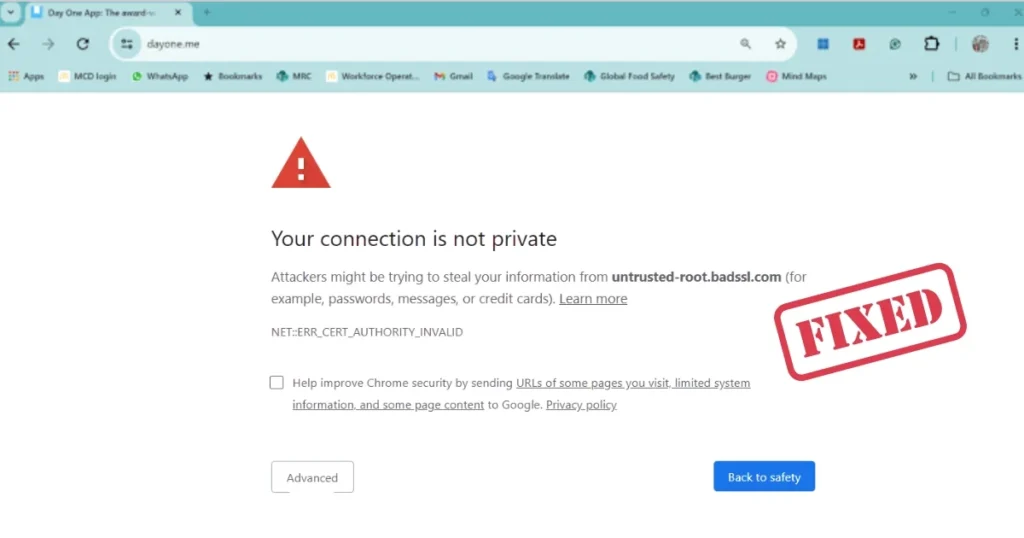
What does the “Your Connection Is Not Private” error mean?
The “Your connection is not private” error appears when your browser – such as Chrome – cannot verify a site’s SSL/TLS certificate. This prevents the browser from establishing a secure HTTPS connection, which is essential for protecting sensitive data like passwords and payment details.
Simply put, Chrome checked the website’s “identity card” (SSL certificate) and found an issue. Consequently, Chrome stopped you from proceeding to ensure your data remains secure.
Common error codes in Chrome
NET::ERR_CERT_COMMON_NAME_INVALID – This means the SSL certificate’s domain name does not match the domain name shown in the address bar. NET::ERR_CERT_AUTHORITY_INVALID – This means the website’s SSL certificate could not be verified. NET::ERR_CERTIFICATE_TRANSPARENCY_REQUIRED – This means the website’s SSL certificate has not been publicly logged.
Additionally, errors such as NET::ERR_CERT_DATE_INVALID (incorrect certificate date), ERR_SSL_PROTOCOL_ERROR, and ERR_CERT_REVOKED may also appear.
The real reasons behind the “Your Connection Is Not Private” error.
1. Incorrect Date and Time Settings
This is one of the most common causes – if your computer has the wrong date or time set, it can interfere with your browser’s ability to verify website certificates. If your device has an incorrect time or date, SSL certificates become invalid, and Chrome will display this error. SSL validation checks the date and time as part of its design.
2. Corrupt Browser Cache and Cookies
Cached data and cookies are designed to allow quick and easy access to websites, but their excessive accumulation can lead to slow page loading or “connection is not private” errors.
3. Interference from VPN or Antivirus
Sometimes, VPN and antivirus software can conflict with your network settings or block certain SSL certificates or connections. Antivirus software can occasionally interfere with your browser’s security protocols. Instead of disabling the entire antivirus program, with better antivirus software, you can simply turn off the SSL scanning feature.
4. Public Wi-Fi Networks
Public Wi-Fi networks are convenient but can be insecure. These networks often lack proper encryption, making it easy for hackers to intercept your data. This is a very common issue when using free Wi-Fi at cafes, railway stations, and airports in India.
5. Expired or invalid SSL certificate
NET::ERR_CERT_AUTHORITY_INVALID occurs when your browser cannot verify the website’s SSL certificate. This could be due to browser issues, outdated settings, or an invalid or expired SSL certificate. This problem is caused by the website owner – you, as a visitor, cannot fix it directly.
6. Browser Extension Conflict
Some browser extensions can interfere with secure connections by modifying network requests, blocking SSL certificates, injecting scripts, or overriding security settings. Try disabling the extensions and reloading the page.
7. Old Chrome Version
Using an older version of Chrome can lead to SSL errors, as newer security protocols may not be recognized by older browser versions.
Fixing the “Your Connection Is Not Private” Error – 10 Easy Ways
Now, let’s get down to business. Let’s start with the easiest method.
Method 1: Reload the page and check in Incognito mode
Sometimes, simply refreshing the page can fix the error. Websites may temporarily lose their SSL/TLS connection, or a momentary glitch may occur in the browser’s SSL verification process. Reloading the page gives the browser a chance to re-establish the connection and re-verify the certificate.
What to do:
- Press Ctrl + F5 (hard refresh).
- If you encounter an error in the standard browser mode, try using Chrome’s Incognito mode or Firefox’s Private Browsing mode. If the error does not appear in Incognito mode, the issue might be due to the browser cache or cookies.
- Close and reopen Chrome, or restart your PC.
Method 2: Correct the date and time settings
This is the most overlooked cause, but fixing it often resolves the “Your connection is not private” error.
On Windows:
- To fix this, ensure your date and time settings are correct. On Windows, go to Settings > Time & Language.
- Make sure both the “Set the time automatically” and “Set the time zone automatically” options are enabled.
For India: Time Zone: (UTC +5:30) Chennai, Kolkata, Mumbai, New Delhi
On Android/iPhone:
- Chrome for Android and iOS checks certificate validity just like the desktop version. On mobile, the most common cause is having automatic date/time disabled, which results in an incorrect clock setting. Enabling automatic time resolves the issue in most cases.
Method 3: Clear Chrome cache and cookies
Browsers use cache and cookies to speed up webpage loading. However, these files can become outdated or corrupted, leading to SSL errors.
How to clear them:
- Chrome > Menu (⋮) > Clear Browsing Data (or Ctrl + Shift + Delete)
- Select Time Range – All Time
- Check “Cached images and files” and “Cookies and other site data”
- Click “Clear Data”
- Restart Chrome and reopen the website
Method 4: Clear SSL State (Windows)
This is an underrated fix that very few people know about.
Clearing the SSL state in Chrome is often overlooked, but it can be very useful and is easy to try. Just like clearing the browser cache, this helps when things get out of sync.
How to do it:
- On Windows, go to Control Panel > Network and Internet > Internet Options. Click the ‘Clear SSL state’ button on the Content tab.
- Restart Chrome.
Method 5: Disable VPN and Proxy
While a VPN enhances online privacy and security, its routing methods or security protocols can interfere with SSL certificate validation, potentially causing the NET::ERR_CERT_AUTHORITY_INVALID error. Troubleshoot by temporarily disabling the VPN. If the error disappears, contact the VPN’s support team or try a different VPN provider.
Disable Proxy:
- In Windows, go to Settings > Network & Internet > Proxy and turn off “Use a proxy server”.
⚠️ Note: Be careful when turning off the VPN, especially when using public internet access. To minimize security risks, do this while connected to your home or mobile network.
Method 6: Disable HTTPS/SSL Scanning in Your Antivirus
Antivirus software is essential for protecting your computer from malware, but it can sometimes interfere with SSL/TLS certificate verification.
Temporarily disabling HTTPS scanning carries low risk, provided the antivirus’s real-time protection remains active. Most security vendors allow you to whitelist specific trusted sites within the SSL scanning settings rather than disabling the feature globally – which is a better long-term approach.
How to disable it in popular antivirus programs:
- Kaspersky: Settings > Network Settings > Turn off Encrypted Connections Scanning
- Avast: Menu > Settings > Protection > Core Shields > Web Shield > uncheck “Enable HTTPS scanning”
- Bitdefender: Settings > Web Protection > Turn off Encrypted Web Scan
Method 7: Disable browser extensions
The “Your connection is not private” error is most often caused by security extensions or ad blockers. Review your extensions to ensure there are no malicious ones; these extensions not only interfere with secure connections but also slow down loading speeds and consume excessive memory. Remove any problematic extensions from Chrome immediately.
How to check:
- Type
chrome://extensionsin Chrome. - Disable all extensions.
- Reopen the website.
- If the error disappears, enable the extensions one by one to identify the culprit.
Method 8: Switch networks and flush DNS
Check your connection – If you are using public Wi-Fi or another public network, your browser might be fine, but you may not actually have a secure connection.
What to do:
- Switch from public Wi-Fi to mobile data.
- If all client-side steps fail and other browsers also show the same error, the problem almost always lies with the site’s server or certificate setup. If the error occurs intermittently, or if the site works on mobile data but not on home Wi-Fi, then a firewall, antivirus, or network-level filtering is likely interfering.
Flush DNS:
- Open Command Prompt (press Windows + R). Type
ipconfig /flushdnsand press Enter.
Method 9: Update Chrome
Older versions of Chrome do not support newer SSL protocols, which can cause this error.
How to update:
- Chrome > Menu (⋮) > Help > About Google Chrome
- The update will download automatically.
- Click Relaunch.
On Mobile:
- Update Chrome in the Google Play Store (Android) or App Store (iOS).
Method 10: Bypass the error (Last resort – proceed with caution)
This method is the easiest but also the riskiest, as you are ignoring the error page to access a website that lacks a valid security certificate. You must be absolutely certain that the website you are visiting is safe; otherwise, it could have serious consequences for your online security and your computer. Bypassing the warning exposes you to significant security risks.
How to bypass (for trusted sites only):
- Click on ‘Advanced’ at the bottom of the error page. Select ‘Proceed to website’. Use this option only if you trust the website, as bypassing the warning could put your data security at risk.
⚠️ This is not recommended, especially if you are about to enter personal information or payment details, and particularly if you are on public Wi-Fi.
How to check SSL certificate details
To confirm the expiration: Click on the “Not secure” warning in the Chrome address bar, then select “Certificate is not valid.” The exact expiration date is displayed in the Details tab. If the expiration date has passed, a new certificate must be installed on the server. This information will help you determine whether the issue lies with your end or the website’s.
Useful free tools
| Tool | Feature | Price |
|---|---|---|
| SSL Labs Server Test (ssllabs.com) | Test the website’s SSL certificate. | $0 (Free) |
| Why No Padlock (whynopadlock.com) | Mixed Content and SSL Error Check | $0 (Free) |
| Let’s Encrypt | Free SSL Certificate (for website owners) | $0 (Free) |
| Google DNS (8.8.8.8) | Fast and reliable DNS | $0 (Free) |
Visit fixtech.in for more Chrome troubleshooting guides and tech repair tips – you will find detailed, step-by-step instructions there.
What points should be given special attention?
- Avoid accessing sensitive websites (banking, e-commerce) over public Wi-Fi; this error frequently appears on Wi-Fi networks at cafes, railway stations, and airports, where genuine security risks exist.
- Keep Chrome updated at all times; older versions often lack adequate SSL/TLS support.
- Exercise great caution before clicking “Proceed anyway” – never bypass this warning on banking or payment sites.
- Check the HTTPS scanning settings in your antivirus software; sometimes, this feature can block even legitimate connections.
- If nothing else works, the certificate itself might be expired, issued by an untrusted source, or using an outdated algorithm. In such cases, notify the website owner through official channels.
FAQs – Your connection is not private Error
Q1: How should I start fixing the “Your connection is not private” error?
Reload the page, correct the system date and time, update your browser, open the site in Incognito mode, clear cache and cookies, disable browser extensions, or switch to a secure network or VPN. In most cases, simply correcting the date/time and clearing the cache resolves the “Your connection is not private” error.
Q2: This error appears on only a few websites – why?
If only one site is showing the error, the website owner’s certificate may have expired. As a visitor, you cannot fix this directly, but you can verify the issue and inform the site owner.
Q3: Is it safe to bypass this error?
It is not recommended. However, if you wish to proceed anyway, read up on website safety first. Never bypass the warning on sites involving banking, payments, or the entry of personal data.
Q4: What happens when you clear the SSL state?
Your computer’s SSL cache stores information about previously visited websites that use SSL/TLS certificates. If an SSL certificate has been updated, outdated information in the SSL cache can cause errors like NET::ERR_CERT_DATE_INVALID. Clearing the SSL cache allows the browser to recognize the updated certificate.
Q5: How do I fix this error on mobile?
First, enable automatic date and time settings on your mobile device. Then, clear the Chrome cache (Settings > Apps > Chrome > Clear Cache). Use mobile data instead of public Wi-Fi, and update the Chrome app.
Q6: Will disabling the antivirus help?
Some antivirus programs or firewalls perform SSL inspection, which can interfere with your internet connection and certificate validation. To test this, temporarily disable SSL inspection in your antivirus or firewall settings, then restart your browser and reopen the website. If this resolves the error, consider adding the website to the antivirus exclusion list for HTTPS scanning.
Final Thoughts
Fixing the “Your connection is not private” error might sound intimidating, but in most cases, it is caused by your system’s date/time settings, a corrupted cache, or your VPN/antivirus – not by a hacker. Simply check the date and time, clear your cache, clear the SSL state, and check your VPN or antivirus settings for SSL scanning. If the error appears on only one specific website, the issue lies with that site’s certificate; you should inform the website owner. Remember: avoid accessing sensitive sites on public Wi-Fi, keep Chrome updated, and think twice before clicking “Proceed anyway.” If others are encountering this error, please share this guide. For more helpful guides like this, keep visiting fixtech.in – where you’ll find easy-to-understand explanations on how to fix the “Your connection is not private” error and much more!