
Imagine this: your chat with your mom looks different from your chat with your best friend, and your office group chat looks completely distinct. Previously, this was a feature you’d only expect to see on platforms like WhatsApp or iMessage – but now, Google has made it a reality. The ‘Google Messages Chat Themes’ feature for Google Messages has officially rolled out to everyone, and it’s proven to be far more useful than anticipated.
If you’re wondering, “Where can I find this feature on my Samsung or Pixel phone?” or “Can I set a photo from my gallery as the background?” – then this tutorial is exactly what you need. Let’s get started – straight to the point, no fluff.
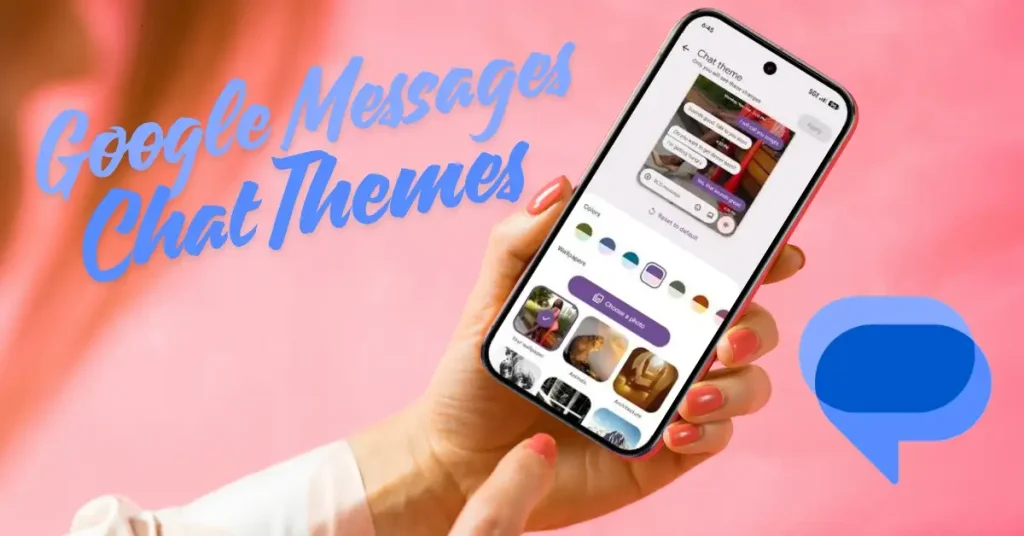
What are Google Messages Chat Themes?
Google Messages has officially launched a feature for custom chat themes and backgrounds on Android. It wasn’t a major update that required months of waiting – it arrived quietly and seamlessly made its way onto everyone’s phones.
The purpose of this feature is to “make every conversation your own” by allowing you to customize the colors and background wallpapers for individual chats.
With chat themes, you can change both the accent color of the message bubbles and the chat wallpaper. Furthermore, these custom wallpapers support not only still images but also animated GIFs.
And the best part? Chat themes are entirely “private to you” – meaning they are visible only to you, not to the other person. So, no matter how fancy a theme you choose for a conversation, the other person won’t even know!
Why wasn’t this feature available before?
Many people have asked this. While Google Messages was quite good in terms of functionality, its look and feel felt rather dated – especially when compared to apps like WhatsApp, which allow for extensive customization of chat backgrounds.
Previously, there was only a “Change colors” option, which offered nine color choices for message bubbles and backgrounds – a feature introduced in 2024.
The new “Chat theme” option has replaced it, offering much more extensive customization.
This feature was already present in Samsung Messages – an app that is now being discontinued – which is why Samsung users are having to switch to Google Messages. For them, this customization feature comes as a welcome addition.
What does Google Messages Chat Themes include?
This feature has three main components:
1. Color Palette – Color of the message bubbles
‘Colors’ provides themes for carousel message bubbles. The first option, ‘Dynamic Color’, adjusts automatically based on the chat background, while the other eight options are static.
If you choose a new background color or a preset wallpaper, Messages automatically adjusts the bubble colors to match – though you can also change the color palette manually if you wish.
2. Wallpapers – Google’s Curated Collections
You can upload your own image or choose from Google’s collection: Animals, Architecture, Black & White, Cityscapes, Landscapes, Macro, Space, Sunsets, and Textures.
There are multiple options in each category, so there’s no chance of things getting boring.
3. Background from your own photo gallery
The biggest addition is the “Choose a photo” option, which lets you set any picture from your gallery as a chat background.
In other words – use an old family vacation photo for your chat with your mom, a funny meme for a chat with a friend, and something professional for your office group.
4. Reset to Default – Fresh Start option
There is also a convenient “Reset to default” button on the preview page, which allows you to remove everything with a single click.
How to Set a Chat Theme in Google Messages – Step-by-Step Tutorial
This process is very simple. Just follow these steps:
Step 1 – Open Google Messages
Open Google Messages and select the conversation you want to customize. Then, tap the name in the top bar or tap the three dots (⋮) in the top-right corner.
Step 2 – Open Chat Theme
Then select “Chat Theme” and choose colors and wallpapers.
Tip: Once this feature becomes available on your phone, a red dot will appear in the three-dot menu. This serves as an indicator that the feature has arrived on your phone.
Step 3 – Select a color
After tapping on ‘Chat theme’, select a color theme from the palette. Try the ‘Dynamic Color’ option – it automatically matches the background and looks quite good.
Step 4 – Choose a wallpaper
Here you have two options:
- Google’s preset wallpapers: These are organized into categories such as Animals, Landscapes, and Space. Open a category and choose the one you like.
- Your own photo: You can select any wallpaper or background image from your gallery by tapping “Choose a photo.”
Step 5 – Preview and Apply
After selecting a wallpaper, tap “Next” to see a preview. Then, tap “Apply.” Repeat this process for all other chats.
That’s it! Your chat is now ready with a new look.
Smart Tips for Customizing Chat Themes
Now, here are some things that Google doesn’t officially disclose, but which regular users have discovered:
💡 Dynamic Color is the best option:
You can change message bubble colors manually, or let them automatically match your wallpaper. If you’d rather avoid the hassle of coordinating colors, simply keep ‘Dynamic Color’ turned on.
💡 Dark wallpapers might hide your text:
Parts of your chat could become obscured, especially when using a darker wallpaper. For this reason, light or medium-toned images are a better choice.
💡 You can even use GIFs:
You can also use animated GIFs as custom wallpapers – a great option for those who want to add a bit of extra fun.
💡 Give each chat its own unique theme:
Whether it’s a favorite family photo for a family group or a sleek, minimal color palette for a work contact – the choice is entirely yours.
💡 No need to worry about privacy:
Changes to your chat themes are visible only to you; the other person will never know.
How to check if RCS is enabled
For Chat Themes, there is a key requirement: RCS must be enabled in order to use this feature.
How to check for RCS:
- Open Google Messages
- Tap the profile icon at the top
- Go to Messages settings → Chat features
- Check whether “Chat features” is turned ON
If it is not turned ON, enable it. In India, RCS is now available on most carriers – it works on Jio, Airtel, and Vi.
Can’t see Chat Themes? – Try this
Sometimes, a feature is released but doesn’t appear on your phone. This is due to a “staged rollout.”
Try these solutions:
- ✅ Update Google Messages: Open the Play Store → search for “Google Messages” → install the update if one is available.
- ✅ Check the three-dot menu: Once the feature is available, you will see a red dot badge in the overflow menu, and “Chat theme” will appear in place of “Change colors.”
- ✅ Restart your phone: Sometimes, a simple restart is all it takes to activate new server-side updates.
- ✅ Enable RCS: Chat themes will not work without RCS enabled.
- ✅ Wait a little longer: Google Messages is rolling out custom chat themes and wallpapers following months of testing. If you don’t see them yet, they should arrive soon.
Something special for Samsung users
Google Messages is rolling out an upgraded personalization experience that includes custom backgrounds and themes. Samsung users can also access this natively on their Galaxy devices.
For users who switched to Google Messages following the discontinuation of Samsung Messages, this customization feature comes as a welcome relief.
Useful Free Tools and Resources
If you want to enhance your experience with Google Messages, these resources will come in handy:
- Google Messages (Free) – messages.google.com – You can also use Messages in a web browser.
- Google Photos (Free) – photos.google.com – Choose a photo for your wallpaper directly from here.
- Google Support Page – support.google.com/messages – Official step-by-step guide
- Canva Free – canva.com – Create a custom image for your chat background (completely free)
- Fixtech.in – fixtech.in – Get solutions for any issues related to Android and Google apps.
Google Messages vs. WhatsApp – Which is better for chat customization?
This comparison is only natural:
| Feature | Google Messages | |
|---|---|---|
| Custom Wallpaper | ✅ Yes | ✅ Yes |
| Your own gallery photo | ✅ Yes | ✅ Yes |
| GIF Background | ✅ Yes | ❌ No |
| Bubble Color Change | ✅ Yes | ❌ No |
| Private to You | ✅ Yes | ✅ Yes |
| Curated Wallpaper Categories | ✅ Yes | Limited |
| Price | Free | Free |
It is clear that Google Messages has surpassed WhatsApp in terms of bubble color customization and GIF support.
FAQs – Google Messages Chat Themes
Q1. Are Google Messages chat themes visible to the other person as well?
No. Google has clarified that “only you will see these changes.” It is purely a personal customization.
Q2. Will this feature be available on all Android phones?
This feature is currently rolling out. Most Android phones that have the latest version of Google Messages and have RCS enabled will receive this feature.
Q3. Do I have to pay for chat themes?
Absolutely not. It is completely free. Google Messages is a free app, and this feature is also provided at no cost – $0 expense.
Q4. Will the other person see the customization, just like in WhatsApp?
No, this feature is visible only on your device. There will be no changes on the other person’s screen.
Q5. Can a GIF be used as a background?
Yes, custom wallpapers support both still images and animated GIFs.
Q6. How do I remove a chat theme after setting it?
Go to the chat theme settings and tap the “Reset to default” option. Everything will revert to its original state.
Q7. Can iPhone users also use this feature?
No, Google Messages is an Android-only app. It is not available on iPhones.
Q8. Can I change themes multiple times in the same chat?
Yes, you can change the theme as often as you like; there is no limit.
Q9. When will this feature be available to everyone in India?
Following months of testing, Google Messages custom chat themes are now officially rolling out – they are gradually becoming available to all users in India as well.
Conclusion – Make Every Chat Your Own
To be honest, this update for Google Messages was long overdue. While apps like WhatsApp and iMessage were already offering background customization, Google Messages was lagging. But now, with the introduction of chat themes, Google Messages has leveled the playing field – and in some respects, even taken the lead.
Whether it’s a chat with your mom where you want to add a photo from an old family trip, or a conversation with your best friend where you’d prefer a fun GIF background – you can now give every chat its own unique look. The settings are incredibly simple, requiring no technical expertise, and best of all – it’s completely free.
Open Google Messages, select any chat, and try out the chat themes. And if you run into any trouble – or face any other issues related to Android or Google – head over to fixtech.in. You’ll find solutions to all kinds of Android problems (including help with Google Messages chat themes) explained.