
Friends, if the auto-rotate feature isn’t working on your Android phone, it can be incredibly frustrating. I personally encountered this very issue just last month when my phone suddenly stopped rotating into landscape mode – whether I was watching videos, playing games, or simply browsing. A sensor malfunction is the most common culprit, but there is no need to panic. In this guide, I will walk you through a step-by-step process to fix this issue, ensuring your phone rotates smoothly once again.
“Auto-rotate not working” is a very common complaint these days, particularly among phones running Android versions from 12 to 15 or 16. Search trends also indicate that users are frequently troubled by issues related to their device’s sensors (specifically the accelerometer or gyroscope). Let’s begin by understanding exactly why this problem occurs, and then we will explore the solutions one by one.
Why is Auto-Rotate Not Working on Android?
In most cases, this issue is caused by a software glitch, incorrect settings, or a malfunction in the hardware sensors. The accelerometer detects the phone’s movement, while the gyroscope detects its tilt. If these sensors fail to function correctly, the screen will not rotate.
For instance, if your phone has recently been dropped or has overheated, the sensor calibration may become compromised. In some cases, third-party applications (such as launchers or games) may interfere with the system. This issue manifests differently across various brands – such as Samsung, Pixel, Xiaomi, or Realme; for example, diagnostics are typically easier on Samsung devices, whereas on Pixel devices, the problem is often resolved via a software update.
Comparison: Auto-rotate tends to be more stable on the iPhone because Apple maintains tight control over its hardware; however, since Android is open-source, it offers greater customization, which, in turn, can lead to a higher frequency of issues. Now, let’s move on to the practical solutions.
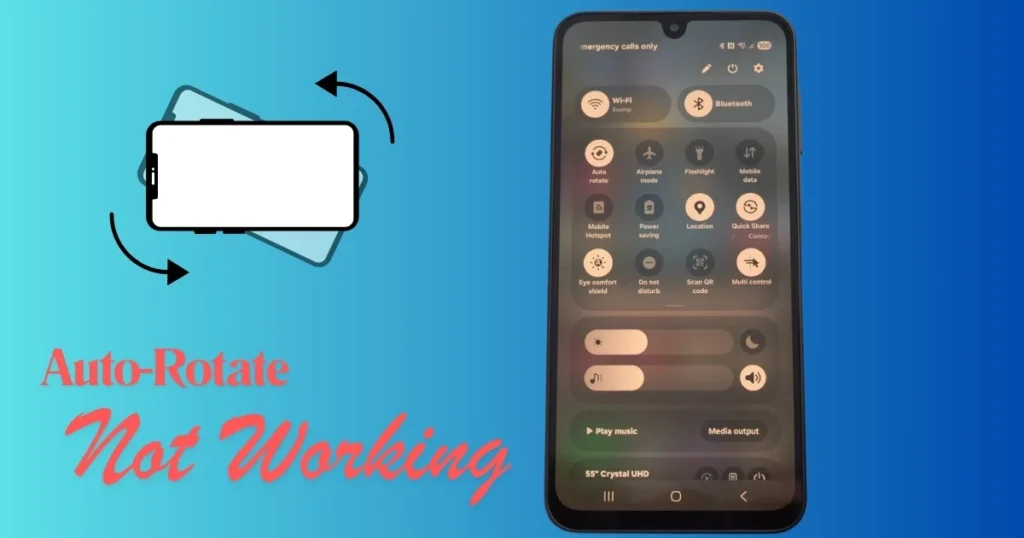
1. First, a basic check: Turn on the Auto-rotate setting.
If auto-rotate isn’t working, in 80% of cases, the toggle is simply switched off.
- Swipe down twice from the top of the screen (to open the Quick Settings panel).
- Find the Auto Rotate or Rotate icon (the one that looks like a rotating phone). If it is gray, tap it to turn it blue (On).
- If you don’t see it, go to Settings > Display > Auto-rotate screen and turn it on.
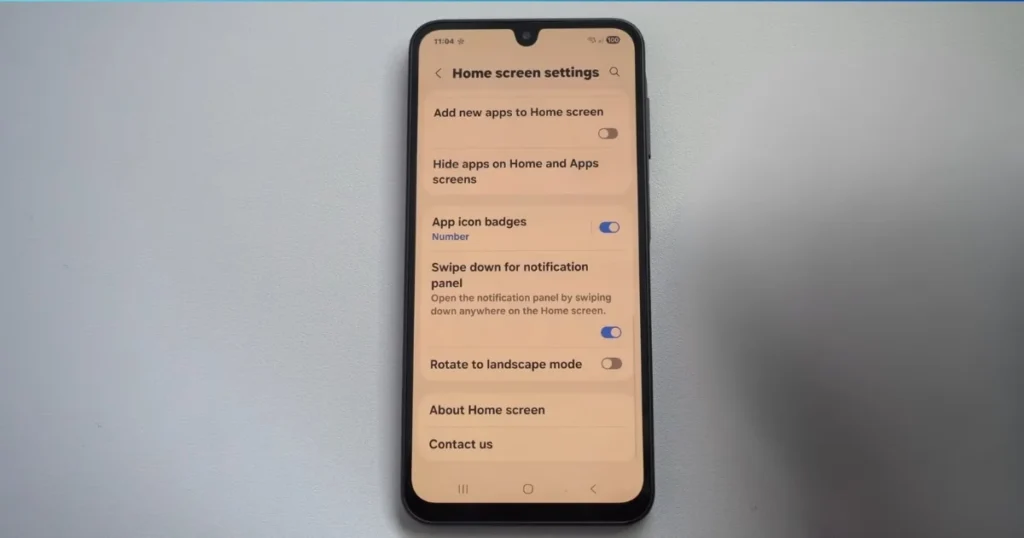
The Rotation Suggestions feature was introduced with Android 9 Pie – a circular button appears in the bottom-left corner when you tilt the phone. If this feature is disabled, go to Settings and enable full auto-rotate.
Tip: Check for separate options specifically for the Home Screen, Lock Screen, or Voice Call screen. You can enable Home Screen Rotation by long-pressing the Quick Settings icon.
2. A Simple Yet Powerful Fix: Restart Your Phone
When I first encountered the problem, a simple restart was enough to fix it. Software glitches often clear up just like that.
- Press the Power button and select Restart.
- Alternatively, force restart by holding down the Power button for 8–10 seconds.
Why does this work? It clears temporary files and re-initializes the sensor drivers.
Edge case: If the phone is charging, unplug it first, as some chargers interfere with the sensors.
3. Stop Touching the Screen – A Small Mistake, a Big Problem
If your finger remains in contact with the screen while rotating, the system assumes you are controlling it manually. Always hold the phone by its edges.
Test: Tilt the phone 90 degrees without touching the screen surface. If it still does not rotate, proceed to the next step.
4. Calibrate the Sensors – The Ultimate Solution for Sensor Issues
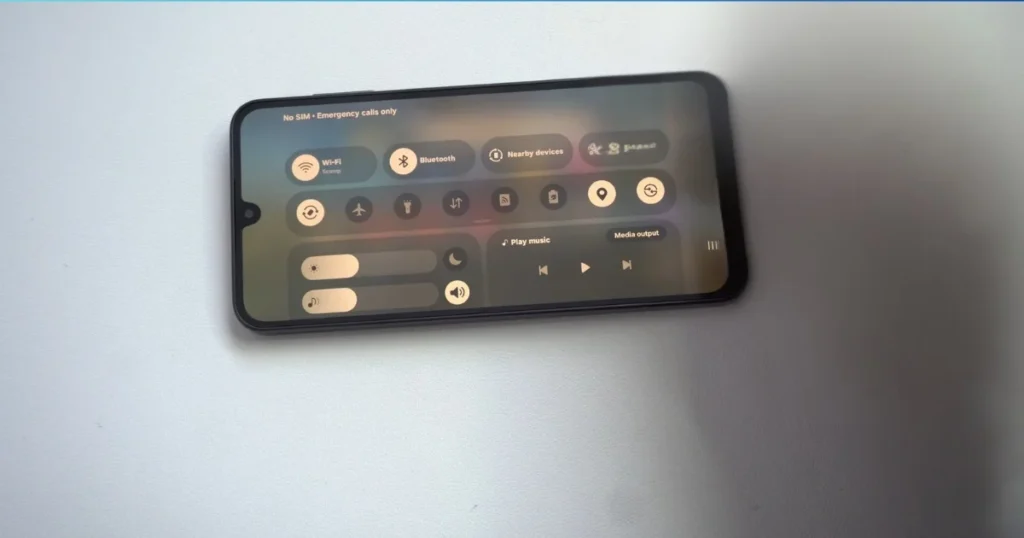
Here lies the core issue. Auto-rotate malfunctions are most often caused by problems with the accelerometer or gyroscope.
Use Free Tools:
- GPS Status & Toolbox (Free on the Play Store) – Best for diagnostics.
- Open the app > Menu > Diagnose sensors.
- Tilt the phone – the accelerometer and gyroscope values should change. If they don’t, there is a sensor issue.
- Sensor Kinetics or GPS Test – For calibration.
- Select the accelerometer within the app > Move the phone in a figure-eight motion.
- Repeat for 10–15 seconds, then restart the phone.
Example: This fix worked instantly on my friend’s Xiaomi phone. Samsung users can check by navigating to Settings > Device Care > Diagnostics > Sensor test.
Comparison: Manual Calibration vs. App – Apps provide more accurate results because they display real-time data.
5. Check Third-Party Apps – Test in Safe Mode
If you have recently installed any apps (games, launchers, VPNs), they may be interfering.
- Boot into Safe Mode: Long-press the Power button > Long-press “Power off” > Reboot to Safe Mode.
- Test the rotation in Safe Mode.
- If it works, go to Settings > Apps > Recently Installed > Uninstall.
Neutral Advice: Always download apps from the Play Store and check the reviews.
6. Update Your Software – Outdated Versions Are a Major Enemy
Google and various brands frequently release updates containing bug fixes.
- Settings > System > System Update > Check for updates.
- Connect to Wi-Fi to install.
2025-2026 Updates: Sensor performance has improved in Android 16, but older devices sometimes experience a reverse effect.
7. Cache Clear and Advanced Fix
- Settings > Storage > Cached data > Clear.
- If that doesn’t work, go to Settings > Apps > System Apps > Google Play Services > Storage > Clear Cache (not data).
Factory Reset (Last Resort): Create a backup first. Settings > System > Reset options > Erase all data.
Cost Consideration: If the hardware is faulty, the service center charges may range from ₹800 to ₹2,000 (depending on the model).
8. Brand-Specific Tips
- Samsung: Samsung Members app > Get Help > Phone diagnostics > Sensors.
- Google Pixel: Settings > About Phone > Tap Build Number 7 times > Developer Options > Sensor > Reset.
- Xiaomi/Redmi: Security app > Boost Speed > Additional Settings > Sensor Calibration.
- OnePlus/Realme: Test by dialing *#808# or *##64663##* in the dialer.
Edge Case: On foldable phones (Galaxy Z Fold), try removing the case – the case sometimes blocks the frame.
9. Hardware Issue? Seek Professional Help.
If all the steps above fail, the sensor is damaged. Visit a local service center or a brand service center.
Know More: If you are experiencing other Android issues, such as battery drain or overheating, be sure to check out fixtech.in. You will find detailed guides there.
10. Preventive Measures – To Avoid Future Problems
- Do not let the phone overheat.
- Check for updates regularly.
- Keep unnecessary apps uninstalled.
- Have the sensors calibrated every 3–6 months.
- Use a good case that does not block the sensors.
Example: One of my neighbors fixed his old OnePlus 9 with just calibration and updates.
FAQs: About Auto-Rotate Not Working
Q1. If auto-rotate isn’t working, does that mean the sensor is broken?
No, not necessarily. In 70% of cases, the issue can be resolved with a software fix.
Q2. Which are the best free tools?
GPS Status & Toolbox and Sensor Kinetics – both are free and ad-free.
Q3. Rotation issues: iOS vs. Android?
It is more common on Android due to the wider variety of device models, but the fixes are also easier to implement.
Q4. What happens after a factory reset?
All data is deleted, so creating a backup is essential.
Q5. Should I use third-party rotation apps?
Yes – such as the “Rotation Control” app (a one-time purchase of ₹150–200) – if you encounter recurring issues. However, try the built-in settings first.
Q6. How do I run diagnostics on a Samsung phone?
Go to Samsung Members > Diagnostics > Sensors > Test.
Auto-rotate not working – now you know exactly how to handle it. If you follow these steps, there is a 95% chance that the problem will be resolved. If it still doesn’t work, please mention your phone model, and I will provide further assistance.
Finally, remember: simple settings adjustments and free tools are often all it takes to solve major problems. Your phone will now be fully rotatable once again!