
A Blue Screen Error causes your computer to crash suddenly, bringing all your work to a complete halt. If you, too, find yourself grappling with this issue on a daily basis, rest assured that this is not an uncommon occurrence – millions of Windows users encounter this system crash every month.
Friends, I have personally witnessed this problem on numerous computers over the past few years – sometimes due to graphics drivers, other times due to RAM malfunctions, and occasionally following a Windows update. However, the good news is that in most cases, you can fix it yourself. In this guide, I will walk you through, step-by-step, how to identify a Blue Screen Error, understand its underlying causes, and resolve it using the simplest methods possible.
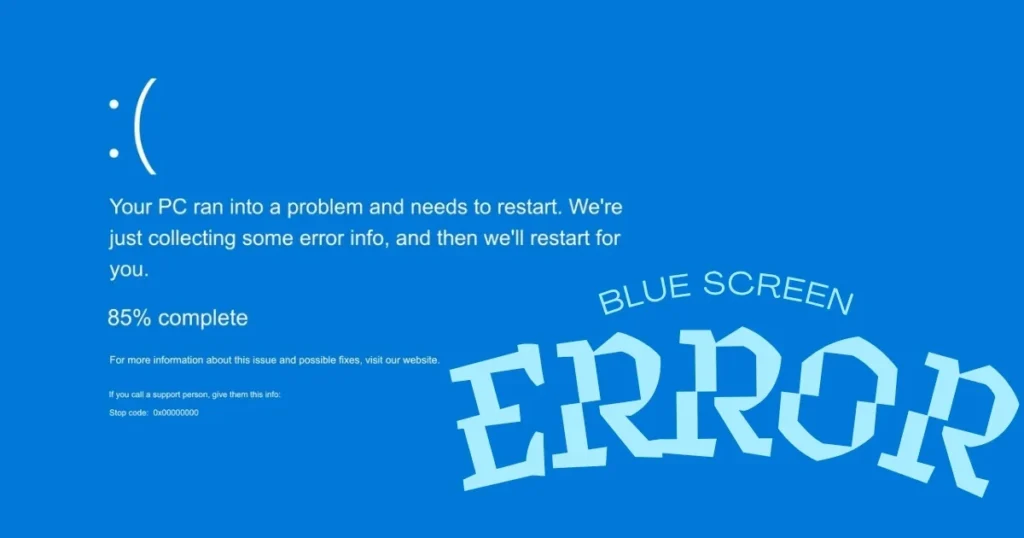
What is a Blue Screen Error, and why does it occur?
A Blue Screen Error – commonly referred to as the BSOD (Blue Screen of Death) – is a “stop error” within the Windows operating system. When the system encounters a critical issue that it is unable to resolve on its own, it turns the screen blue and displays a message such as, “Your PC ran into a problem and needs to restart.” A specific “stop code” – such as PAGE_FAULT_IN_NONPAGED_AREA or DRIVER_IRQL_NOT_LESS_OR_EQUAL – is typically displayed at the bottom of the screen.
I have observed that most people perceive this as a “sudden crash,” but in reality, it serves as a system safety mechanism. Windows intentionally triggers this crash to prevent potential damage to the hardware. This phenomenon has become even more prevalent in Windows 11, largely due to an increase in compatibility issues arising from new features and device drivers.
Main Causes of Blue Screen Errors – With Real-World Examples
There can be many reasons behind a Blue Screen error, but the top 5 most frequently observed causes are:
- Outdated or Faulty Drivers – The most common cause. Example: A sudden BSOD occurring after updating NVIDIA graphics drivers.
- Hardware Failure – Particularly involving the RAM, HDD/SSD, or power supply. I once encountered a laptop where a faulty RAM stick was causing a Blue Screen error every 10 minutes.
- Overheating – Excessive heat causes the CPU/GPU to throttle, leading to a system crash.
- Corrupted Windows System Files – Resulting from updates or malware infections.
- Malware or Software Conflicts – Typically occurring when antivirus software and gaming applications run simultaneously.
Comparison: Windows 10 had more driver issues, whereas in Windows 11, new hardware issues have increased due to Secure Boot and TPM 2.0.
How to Diagnose Blue Screen Errors (Free Tools)
First, identify the root cause of the problem. There are two excellent free tools:
- BlueScreenView (Free download from nirsoft.net): It scans all minidump files and identifies which driver is responsible. Simply download and run – no installation required.
- WhoCrashed (Free version from resplendence.com): Provides driver and stop code analysis with just a single click.
Example: If nvlddmkm.sys appears in the tool, it indicates an NVIDIA driver issue.

How to Fix Blue Screen Errors in Windows: A Step-by-Step Guide
Step 1: Basic Checks – A 2-Minute Task
Restart your computer. If you recently installed new hardware, remove it. Open Device Manager (Win + X → Device Manager) and update any devices marked with a yellow exclamation mark.
Step 2: Boot into Safe Mode
Press Shift + Restart, then select Advanced Options → Startup Settings → Safe Mode. Once in Safe Mode, uninstall your drivers.
Step 3: Check for Windows Updates
Go to Settings → Windows Update → Check for updates. Often, installing the latest update resolves the issue.
Step 4: Run SFC and DISM Commands
Type the following commands into an elevated Command Prompt (Run as Administrator):
sfc /scannow
DISM /Online /Cleanup-Image /RestoreHealth
These commands repair system files.
Step 5: Check Disk with CHKDSK
Run chkdsk C: /f /r and press Y to restart.
Step 6: Memory Diagnostic Tool
Search for and run “Windows Memory Diagnostic.” This performs a RAM test.
Step 7: Driver Rollback or Clean Install
In Device Manager, right-click on the problematic driver → Properties → Driver → Roll Back Driver.
Step 8: Clean Boot
Go to msconfig → Services → Hide all Microsoft services → Disable all.
Step 9: If Nothing Works – System Restore
Revert to a previous state using a System Restore point.
Step 10: Hardware Testing
Test RAM using MemTest86 (Free); check SSD health using CrystalDiskInfo.
Advanced Tips:
- Overheating: Check the temperature using the HWMonitor tool. If it exceeds 90°C, clean the cooling system.
- Power Supply: If the PSU is old, purchase a new one for $50–100.
- BIOS Update: Download the latest BIOS from the motherboard manufacturer’s website (proceed with caution).
What should you do if a Blue Screen error occurs repeatedly?
In some cases, hardware replacement is necessary. For example: Buy new RAM for $40–80, or an SSD starting at $60.
How to Prevent Blue Screen Errors from Recurring?
- Always use official drivers.
- Take regular backups.
- Maintain a good antivirus.
- Protect your computer from dust.
FAQs – About Blue Screen Errors
Q1. What does the Stop Code in a Blue Screen Error signify?
Each code indicates a distinct issue. For instance, CRITICAL_PROCESS_DIED signifies a system process crash.
Q2. Does a Blue Screen Error result in data loss?
No; however, if it occurs frequently, your data could become corrupted. Be sure to create a backup.
Q3. Why do Blue Screen Errors occur more frequently in Windows 11?
Due to new security features and driver compatibility issues.
Q4. What should I do if free tools do not resolve the issue?
Use tools like WhoCrashed or BlueScreenView to identify the problematic driver, and then post about it on a support forum.
Q5. Is reinstalling Windows the final resort?
Yes, but you should try performing a System Restore first.
Know More: For more detailed Windows troubleshooting tips, visit fixtech.in.
Conclusion
Fixing a Blue Screen Error is not difficult if you follow the steps. In most cases, the issue is resolved by updating drivers or running an SFC scan. If your computer is still displaying a Blue Screen Error, please share your Stop Code – I will be happy to help.
Blue Screen Errors will no longer trouble you if you handle them correctly.