
It’s the final zone, your squad is still alive, and a Chicken Dinner is just one kill away – and at that exact moment, your phone freezes. When the screen finally comes back to life, you find yourself back in the lobby. “Better luck next time.” This kind of frustration can drive any mobile gamer insane. And for every other BGMI, Free Fire, or Call of Duty Mobile player in India, this is a daily reality – especially for those playing on budget and mid-range phones.
Lag is the arch-nemesis of mobile gaming. Frame drops, stuttering, rubber-banding, high ping, touch response delays – these are all a death sentence in competitive gaming. And in a market like India, where the majority of gamers play on phones in the ₹10,000–₹20,000 price range, hardware limitations are a very real issue. But here’s the twist: gaming performance can actually be improved by 30–50% without changing your hardware at all – all it takes are the right settings, the right optimizations, and the right habits.
In this guide, we will walk you through how to fix mobile gaming lag step by step – covering everything from phone settings to in-game optimizations and from network fixes to thermal management. Whether you own a budget phone or a flagship device, we’ve got every scenario covered. These are the very tips that pro gamers and esports players actually use.
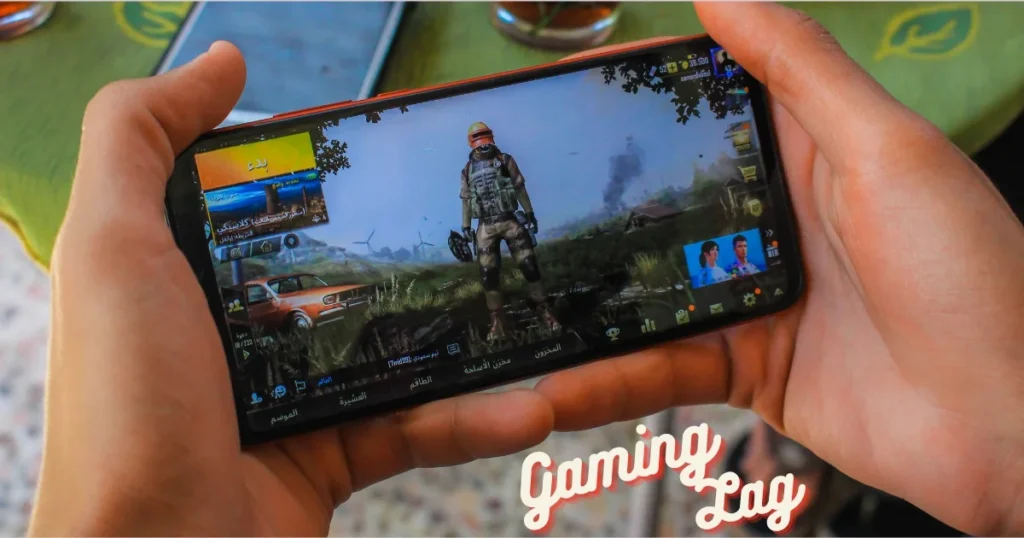
First, Understand: What Exactly Is “Lag”?
“Lag” is an umbrella term that gamers use to refer to any performance issue. However, there are actually two completely distinct types – and the fix for each is different.
FPS Lag (Frame Drop) – A Phone Issue
FPS = Frames Per Second – This indicates how many images the phone renders in one second.
| FPS | Experience | Gaming Level |
|---|---|---|
| 15–20 | Slideshow – unplayable | ❌ |
| 25–30 | Playable but choppy | Basic casual |
| 45–60 | Smooth | Competitive ready |
| 90–120 | Ultra smooth | Pro level |
When Does an FPS Drop Occur?
- Phone’s processor (CPU/GPU) overloaded
- RAM insufficient – filled by background apps
- Phone overheating – thermal throttling
- Storage almost full – caching slow
- Graphics settings are higher than the phone’s capabilities
How to Identify FPS Drops:
- The game stutters or jerks.
- Characters teleport (this is rendering lag, not server lag).
- Touch response feels delayed.
- Screen tearing is visible.
Ping Lag (Network Lag) – An Internet Issue
Ping = The time (in milliseconds) it takes for data to travel from your phone to the game server and back.
| Ping | Experience | Competitive? |
|---|---|---|
| 20–40ms | Excellent | Pro level ✅ |
| 40–60ms | Good | Competitive ✅ |
| 60–100ms | Playable | Casual OK |
| 100–200ms | Laggy | Frustrating |
| 200ms+ | Unplayable | ❌ |
When does Ping Lag occur?
- Internet speed is slow/unstable
- WiFi signal weak
- Server is remote (not the India server, in Singapore/Japan)
- ISP throttling (peak hours)
- Background data consumption (updates, cloud sync)
How to Identify Ping Lag:
- Enemies suddenly teleport or skip
- Bullets do not register (delayed hit markers)
- “Network Delay Detected” message
- Other players appear smooth, but your character rubber-bands
FPS Lag vs Ping Lag – Quick Diagnosis
| Factor | FPS Lag | Ping Lag |
|---|---|---|
| Reason | Phone hardware/software | Internet/Network |
| Characteristics | Stuttering, frame drops | Rubber-banding, teleporting |
| In-game indicator | FPS counter drops | Ping meter high |
| Phone feels | Garm, slow | Normal temperature |
| Fix approach | Phone settings, cooling | Internet, server, DNS |
💡 Pro Tip: Most games feature display options for an FPS counter and a Ping meter – turn both of them on. This will tell you exactly whether the problem lies with your FPS or your Ping.
Phone Settings Optimization – Do This Before Gaming
This is the most effective – and completely free – method for fixing mobile gaming lag.
Step 1: Kill Background Apps (Critical)
This is the most important step. Apps running in the background consume RAM and CPU resources – directly degrading gaming performance.
Before launching the game:
- Tap the “Recent Apps” (square button).
- Tap “Close All” or “Clear All”.
- Specifically, close these apps: Instagram, YouTube, Chrome, Facebook, WhatsApp Web, and Spotify.
- Then, launch the game.
Permanent Background Restriction:
- Settings > Apps > [Heavy App] > Battery > “Restricted”
- This prevents the app from running in the background.
- ⚠️ Do not restrict essential apps like WhatsApp or Gmail – notifications will stop working.
Step 2: Enable Gaming Mode / Game Mode
Most Android phones come with a built-in gaming mode – it detects games and optimizes performance automatically.
Brand-wise Gaming Mode:
| Brand | Feature Name | Where will I find it? |
|---|---|---|
| Samsung | Game Launcher + Game Booster | Settings > Advanced Features > Game Launcher |
| Xiaomi/Redmi/POCO | Game Turbo | Security App > Game Turbo; Or Settings > Special Features |
| Realme/Oppo | Game Space | Home screen > Game Space app |
| Vivo | Ultra Game Mode | Settings > Ultra Game Mode |
| OnePlus | Game Mode | Settings > Utilities > Gamer Mode |
| iQOO | Monster Mode | Settings > Monster Mode |
What Gaming Mode Does:
- Notifications block (will not disturb)
- Background processes pause
- CPU/GPU performance priority for gaming app
- Network priority to gaming traffic
- Touch sensitivity optimization
- Auto-brightness disable (stable brightness)
Step 3: Disable or Reduce Animations
Android UI animations consume CPU and GPU resources. Minimizing them before gaming is a highly effective method for fixing mobile gaming lag.
How to do it:
- Tap on Settings > About Phone > Build Number 7 times (to unlock Developer Options)
- Go to Settings > Developer Options
- Find these three settings and change them:
- Window Animation Scale → 0.5x or Off
- Transition Animation Scale → 0.5x or Off
- Animator Duration Scale → 0.5x or Off
Impact: The phone will feel instantly snappier – with faster menu transitions and loading times in gaming.
Step 4: Optimize RAM Management
How Important Is RAM for Gaming (2026):
| RAM | Gaming Capability | Multitasking |
|---|---|---|
| 3 GB | Light games only (Subway Surfers, Candy Crush) | Very limited |
| 4 GB | Medium games (BGMI low settings, Free Fire) | Basic |
| 6 GB | Most games smoothly (BGMI medium, CoD Mobile) | Good |
| 8 GB | All games comfortably | Excellent |
| 12 GB+ | Ultra settings, streaming while gaming | Overkill for most |
How to Keep RAM Free:
- Close all apps before launching the game.
- Use the “Lite” versions of your daily apps: Facebook Lite, Instagram Lite.
- Developer Options > “Running Services” – Check which services are consuming unnecessary RAM.
- “Don’t Keep Activities” (Developer Options) – ⚠️ Experimental; try enabling this temporarily for your gaming session – it causes background apps to release memory.
Step 5: Storage Cleanup – Keep Minimum 20% Free
Full storage = slow caching = game loading slow + stuttering during gameplay.
Quick Cleanup:
- Files by Google – junk clean, duplicate remove
- WhatsApp > Settings > Storage > Manage Storage – large/old media delete
- Settings > Storage – identify and delete/move big files
Target: Internal storage usage should be less than 80% – 20%+ free space is ideal for optimal gaming performance.
Step 6: Enable Performance Mode
Some phones have a dedicated performance or high-performance mode.
- Samsung: Settings > Battery > Power Mode > “High Performance” (for Gaming sessions)
- OnePlus/iQOO: Settings > Battery > “Performance Mode” or “Monster Mode.”
- Xiaomi: Game Turbo > Settings > “Performance” preference
⚠️ Note: Performance mode drains the battery faster – enable it only for gaming sessions, and keep it off during daily use.
Step 7: Touch Sensitivity Boost
A screen protector (tempered glass) can reduce touch responsiveness, which is crucial for gaming.
- Samsung: Settings > Display > “Touch Sensitivity” ON ✅
- Xiaomi: Settings > Display > “Increase Touch Sensitivity” ON
- Most phones: If not an option – use good quality tempered glass (~₹200–₹400 / $2.50–$5) that is gaming-optimized
In-Game Settings Optimization – The Most Effective Fix
No matter how powerful your hardware is, incorrect in-game settings can kill your FPS. Optimizing in-game settings is the #1 method for fixing lag in mobile gaming.
Universal In-Game Optimization Rules:
Rule 1: FPS > Graphics – Always
Smooth gameplay (high FPS) is more important than beautiful graphics in competitive gaming. Pro players play with the lowest graphics settings and the highest FPS.
Rule 2: Lower the Resolution
Lower resolution = fewer pixels for the phone to render = higher FPS. HD (720p) vs. Ultra HD (1080p+) – the FPS difference can be as much as 30–50%.
Rule 3: Disable Effects/Shadows/Anti-Aliasing
These are visual-only enhancements that place a heavy load on the GPU. They offer no advantage in competitive gaming – only a drain on battery life and performance.
BGMI / PUBG Mobile Optimized Settings:
| Setting | Budget Phone (4 GB RAM) | Mid-Range (6–8 GB) | Flagship (8 GB+) |
|---|---|---|---|
| Graphics | Smooth | Balanced | HDR |
| Frame Rate | High (30) | Ultra (40) | Extreme (60) |
| Style | Classic | Colorful | Realistic |
| Anti-Aliasing | OFF | OFF | ON |
| Shadows | OFF | OFF | ON |
| Color Mode | Classic | Classic | Colorful |
Extra BGMI Tips:
- Settings > “Peek & Fire” – Adjust the sensitivity; the default sensitivity often causes a noticeable lag.
- Auto-pickup OFF – This reduces background processing.
- Inventory auto-open OFF
- Map quality: Low/Medium
Free Fire / Free Fire MAX Optimized Settings:
| Setting | Budget | Mid-Range | Flagship |
|---|---|---|---|
| Graphics | Standard | High | Ultra |
| Frame Rate | Normal | High | Ultra |
| Minimap | Static | Static | Rotating |
| Effects | Low | Medium | High |
Free Fire Extra Tips:
- Arrange Custom HUD – comfortable layout = better reaction time
- “Auto Aim” sensitivity adjust – medium recommended
- Download the map in advance – reduce loading time
Call of Duty: Mobile Optimized Settings:
| Setting | Budget | Mid-Range | Flagship |
|---|---|---|---|
| Frame Rate | Medium | High | Max |
| Graphics Quality | Low | Medium | Very High |
| Depth of Field | OFF | OFF | ON |
| Shadow | OFF | OFF | ON |
| Ragdoll | OFF | OFF | ON |
| Water Reflection | OFF | OFF | ON |
Genshin Impact Optimized Settings:
Genshin Impact is the most demanding game in mobile gaming – it can lag even on phones costing over ₹50,000.
| Setting | Budget (Don’t bother) | Mid-Range | Flagship |
|---|---|---|---|
| Graphics | Lowest | Medium | High |
| Frame Rate | 30 | 45 | 60 |
| Render Resolution | 0.6 | 0.8 | 1.0 |
| Shadow Quality | Lowest | Medium | High |
| Visual Effects | Lowest | Medium | High |
| SFX Quality | Lowest | Low | Medium |
| Environment Detail | Lowest | Medium | High |
| Anti-Aliasing | None | TAA | TAA |
| Bloom | OFF | OFF | ON |
| Crowd Density | Low | Low | High |
Genshin Reality Check (India): If your phone costs less than ₹15,000, a smooth Genshin Impact experience is unlikely. Cloud gaming services (such as Xbox Cloud Gaming or GeForce NOW) could be a better option, provided you have a fast internet connection.
Network Optimization – Lower Your Ping
High ping is the biggest enemy of online gaming. In India, the average mobile ping is 40–80ms – but with optimization, you can bring it down to 25–40ms.
WiFi vs. Mobile Data – Which is Better for Gaming?
| Factor | WiFi (5 GHz) | WiFi (2.4 GHz) | 4G/LTE | 5G |
|---|---|---|---|---|
| Ping | 10–30ms | 20–50ms | 30–80ms | 15–40ms |
| Stability | Very Stable | Moderate | Variable | Stable |
| Speed | Fast | Medium | Varies | Very Fast |
| Gaming Rating | ⭐⭐⭐⭐⭐ | ⭐⭐⭐ | ⭐⭐⭐ | ⭐⭐⭐⭐ |
Best Choice: WiFi 5 GHz band > 5G > WiFi 2.4 GHz > 4G
WiFi Gaming Optimization:
✅ Connect 5 GHz Band:
- Keep the 2.4 GHz and 5 GHz bands separate in your router settings (using different SSID names).
- Connect your gaming device to the 5 GHz band – this ensures less interference and lower latency.
- ⚠️ The range of the 5 GHz band is shorter – do not sit too far away from the router.
✅ Router Placement:
- Place the router in the gaming room (or sit near the router).
- Walls, furniture, and electronics (like microwaves!) cause interference.
- Keep the router elevated above the floor.
✅ QoS (Quality of Service) Enable:
- Router Admin Panel (192.168.1.1) > QoS Settings
- Prioritize the gaming device.
- This gives gaming traffic higher priority than other devices (Netflix streaming, cloud backup).
✅ DNS Optimization:
- Settings > WiFi > Connected network > DNS > Manual
- Primary: 1.1.1.1 (Cloudflare – fastest)
- Secondary: 8.8.8.8 (Google – reliable)
- Gaming-specific DNS: 1.1.1.2 (Cloudflare malware-blocking)
Mobile Data Gaming Optimization:
✅ Network Mode:
- Settings > Network > Preferred network type > 4G/LTE or 5G (if available)
- Disable 3G/2G auto-switch – network switching causes lag spikes.
✅ Data Saver OFF:
- Settings > Network > Data Saver > OFF
- Data Saver also throttles gaming traffic
✅ Background Data Restrict:
- Settings > Apps > [Non-gaming apps] > “Restrict Background Data”
- This prevents WhatsApp, Instagram, and YouTube from consuming data during gaming sessions.
✅ VPN OFF:
- Turn off your VPN while gaming – VPN encryption adds extra latency.
- Exception: If your ISP is throttling your connection, try a specific gaming VPN.
Server Selection – Choose Closest Server:
| Game | Best Server for India | Expected Ping |
|---|---|---|
| BGMI | India | 20–50ms |
| Free Fire | India | 20–50ms |
| CoD Mobile | Other (India) | 30–60ms |
| MLBB | Original Server | 30–70ms |
| Genshin Impact | Asia | 60–120ms |
⚠️ BGMI Players: In “PMPL” tournaments on the India server, players typically get a ping of 20–40ms. If you are experiencing 80ms or higher, it indicates an ISP issue or a WiFi problem.
Thermal Management – The Hidden Enemy of Gaming
Overheating is the #1 killer of mobile gaming performance. The phone heats up → the processor engages in thermal throttling → FPS drops → the game lags. In India, this problem becomes even more serious during the summer months (April–July).
How Thermal Throttling Works:
When the phone’s temperature crosses the threshold (~40–42°C surface):
- CPU clock speed decreases (100% → 70% → 50%)
- GPU performance drops – FPS takes a direct hit
- Charging speed slows down – if you are gaming while charging
- Screen brightness decreases – auto-dimming
Result: 60 FPS at the start of the game session; 30–35 FPS after 15–20 minutes; 20–25 FPS after 30+ minutes. This is the thermal throttling pattern.
Overheating Prevention Tips:
✅ Remove the Phone Case During Gaming:
- The case traps heat – removing it lowers the surface temperature by 3–5°C.
- Put the case back on once your gaming session is over.
✅ Avoid gaming while charging.
- Charging + Gaming = Double Heat Source
- This is the worst combination for your phone’s health.
- Charge it to over 80%, then unplug it before playing games.
✅ Fan / Cooling Accessories:
- Phone cooling fan/clip – available in India in the ₹300–₹1,500 ($4–$18) range
- Budget pick: Generic clip-on fan (~₹300–₹500 / $4–$6) – basic but effective
- Mid-range: Black Shark FunCooler (~₹1,500–₹2,500 / $18–$30) – Peltier cooling
- These can give a 5–10°C temperature drop – significant FPS improvement
✅ Play in an AC Room / Under a Fan:
- Room temperature directly affects phone temperature
- 45°C ambient + gaming = instant throttling in India
- Gaming noticeably smoother in AC room (24–26°C)
✅ Take Breaks During Long Gaming Sessions:
- Take a 5-minute break every 30–45 minutes – let the phone cool down.
- This benefits all three: battery health, phone longevity, and performance.
How to Monitor Temperature:
Free Tools:
- CPU Monitor – real-time temperature overlay
- Game Booster 4x – FPS + temperature monitor in gaming session
- Built-in (Samsung): Game Booster > Performance Monitoring
Temperature Zones:
- 25–35°C: Ideal gaming range ✅
- 35–40°C: OK but monitoring needed ⚠️
- 40–45°C: Throttling likely – cooling needed ⚠️⚠️
- 45°C+: Throttling active, battery damage risk – stop gaming ❌
Brand-Specific Gaming Optimization
Every Android skin handles Gaming Mode differently. Use the specific optimization provided by your brand.
Xiaomi / Redmi / POCO – Game Turbo
Game Turbo Premium Features:
- Security App > Game Turbo > Add Game
- Settings > Performance Mode (WiFi optimization, touch enhancement)
- In-Game Floating Toolbar: DND, screenshot, screen record
- Voice Changer – a fun feature for team chat
- GPU Settings: Performance / Quality / Battery balance slider
POCO-Specific: On POCO phones, the HyperOS-based Game Turbo offers an extra-aggressive performance mode – enable it.
Samsung – Game Launcher + Game Booster
Game Launcher Setup:
- Settings > Advanced Features > Game Launcher ON
- Open the Game Launcher app > games will automatically detect
- ⚙️ > Game Booster settings:
- Performance mode: select “Focus on Performance.”
- Labs: Try “Alternate Game Performance” (experimental)
- Block during games: Calls, notifications, edge panel
- Game Booster floating button – FPS monitor, temperature, screenshot
Realme / Oppo – Game Space
Game Space Setup:
- Open the Game Space app (pre-installed)
- add games
- Settings:
- Competition Mode – maximum performance
- Balanced Mode – daily gaming
- In-game sidebar: network info, DND, screen record
Free Gaming Booster Tools
| Tool | Best Feature | Price | Rating |
|---|---|---|---|
| Game Booster 4x Faster | GFX Tool + FPS monitor | Free / Pro ~$2.99 | ⭐⭐⭐⭐ |
| GFX Tool (BGMI) | Graphics unlock | Free | ⭐⭐⭐⭐ (⚠️ Ban risk) |
| Game Plugins (Samsung) | Official Samsung tool | Free | ⭐⭐⭐⭐⭐ |
| CPU Monitor | Temperature + CPU overlay | Free | ⭐⭐⭐⭐ |
| Net Optimizer | DNS optimization | Free | ⭐⭐⭐ |
⚠️ GFX Tool Warning: Using third-party GFX tools in BGMI/PUBG Mobile may result in an account ban. The game developers have issued a clear warning. Proceed at your own risk. In-game settings or your phone’s built-in gaming mode are safer options.
💰 Budget Gaming Accessories – India Prices
| Accessory | Price (India) | Impact | Worth It? |
|---|---|---|---|
| Cooling Fan Clip | ₹300–₹500 ($4–$6) | Temperature 5–8°C lower | ✅ Must have |
| Gaming Trigger | ₹200–₹800 ($2.50–$10) | Better control (BGMI) | ✅ Budget gamers |
| Wired Earphones | ₹300–₹1,000 ($4–$12) | Zero audio lag | ✅ Over Bluetooth |
| WiFi 6 Router | ₹2,000–₹5,000 ($24–$60) | Better ping, stability | ✅ If old router |
| Phone Cooler (Peltier) | ₹1,500–₹3,000 ($18–$36) | Serious cooling | Gaming enthusiasts |
| Power Bank (20,000mAh) | ₹1,000–₹2,000 ($12–$24) | Extended sessions | Long gaming |
| Finger Sleeves | ₹100–₹300 ($1–$4) | Sweat-free touch | ✅ Cheap, effective |
| Screen Protector (Gaming) | ₹200–₹500 ($2.50–$6) | Better touch response | ✅ Must have |
Most Value for Money: Cooling fan clip (₹400) + Finger sleeves (₹150) + Gaming screen protector (₹300) = ₹850 total – significant improvement।
Gaming Day Routine – What Pro Players Do
5 Minutes Before the Gaming Session:
- ❑ Close all background apps
- ❑ Connect to WiFi 5 GHz (or the strongest network)
- ❑ Gaming Mode / Game Turbo ON
- ❑ Remove phone case
- ❑ Install cooling fan (if available)
- ❑ DND (Do Not Disturb) ON
- ❑ Fix Brightness (auto-brightness OFF – brightness fluctuation distracting in gaming)
- ❑ Charging cable disconnect (play in charged state)
During the Gaming Session:
- ❑ After 30–45 minutes, take a 5-minute break (rest both your phone and your eyes).
- ❑ Monitor temperature – take a break if it exceeds 42°C.
- ❑ Hydrate – seriously, dehydration slows down reaction time.
After the Gaming Session:
- ❑ Put the phone case back on
- ❑ Performance Mode / Game Turbo OFF (battery save)
- ❑ Normal brightness / auto-brightness ON
- ❑ DND OFF
Common Gaming Myths (India Edition)
❌ “RAM Cleaner apps boost gaming speed.”
Fact: These apps actually consume RAM themselves, display ads in the background, and Android’s native RAM management is superior. Uninstall them.
❌ “Putting your phone in the fridge improves gaming performance.”
Fact: Sudden temperature changes cause condensation (moisture) – posing a risk of circuit damage. Cool it down gradually – using a fan, an air-conditioned room, or a cooling pad. Never place it in a fridge or freezer.
❌ “Switching from 4G to 5G automatically improves gaming.”
Fact: While 5G offers higher speeds, ping depends on the distance to the gaming server. On Indian servers, the difference in ping between 4G and 5G is minimal (5–15ms). 5 GHz Wi-Fi remains the best option for gaming.
❌ “An expensive phone means zero lag.”
Fact: Even a ₹70,000 phone will experience lag if the Wi-Fi is slow, the game server is distant, 30 apps are running in the background, the phone is overheating inside its case, or the in-game settings are unnecessarily high.
FAQs – Fix Mobile Gaming Lag
Q1: What is the most effective way to fix mobile gaming lag?
Lower your in-game graphics settings (to Smooth/Low) and maximize your FPS setting. This single change yields the greatest FPS improvement—on any phone.
Q2: What is the minimum RAM required for gaming?
In 2026, for serious gaming (BGMI, CoD, Genshin): a minimum of 6 GB is recommended. 4 GB is playable but involves compromises. 8 GB is comfortable. 12 GB+ is overkill for most games.
Q3: WiFi vs. Mobile Data – which is better for gaming?
WiFi 5 GHz band > 5G > WiFi 2.4 GHz > 4G. The WiFi 5 GHz band offers the lowest ping and the most stability. Sit close to your router for the best results.
Q4: How bad is it to game while charging?
Very bad. Double the heat leads to faster battery degradation and thermal throttling, resulting in worse performance. Charge your phone to over 80%, unplug it, and then play. Your battery health can deteriorate months faster if you regularly game while charging.
Q5: Will using a GFX Tool get me banned in BGMI?
There is a risk. Krafton has clearly warned that third-party tools violate their Terms of Service. An account ban is possible. Use your phone’s built-in Game Mode or the in-game settings instead—they are safe.
Q6: Do cooling fans actually work?
Yes, they have a measurable impact. A budget clip-on fan can provide a temperature drop of 5–8°C, while a Peltier-based cooler can drop it by 10–15°C. This delays thermal throttling, allowing for longer periods of sustained performance. It’s a ₹400 investment for a noticeable improvement—definitely worth it.
Q7: What is the best budget phone for gaming in India (in the ₹15K range)?
In 2026: POCO M6 Pro, Redmi Note 13, Samsung Galaxy A25 , Realme Narzo 70x. Look for 6 GB of RAM, a capable processor, and an AMOLED screen. Optimize your in-game settings, and you’ll enjoy a smooth gaming experience in titles like BGMI or Free Fire.
Q8: My game is lagging significantly more after an update—what should I do?
New game updates sometimes introduce bugs. Options: clear the game cache, restart your phone, or reinstall the game. If it is a widespread issue, the game developers will release a hotfix—wait 2–3 days. Check Twitter or Reddit to see if other people are experiencing the same problem.
Final Thoughts
So, that was the complete guide to fixing mobile gaming lag – covering everything from FPS optimization to network tuning, and from thermal management to in-game settings. Here are the most important takeaways:
FPS Lag Fix: Kill background apps, turn on Gaming Mode, set in-game graphics to LOW (while keeping FPS HIGH), set animations to 0.5x, and keep storage usage below 80%. Ping Fix: Use a 5 GHz WiFi network, set DNS to 1.1.1.1, turn OFF Data Saver, and connect to the closest game server. Thermal Fix: Remove your phone case, avoid gaming while charging, invest in a cooling fan, and take a 30-minute break.
A total investment of ₹400–₹800 (for a cooling fan + finger sleeves) combined with ₹0 software optimizations translates to a 30–50% better gaming experience – without the need to upgrade your phone. In India, competitive gaming is entirely possible even on phones in the ₹10,000–₹15,000 price range – provided you know the right techniques to fix mobile gaming lag.
If you are facing laptop or other tech-related issues, visit fixtech.in to read more guides – new solutions are added there daily.