
Imagine this: you save an important contact on your phone. A little while later, you look for that very same contact on your laptop to send an email, but it’s simply not there. Or perhaps you set a meeting reminder with your boss on your phone’s calendar, but no notification appeared on your tablet – and you completely missed the meeting. How would that make you feel? Angry, frustrated, and perhaps even a little panicked. That is the moment you realize your Google account has fallen victim to a sync error.
This is no minor inconvenience. Today, our digital lives rely heavily on the Google ecosystem – Gmail, Contacts, Calendar, Drive, and Photos. When these services stop communicating with one another, our entire workflow grinds to a halt. You might see a small message pop up on your screen: “Sync is currently experiencing problems. It will be back shortly.” But that “shortly” can sometimes stretch into hours or even days.
Don’t panic! You are not alone. This is a very common issue, and the good news is that, in most cases, it can be fixed right from the comfort of your home – without the need for any technical expert. In this guide, we will walk you through every method – big and small – to fix Google account sync errors once and for all. We will explain every step, from basic checks to advanced solutions, in simple, easy-to-understand language.
Let’s get your digital life back on track!
What is Google Sync, and why is it so important?
Before we learn how to fix Google account sync errors, it is essential to understand what exactly ‘Sync’ is.
The term ‘Sync’ is an abbreviation for ‘Synchronization,’ which means ‘to do together’ or ‘to coordinate.’ Google Sync is a background process that ensures your data – such as emails, contacts, calendar events, photos, and files – remains consistent and up-to-date across all your devices: phones, tablets, laptops, and computers.
Let’s understand this with an example:
- You save a new contact number named ‘Rahul’ on your Android phone.
- Google Sync activates immediately. It sends this new contact to the cloud storage associated with your Google account.
- Now, when you open Gmail on your laptop or the Google Contacts app on your iPad, Google Sync retrieves ‘Rahul’s’ number from that cloud storage and displays it on your laptop and iPad as well.
All of this happens automatically in just a few seconds. You don’t have to do anything. That is the magic of sync.
Which Google services sync?
- Gmail: All your emails, labels, and settings.
- Google Contacts: All the contacts saved on your phone.
- Google Calendar: All your events, reminders, and meetings.
- Google Drive: All your files and folders.
- Google Photos: Backups of photos and videos taken on your phone.
- Google Keep: Your notes and lists.
- Chrome: Your bookmarks, history, passwords, and settings.
- And much more…
When synchronization stops working, the entire ecosystem breaks down. Changes made on one of your devices do not appear on another, increasing the risk of confusion and data loss.
Why Does Google Account Sync Fail? – 10 Most Common Reasons
Sync errors are rarely caused by a single factor. There can be various underlying reasons – both minor and major. Before attempting to resolve the issue, it is essential to understand these potential causes:
- Poor Internet Connection: This is the most common cause. If your Wi-Fi or mobile data is not working properly, the sync process will not be able to complete.
- Incorrect Date and Time: If your device’s date and time do not match Google’s servers, the sync will fail for security reasons.
- Low Storage: If your phone’s internal storage or your Google account storage (Drive/Photos) is full, new data will not be able to sync.
- Battery Saver Mode: On most phones, Battery Saver mode disables background processes (such as syncing) to conserve battery power.
- Outdated Apps or Operating System (OS): If you are using an older version of Gmail, Calendar, or Android/iOS, it may contain bugs that prevent syncing.
- Corrupted Cache: Apps accumulate temporary files (cache) over time. If this cache becomes corrupted, the app will not function correctly.
- Manual Sync Disabled: You may have accidentally disabled syncing for a specific service (such as Contacts).
- Google Server Issues: Sometimes, the problem lies not with you, but with Google. Their servers may be down.
- Two-Factor Authentication (2FA) Issues: After changing your password or modifying security settings, you may need to re-authenticate your account.
- App Permission Issues: An app may not have been granted the necessary permissions (such as access to Contacts or Storage) required to sync data.
Now that we know why a Google account sync error might occur, let’s move on to the ways to fix it.
5-Minute Quick Fixes – Try These First
You don’t always need to jump straight to the most difficult solution. Often, the problem is quite minor and can be resolved simply by following these easy steps.
1. Check your internet connection.
This sounds very basic, but more than 50% of sync problems are caused by this.
- Open the Chrome browser on your phone and try visiting a website (such as google.com).
- If you are connected to Wi-Fi, turn it off and switch to mobile data (and vice versa).
- Toggle Airplane Mode on for 10 seconds, then turn it off. This refreshes your network connection.
2. Restart the Device
“Have you tried turning it off and on again?” – This is the oldest and most effective trick in the world of IT. Restarting the phone automatically resolves many temporary glitches and issues related to background processes.
3. Try syncing manually.
There might be an issue with auto-sync. You can force sync it.
- Go to Settings.
- Tap on Accounts or Users & accounts.
- Select your Google account.
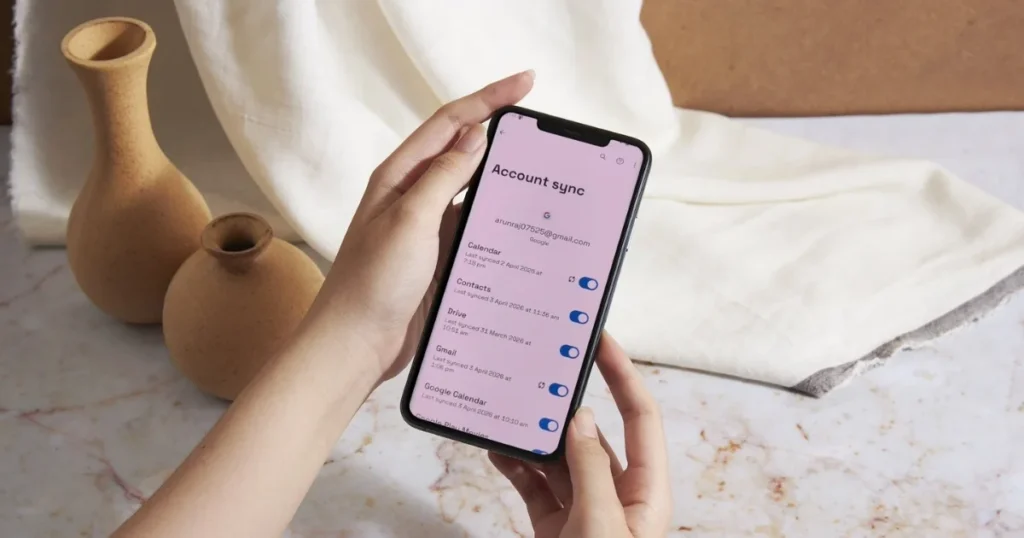
- Tap on Account sync.
- Here, you will see a list of all Google services. Tap on the three dots (⋮) in the top-right corner and select Sync now.
If there is a problem with a specific service (such as Contacts), toggle the switch next to it off and then back on.
4. Check the status of Google’s servers.
The problem might not be with your phone at all! A Google service may be down.
- Open the Google Workspace Status Dashboard in your browser.
- Here, you will see the live status of all services, such as Gmail, Calendar, and Drive.
- If there is an orange or red dot next to a service, it indicates that there is an issue on Google’s end. In such a case, there is nothing you can do other than wait.
5. Fix date and time.
- Go to Settings > System > Date & time.
- Turn on “Use network-provided time” and “Use network-provided time zone.” This will allow your phone to automatically set the correct time.
If these quick fixes didn’t work, we’ll have to dig deeper now.
How to Fix Google Account Sync Errors on Android (A-Z Guide)
Android phones are the heart of the Google ecosystem, and this is where sync issues are most frequently encountered. Let’s take a detailed look at each solution, one by one.
Step 1: Check Storage (Both Phone and Cloud)
If there is no space available, where will the new data be saved?
- Phone Storage:
- Go to Settings > Storage.
- Check how much storage is available here. If it is more than 90% full, it may cause issues with syncing.
- Use the “Free up space” button, or delete unnecessary apps, photos, and files.
- Google Account Storage:
- Every Google account comes with 15 GB of free cloud storage, which is shared across Gmail, Google Drive, and Google Photos.
- Visit one.google.com/storage in your browser.
- Here, you can see how much of your 15 GB has been used. If it is full, you will either need to delete old files or increase your storage by purchasing a Google One plan. (Plans start at ~$1.99/month).
Step 2: Update Apps and Android OS
Outdated software is a breeding ground for bugs.
- Update Apps:
- Open the Google Play Store.
- Tap on your profile picture in the top right corner and select “Manage apps & devices.”
- Go to the “Updates available” section and tap “Update all.” It is especially important to update Gmail, Contacts, Calendar, and Google Play Services.
- Update Android OS:
- Go to Settings > System > System update (or Software update).
- Tap on Check for update. If an update is available, download and install it.
Step 3: Clear the App’s Cache and Data (With Caution!)
This is a very effective method, but it requires careful understanding.
- Clear Cache: This is completely safe. It removes the app’s temporary files, giving the app a fresh start. This does not delete any of your personal data.
- Clear Data/Storage: This performs a factory reset of the app. This means that all of the app’s settings, accounts, and local data will be deleted. Do this only if clearing the cache does not resolve the issue.
Which app’s cache/data should be cleared?
The service is experiencing sync issues. For example, if contacts are not syncing:
- Go to Settings > Apps > See all apps.
- Find the Contacts app and tap on it.
- Tap on Storage & cache.
- First, tap on Clear cache. Now, restart your phone and check the sync status.
- If the problem persists, return to this same screen and tap on Clear storage (or Clear data). Note: This may delete contacts saved on your phone that were not synced with your Google account. Therefore, please create a backup first.
You can follow this same process for Gmail, Calendar, or any other app that is experiencing issues.
Step 4: Turn off Battery Saver and Data Saver
Both of these features stop background activity – including syncing – to save battery and data.
- Battery Saver:
- Go to Settings > Battery > Battery Saver.
- Turn it off now.
- You can also try turning off Adaptive Battery for a while.
- Data Saver:
- Go to Settings > Network & internet > Data Saver.
- Turn it off.
Step 5: Check App Permissions
Have you granted the necessary permissions to the apps?
- Go to Settings > Apps and select the problematic app (such as Contacts).
- Tap on Permissions.
- Ensure that essential permissions – such as Contacts, Storage, and Phone – are allowed. If any permission is ‘Denied’, allow it.
Step 6: Check Two-Factor Authentication (2FA)
If you have recently changed your Google password, your account on your phone may have been ‘paused’.
- You may see a notification on your screen: “Account Action Required”.
- Tap on it and re-verify your account by entering your new password.
- If there is no notification, go to Settings > Accounts > Google anyway to check if any error message is displayed.
Step 7: Remove and Re-add Your Google Account (The Nuclear Option)
Warning: This is the final and most effective method. Before proceeding, understand that removing the account from your phone may result in the deletion of all local data associated with that account (that has not yet been synced).
Create a Backup First:
- Back up your important contacts, messages, or files to another location (such as a SIM card or SD card).
How to Delete an Account:
- Go to Settings > Accounts (or Users & accounts).
- Tap on your Google account.
- Tap the Remove account button. Confirm.
How to Re-add an Account:
- After removing the account, restart your phone.
- Go back to Settings > Accounts.
- Tap on Add account.
- Select Google.
- Enter your email ID and password to log in.
After logging in, Google will automatically start syncing all your data (emails, contacts, calendar, etc.) from the cloud back to your phone. This may take some time. This method resolves 99% of Google account sync errors.
How to Fix Sync Issues on Google Chrome (Laptop/PC)?
Chrome Sync keeps your bookmarks, passwords, history, extensions, and settings consistent across all your devices. If it isn’t working, follow these steps.
Step 1: Check whether sync is turned on.
- Open Chrome on your computer.
- Click on your profile picture in the top-right corner.
- If you see “Sync is on,” it is enabled. If you see “Sync is off,” click on “Turn on sync.”
Step 2: Fix the “Sync is paused” error
This error often appears when you change your Google password on another device.
- In Chrome, you will see an orange “Paused” or “Error” icon in the top-right corner.
- Click on it.
- Click on “Sign in again” and enter your password.
Step 3: Update Chrome
An outdated browser can also cause syncing issues.
- Click the three dots (⋮) in the top-right corner of Chrome.
- Go to Help > About Google Chrome.
- Chrome will automatically check for updates and install any available updates.
Step 4: Sign out of and sign in to Chrome
This is similar to removing an account from your phone, but there is no risk of data loss here.
- Go to Chrome Settings (chrome://settings).
- In the “You and Google” section, click on “Turn off.”
- A pop-up will appear. Keep the box labeled “Clear bookmarks, history, passwords, and more from this device” unchecked. Then, click on “Turn off.”
- Now, close and reopen Chrome, and then sign in by turning on sync again.
Step 5: Reset Sync
This deletes all data synced from your Google account on the server, but the data saved on your computer or phone remains safe. This is an effective way to clear corrupted sync data.
- Go to the Google Dashboard in your browser.
- Scroll down to the Chrome section.
- Click on “Reset sync.”
- Confirm.
- Next, turn off sync in Chrome and then turn it back on. Chrome will upload your local data back to the server.
Is Your Google Account Not Syncing on iPhone/iPad (iOS)?
iPhone users also make extensive use of Google’s services (particularly Gmail and Calendar). The methods for fixing sync issues on iOS are slightly different.
Apple’s Native Apps vs. Google’s Official Apps
There are two ways to use Google services on iOS:
- Apple’s Native Apps (Mail, Calendar, Contacts): You can add your Google account in the iOS Settings.
- Google’s Official Apps (Gmail, Google Calendar): You can download Google’s apps directly from the App Store.
Our Advice: If you are experiencing persistent syncing issues, use Google’s official apps. They integrate better with Google’s servers and support push notifications (i.e., instant syncing).
Step 1: Check Fetch New Data Settings
This is the most important setting for Apple’s native apps.
- Go to Settings > Mail > Accounts.
- Tap on Fetch New Data at the bottom.
- Ensure that Push is turned on.
- Select either Fetch or Push for your Google account (Gmail) at the bottom. ‘Push’ is recommended as it syncs data instantly. ‘Fetch’ syncs data at a fixed interval (such as every 15 minutes).
Step 2: Re-enter the account password.
- Go to Settings > Mail > Accounts.
- Tap on your Gmail account.
- Tap on Delete Account.
- Now, go back and tap on Add Account, select Google, and log in again using your ID and password. This often resolves authentication issues.
Step 3: Turn on Background App Refresh
This setting allows apps to sync data in the background.
- Go to Settings > General > Background App Refresh.
- Turn it On (for Wi-Fi & Mobile Data).
- Keep the toggles for Gmail, Calendar, and Contacts turned on in the list below.
Step 4: Use Official Google Apps
If the issue persists in Apple’s Mail app, download the Gmail and Google Calendar apps from the App Store. These apps almost always sync without any issues.
Advanced Troubleshooting – When Nothing Else Works
If the Google Account sync error persists even after trying all the methods listed above, the problem may run deeper.
1. Using App Passwords
If you have enabled 2-Step Verification on your Google account and are attempting to log in on an older device or a less secure app (such as certain third-party email clients), your standard password will not work.
In such cases, you will need to generate an App Password. This is a 16-digit password that grants apps access to your Google account.
- Go to myaccount.google.com/apppasswords and generate a new App Password.
2. Factory Reset – The Absolute Last Resort
Critical Warning: This will delete all data on your phone – apps, photos, settings, everything – and restore the phone to the exact state it was in when it came out of the box. Perform this only when you have no other option left and have backed up your entire phone.
- Go to Settings > System > Reset options.
- Select Erase all data (factory reset).
- Confirm.
How to Avoid Sync Errors in the Future? – Pro Tips
Prevention is better than a cure. By adopting these habits, you can avoid sync issues in the future:
- Keep Auto-Updates On: Go to the Play Store settings and enable auto-updates for your apps.
- Monitor Storage: Regularly check the storage status of your phone and Google Drive.
- Clear Cache: Every few weeks, clear the cache for essential apps (such as Gmail and Chrome).
- Use a Stable Internet Connection: Whenever possible, use a stable Wi-Fi connection.
- Use Battery Saver Wisely: Turn it on only when necessary.
FAQs – About Fix Google Account Sync Error
Q1: Only my Gmail is syncing, but my contacts aren’t. Why is that?
A: This indicates that the issue lies with a specific service. Go to Settings > Accounts > Google > Account sync and check whether the toggle next to ‘Contacts’ is turned on. If it is already on, try clearing the cache and data specifically for the ‘Contacts’ app.
Q2: Will removing my Google account permanently delete all my data (emails, contacts)?
A: No! All your data remains safe and secure on Google’s servers. When you remove an account, it is removed only from that specific device. Once you log in again, all your data will sync back to the device. However, any local data that failed to sync previously due to an error might be deleted.
Q3: How often does Google sync?
A: This depends on ‘Push’ and ‘Fetch’ technologies. Services like Gmail use ‘Push’ technology, meaning that as soon as a new email arrives, it appears on your phone. Services like Calendar and Contacts may use ‘Fetch’ technology, which syncs every 15–30 minutes or whenever the app is opened.
Q4: What does the message “Sync is currently experiencing problems. It will be back shortly” actually mean?
A: This is a generic error message. It could mean either that Google’s servers are experiencing a temporary issue or that there is a problem with your device (such as a poor connection, low storage, or corrupt cache) that is preventing the sync from completing.
Q5: Can using a VPN cause sync issues?
A: Yes, absolutely. Some VPNs can slow down your connection or interfere with the connection to Google’s servers. If you are experiencing sync issues while using a VPN, try temporarily disabling it to see if that resolves the problem.
Q6: My Google account is syncing on my phone, but not in Chrome. What should I do?
A: This issue appears to be limited specifically to Chrome. Follow the steps in the “How to Fix Sync Issues on Google Chrome” section of this guide. Often, signing out of Chrome and then signing back in resolves the issue.
Final Words
A Google account sync error is certainly a frustrating issue, but it is not the end of the world. As you have seen in this guide, most of the solutions are well within your control. From basic internet checks to re-adding your account, one of these methods is bound to resolve your problem.
The most important thing is not to panic and to follow the steps one by one. Remember, your data is safe in the cloud; you simply need to clear the path for it to reach your device. Hopefully, this guide has helped show you that path, and your digital life is now back in sync. You can now enjoy a seamless experience across all your devices without any worries, as you know how to conquer Google account sync errors.
If you need solutions to other technology-related issues, be sure to read daily guides on our website: fixtech.in.