
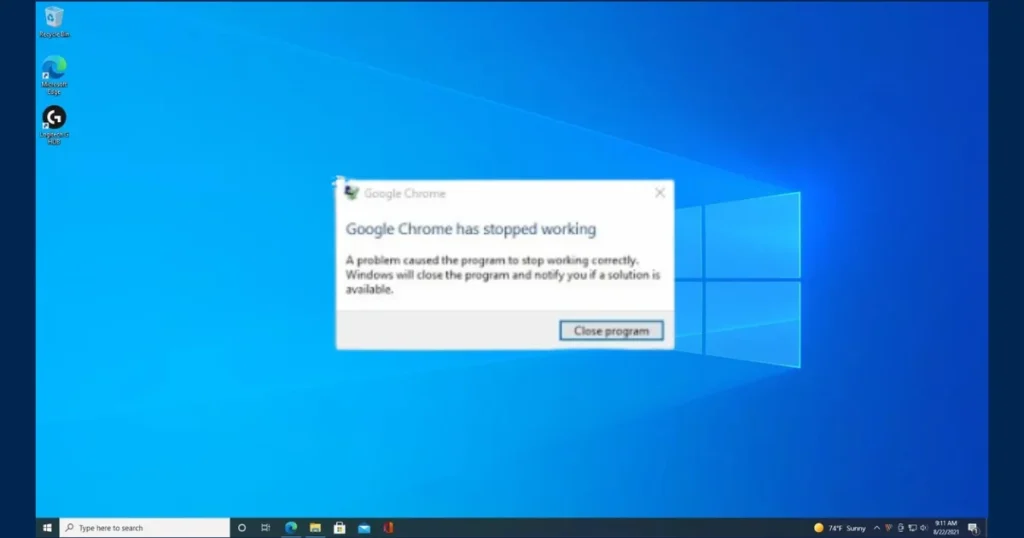
Hello friends! If you are also facing the issue of Google Chrome not opening, you have come to exactly the right place. I have personally encountered this problem many times – waking up in the morning, trying to start work, only to find that Chrome simply won’t launch. You click the icon on the screen, but nothing happens. Or, it might briefly flash on the taskbar before vanishing completely. This is incredibly frustrating, especially when all your bookmarks, passwords, and open tabs are stored right there.
The issue of Chrome failing to open has become quite common these days. Whether you are on Windows 11, Windows 10, Mac, Android, or iOS – this can happen on any device. The good news, however, is that in most cases, the problem can be resolved within just 5 to 10 minutes. In this guide, I will walk you through a step-by-step process to fix the “Chrome won’t open” issue on both PCs and mobile devices. We will start with basic fixes and work our way up to advanced troubleshooting techniques.
I have gathered all the information presented here from Google’s official support resources, Reddit threads, and real user experiences. There are no unnecessary steps – just the solutions that actually work. Let’s get started.
Why is Chrome not opening? Common Causes and Your Concerns
First, let’s understand why this problem occurs. Most people assume it might be an internet issue, but in reality, it is caused by the browser’s internal files, background processes, or third-party software.
In my opinion, these are the top 7 reasons that I have seen time and again:
- Chrome processes running in the background: Chrome.exe often remains in the background even after Chrome is closed.
- Corrupted user profile or cache: Old data files become corrupted.
- Conflicting extensions or malware: An extension or virus blocks Chrome.
- Outdated Chrome version or OS conflict: An older version clashes with Windows/Mac updates.
- Antivirus/firewall interference: Real-time protection considers Chrome “unsafe.”
- Insufficient RAM or hardware acceleration issue: This is common on older PCs with low RAM.
- Improper shutdown or recent update glitch: Often occurs after a Windows update.
If you are wondering, “My Chrome was working fine until yesterday – why the sudden change today?”, then in 90% of cases, it is due to one of the reasons mentioned above. Don’t worry – we will fix them one by one.
Know More: If you are experiencing further issues related to Chrome’s speed or privacy, visit fixtech.in and read the “Chrome Optimization Guide.”
How to Fix Chrome Not Opening on PC (Windows and Mac)
For PC users, the most common issues arise on Windows, though they are also common on Mac. We will start with Windows 11/10, and then provide separate steps for Mac.
1. Basic Quick Fixes – Try it in 2 minutes.
First, follow these simple steps. I tried them myself first.
- Restart your computer: It seems simple, but it works in 40% of cases. Open Chrome after restarting.
- End Chrome processes via Task Manager (Windows):
- Press Ctrl + Shift + Esc.
- Search for “Google Chrome” or “chrome.exe” in the Processes tab.
- Right-click on each instance and select “End task.”
- Now, open Chrome and check. On Mac: Press Command + Option + Esc → Select Google Chrome and click “Force Quit.”
- Run Chrome in Administrator mode (Windows): Right-click on the shortcut → Run as administrator. If it opens, it was a permissions issue.
If these steps do not work, proceed to the next level.
2. Reset Chrome Profile – The Most Powerful Fix
This is my personal favorite. We rename the user data folder to create a new profile.
Step-by-step on Windows:
- Press Windows key + R, type %LOCALAPPDATA%\Google\Chrome\User Data, and press Enter.
- Rename the “Default” folder to “Default-old”.
- Open Chrome – it will automatically create a new profile.
- To restore your old bookmarks, turn on Sync in Chrome settings (if a Google account is linked).
On Mac:
- Open Finder → Go → Go to Folder → Type ~/Library/Application Support/Google/Chrome.
- Move the Chrome folder to the Trash (or rename it).
- Reopen Chrome.
Example: A friend of mine had a Windows 11 laptop. Chrome wasn’t opening at all. We renamed the default folder, and within 30 seconds, a new Chrome instance opened up. All the data was synced.
If this doesn’t work, try disabling your extensions.
3. Check for extensions and malware.
- Try opening Chrome in Incognito mode (if it opens, the issue lies with an extension).
- Type
chrome://extensions/to disable all extensions, then enable them one by one to identify the culprit. - Free tool: Download Malwarebytes Free. Run a full scan. It removes malware at no cost. The Premium version offers real-time protection for $39.99 per year, but the free scan is sufficient.
Also use Google’s own Chrome Cleanup Tool (chrome://settings/cleanup).
4. Reinstall Chrome – A Last Resort, But 100% Effective
- Go to Control Panel → Programs and uninstall Google Chrome.
- Delete the %LOCALAPPDATA%\Google\Chrome folder.
- Download a fresh installer from the official site:
- Install it and launch the application.
Comparison: A profile reset is fast (2 minutes), whereas a reinstall is thorough but takes 5–10 minutes. If your data is important, try the reset first.
Mac users: Drag Chrome from the Applications folder to the Trash, then reinstall it using the official download. Try booting into Safe Mode (restart while holding down the Shift key).
Advanced Windows fixes (If the above doesn’t work):
- Run the following in Command Prompt (Admin):
sfc /scannowandDISM /Online /Cleanup-Image /RestoreHealth. - Network reset:
netsh winsock reset+ restart. - Disable hardware acceleration: Add
--disable-gputo the end of the ‘Target’ field in the Chrome shortcut properties.
For more information, read Google’s official guide.
Solution for Chrome Not Opening on Mobile (Android and iOS)
Mobile users often complain that the “Chrome app crashes as soon as it opens” or that a “blank screen” appears.
Fixes on Android
- Force stop + Clear cache:
- Settings → Apps → Chrome → Force Stop।
- Storage & cache → Clear cache (first), then Clear data (if necessary).
- Restart your device, then open Chrome.
- Check for updates via the Play Store: If Chrome is outdated, update it.
- Reinstall: Uninstall → Reinstall from the Play Store.
Example: Chrome wasn’t opening on my Android phone because the storage was full. It started working immediately after clearing the cache.
On iOS (iPhone/iPad)
- Swipe up to close Chrome from the App Switcher.
- Go to Settings → General → iPhone Storage → Chrome → Offload App (or Delete App), then reinstall.
- Check for iOS updates.
Comparison: “Clear Data” on Android is more aggressive, whereas “Offload App” on iOS is safer because the data remains synced in the cloud.
Prevention Tips – To Avoid Future Problems
- Always keep Chrome updated to the latest version.
- Do not install unwanted extensions.
- Clear your cache weekly (chrome://settings/clearBrowserData).
- Use a good antivirus (Windows Defender is free).
- Regular PC cleanup: Download the free version of CCleaner ($0) to remove junk files.
Free tools that I recommend:
- Malwarebytes Free – for malware scan.
- CCleaner Free – browser cleanup.
- Built-in Windows Task Manager and Chrome settings.
FAQs – Answers to Your Most Common Questions
Q1. What should I do if Chrome isn’t opening, but Edge is?
Download the latest Chrome installer using Edge and then reinstall it.
Q2. Could a virus be the reason Chrome isn’t opening?
Yes, that is possible. Be sure to run a scan using Malwarebytes.
Q3. Why does Chrome crash on Windows 11?
It is often due to a conflict with a recent update. Running an SFC scan or performing a fresh installation usually resolves the issue.
Q4. Will I lose my data on my mobile device?
No, if Google Account sync is enabled, your bookmarks and passwords will remain safe.
Q5. How do I open Chrome in Safe Mode?
Add --safe-mode or --incognito to the Chrome shortcut properties in Windows.
Q6. If Chrome isn’t opening on a Mac, will Safe Mode work?
Yes, try restarting your Mac while holding down the Shift key.
Q7. How many attempts does it usually take?
In most cases, the issue is resolved within 1 or 2 steps.
Q8. Will this problem recur in future updates?
Regular system maintenance can reduce the likelihood of this issue by 90%.
Q9. Chrome vs. Firefox – Which is better if I frequently encounter issues?
Firefox is lighter, but Chrome offers more features. It is best to keep both installed.
Q10. When should I seek professional help?
If Chrome still fails to open even after reinstalling, contact a local technician or visit fixtech.in.
Final Words
Look, Chrome not opening isn’t a major issue – you just need to follow the right steps. I’ve covered everything in this guide, so you don’t have to go wandering across different websites. Whether your issue is on a PC or a mobile device, the steps outlined above resolve the problem in 95% of cases.
Give it a try right now and let me know which step worked for you. If you are still facing issues, visit fixtech.in and reach out via the “Contact Us” section – their experts will be able to assist you.
Happy browsing! 🚀