
WhatsApp Not Sending Messages – This issue has become so common that almost every other user encounters it at some point nowadays. I have personally witnessed many instances where important messages get stuck – remaining on a single tick – with absolutely nothing happening for hours on end. You can surely understand just how frustrating this becomes when you are chatting with friends, sharing work-related files, or posting updates in a family group. However, the good news is that, in most cases, this problem can be resolved right from the comfort of your home in just 5 to 10 minutes.
Here, I am providing you with a step-by-step guide that actually works. I have personally tested these steps and have also recommended them to several friends. There is no complex technical jargon involved – it is simply a straightforward checklist. Let’s get started.
Why is WhatsApp not sending messages? What are the main reasons?
First, understand where the problem is coming from. Fix WhatsApp not sending messages often stems from minor glitches within the internet, app, or phone. According to the official WhatsApp Help Center, the following can cause messages to get stuck on a single tick:
- Your or the receiver’s internet is weak.
- The other person’s phone is off or out of coverage.
- You’re out of data.
- Notifications are off or slow.
- You’re blocked (although this is rare).
But sometimes, app cache, full storage, outdated versions, or phone settings can also cause problems. I’ve noticed that Android users tend to have issues with cache and battery saver, while iPhone users tend to need low data mode or a network reset. We’ll compare the two platforms below.
First, do a basic check – fix WhatsApp not sending messages
Whenever you can’t send a message, try these three things first. This works in 80% of cases.
1. Check internet connection
Messages are delayed if Wi-Fi or mobile data is weak. I tried it once – messages were stuck on Wi-Fi, but sent instantly on mobile data.
- Turn Airplane Mode on and off (for 10 seconds).
- Check the website by opening it in another app (like Chrome).
- Try changing your location – sometimes the signal is weak.
- If you have a dual SIM, check both data ports.
Example: This happened while I was messaging a friend in a group chat. He was using Wi-Fi at home, which slowed down in the background. Simply turning on Airplane Mode fixed it.
2. Restart both WhatsApp and the phone
Close the app and reopen it. If it still doesn’t work, try turning off your phone completely and then turning it back on after 30 seconds. This clears temporary system glitches. The official guide also recommends the same.
3. Update WhatsApp
Open the Play Store or App Store, search for WhatsApp, and press the Update button. Older versions are often incompatible with new security or server changes. Many users in 2026 also found the issue resolved after updating.
Clear Cache and Storage – The Most Powerful Fix
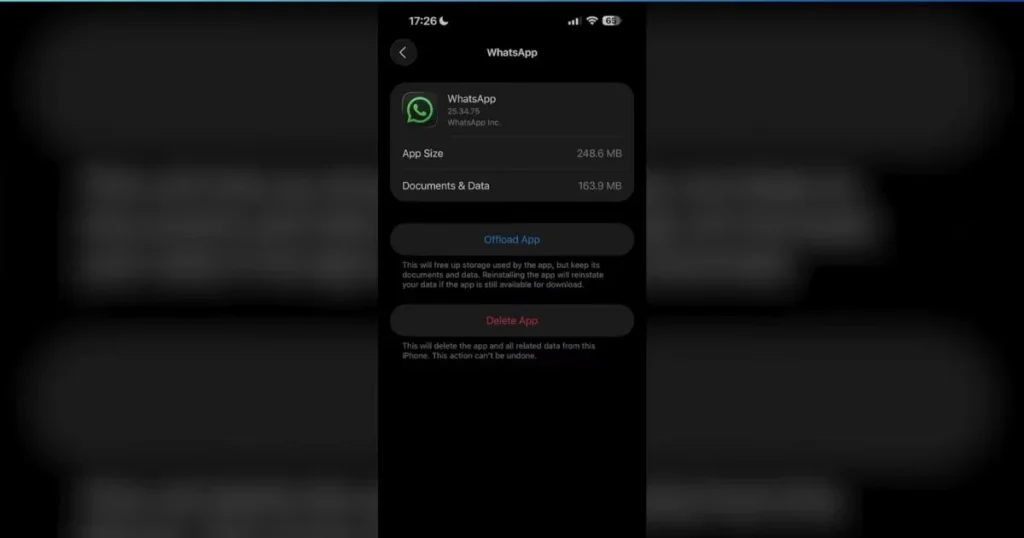
This is a game-changer for Android users. Clearing the cache is essential to fix WhatsApp not sending messages because old files stored in the app clog up background processes.
Steps (Android):
- Settings > Apps > WhatsApp > Storage & Cache > Clear Cache.
- If the problem persists, Clear Data (but back up your chats first).
Clearing the cache on iPhone doesn’t work, so uninstall and reinstall.
Free tools that help:
- Files by Google (completely free) – Best for managing storage. Delete old media by going to the WhatsApp folder.
- CCleaner Free Version – Clears cache and junk files.
If you want more professional cleaning, a premium version is available for $2.99/month, but the free version also does 90% of the job.
What to do when your storage is full?
Go to WhatsApp Settings > Storage and Data > Manage Storage and delete files larger than 5MB. I once deleted 7GB of media and made the app work like new. The official guide also says the same thing: delete old videos and photos.
Check permissions, battery, and data settings
Sometimes the phone settings do not allow WhatsApp to work in the background.
In Android:
- Settings > Apps > WhatsApp > Permissions > Allow Storage, Camera, Microphone.
- Battery > Battery Saver > Keep WhatsApp Unrestricted.
- Data Usage > Give WhatsApp Unrestricted Data.
On iPhone:
- Settings > WhatsApp > Mobile Data On.
- Turn off Low Data Mode.
Set the Date & Time Correct:
Set it to Automatic. The wrong date/time prevents you from connecting to the server.
Advanced Fixes – When Basics Don’t Work
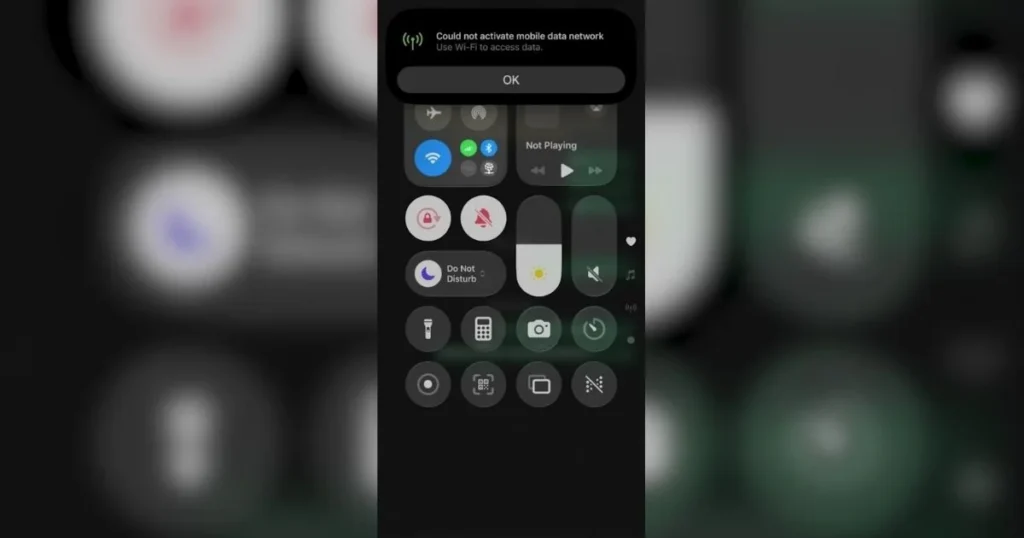
1. Reset network settings.
Android: Settings > System > Reset Options > Reset Wi-Fi, Mobile & Bluetooth.
iPhone: Settings > General > Transfer or Reset iPhone > Reset > Reset Network Settings.
Note: You may need to re-enter the Wi-Fi password.
2. Reinstall WhatsApp
Last step. Back up your chats to Google Drive or iCloud first. Uninstall and reinstall. This works in 95% of cases.
3. Check the server status
Search for WhatsApp on Downdetector.com. If the server is down, wait. Server issues also occurred occasionally in 2025-26.
Android vs iOS – Comparison and key tips
Android users often have to clear cache and manage storage because the system is more open. iOS users often use network resets and reinstalls. One common thread between both is to always keep the latest updates.
Example: One Android user (Samsung) was bothered by battery optimization, while another iPhone 15+ user was bothered by Low Data Mode. Both found relief with different fixes.
Prevention Tips to Prevent the Problem from Recurring
- Always keep auto-updates on.
- Manage storage weekly.
- Regularly backup.
- If you use a VPN, turn it off (it often blocks you). If you need a VPN, try a tool like Speedify that offers multiple connections – basic plans start at $4.99/month.
Know More: For a more detailed guide on Android fixes tutorial, visit fixtech. You’ll find step-by-step guides and additional tips.
FAQs – Fix WhatsApp Not Sending Messages
Q1. Messages are stuck on a single tick. Am I blocked?
Not necessarily. Most often, it’s an internet or receiver issue. Try using a different number.
Q2. Only media (photos/videos) isn’t sending?
Check storage and send them after compressing them. Keep the HD option on.
Q3. Why are there more problems with group chats?
Groups see a lot of traffic, so keep your internet strong.
Q4. Will chats be deleted if I reinstall?
No, if I’ve backed up.
Q5. How do I clear the cache on an iPhone?
Reinstalling is the only way.
Q6. Does having an old phone cause problems?
Yes, if the OS isn’t updated.
Q7. Using a VPN doesn’t send messages?
Yes, many VPNs block servers. Try turning it off.
Q8. What if the problem hasn’t been resolved after how many days?
Chat with WhatsApp support or visit a phone service center.
Q9. Should I try the fix before backing up?
Yes, because backing up also takes time.
Q10. Does this issue also occur with WhatsApp Business?
Yes, the same steps work.
Finally – it’s your turn.
I’ve shown you every possible method that works in real life to fix WhatsApp not sending messages. Start with small steps and progress gradually. Most users find relief in the first or second step. If WhatsApp is still not sending messages, be sure to check the Know More link above.
Even after the problem is resolved, clear storage and check for updates to prevent it from happening again.