
Friends, if your laptop suddenly gets so hot that it becomes too uncomfortable to touch, the fan starts whirring loudly, and the device abruptly shuts down right in the middle of your work, it means Laptop Overheating. I experienced this very issue myself last year with my old Dell XPS – during the summer months, while watching YouTube, the screen suddenly went black. Laptop overheating has become a major concern for nearly every user these days, especially when we spend hours working, gaming, or browsing.
But the good news is that, in most cases, this issue can be resolved right at home. Over the past three years, I have successfully fixed this problem on dozens of laptops – those belonging to friends, family members, and myself. In this guide, I will walk you through, step-by-step, exactly why laptops overheat, what the warning signs are, and the various solutions available – ranging from the simplest fixes to slightly more advanced techniques. No unnecessary technical jargon – just straightforward methods that you can try out today. Let’s get started.
What are the main causes of laptop overheating?
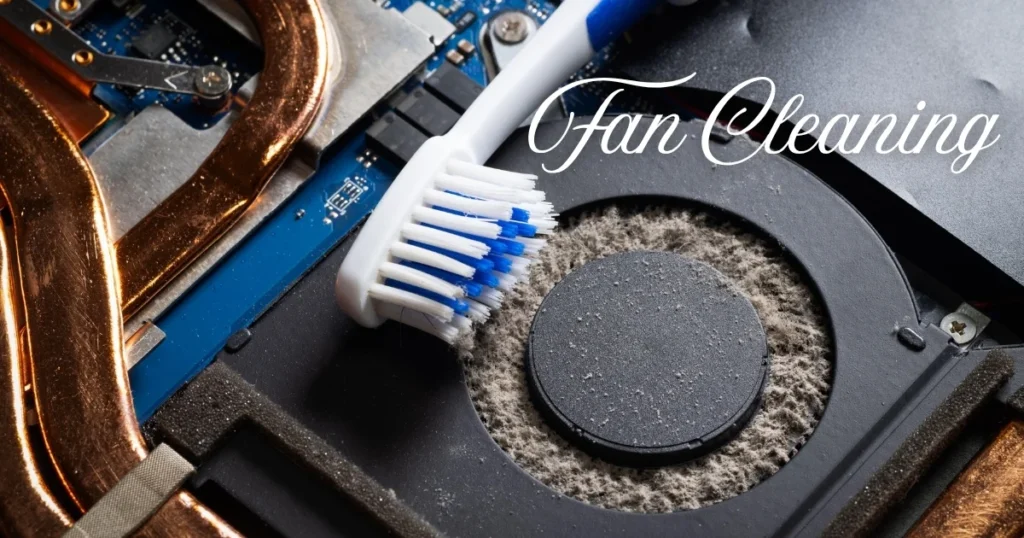
First, let’s understand where the problem originates. The biggest culprit behind laptop overheating is dust. I have observed that after 1–2 years of use, so much dust accumulates inside the vents and fans that the airflow becomes completely blocked. According to HP Support, this accounts for 70% of all cases.
The second cause is blocked airflow – specifically, using a laptop while resting it on a sofa, bed, or mattress. This obstructs the bottom vents, preventing hot air from escaping. The third cause is high CPU/GPU usage; during multitasking, 4K video editing, or heavy gaming (such as GTA V or Cyberpunk), the processor often runs at 100% capacity.
The fourth cause is old thermal paste. After 3–5 years, the thermal paste dries out, compromising efficient heat transfer. An article by Micro Center also identifies this as the “silent killer” of laptop overheating. The fifth cause involves software issues – such as outdated drivers, background applications, or malware. In Windows 11, specifically, the problem can be exacerbated if the power plan is not set to “Balanced.”
There are also certain “edge cases” – such as using the device in a hot room, exposing it to direct sunlight, or using older models (pre-2018) that were equipped with inherently weaker cooling systems. This issue is particularly common in gaming laptops (such as ASUS ROG or MSI), as they deliver high performance but consequently generate significantly more heat. While less frequent in standard office laptops, overheating can still occur in those devices due to dust accumulation.
How to Identify the Signs of Laptop Overheating?
There are certain warning signs that appear before the problem fully sets in. The cooling fan begins to spin rapidly and continuously. The device’s chassis becomes so hot that it becomes impossible to work with it resting on your lap. Performance takes a hit – manifesting as video lag, browser freezes, or sudden shutdowns. If you open the Task Manager, you will observe that the CPU temperature has climbed to between 85°C and 95°C.
This is exactly what happened to a friend’s HP Pavilion – it suddenly powered off right in the middle of a gaming session. It was later discovered that the cooling fan was completely clogged with dust. If your laptop is more than two years old and is exhibiting these symptoms, take immediate action. Ignoring the issue for an extended period can lead to permanent damage to the CPU or GPU, the repairs for which could cost anywhere from $200 to $500.
Simple Steps to Immediately Fix Laptop Overheating
Let’s now move on to the practical solutions. I have listed these steps in ascending order of difficulty – from the easiest to the most complex. Most users find relief simply by following the first 3 or 4 steps.
1. Cool Down Immediately
Shut down the laptop, unplug it, and place it in a cool location for 15–20 minutes. If possible, remove the battery. This is also cited as the first step in Asurion’s guide.
2. Change the Surface
Always place your laptop on a hard, flat surface – such as a table or a laptop stand. Never place it on a bed or a cushion. Doing so improves airflow by 30–40%.
3. Clean the Vents
Grab a can of compressed air (available for $8–10 on Amazon). With the laptop powered off, direct short bursts of air – lasting 2–3 seconds each – into the vents. Avoid attempting to spin the fan manually. I perform this routine every three months, and it results in a temperature drop of up to 15°C.
4. Optimize Power Settings
Type “Power & sleep” into the Windows search bar. Set your Power plan to “Balanced” or “Power saver.” Within the Advanced power settings, configure the Processor power management to 80%. This reduces CPU workload and, consequently, lowers heat generation.
5. Close Unnecessary Apps
Open the Task Manager (Ctrl + Shift + Esc). In the CPU tab, select and “End task” for any apps consuming high system resources. Additionally, disable startup apps. This step is a game-changer – especially for those who tend to keep 20 or more tabs open in Chrome.
Slightly More Advanced, Yet Safe Methods
If the steps above did not provide relief, give these a try.
Using a Cooling Pad
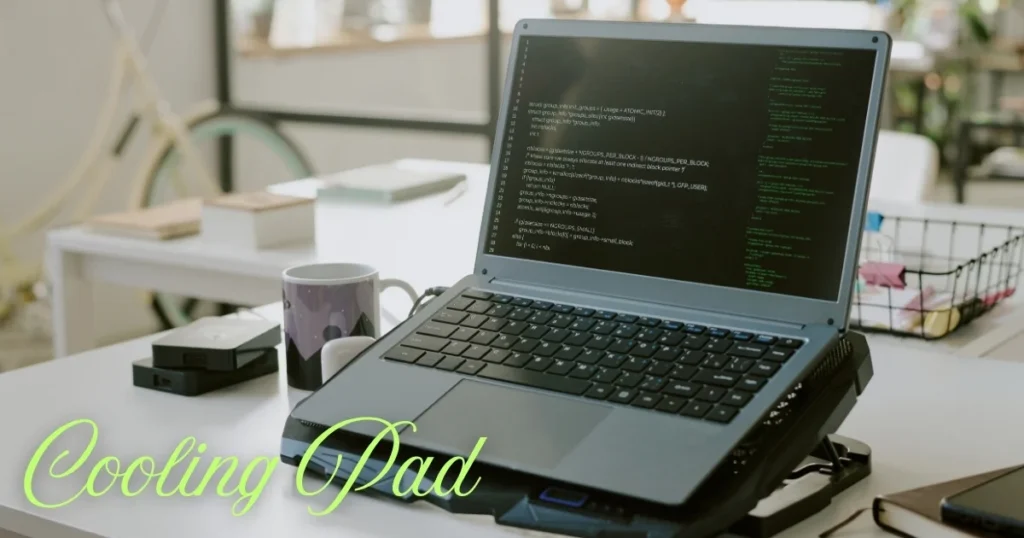
This is the simplest and most effective method. I tried the $25 KLIM Cool Vacuum pad – and the temperature dropped by 10–20°C. In a 2026 review, ZDNet identified the Llano Gaming Cooler as the best option (currently on sale for $96). A cheaper $20 model will also do the job, but for heavy gaming, opt for one with 5–6 fans. By comparison, this offers cooling that is twice as effective as a standard laptop stand.
Driver and BIOS Updates
Download the latest BIOS and graphics drivers directly from the Dell, HP, or Lenovo websites. Outdated drivers can impose unnecessary workload on the CPU.
Monitor Temperature with Free Tools
- Core Temp – Displays the temperature of each core, with an icon in the system tray.
- HWMonitor – CPU, GPU, and fan speeds – all in one place.
- Open Hardware Monitor – Completely free and simple.
These tools install in just 5 minutes and provide real-time data. You should be concerned if the temperature exceeds 80°C.
Internal Cleaning (If you are a bit handy)
Open up the laptop to clean the fan and heatsink. Check your warranty – opening the device may void it. If you opt for professional service, it will cost between $40 and $60 USD.
Replacing Thermal Paste
Necessary after 3–5 years. Use Arctic MX-4 or Noctua NT-H1 ($8–12 USD). Doing it yourself can result in a temperature drop of 30–40°C. Professional service costs between $80 and $150 USD. This procedure is also recommended in Dell support videos.
Long-Term Tips to Prevent Laptop Overheating
- Clean the vents every 3 months.
- Use the AC when operating in a warm room.
- Take a 10–15 minute break after heavy usage.
- Try undervolting (using the free Throttlestop tool) – but proceed with caution.
- Run a malware scan using Malwarebytes.
For gaming laptop users: Keep the FPS limit at 60 and set graphics to Medium. This makes a difference of 15–20°C.
Know More: If you are looking for a more in-depth guide on Laptop Overheating, be sure to check out FixTech. There, we have provided practical solutions for laptop maintenance guides and services.
FAQs – About Laptop Overheating
Q1. Can laptop overheating damage the hardware?
Yes, running at temperatures of 95°C+ for extended periods reduces the lifespan of the CPU/GPU.
Q2. Do cooling pads actually work?
Yes, models in the $20–$50 range can lower temperatures by 10–15°C. I have tested this personally.
Q3. How often should I replace the thermal paste?
Every 3–5 years. For gaming laptops, you should check them even sooner – after just 2 years.
Q4. Do MacBooks face this same issue?
Yes, though less frequently. Ensure the airflow remains unobstructed.
Q5. Can software updates resolve this issue?
Often, yes – especially on Windows 11.
Q6. Which budget-friendly cooling pad should I buy?
The $25 KLIM model or the $40 Targus Chill Mat – both have excellent reviews.
Q7. What should I do if my laptop is still under warranty?
Contact customer support; do not attempt to open the laptop yourself.
Conclusion: Now your laptop will run cool and Fast
Laptop overheating isn’t a major issue – provided you address it in a timely manner. By following the steps outlined above, I have restored several of my own laptops to like-new condition. You should get started today, too – begin by cleaning the vents, monitoring the temperature, and ordering a cooling pad.