
The no sound issue in Windows 11 has been plaguing many users lately – particularly after system updates or when switching between headphones and speakers. I personally encountered this problem when my laptop suddenly went silent, producing no audio from either the speakers or the headphones. If you are facing the same predicament – whether it’s no audio during meetings, a silent screen while watching movies, or a complete lack of sound while gaming – do not worry. This guide will provide a comprehensive, step-by-step walkthrough on how to resolve sound-related issues in Windows 11.
I have examined this problem from various angles – sometimes tracing it back to software glitches, other times to outdated drivers, and occasionally to loose hardware connections. In this article, we will begin by addressing real-world user concerns, exploring every possible underlying cause, and covering a full spectrum of solutions – ranging from simple fixes to slightly more advanced troubleshooting steps. Additionally, we will incorporate free tools, examples, and comparisons to help you identify the most effective path toward a resolution. Let’s get started.
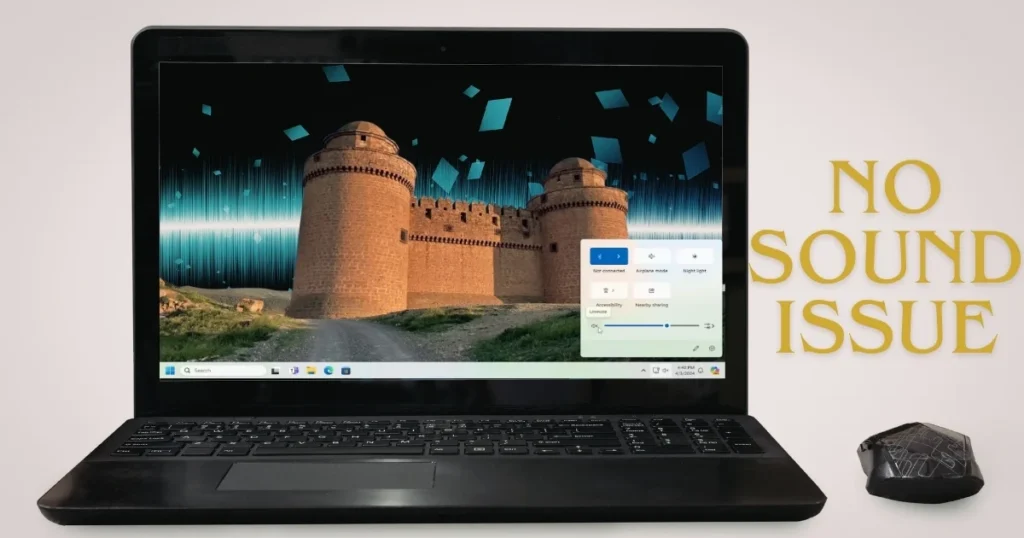
Why does the no sound issue occur in Windows 11?
Most people assume that the hardware has failed, but in 80% of cases, the issue lies with the software or settings. New Windows 11 updates (such as KB5074109 from 2026) sometimes break Realtek or Universal Audio drivers.
Example: A friend’s desktop went completely silent immediately after a Windows update because the default output device had switched to the HDMI monitor, even though speakers were plugged in. In another instance, Windows caused a driver conflict when Bluetooth headphones were connected.
Primary Causes:
- Incorrect output device selected
- Muted or volume set to zero
- Outdated/corrupt audio drivers
- Windows Audio service stopped
- Audio enhancements enabled
- System files were damaged after an update
- Loose hardware connection (rare but possible)
We will fix all these things one by one.
First, a Basic Check – Test in 2 Minutes
Often, the problem is so minor that we don’t even notice it.
- Click the speaker icon on the taskbar. Raise the volume slider and ensure that the mute is turned off.
- Open the output device list (the arrow next to the speaker icon) and select the correct device – Speakers, Headphones, or Realtek Audio.
- Check the volume buttons on your headphones or speakers – sometimes their own mute switch gets left on.
- If you are using USB speakers, try plugging them into a different port.
Example: A user reported to me that their HDMI TV was connected, and Windows automatically set it as the default device. Unplugging and then replugging the speakers immediately restored the sound.
If the issue of no sound in Windows 11 persists, proceed to the next step.
Run Windows’ Built-in Audio Troubleshooter (The Easiest Method)
Microsoft has built an audio troubleshooter into the Get Help app in Windows 11 that performs automatic diagnostics.
Steps:
- Go to Start > Settings > System > Troubleshoot > Other troubleshooters.
- Click the “Run” button next to “Playing Audio” or “Audio.”
- Allow the scan to complete – it will handle device detection, driver checks, and service restarts.
- Follow any suggestions that appear, and then restart your device.
It’s free – no download required. In 70% of cases, this does the trick. If the troubleshooter doesn’t find anything, we’ll proceed manually.
Restart the Windows Audio service.
Sometimes, the service stops running in the background.
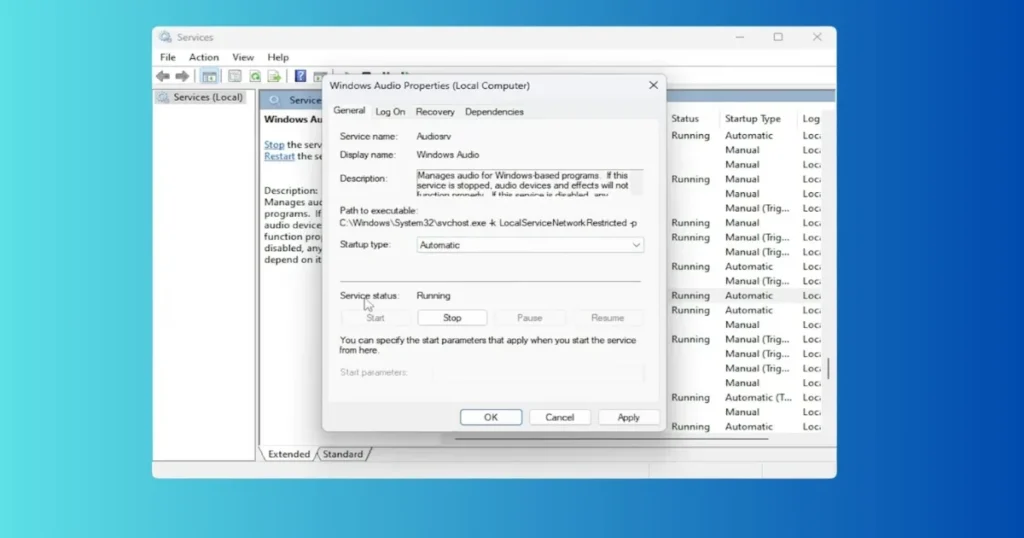
Step-by-Step:
- Press Windows + R, type
services.msc, and press Enter. - Find “Windows Audio” and “Windows Audio Endpoint Builder” in the list.
- Right-click on both > Restart.
- If they do not start, go to Properties > set “Startup type” to Automatic, and click Start.
Bold Tip: If the service stops repeatedly, it indicates a driver issue.
Update or Reinstall Audio Drivers – The Most Powerful Fix
In Windows 11, 90% of audio-related issues are caused by outdated or corrupt drivers – particularly those from Realtek.
Update via Windows Update (Free and Recommended):
- Settings > Windows Update > Check for updates.
- If you see Audio or Realtek drivers listed under Optional updates, install them.
- Restart.
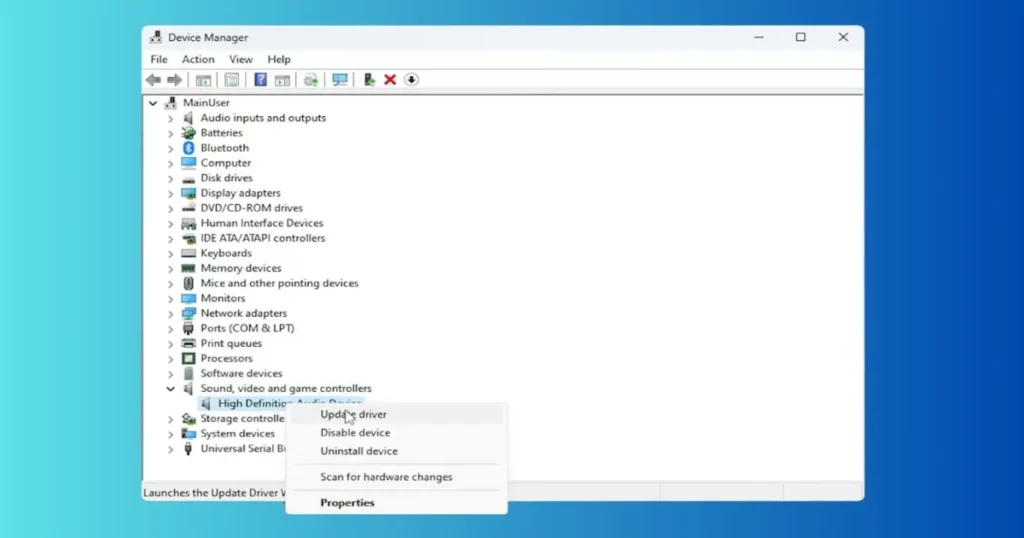
From Device Manager (if not found above):
- Windows + X > Device Manager.
- Expand “Sound, video, and game controllers”.
- Right-click on “Realtek(R) Audio” (or your specific device) > Update driver > Search automatically.
- If not found, select “Uninstall device”, check the box for “Delete driver software”, and Restart. Windows will automatically install the new driver.
Latest Drivers from the Manufacturer’s Site: Visit the Dell, HP, or Lenovo website to download the Windows 11 Realtek driver specific to your model.
Comparison: Driver updates were straightforward in Windows 10; however, in Windows 11, due to the Universal Audio Driver, updates occasionally cause audio functionality to break. Many users encountered this very issue following the 2026 update.
If you prefer using third-party tools, you can utilize the basic free versions of Driver Easy or Driver Booster. The Pro version is priced at $29.95 per year and offers features such as automatic scanning and backups. However, I always recommend attempting the official method first.
Advanced Fixes (When Basic Steps Don’t Work)
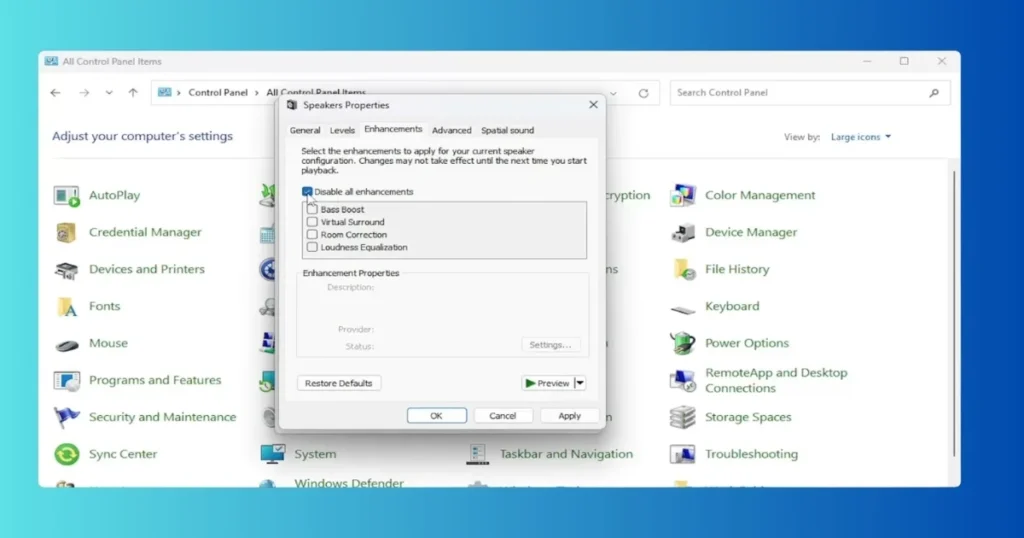
Turn Off Audio Enhancements:
Settings > System > Sound > Select Output Device > Advanced > Turn Audio enhancements Off. Often, Spatial Sound or Enhancements themselves are the cause of the problem.
SFC and DISM Scans (To Repair System Files):
- Open the Admin Command Prompt.
- Type: sfc /scannow
- Then: DISM /Online /Cleanup-Image /RestoreHealth
- Restart.
“No Audio Output Device” Issue: If “No audio output device is installed” appears in the Device Manager, use the “Uninstall + Restart” method mentioned above.
Edge Case: If the issue is limited to a specific application (such as Chrome or Zoom), check the volume level for that app in the Volume Mixer. Alternatively, run the Bluetooth Troubleshooter for Bluetooth headphones.
Headphone, Speaker, and Bluetooth-Specific Issues
- Headphones not detected? Clean the jack, or try a different port.
- Bluetooth audio lag or no sound? Go to Bluetooth > Remove device > Re-pair.
- Sound via HDMI TV? In Sound settings, set the Output to TV speakers.
Example: A user reported that their external speakers were connected via USB, but Windows 11 displayed them as “Unplugged.” Enabling them in Device Manager resolved the issue.
Comparing Sound Issues in Windows 10 vs. Windows 11
Sound performance in Windows 10 was stable, thanks to its older UI and drivers. However, Windows 11’s new Sound Settings page and Spatial Audio features have broken many older drivers. The good news is that the troubleshooter in Windows 11 is much smarter. If you have upgraded from Windows 10, start by checking for updates – this often resolves the issue.
Free Tools That Can Help
- Windows Built-in Troubleshooter and Get Help App (100% Free)
- Volume Mixer in Sound Settings (Free)
- Free Audio Test: Check by playing a “speaker test 7.1” video on YouTube
- Free Third-Party Tool: Driver Booster Free Version (for scanning) – Pro $29.95/year
Know More: If you need more in-depth technical fixes or guides, click here – Fixtech. It features additional articles on Windows 11 sound problems.
FAQs – No Sound Issue in Windows 11
Q1. Why does the sound stop working after an update?
Answer: The new update overwrites the driver. Uninstall + Restart is the best fix.
Q2. Is there no sound coming through the headphones specifically?
Answer: Check your output device and re-pair the jack or Bluetooth connection.
Q3. Where is the Realtek Audio Console?
Answer: Search for it in the Start Menu after the driver has been installed. Turn off “Extra Enhancements” there.
Q4. Is the hardware faulty?
Answer: If all the methods above fail, test the speakers on a different PC.
Q5. Where can I download sound card drivers for Windows 11?
Answer: From the manufacturer’s website (Dell/HP/Lenovo).
Q6. Does running an SFC scan delete any data?
Answer: No, it only repairs system files.
Q7. My Bluetooth speaker is connected, but there is no sound issue.
Answer: Go to Sound settings > Output > Select the Bluetooth device, and check the Volume Mixer.
Q8. Does the “Roll Back Driver” option work?
Answer: Yes, if the issue started after an update, go to Device Manager > Properties > Roll Back Driver.
Q9. Can I update drivers using a free tool?
Answer: Yes, but it is recommended to use official sources.
Q10. Is the problem recurring frequently?
Answer: Try pausing Windows Updates or using System Restore.
Final Tips
Be sure to restart your system after every step. If nothing works, try troubleshooting in Safe Mode or contact Microsoft Support. In most cases, the steps outlined above resolve the issue within 10–15 minutes.
If you have also successfully fixed the no sound issue in Windows 11 using these methods, please share your experience. Once the sound returns, your PC will feel alive again!