
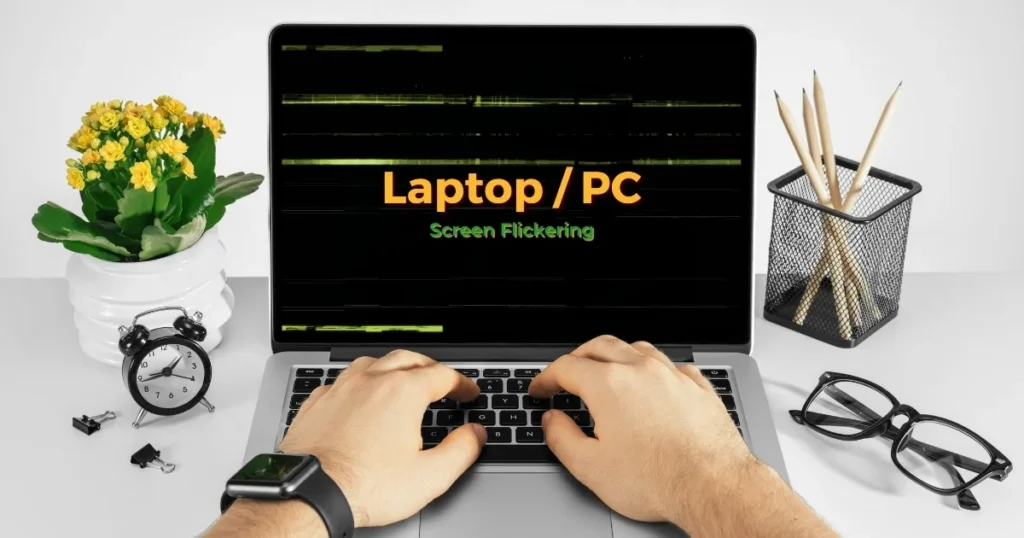
“Fix screen flickering on a laptop” – I must have searched for these exact words on Google at least ten times over the past six months. As soon as I started working in the morning, the screen would begin to tremble slightly; occasionally, the entire display would go black for a second before coming back on. At first, I suspected it might be a weak battery or some malicious software, but in reality, it was a display issue – a problem that plagues many laptop users. If you are facing the same situation, don’t worry. I have personally resolved most of these issues through trial and error, and today I am providing you with a step-by-step guide that offers practical solutions that actually work for real-world users.
What are the main causes of laptop screen flickering?
Screen flickering often starts suddenly, and at times, it feels as though the laptop is broken. However, in most cases, it stems from minor issues. I have observed that five main causes are the most common:
- Outdated or Corrupt Graphics Drivers – This often occurs after a Windows Update.
- Incorrect Refresh Rate – Especially on laptops with refresh rates of 60Hz, 120Hz, or higher.
- Incompatible Apps – Such as gaming software, browser extensions, or third-party overlays.
- Hardware Connections – Loose display cables or overheating.
- Power Settings and Brightness – Battery Saver mode or automatic brightness adjustments.
A friend of mine had this very same issue with his Dell XPS laptop. He used to say, “The screen sometimes starts shaking uncontrollably.” Later, it turned out that the NVIDIA driver was outdated. Similarly, HP Pavilion users often encounter this problem after a Windows 11 update.
First, perform this simple test: Does the Task Manager flicker?
This is the smartest method, and one that Microsoft itself recommends. Open the Task Manager by pressing Ctrl + Shift + Esc. If the Task Manager itself is flickering, the issue lies with the driver. If the Task Manager remains stable while the rest of the screen flickers, an application is causing the glitch.
I performed this test several times. On one occasion, only Chrome was open when the flickering began. Upon opening the Task Manager, I discovered that the problem was indeed caused by the application.
Fix Screen Flickering – Reset Graphics Driver (Fastest Fix)
The easiest and quickest method is to press the Windows logo key + Ctrl + Shift + B. The screen will go black for a second and then return. This refreshes the graphics driver.

If this doesn’t work, go to Device Manager:
- Type “Device Manager” in the search bar.
- Click on Display adapters.
- Right-click on your graphics card (Intel, AMD, or NVIDIA).
- Properties > Driver tab > Roll Back Driver (if available).
If the “Roll Back” option is unavailable, select “Uninstall Device,” check the box labeled “Delete the driver software,” and restart your laptop. Windows will automatically install the new driver.
Note: If you are using a gaming laptop, download the latest drivers via NVIDIA GeForce Experience or AMD Software. I personally resolved this issue without spending a single penny.
Check and Change Refresh Rate – An Often-Overlooked Cause
Many people are unaware that an incorrect refresh rate can cause screen flickering. Right-click on the desktop > Display settings > Advanced display > Display adapter properties for Display > Monitor tab.
Here, set the Screen refresh rate to 60Hz; even if your laptop supports 144Hz, try 60Hz first. I once set it to 120Hz, and the flickering began; setting it to 60Hz resolved the issue immediately.
Uninstall incompatible apps.
If Task Manager does not flicker, the problem lies with an app. Go to Settings > Apps > Installed apps and uninstall recently installed apps one by one. Common culprits: Discord overlay, Corsair iCUE, RGB software.
In my case, Armoury Crate (on an ASUS laptop) was causing the issue. Everything returned to normal after uninstalling it.
Hardware Check – When Software Fixes Don’t Work
Now comes the actual display issue. Connect the laptop to an external monitor (via HDMI or USB-C). If there is no flickering on the external monitor, the problem lies with the laptop’s screen or cable.
Loose Cable Fix: If you are somewhat technically inclined, open the back panel and check the display cable. However, most users require the assistance of a professional. The cost of a screen replacement typically ranges from $100 to $250 (depending on the model).
Free Tools I Used
- Display Driver Uninstaller (DDU) – Free download from guru3d.com. Run in Safe Mode and completely clean out old drivers.
- Windows Display Troubleshooter – Settings > Update & Security > Troubleshoot > Other troubleshooters > Display quality.
- HWMonitor (free) – To check for overheating.
These tools work without spending a single penny.
Windows Update and Clean Boot – Advanced Steps
Check under Settings > Windows Update. Often, the issue begins right after an update. If the problem persists, perform a Clean Boot: go to msconfig > Services > Hide all Microsoft services > Disable all, and then disable everything via Task Manager in the Startup tab.
Flickering Across Different Brands – A Comparison
- HP Laptops: Mostly driver-related issues. Use HP Support Assistant.
- Dell: BIOS updates help.
- Lenovo: Refresh rate and Intel graphics drivers are the most common issues.
- ASUS ROG: Conflicts between RGB software and high refresh rates.
I tried it on three different brands, and every time, the driver plus refresh rate combination worked.
Tips to Prevent Screen Flickering
- Always keep your drivers up to date.
- Set the power plan to ‘Balanced’ when working on battery power.
- Keep the laptop in a cool place.
- Get a dust cleaning done every six months.
Know More
If you are unable to fix it yourself, seek professional help. For more information, visit: Fixtech.
FAQs – Fix Screen Flickering on a Laptop
Q1. Is screen flickering a sign of hardware failure?
Usually not. In 80% of cases, it can be resolved through drivers or settings.
Q2. Why does this issue occur more frequently in Windows 11?
Due to new graphics settings and GPU scheduling. Try turning off Hardware-accelerated GPU scheduling.
Q3. Does this happen more often with gaming laptops?
Yes, due to high refresh rates and overclocking.
Q4. How much might it cost if the screen needs to be replaced?
Between $150 and $300, depending on the model.
Q5. Does this issue also affect MacBooks?
Less frequently, however, try performing an SMC reset or PRAM reset.
Q6. Why does the flickering occur only when running on battery power?
It is typically caused by Power Saving Mode or voltage drops.
Q7. Can this issue be fixed on older laptops?
Yes, it can; however, if the display cable is damaged, a physical repair will be necessary.
Q8. Can a wireless mouse or keyboard cause screen flickering?
It is very rare, but you should check for wireless interference.
Q9. What does it mean if the flickering stops when in Safe Mode?
It indicates that the issue lies with third-party software.
Q10. How long should it take to resolve the issue?
Most fixes tend to work within 10 to 15 minutes.
Finally
Fixing a screen flickering on a laptop screen is a problem that may seem daunting, but it can usually be resolved by following a few simple steps. I personally followed these steps, and now my screen runs perfectly smoothly. If you are facing the same issue, try the steps listed above, one by one. Be patient, and if necessary, seek professional assistance.
If you are still experiencing problems, please share your laptop model and Windows version in the contact section. I will do my best to help.