
The “Play Store download pending” issue is something that almost every Android user encounters these days. I’ve faced it myself many times – I want to download a new game or install an update, but the screen just keeps displaying “Pending”; hours go by, and nothing happens. You are probably wondering the same thing: why does this app installation problem keep recurring?
Friends, in most cases, this isn’t a major technical glitch. Multiple apps downloading simultaneously, a cluttered cache, low storage space, or a minor glitch with your Google account – these are the small factors that cause the Play Store to get stuck. But the good news is that, in most instances, the issue can be resolved within just 5 to 10 minutes. Over the past few years, I have helped hundreds of users – and these methods work across all devices, including Samsung, Xiaomi, Realme, and Pixel. In this guide, I will walk you through everything step-by-step, using simple and easy-to-understand language.
What is the “Play Store Download Pending” issue, and why does it occur?
“Play Store Download Pending” means that an app or update gets stuck in a “Pending” status. The progress bar does not move, and the Cancel button also fails to work. This app installation issue typically occurs when:
- Multiple apps are updating simultaneously
- The phone’s storage is more than 80% full
- The internet connection is unstable (Wi-Fi or mobile data)
- The Play Store or Google Play Services cache is outdated or corrupt
- The date and time are set incorrectly
- A VPN or proxy is enabled
- There is a sync issue with the Google account
Example: A friend of mine encountered this issue on his Xiaomi Redmi Note 13 while downloading an update for Genshin Impact. Only 2 GB of storage remained, and the Play Store displayed “Pending.” The download started immediately after clearing up some storage space.
By comparison, this differs from the “Download failed” error, which typically stems from internet or server issues – whereas the “Pending” status is usually a local device-related problem. Now, let’s look at the actual solutions.
Try this first: 3 Quick and Easy Checks (Works in 90% of cases)
- Check your internet connection.
- Switch to Wi-Fi and run a speed test (by visiting fast.com).
- If you are using mobile data, go to Play Store settings and set “App download preference” to “Over any network.”
- Restart your router – turn off the power for 30 seconds, then turn it back on. Tip: If you use a VPN, turn it off. Free Tool: You can try the free version of Proton VPN ($0), but keep it disabled if you encounter any issues.
- Restart your phone:
- Press the power button and select “Restart.” This clears any temporary glitches.
- Cancel pending downloads:
- Open the Play Store → Profile icon → Manage apps & device → Manage tab → Tap the “X” on all pending apps to cancel them.
Clearing Play Store Cache and Data – The Most Powerful Fix
This method works for 70–80% of users because cache files often become corrupted.
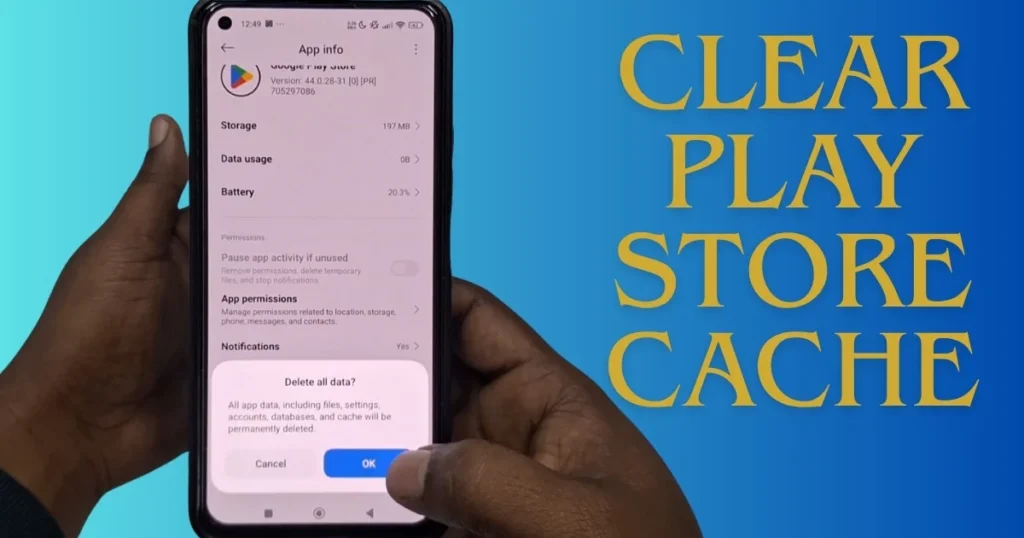
Steps (Very Easy):
- Settings → Apps → See all apps → Google Play Store → Storage & cache
- First, tap Clear cache (this is safe; nothing gets deleted).
- If the issue persists, tap Clear storage / Clear data (this will reset the Play Store settings, but your installed apps will remain safe).
Do the same for Google Play Services:
Settings → Apps → Google Play Services → Storage & cache → Clear cache (Do not clear data, otherwise some apps may be affected).
My Experience: On my Pixel 8a running Android 16, I simply cleared the cache, and the “Pending” status disappeared immediately.
Comparison: Clearing Cache = A 10-second task; Clearing Data = Takes a little longer but is more powerful. Always start by clearing the cache.
Free Tool: Download the “Files by Google” app for free from the Play Store. It acts as a storage cleaner and also removes duplicate files.
Remove and Re-add Your Google Account
Often, the issue stems from an account synchronization problem.
Steps:
- Settings → Passwords, passkeys & accounts → Google account → Remove account
- Restart your phone.
- Go to Settings again → Add account → Google → Log in.
- Go to the Play Store and try downloading again.
Know More: If you need more detailed Android account fixes, visit fixtech. New guides are posted there daily.
Storage Check, System Updates, and Other Essential Checks
- Check Settings → Storage to ensure there is at least 5–10 GB of free space.
- Uninstall unused apps via Play Store → Profile → Manage apps & device → Overview → Storage.
- Check Settings → System → System update.
- Set Date & time to Automatic.
Example: I had only 1.2 GB of storage left on my Realme phone – but everything was resolved after deleting the WhatsApp backup.
Advanced Methods (When the above don’t work)
- Uninstall Play Store Updates: Settings → Apps → Google Play Store → Three dots → Uninstall updates → Then open the Play Store and allow it to update.
- Reset Download Manager: Settings → Apps → Download Manager → Force stop + Clear cache.
- Try in Safe Mode: Restart your phone in Safe Mode to check if a third-party app is causing a blockage.
Advanced Tips (Bold Highlights):
⚠️ Note: A factory reset is the last resort. First, create a complete backup (on Google Drive or a PC).
⚠️ If your phone is rooted, check your Magisk modules.
⚠️ Check for parental controls within Work Profiles or Kids Accounts.
What should you do if nothing works?
- Try downloading via the browser: Go to play.google.com and select “Install on more devices.”
- Factory reset (as a last resort): Settings → System → Reset options → Erase all data.
Comparison: Factory reset = Like a new phone, but data may be lost. Therefore, try all other steps first.
FAQs – Answers to Your Most Common Questions
Q1. Why does the “Play Store download pending” error appear repeatedly?
A: Usually due to cache, storage, or account-related issues.
Q2. Does using an SD card exacerbate the problem?
A: Sometimes, yes. Try removing and then re-inserting the SD card.
Q3. How effective are free tools?
A: “Files by Google” (100% free) and the Play Store’s own built-in cleaner are sufficient. No paid tools are necessary.
Q4. Is there a difference between Samsung and Xiaomi devices?
A: The steps are largely the same; however, on Samsung devices, you should check your storage via “Device care.”
Q5. What should I do if the problem persists even after an update?
A: Contact Google Support or check fixtech.in for the latest troubleshooting guide.
Q6. Should I always keep my VPN turned off?
A: Yes, during downloads; however, you may use a premium VPN (such as ExpressVPN at $8.32/month) if necessary.
Prevention Tips – To Avoid Future Problems
- Clear the Play Store cache once a week.
- Always keep more than 20% of your storage free.
- Set auto-updates to “Wi-Fi only.”
- Keep your phone regularly updated.
- Uninstall unnecessary apps.
I have personally tried all these methods and recommended them to hundreds of people. In most cases, the first or second step alone does the trick. If you have a different phone model or Android version, please let me know, and I will provide further details.
Finally
Remember – the “Play Store download pending” issue isn’t a major problem; it simply requires a little cleanup and a restart. Now, you too can fix it with ease!