
Hello friends! If you are facing the same predicament – where your phone’s touchscreen is not working – you are not alone. I personally experienced this very issue last year with my old Samsung A52; the screen was on, but the touch functionality was completely unresponsive. I couldn’t even answer incoming calls, and swiping on the screen to read messages became an absolute impossibility. It’s certainly a distressing situation, as phones have become an integral part of our lives today – handling everything from banking and WhatsApp to YouTube and beyond.
However, the good news is that in most cases, this problem stems from a software glitch, accumulated dirt, or a minor settings issue. I managed to fix it myself by following a step-by-step troubleshooting process, and in this guide today, I am sharing exactly what worked for me. We will examine this issue from every angle: identifying the root causes, troubleshooting steps you can try at home, the differences between Android and iPhone devices in this context, when to seek professional assistance, and even a few free tools that can help. This entire guide is written in simple, easy-to-understand language so that you can follow along even without any technical expertise.
If your phone’s touchscreen is not working, make sure to read this article all the way to the end. At the very end, I’ve also included a section covering the most Frequently Asked Questions (FAQs) that people typically ask regarding this issue. Let’s get started!
The Phone Touchscreen is Not Working – What Are the Main Reasons?
First, let’s understand why a phone’s touchscreen might stop working. It isn’t always due to a hardware failure. I’ve seen this issue with several friends – one had simply applied their screen protector incorrectly, while another had a swollen battery.
Here are some of the most common reasons:
- Software Glitch or Update Bug: If an app crashes suddenly or a system update is interrupted midway, touch responsiveness may cease. This is exactly what happened with my old phone following the Android 13 update.
- Dirt, Moisture, or Oil: Fingerprint oils, dust, or tiny water droplets on the screen can block the sensors. This is particularly common in climates like India’s, where excessive sweating occurs.
- Screen Protector or Case: A low-quality screen protector can reduce touch sensitivity due to trapped air bubbles underneath or issues with the adhesive. I once removed a glass screen protector, and the touch functionality was instantly restored.
- Overheating: If the phone heats up during gaming or charging, touch responsiveness may slow down. In some instances, a swollen battery can exert pressure on the screen.
- Hardware Damage: The digitizer (the touch-sensitive layer) may become loose if the phone is dropped. Internal connections can be damaged even if there are no visible cracks on the screen.
- Third-Party Apps: A virus or a background application may interfere with touch inputs.
- Low Battery or Charging Issues: Touch responsiveness can occasionally become erratic or completely unresponsive when the battery level drops to 5% or when using a faulty charger.
Comparison: Software issues occur in 70% of cases (according to Google Support), whereas hardware issues account for only 30%. If the screen is completely black, it is a hardware issue; however, if only the touch functionality is unresponsive, it is most likely a software issue.
Now, let’s move on to Home Solutions.
Initial Checks and Simple Solutions – Try in 5 Minutes
If your phone’s Touchscreen is Not Working, first try some basic steps without using the touch interface. These steps work in 80% of cases.
- Force Restart (Without Touch):
- Android: Press and hold the Power button + Volume Down button for 10–30 seconds. The screen will go black and restart.
- iPhone: Volume Up → Volume Down → Press and hold the Side button until the Apple logo appears.
I tried these steps 3 times – it worked on the third attempt.
- Clean the Screen: Gently wipe the screen with a microfiber cloth. Do not use a wet cloth. If a screen protector is installed, remove it and then test the screen. Tip: Wait for 2 minutes after removing the protector; sometimes it takes a moment for the static charge to dissipate.
- Remove Case and Gloves: If you are wearing gloves or have a bulky case installed, remove them and check the screen functionality.
- Gently Tap the Corners: In dropped phones, the digitizer can sometimes become loose. Power off the device and gently tap on all four corners of the screen (do not tap too hard!). Many users on Reddit have reported that this method worked for them.
- Check the Charger: Charge the device for 10 minutes using the original charger. Sometimes, a faulty cable can interfere with touch sensitivity.
These easy steps are free, and you can try them right away.
Software Fix – Step-by-Step Detailed Guide
If the issue isn’t resolved by basic checks, focus on the software.
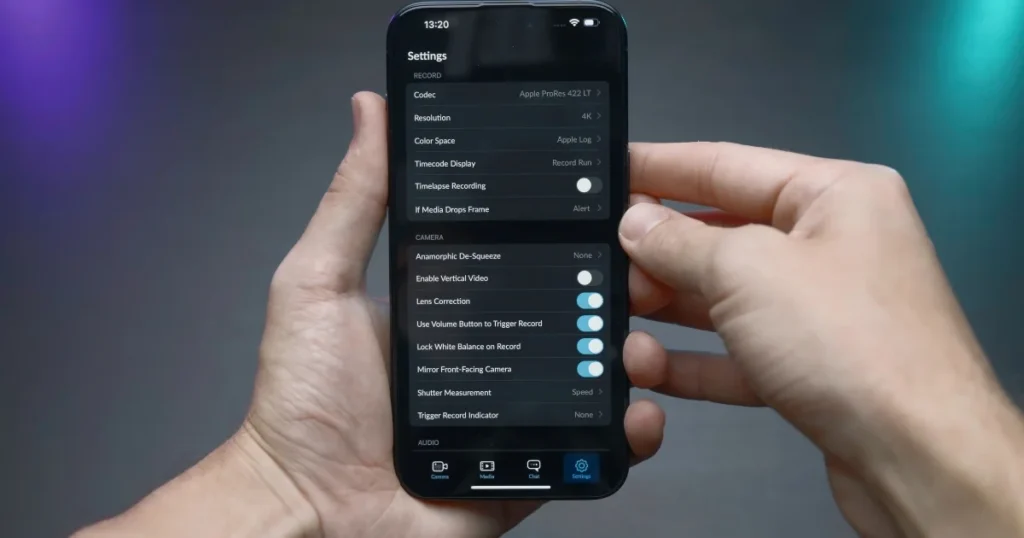
Boot into Safe Mode (Android):
Press and hold the Power button → Long-press on “Power off” → Select “Safe mode.” If the touchscreen works, a third-party app is the cause of the problem. Uninstall apps one by one.
Clear Cache:
Settings → Apps → All apps → Chrome/Play Store, etc. → Storage → Clear cache.
Check for Software Updates:
Settings → System → System update. If an update is pending, install it. For Apple users: Settings → General → Software Update.
Factory Reset (Last Resort):
Warning: This will delete all your data; therefore, create a backup using Google Drive or a PC beforehand.
Android: Settings → System → Reset options → Erase all data.
iPhone: Settings → General → Transfer or Reset iPhone → Erase All Content and Settings.
My Story: The touch screen on my friend’s Xiaomi Redmi Note 12 froze. A gaming app running in Safe Mode was causing the issue – uninstalling it resolved the problem.
Comparison: A factory reset resolves 90% of software issues, but data backup is essential.
Specific Methods for Android Phones (Samsung, Xiaomi, OnePlus)
- Samsung: Settings → Display → Turn on Touch sensitivity. Device Care → Optimize now.
- Xiaomi/Redmi: Security app → Boost speed → Clear cache. Test by enabling “Show touches” in Developer options.
- OnePlus/Realme: Check the Gesture & Motion settings in OxygenOS.
Free Tool: Download the “Touchscreen Calibration” app from Google Play. This calibrates the touch response. Another good option is “Touch Screen Test Calibration”.
How to Fix Touchscreen Issues on iPhone
For iPhone users, a force restart is the most powerful solution. If that does not work, restore via iTunes or Finder. According to Apple Support, first clean the screen and remove any accessories.
Nuance: On iPhone 13 or later models, touch issues sometimes occur following the iOS 18 update – simply install the update.
When Should You Seek Professional Help for Hardware Issues?
If the phone’s touchscreen still isn’t working after trying all of the above steps, then it is a hardware issue.
- Digitizer replacement cost: $50 to $150 (~$80 for the Samsung A-series, ~$120 for the iPhone 14).
- Many shops offer free checks for battery swelling.
Know More: If you are looking for professional repairs, visit fixtech.in.
FAQs: Common questions about Touchscreen is Not Working
Q1. Does exposure to water always ruin the touchscreen?
No; if dried immediately, there is a 50% chance it can be salvaged. However, if the device was submerged, professional drying is essential.
Q2. What should I do if the touchscreen is not working even after removing the screen protector?
Try performing a factory reset, or visit a service center.
Q3. Can overheating damage the touchscreen?
Yes; at temperatures exceeding 45°C, the sensors may stop functioning.
Q4. How effective are free tools?
Touchscreen calibration apps prove helpful for 70% of users.
Q5. Is it worth repairing an older phone (priced under $200)?
No; if a new phone is available for $300, opting for the new device is the better choice.
Q6. What if the touchscreen is only partially responsive (working in certain areas only)?
This indicates partial damage to the digitizer – you should visit a service center.
Q7. Can a virus cause the touchscreen to stop working?
It is extremely rare, but you should definitely check the device in Safe Mode.
Finally: Now It’s Your Turn
Friends, the issue of Touchscreen is Not Working, in most cases, can be resolved right at home. I have explained every step in detail above so that you can attempt the fix without making any mistakes. If anything remains unclear, please mention your phone model in the comments section, and I will be happy to assist you.
Protect your phone, keep your data backed up, and minimize the number of unnecessary apps. Stay healthy, stay smart!