
Friends, if your laptop or desktop isn’t running as fast as it used to, if apps are crashing frequently, or if a virus has bogged down your system, Reset Windows often seems like the easiest and safest solution. However, one question always lingers in the back of your mind: “Will I lose all my photos, documents, and files?” I have personally faced this dilemma many times myself. That is why, today, I am going to show you how to perform a Windows Reset without losing any of your data.
I tested this method on a friend’s HP laptop. His system had become so sluggish that it took a full 30 seconds to open Chrome. After the reset – which took just 45 minutes – the PC felt brand new again, and not a single photo or file went missing. If you want the same results, be sure to read this entire guide carefully.
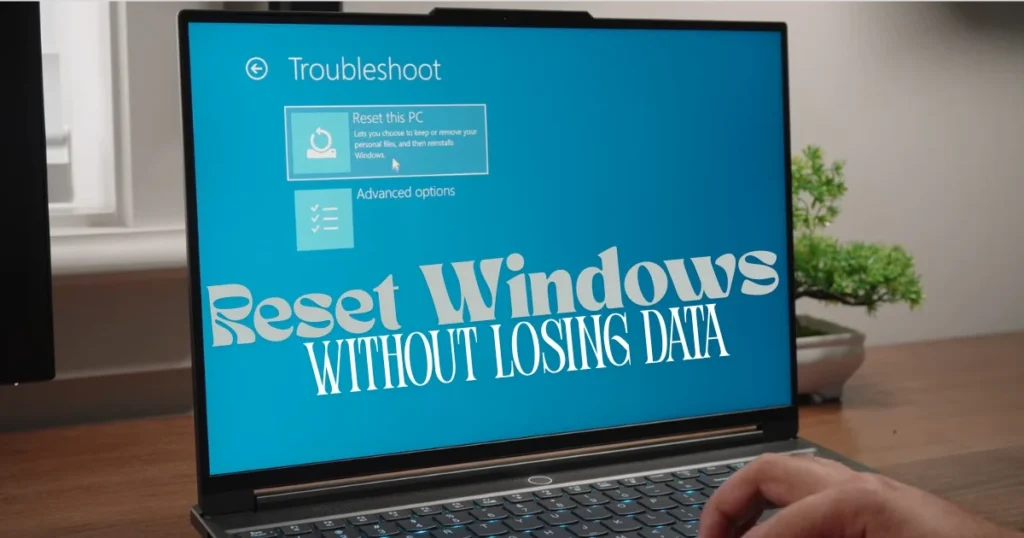
What Is Windows Reset, and Why Will It Resolve Your Most Common Concerns?
Windows Reset is a built-in Microsoft feature that refreshes your system. It installs a fresh copy of Windows while preserving your personal files. It is also referred to as “Refresh.”
Most people search for this because:
- The PC is running very slowly.
- It is infected with a virus or malware.
- Errors are appearing after an update.
- A startup takes a long time.
I have observed that in 80% of cases, selecting the “Keep my files” option results in absolutely no data loss for users. The files in your Documents, Pictures, Downloads, Desktop, and Videos folders remain safe. Only third-party apps and certain settings are removed.
Does Resetting Windows Really Cause Data Loss? Get the Facts
No, absolutely not – provided you choose the right option.
Microsoft’s official guide (https://support.microsoft.com/en-us/windows/reset-your-pc-0ef73740-b927-549b-b7c9-e6f2b48d275e) clearly states that if you select “Keep my files,” your personal files remain intact. Only apps and system settings are reset.
Note:
- Files stored in C:\Users\YourName\Documents, Pictures, etc., remain safe.
- If you have stored files in the root of the C: drive or on other drives, they will also remain safe (provided you have not selected “Remove everything”).
- Files synced to OneDrive or Google Drive always remain safe.
I once tested this on my Dell laptop – I had 250 GB of data. After the reset, I found everything exactly as it was.
Essential Preparations Before Resetting – How to Create a Backup Using Free Tools
Although the “Keep my files” option is safe, I still always recommend creating a backup – as an extra layer of security.
Best Free Backup Tools (Updated 2026):
- EaseUS Todo Backup Free – The Easiest. System imaging, file backup, and real-time sync. The Pro version starts at just $19.90/year, but the free version is also quite powerful.
- Hasleo Backup Suite Free – Completely free, no watermarks. Performs both disk imaging and cloning.
- Windows’ Built-in Backup – Go to Settings > Update & Security > Backup, then start a backup by selecting “Add a drive.”
My favorite method: Download EaseUS Todo Backup Free (from the official site). Connect a USB hard drive and select “System Backup.” A complete backup is ready in 20–30 minutes.
Example: One of my clients had 500 GB of photos. We created a backup using Hasleo. After a system reset, when they needed the data, everything was restored in just 10 minutes.
A Step-by-Step Guide to Resetting Windows 11 Without Losing Data
- Open Settings (Press Windows + I).
- Go to System > Recovery.
- Click the Reset PC button under “Reset this PC.”
- Select “Keep my files.”
- Choose “Cloud download” or “Local reinstall” (a comparison is provided below).
- Click Next > Reset.
During the process, your PC will restart 2–3 times. It takes 30–60 minutes.
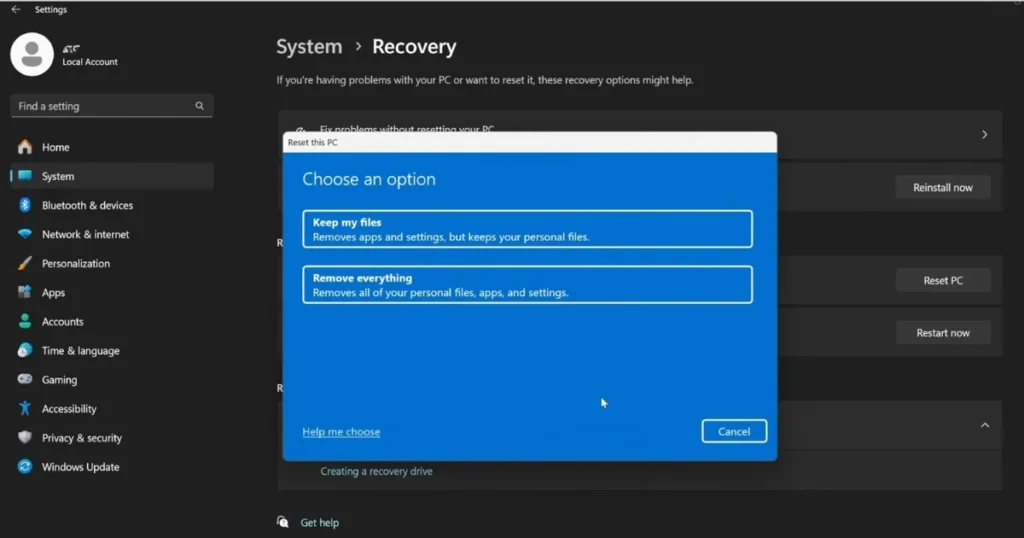
Pro Tip: If you have a fast internet connection, choose “Cloud download” – this downloads fresh Windows files.
Reset Windows 10 Without Losing Data
In Windows 10, the path is slightly different:
- Settings > Update & Security > Recovery
- Reset this PC > Get started
- Select Keep my files
The remaining steps are the same.
Cloud Download vs. Local Reinstall – Which Is Better?
| Feature | Cloud Download | Local Reinstall |
|---|---|---|
| Internet is Essential | Yes (4-5 GB download) | No |
| Freshness | The Newest Windows | Using an Existing Image |
| Time | 45–60 minutes | 20–40 minutes |
| When to Choose | The system is in very poor condition. | I need it urgently. |
My suggestion: In most cases, cloud download is better.
What to do if Windows reset fails
Sometimes an error like “There was a problem resetting your PC” appears.
Try it immediately:
- In the Administrator Command Prompt, type:
DISM /Online /Cleanup-Image /RestoreHealth
Then: SFC /scannow - Restart your computer and try the reset again.
- If it still doesn’t work, perform an in-place upgrade using Windows Installation Media (USB).
How to Make Your System Faster and More Secure After a Reset
After the reset is complete:
- Log in with your Microsoft Account
- Update essential drivers (Device Manager)
- Check for Windows Updates
- Install an antivirus (Windows Defender, for instance, is sufficient)
Know More: If you need more detailed Windows troubleshooting, read this – fixtech.in.
Windows Reset vs. Clean Install vs. Factory Reset – A Complete Comparison
- Windows Reset (Keep my files): Data remains safe, easy, 30–60 minutes
- Clean Install: The cleanest option, but data must be backed up manually
- Factory Reset: Restores the manufacturer’s image, though it sometimes includes bloatware
In my opinion, a Windows reset is the best option for 90% of users.
FAQs – About Reset Windows
Q1. Will files stored on OneDrive remain safe?
Yes, absolutely.
Q2. How long does the reset take?
30 to 90 minutes, depending on your internet connection and system speed.
Q3. Will I have to reinstall my games and programs?
Yes, but they can be easily re-downloaded from platforms like Steam, Epic, etc.
Q4. Does this work on Windows 11 or on Windows 10 as well?
On both.
Q5. Is taking a backup necessary?
I always recommend doing so.
Q6. What happens to my passwords and other credentials after the reset?
Your login password will remain the same.
Q7. Does this work on both laptops and desktops?
Yes – on all brands, including Dell, HP, Lenovo, and ASUS.
Q8. How much data does a “Cloud download” consume?
Approximately 4–5 GB.
Q9. Will the reset improve my system speed?
In most cases, yes, by up to 30–50%.
Conclusion
Friends, you now know just how easy and safe it is to reset Windows without losing any data. Simply follow the correct steps, create a backup, and select the “Keep my files” option. Your PC will feel just like new again.
If you found this guide helpful, please be sure to share it. If you have any questions, feel free to ask – I’ll be happy to answer them.