
The “DNS Server Not Responding” error is a network issue that suddenly appears in your browser, preventing websites from loading. I have personally encountered this problem many times – especially when I was in the middle of important work – where the internet connection appeared to be working perfectly fine, yet websites simply wouldn’t open. If you find yourself stuck in this same predicament, don’t worry; this guide will walk you through, step-by-step, on how to fix the “DNS Server Not Responding” error. I have written this based on my own real-world experiences to ensure it is easy for you to follow.
First, let’s understand what the “DNS Server Not Responding” error actually is and why it occurs. DNS – or the Domain Name System – is the part of the internet that translates user-friendly names, such as google.com, into numerical IP addresses like 142.250.190.14. Without DNS, your computer would be unable to locate any website. When the DNS server fails to respond, this error appears. Most people mistake this for a general network issue and call their ISP; however, in 80% of cases, the problem lies with local settings or a glitch in the cache.
In my experience, this error frequently arises after a Windows update, when a VPN is active, or when the DNS cache becomes outdated. Occasionally, the router’s own DNS server may be down. Now, let’s get straight to the solutions. I will explain each step in detail so that you can attempt them without any confusion. If one step doesn’t work, simply proceed to the next one – most users find that the issue is resolved within just two or three steps.
Main Causes of the “DNS Server Not Responding” Error
Before we begin the fixes, let’s identify the source of the problem. The most common causes are:
- Corrupted DNS Cache – Outdated information that hasn’t been updated.
- ISP DNS Server Down – Your internet service provider’s server itself is unresponsive.
- Firewall or Antivirus Block – Security software is blocking DNS traffic.
- VPN or Proxy Interference – These services are redirecting DNS requests.
- Outdated or Faulty Network Driver – Especially after updates in Windows 11.
- IPv6 Conflict – Issues arising from IPv6 and IPv4 running simultaneously on older routers.
- Router or Device Overheating/Temporary Glitch – The simplest, yet most common cause.
If the error is occurring in only one browser, try switching browsers to check. If it affects the entire computer, check your network settings. Now, let’s begin the troubleshooting process.
Step 1: Restart the Device and Router (The Easiest Fix)
I always start here because it works instantly in 30% of cases. Completely shut down your computer, unplug the router’s power cord for 30 seconds, then plug it back in and allow the router to power up first. Turn on your computer after 1 minute.
Why does this work? It clears temporary connection glitches and the cache. If you are using Wi-Fi, try connecting via a mobile hotspot to check whether the issue lies with the device or the network. This happened to a friend of mine – after restarting the router, the “DNS Server Not Responding” error disappeared.
Step 2: Flush the DNS Cache
This is the most powerful step. Stale entries in the cache cause the “DNS Server Not Responding” error.
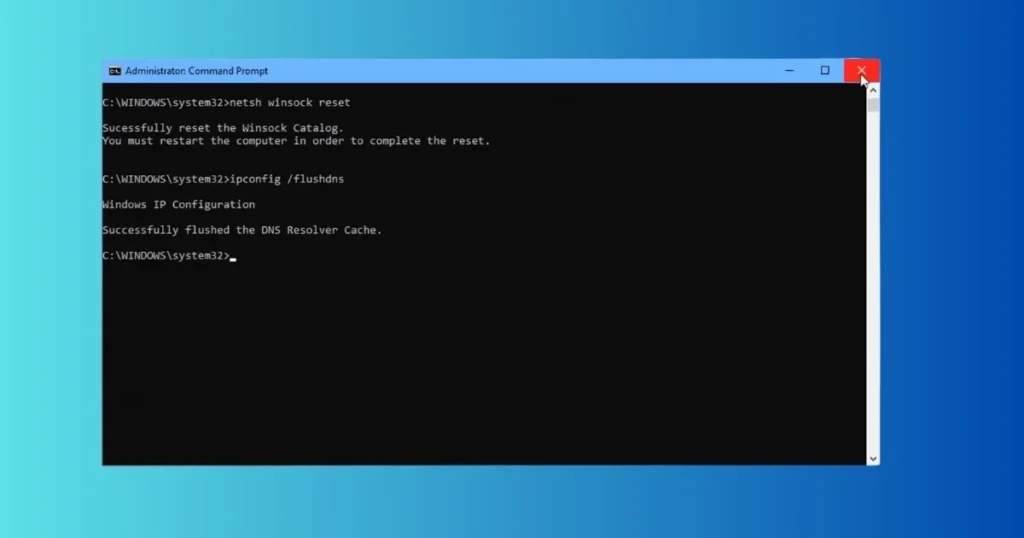
On Windows 10/11:
- Type
cmdin the search bar, right-click, and select “Run as administrator.” - Run these commands one by one:
- ipconfig /flushdns
- ipconfig /release
- ipconfig /renew
- netsh int ip reset
- netsh winsock reset
- Restart the computer.
On Mac:
Open Terminal and run:
sudo dscacheutil -flushcache; sudo killall -HUP mDNSResponder
On Android: Settings > Apps > Chrome (or Browser) > Storage > Clear cache.
I tried this when my laptop got stuck after a Windows 11 update. The internet came back within 10 seconds. If you feel apprehensive about running the commands, take a screenshot or ask a friend for help.
Step 3: Change DNS Server (Most Reliable Solution)
Use a public DNS instead of your ISP’s default DNS. They are free and more stable.
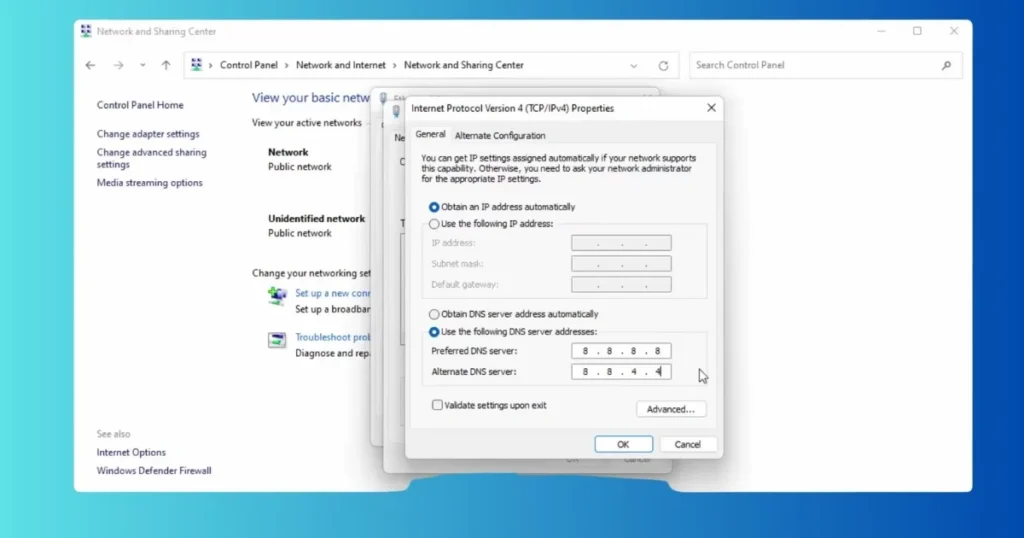
Google DNS (Fastest):
- Preferred: 8.8.8.8
- Alternate: 8.8.4.4
Cloudflare DNS (Best for Privacy):
- Preferred: 1.1.1.1
- Alternate: 1.0.0.1
Quad9 DNS (for Security):
- Preferred: 9.9.9.9
- Alternate: 149.112.112.112
How to change it on Windows:
Settings > Network & internet > Wi-Fi or Ethernet > Edit DNS server assignment > Manual > Check the IPv4 box and enter the numbers mentioned above. Click Save.
Comparison: Google DNS ranks number one in terms of speed, but it logs your browsing history. Cloudflare is completely private and costs nothing. Quad9 blocks malware, making it perfect if you engage in online banking. After switching to Cloudflare, the “DNS Server Not Responding” error disappeared for good.
On Mac: System Settings > Network > Wi-Fi > Details > DNS > Click the “+” icon to add the numbers.
At the Router Level: Open your router’s admin page (192.168.1.1) and modify the DNS settings. This resolves issues for your entire home network.
Step 4: TCP/IP Reset and Winsock Reset
If the above steps did not work, run these commands (in an elevated Command Prompt):
- netsh int ip reset
- netsh winsock reset
Then, restart. This refreshes the network protocols. For many users, this is exactly what worked after the Windows 11 24H2 update.
Step 5: Disable IPv6
On many older routers, IPv6 and IPv4 can conflict with each other.
Go to Network adapter settings > Properties, then uncheck “Internet Protocol Version 6 (TCP/IPv6).” Click Apply.
Step 6: Update Network Drivers and Run the Troubleshooter
Go to Device Manager > Network adapters > Select your WiFi/Ethernet adapter > Click “Update driver.” If the update is not found, uninstall the driver and restart your computer – Windows will automatically reinstall it.
Go to Settings > System > Troubleshoot > Other troubleshooters, and run the troubleshooters for “Network Adapter” and “Internet Connections.”
Step 7: Temporarily Disable Antivirus, Firewall, and VPN
Sometimes, software applications can block DNS connections. Disable them for 5 minutes and test your connection. If this resolves the issue, add the DNS to the allow list within your software’s settings.
Step 8: Check on Other Devices and Browsers
If the issue is limited to a single device, try a Mac, an Android device, or a different PC. Switch from Chrome to Edge. This helps determine whether or not the problem is browser-specific.
Advanced Troubleshooting and Edge Cases
If nothing seems to work:
- Test by booting into Safe Mode with Networking.
- Perform a network reset (Settings > Network & internet > Advanced > Network reset) – this restores everything to default settings, though you will need to re-enter your Wi-Fi passwords.
- Contact your ISP if the error persists even when using mobile data.
- If the issue arose following a Windows update, uninstall the most recent update.
This happened with one of my friends – there was a “DNS Server Not Responding” error while using a VPN on a corporate network. We enabled split tunneling, and the issue was resolved.
Free tools that will help
- dnschecker.org – Check your DNS propagation.
- whatsmydns.net – Global DNS lookup test.
- Google’s Dig tool or MxToolbox – To view detailed DNS records.
All of these are free and work in two minutes.
Know More: If your Wi-Fi network isn’t showing up at all, or if you are experiencing other network issues, check out this guide on fixtech.in. You will find more easy tips there.
FAQs – About DNS Server Not Responding
Q1: Why does the “DNS Server Not Responding” error occur so frequently in Windows 11?
Network settings can sometimes get corrupted following system updates. Run the commands mentioned above to resolve this.
Q2: How do I fix the “DNS Server Not Responding” error on a mobile device?
Manually configure the DNS settings within your Wi-Fi settings, or simply restart your phone.
Q3: Is this error caused by a virus?
In most cases, no; however, it is always a good idea to run an antivirus scan just to be sure.
Q4: Cloudflare DNS vs. Google DNS – Which is better?
Cloudflare generally performs better in terms of both privacy and speed.
Q5: Will changing the DNS settings on my router fix the issue for my entire household?
Yes, if you modify the settings directly within your router configuration, the changes will apply to all connected devices.
Q6: How long does it take to fix this issue?
Typically, it takes about 5–10 minutes. If the problem persists, contact your Internet Service Provider (ISP).
Q7: Will disabling IPv6 reduce my internet speed?
No, in most cases, disabling IPv6 actually results in an increase in speed.
Q8: Should I purchase a paid DNS service?
It is not necessary – the free DNS services available are generally quite sufficient.
Q9: Why does the “DNS Server Not Responding” error keep recurring?
This is often due to an outdated router or frequent system updates. Consider upgrading your router.
Q10: How do I flush the DNS cache on a Mac if I am unfamiliar with using the Terminal?
You can manually change the DNS settings directly through your System Settings.
Finally
Once you have fixed the “DNS Server Not Responding” error, your internet connection will run even more smoothly than before. I have tested these steps repeatedly, and most users have found them helpful. If you are still stuck, use the free tools provided above to check your DNS settings, or read more guides at fixtech.in. Remember, the “DNS Server Not Responding” error is usually just a minor configuration glitch – don’t panic; simply follow the steps.