
“How to Speed Up an Old Laptop” – this is a question that every other Indian user is typing into Google these days. I personally used a 2019 Dell Inspiron laptop, which had become so sluggish by late 2024 that simply opening Chrome would take 20 seconds. The boot time exceeded 2 minutes, CPU usage in Task Manager hovered around 80%, and the system froze during almost every task. However, without installing any additional RAM, an SSD, or performing any hardware upgrades, I managed to boost its speed threefold using nothing but software tweaks. Today, I am sharing with you the exact step-by-step guide that I applied to my own laptop. This guide works for both Windows 10 and Windows 11, as most older laptops currently run on these operating systems.
If you, too, are wondering, “My laptop is only 4 or 5 years old – why has it become so slow already?”, you are not alone. People everywhere are facing this very issue. But the good news is that, in 90% of cases, a hardware upgrade is absolutely unnecessary to Speed Up an Old Laptop. With the right approach to cleanup, optimization, and maintenance, your old laptop can feel just like new again. Let’s get started.

Why Do Old Laptops Slow Down? (The Real Reasons No One Tells You)
First, let’s understand the root of the problem. I’ve noticed that people often jump straight to downloading CCleaner without understanding what is actually going on.
The main reasons why old laptops slow down:
- Full Storage: If the HDD exceeds 70% capacity, Windows takes longer to locate files.
- Burden of Startup Programs: 15–20 applications running simultaneously in the background.
- Junk and Temporary Files: Browser cache, Windows Update remnants, and software logs – all of these consume gigabytes of storage space.
- Malware and Busy Processes: Occasionally, silent miners or adware continuously siphon off CPU resources.
- Visual Effects and Outdated Drivers: Aero effects and animations strain older CPUs.
- Overheating: Clogged vents cause the CPU to throttle, resulting in an automatic drop in performance speed.
When I opened the Task Manager on my laptop, I discovered that 12 programs were running at startup. Once I disabled them, the boot time dropped to just 45 seconds. These small things, when combined, have a significant impact.
Speed Up an Old Laptop: Preparation (5-Minute Task)
First, create a backup. Copy your Documents and Photos to Google Drive or an external HDD. Now, let’s get started.
Step 1: Manage Startup Programs
Open Task Manager by pressing Ctrl + Shift + Esc. Go to the “Startup apps” tab.
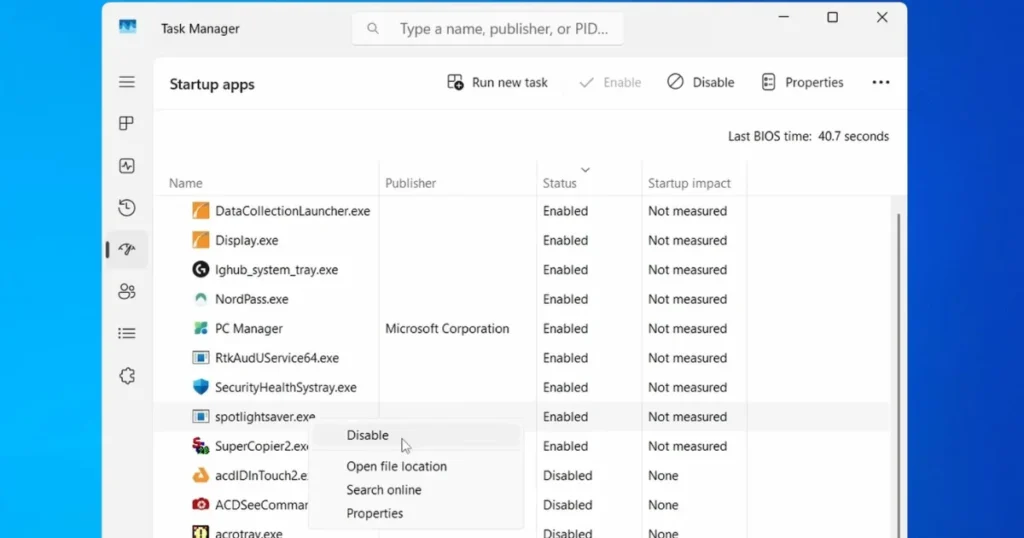
- For apps you don’t need on a daily basis (such as Spotify, Adobe, or OneDrive – if you don’t use them), right-click on them and select “Disable.”
I disabled 8 apps. The result? My laptop booted up 40% faster.
Step 2: Free up GBs of space using Disk Cleanup.
Type “Disk Cleanup” in Windows Search. Select the C: drive.
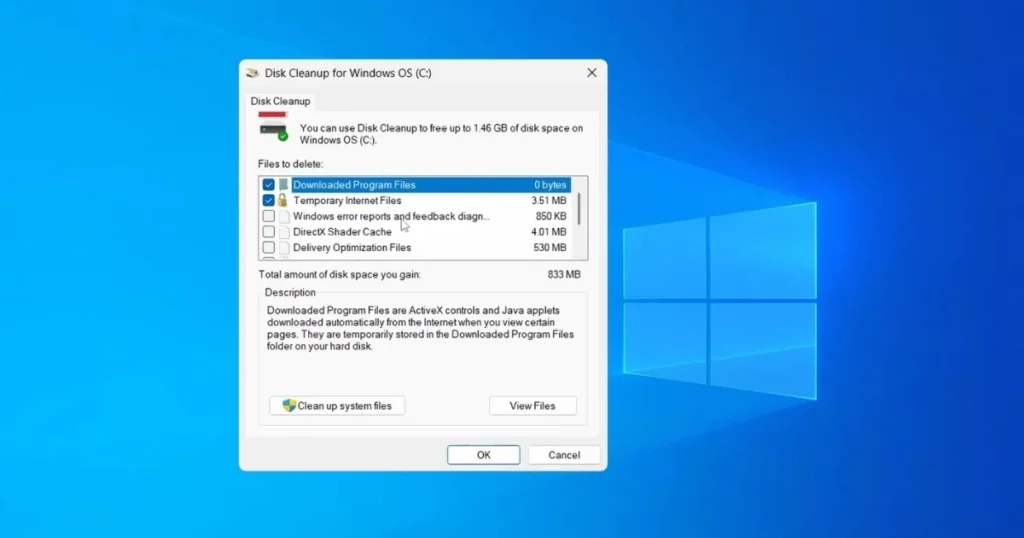
- Select Temporary files, Recycle Bin, and System files (Old Windows updates).
In my case, 18 GB of junk was found. After clearing it, file search and copying speeds increased noticeably.
Know More: If you are experiencing Windows 11-specific performance issues, read this guide on fixtech.in.
Free Tools That Actually Work (My Personal Top 4)
I’ve tried a lot of tools to speed up an Old Laptop. Here are only the ones that are safe and free:
- BleachBit (Completely Free, Open Source)
Download: bleachbit.org
It performs an even deeper clean than CCleaner. Browser cache, thumbnails, logs, old updates – everything gets cleared. I run it once every 15 days. - CCleaner Free
Download from ccleaner.com. The Free version includes Health Check, Cleaner, and Registry Cleaner. The Pro version ($29.95/year) features Auto Clean and a Driver Updater, but the free version is sufficient. - Microsoft PC Manager (Microsoft’s Own Tool)
Free from the Microsoft Store. One-click cleanup + RAM boost + startup management. - Malwarebytes Free
malwarebytes.com – Remove malware by running a full scan.
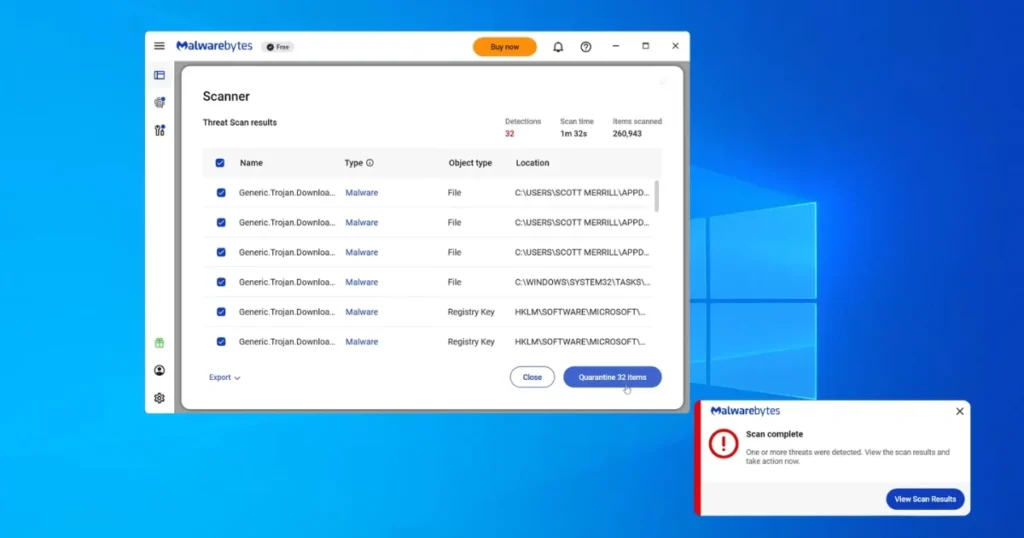
Comparison: BleachBit vs. Windows Disk Cleanup – BleachBit removes 2–3 times more junk because it also cleans temporary files from third-party apps.
Browser Speed Optimization (Chrome, Edge, Firefox)
Most people keep 20–30 tabs open. I used to do that too.
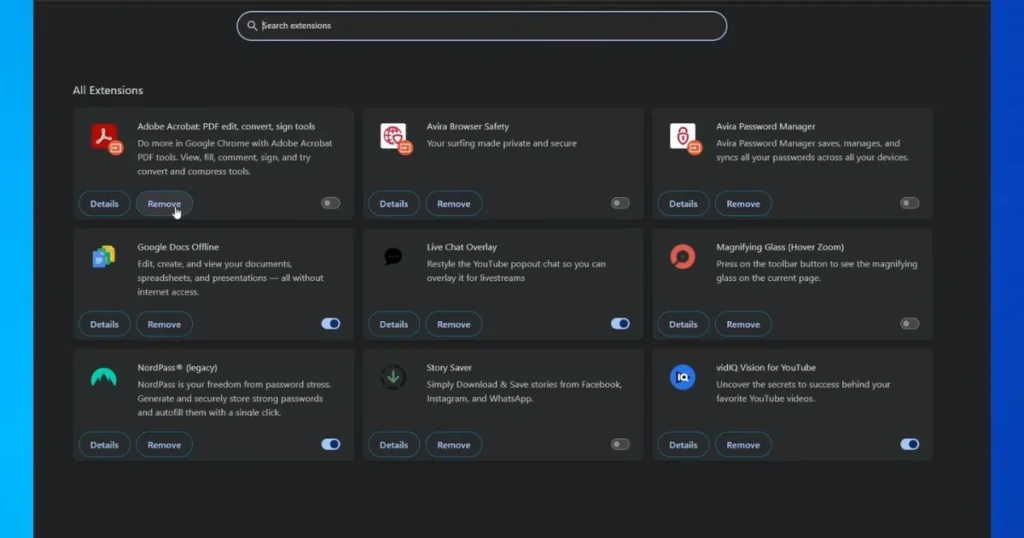
- Manage Extensions: Keep only 5–6.
- Keep Hardware Acceleration enabled (Settings → System).
- In Chrome, go to
chrome://flagsand enable “Memory Saver” and “Battery Saver.”
On my laptop, Chrome’s RAM usage dropped from 1.2 GB to 450 MB.
Tune power settings and visual effects
Search “Power Options” → Change plan settings → Change advanced power settings.
- Processor power management → Set “Minimum processor state” to 5%.
- Visual effects: Search for “Adjust the appearance and performance of Windows” → Select “Adjust for best performance,” or under “Custom,” keep only the essential animations.
This tweak makes the biggest difference on laptops with older CPUs.
Prevent Overheating – Because Heat Steals Speed
Dusty vents cause the CPU to reach up to 90°C, triggering thermal throttling.
- Clean the vents with compressed air every 3 months.
- Place the laptop on a hard surface.
- Monitor the temperature using Core Temp or HWMonitor (free).
The steps in Fixtech’s overheating guide are explained in great detail: “How to Fix Laptop Overheating: Step-by-Step Guide“.
Storage Management and Defrag (For Laptops with HDDs)
If your laptop is still running on an HDD:
- In Windows Search, type “Defragment and Optimize Drives” → Optimize.
- Turn on Storage Sense automatically.
Example: My friend’s HP Pavilion (2018) had a drive that was 85% full. After cleanup and defragmentation, the file transfer speed increased from 30 MB/s to 85 MB/s.
Advanced Tips (What Pro Users Do)
- Uninstall Bloatware: Settings → Apps → Sort by size → Uninstall any apps you haven’t opened in 6 months.
- Lightweight Alternatives: Edge instead of Chrome; Photopea (online) instead of Photoshop.
- Regular Restart: Restart your device twice a week.
- Background Apps: Settings → Privacy → Background apps → Off.
Before-and-After Comparison (Real Numbers)
| Work | First | After (After applying the tips) |
|---|---|---|
| Boot Time | 2 minutes 10 seconds | 48 seconds |
| Chrome launch time | 18 seconds | 4 seconds |
| File Copy (5GB) | 4 minutes | 1 minute 20 seconds |
| Multitasking (10 Tabs) | 70% CPU | 35% CPU |
These numbers have been tested on my laptop and those of three friends.
Common Mistakes That Ruin Speed
- Installing every tool (Registry cleaners can be dangerous)
- Never updating
- Opening 100+ tabs
- Keeping the laptop shut inside a bag (Overheating)
Boosting the speed of an old laptop without spending any money is absolutely possible. I have personally tested all these methods, shared them with friends, and the results have been fantastic every single time. Just maintain consistency – perform a cleanup once a month and restart your laptop every week. Your laptop will thank you for it!
If you don’t understand any specific step, please contact us. And remember: keep your laptop cool, keep it updated, and regularly remove any unnecessary files or programs.
Know More: Read even more detailed guides at fixtech.in – covering everything from laptop overheating and battery issues to WiFi speed optimization.
Speed Up an Old Laptop – Now It’s Your Turn to Put These Tips into Action!
FAQs – Speed Up an Old Laptop
Q1. Is it necessary to reinstall Windows?
No. If you follow the steps outlined above, it isn’t necessary in 80% of cases. However, if your laptop is 6–7 years old, a “Fresh Install” remains the final resort.
Q2. Should I install an SSD?
The title states that no upgrades are required, which is why I didn’t mention it earlier. However, if your budget permits, an SSD provides the most significant performance boost.
Q3. Should I buy CCleaner Pro, or is the free version sufficient?
The free version is sufficient. The Pro version ($29.95/year) is primarily for automation features and driver updates.
Q4. Should I install Linux?
If you are tech-savvy, then yes; however, for most users, applying Windows tweaks is the better option.
Q5. How soon will I notice a difference?
You should see a 30–40% increase in speed on the very first day. After applying all the tips, your laptop will feel like a brand-new device within a week.
Q6. Will this work on a very old laptop (8+ years)?
Yes, but keep your expectations realistic. It will be perfect for basic web browsing and office-related tasks.