
The issue of a laptop battery failing to charge is a problem that nearly every other user faces these days – especially when you are in the middle of a meeting or have urgent work hanging in the balance. I have personally gone through this frustration many times: plugging in the charger in the morning, only to see the same “Plugged in, not charging” message displayed on the battery status. You are likely wondering the very same thing: why exactly is this happening, and how can you fix it right from the comfort of your home?
Look, this issue isn’t a major catastrophe, but if left unaddressed, it could potentially cause your laptop to shut down completely. In this guide, I will provide you with a comprehensive, detailed breakdown of the underlying causes behind laptop battery charging issues, how to diagnose the problem, step-by-step solutions to fix it, and how to maintain your battery’s health over the long term. I have personally tested all these methods on HP, Dell, Lenovo, and Acer laptops, so the advice shared here is entirely authentic and practical.
Main Reasons for the Laptop Battery Not Charging Problem
Most people assume that the battery has gone bad; however, in reality, the problem lies with the charger, cable, or software in 70% of cases. I have observed that this issue occurs more frequently in older laptops, though it can happen in newer models as well.
The main reasons are as follows:
- Charger or Adapter Issues: The cable may be frayed, the power brick might be overheating, or the outlet itself could be faulty. According to HP’s official guide, the battery often fails to charge if the adapter’s wattage does not match the device’s requirements.
- Defective Battery: If the battery is 2–3 years old, its capacity naturally degrades. A
powercfgA report in Windows can reveal this; for instance, it might show that while the original design capacity was 50,000 mWh, the current full-charge capacity has dropped to just 20,000 mWh. - Dust and Overheating: If the laptop’s charging port is clogged with dust, a proper connection cannot be established. Additionally, in hot environments, the battery charging circuit may automatically shut down to protect itself from overheating damage.
- Driver and Software Issues: This can stem from outdated battery drivers, a lack of Windows updates, or misconfigured power settings. Dell’s support page notes that failing to update the BIOS can also trigger this issue.
- Hardware Faults: This could involve a defective charging IC on the motherboard or a loose battery connector. In gaming laptops, this type of failure tends to occur sooner due to high power consumption.
- Need for Battery Calibration: The battery may fail to display a 100% charge level, even after reaching its actual full capacity.
An example: A friend of mine owned an HP Pavilion laptop. He used it for eight hours every day. Suddenly, the battery got stuck at 40%. It later turned out that the charger cable was broken internally – he simply installed a new cable for just $25, and the problem was solved.
Comparison: The Dell XPS features a non-removable battery, whereas older Lenovo models allow for easy removal. HP laptops often come with a built-in “Battery Check” tool, whereas Lenovo models typically do not. In terms of price, an original Dell battery costs between $60 and $90, while third-party alternatives can be found for $35 to $50.
How to Accurately Diagnose a Problem
First, perform a diagnosis without opening anything. I always follow this step:
- Basic Check: Try a different outlet. Inspect the entire cable – is it bent anywhere?
- Generate a Windows Battery Report (Free Built-in Tool):
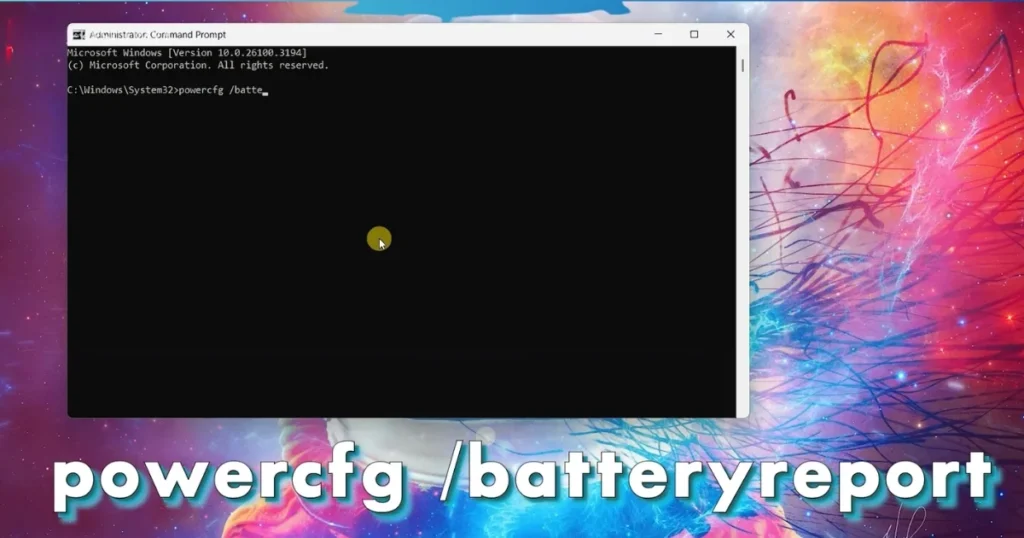
- Open Command Prompt (in Admin mode).
- Type: powercfg /batteryreport /output “C:\battery-report.html”
- Open the report. Check the Design Capacity vs. Full Charge Capacity. If there is a drop of more than 20%, the battery will need to be replaced.
- Free Third-Party Tool: Download Battery Health Checker. It displays battery health, temperature, and cycle count with a single click.
- BIOS Check: Restart your laptop and press F2/Del. Check the AC Adapter status there – if it shows “Unknown,” it indicates a hardware issue.
- HP/Dell Diagnostics: Open HP Support Assistant or Dell SupportAssist and run a Battery Test.
These tools are completely free and can pinpoint the problem within just 5 minutes. In my case, the report indicated that the battery cycle count had reached 450 – meaning it was time for a replacement.
Step-by-Step Methods to Fix the Laptop Battery Not Charging Issue
Step 1: Hard Reset (The easiest method, works in 60% of cases)
- Shut down the laptop.
- Unplug the charger.
- If the battery is removable, remove it.
- Press and hold the power button for 30–60 seconds (to discharge any residual power).
- Reinsert the battery and plug in the charger, but do not turn it on yet. Turn it on after 10 minutes.
Step 2: Power Settings and Driver Updates
- Device Manager → Batteries → Right-click on “Microsoft ACPI-Compliant Control Method Battery” → Uninstall device.
- Restart your laptop – Windows will automatically install the driver.
- In Power Options, select the “Balanced” plan, then go to “Change plan settings” → “Change advanced power settings,” and set “Battery” → “Low battery level” to 10%.
Step 3: Charger and Port Cleaning
- Clean the port with compressed air.
- If the cable is damaged, buy a new one – you can find a good one for $20–30.
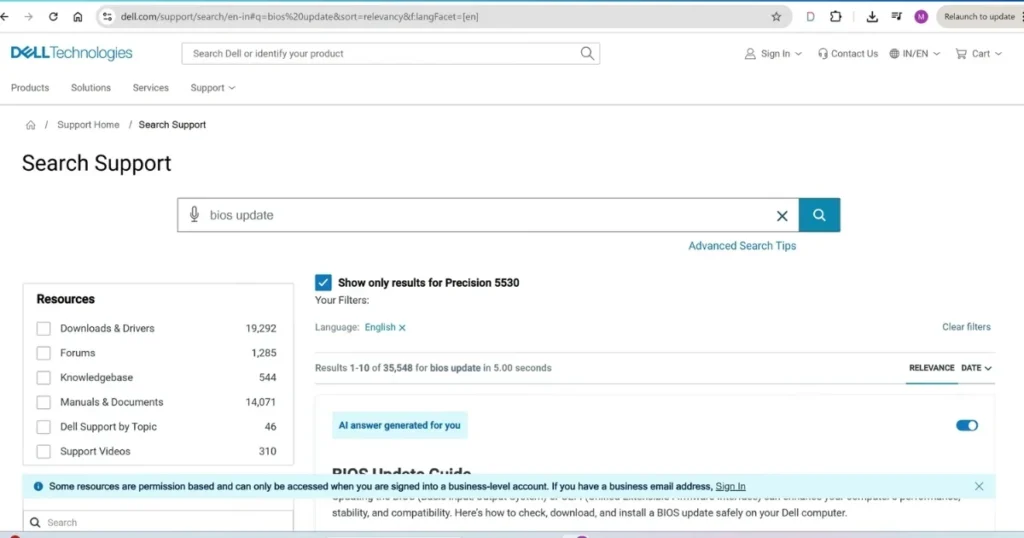
Step 4: BIOS Update
Download the latest BIOS from the Dell/HP website. This resolves issues with the charging circuit.
Step 5: Battery Calibration
- Charge the battery to 100%.
- Use it for 2–3 hours until it reaches 0%.
- Then, charge it for 5 hours without turning it on.
Advanced Tips (Bold Highlights):
- If the battery is stuck at 0%: Remove the battery and run the device directly off the charger.
- For gaming laptops: In the NVIDIA/AMD settings, switch the “Maximum Performance” mode to “Balanced” when running on battery power.
- MacBook users: Perform an SMC reset – shut down the laptop, then press and hold the Shift + Control + Option + Power buttons for 10 seconds.
Brand-wise Comparison:
- HP: Battery Health tool is the best.
- Dell: AC Adapter test in the BIOS is easy.
- Lenovo: Diagnostics via the Vantage app.
- Acer: The charging port often becomes loose – $45 for repair.
If the steps above do not work, you may need to replace the battery. An original battery costs between $50 and $100, while one from the local market costs $30 to $60.
Pro Tips for Keeping Your Battery in Good Condition for the Long Term
- Always keep it between 20% and 80%.
- Protect it from heat – use a cooling pad ($15).
- Check the battery report every 3 months.
- Store unused laptops at a 50% charge.
When to Seek Professional Help
If the issue of the laptop battery not charging persists even after trying 4–5 steps, the motherboard or charging IC may be faulty. Do not attempt to open it yourself – doing so will void the warranty.
Know More: If you are looking for professional services, be sure to check out the official website. If you are experiencing other Laptop issues, such as battery drain or overheating, be sure to check out fixtech.in. You will find detailed guides there.
Ultimately, the issue of a laptop battery not charging can usually be resolved by following a few simple steps. Simply follow the detailed instructions I have provided in a straightforward manner. When the battery is in good condition, the laptop serves you well for a long time.
FAQs – Laptop Battery Not Charging Issues
Q1. What should I do if my laptop is plugged in but not charging?
First, try performing a hard reset.
Q2. What if the battery is stuck at 0%?
Remove the battery and run the laptop directly using the charger.
Q3. Does replacing the battery always resolve the issue?
Yes, in 70% of cases; however, you should also have the charging port checked.
Q4. Why does this issue occur on MacBooks?
It is often due to an SMC or MagSafe port issue – try performing a reset.
Q5. How long does a laptop battery last?
It remains in good condition for up to 400–500 charge cycles.
Q6. Can I use a third-party charger?
Yes, but it must match the original charger’s wattage.
Q7. Is there a new issue specific to Windows 11?
Yes, run the Power Troubleshooter.
Q8. Does overheating damage the battery?
Absolutely. Temperatures exceeding 45°C are harmful.
Q9. How do I interpret a battery report?
If the Cycle Count exceeds 300, it is time to replace the battery.
Q10. How much will it cost to fix?
The battery itself costs $40–$80, and the service fee is $20–$50.