
“Mobile data is not working” – this is a complaint that almost every phone user encounters at some point these days. You might be trying to send a message on WhatsApp, opening YouTube, or simply checking Google Maps, when suddenly – the internet vanishes. Your screen displays “4G” or “5G,” yet nothing loads. Your phone’s signal bars are full, but you still can’t get any connectivity. It is perfectly natural to feel frustrated in such a situation – especially when you are out and about, in the middle of a work-related meeting, or searching for some urgent information.
In this guide, we will tackle the very specific problem you are currently facing. I have personally witnessed this issue affecting users across various networks – including Jio, Airtel, and Vi – on numerous occasions. Sometimes, it stems from a minor configuration error in the settings; at other times, the issue lies with the network provider itself. We will walk through every potential cause and its simple solution, step by step. We will progress from basic troubleshooting steps to more advanced ones, empowering you to resolve the issue yourself without needing to call in a technician. And yes – we will also cover exactly what to do if the problem persists even after trying all the suggested methods.
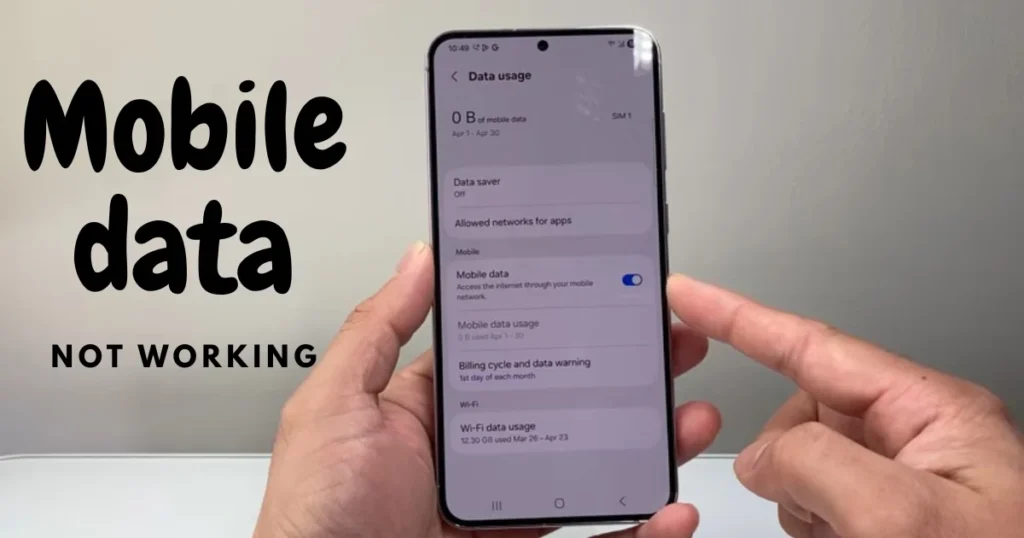
Mobile data is not working – Why? Understand the Common Causes
First, let’s understand why this issue arises suddenly. In most cases, these five or six factors are primarily responsible:
- Data Connection Off or Data Saver On – Mobile data on the phone is switched off, or Data Saver mode is active.
- Signal Issues – Weak network coverage in the area, or ongoing maintenance work on the cell tower.
- Incorrect APN Settings – Data fails to connect due to incorrect Access Point Name settings.
- SIM Card or Software Issues – A loose SIM card, outdated software, or a bug following a recent software update.
- Carrier-Side Problems – Your data plan has expired, the account has not been recharged, or there is a network outage.
In India, Jio users often encounter issues with APN and network modes, whereas signal drops are more common with Airtel and Vi. Now, let’s fix all of these one by one.
The First 5 Easy Steps to Fix “Mobile Data is Not Working”
These steps resolve the issue immediately in 80% of cases. Try them in order:
- Restart Your Phone
This is the simplest and most effective method. Restart your device by pressing the power button. Wait 30 seconds after the restart, then turn on your mobile data to check if it works. Why does this work? Because it clears out temporary glitches and background processes. - Toggle Airplane Mode On and Off
Go to Settings > Network & Internet > Airplane Mode. Turn it on for 15–20 seconds, then turn it off. This forces a network reconnection and often refreshes the signal. - Check the Mobile Data Switch
Look for the mobile data icon in the Quick Settings panel (swipe down from the top of the screen). If it is off, turn it on. Additionally, check for any active Data Saver or Data Limiter settings – be sure to turn them off. - Turn Off Wi-Fi to Check
Often, your phone prioritizes Wi-Fi connectivity, even if the signal is weak. Try turning off Wi-Fi and running solely on mobile data. - Remove and Reinsert the SIM Card
Turn off your phone and eject the SIM tray. Wipe the SIM card with a clean cloth (to remove any dust), wait 10 seconds, and then reinsert it. This effectively cleans the contact points.
If you are using an Android phone, go to Settings > Network > Mobile Network > Preferred Network Type and set it to “5G/4G/3G Auto”. On an iPhone, go to Settings > Cellular > Cellular Data Options > Voice & Data and set it to 5G Auto.
How to Check and Fix APN Settings – The Most Common Mistake
If the steps above don’t work, the APN is often the game-changer.
Setting up APN on Android:
- Settings > Network & Internet > SIM Cards & Mobile Networks > Access Point Names
- Add a new APN by tapping the plus (+) icon.
- For Jio: Name – Jio, APN – jionet, MCC – 405, MNC – 840 (or 857), APN Type – default,supl
- Airtel: APN – airtelgprs.com
- Vi: APN – vi.in or vijio
On iPhone:
- Go to Settings > Cellular > Cellular Data Network, and enter the values mentioned above in the APN field.
A friend of mine was a Jio user. His mobile data wasn’t working. We changed the APN to “jionet,” and he instantly got 5G speeds. Previously, he was using an incorrect APN – something like “jiocloud.”
Check Signal Strength and How to Reset the Network
If the network coverage in your area is inherently weak, the methods mentioned above may also fail. Open the testing menu on your phone by dialing ##4636## (on Android) and check the signal strength. It should be better than -90 dBm.
Reset Network Settings (All data will not be lost – only network settings):
- Android: Settings > System > Reset Options > Reset Wi-Fi, Mobile & Bluetooth
- iPhone: Settings > General > Transfer or Reset iPhone > Reset > Reset Network Settings
On Android, you have to re-enter your Wi-Fi passwords after a reset, whereas on iOS, all passwords are cleared. However, in both cases, the issue of mobile data not working is resolved in 90% of instances.
Software Updates, Cache Clearing, and Battery Saving Mode
Outdated software or cached data can also cause problems. Check for system updates via the Play Store or App Store. Additionally:
- Settings > Apps > Chrome/Other Browser > Storage > Clear Cache
- Turn off Battery Saver or Power Saving mode, as it throttles data usage.
If you have recently updated to Android 15 or iOS 18, several users have reported that a network settings reset becomes necessary.
Android vs. iOS: Different Approaches for Each Platform
For Android users, resetting the APN and network settings is often the most effective solution. iPhone users, on the other hand, frequently need to toggle the “Cellular Data” switch or perform a Carrier Settings Update. If a Carrier Update notification appears under Settings > General > About on your iPhone, be sure to install it.
If you are looking for a premium diagnostic app, “Network Analyzer Pro” is available for a one-time purchase price of approximately $2.99. However, the basic version is completely free.
Free Tools That Can Help You
- Speedtest by Ookla – Best for checking speed and troubleshooting issues. Free.
- Network Signal Info or Network Analyzer app – For checking signal strength, tower location, and APN testing. The basic version is free.
- Phone Info app – Easily provides information accessed via ##4636##.
If you need a more detailed guide, read “How to Fix Network Errors on Any Device” at fixtech.in. Additional tips for both Android and iOS are provided there.
What to do when nothing works?
- Contact your carrier’s customer care (Jio: 199, Airtel: 121).
- Try a different phone or a different SIM card.
- Visit a service center – the issue could be a damaged SIM or a hardware problem with the phone.
- If you are traveling internationally, check your roaming settings.
FAQs – On Mobile data is not working
Q1. Mobile data is not working, but Wi-Fi is – what does this mean?
It indicates a network-specific issue, not a problem with the phone itself. Check your carrier settings or APN.
Q2. What should I do if mobile data isn’t working on my Jio phone?
Set the APN to “jionet” and keep the Network Mode set to 4G/5G Auto.
Q3. What is the quickest fix if mobile data isn’t working on an iPhone?
Reset Network Settings + Carrier Update.
Q4. Data isn’t working even though I have a balance – why is that?
Sometimes, the high-speed data allowance in your plan gets exhausted, and the connection switches to a throttled (non-high-speed) mode.
Q5. Could this be caused by a VPN?
Yes, try uninstalling the VPN app to check.
The Bottom Line
The “mobile data not working” issue is as frustrating as it is easy to fix – provided you follow the steps outlined above. The next time this problem arises, don’t panic; simply open this guide and try the steps one by one. You’ll regain your connectivity and save your day.