
Phone Storage Full? Has your phone storage filled up, leaving you constantly bombarded with “Storage is full” notifications? I’ve faced this hassle myself on numerous occasions – unable to save new photos or install any updates. But the good news is that you can easily free up anywhere from hundreds of MBs to several GBs of space without having to delete any essential apps.
Friends, today I’m providing you with a step-by-step guide that actually works. Whether you use an Android phone or an iPhone, I will explain every method in detail – covering why it works, how much space you’ll gain, and what precautions you should take. We will focus on clearing the cache, cloud backups, built-in tools, and a few free apps. Let’s get started.
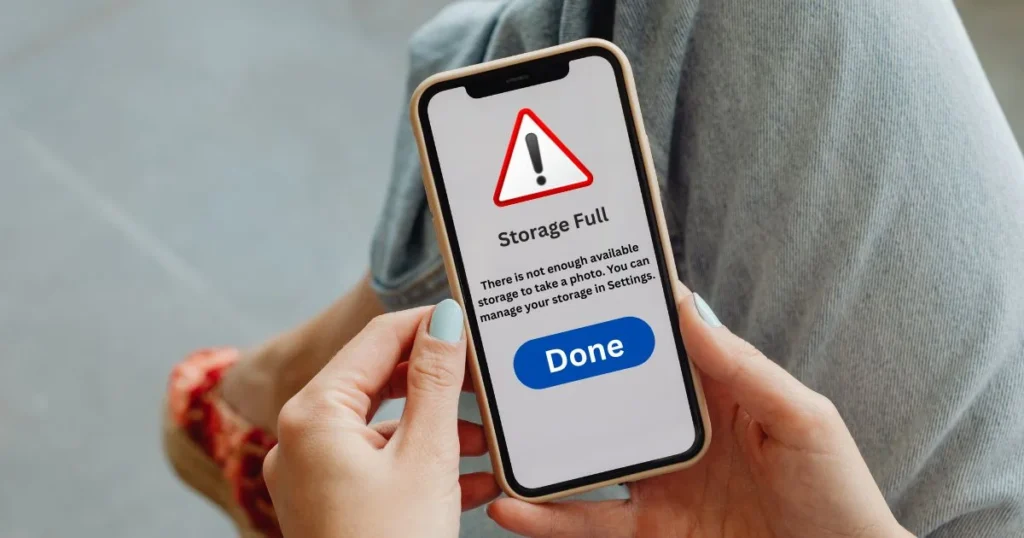
Why is Phone Storage Full? Understand the Real Reasons
Most people assume that storage fills up solely due to photos and videos; however, in reality, cache files, duplicate media, old downloads, and background data from apps are the biggest culprits.
For instance, WhatsApp alone can accumulate 1–3 GB of cache data. Apps like Instagram, YouTube, and Spotify also automatically save thumbnails and offline files. On Android phones, system cache, and on iPhones, message attachments also quietly consume storage space.
If your phone has 128 GB or less storage, this problem escalates even more rapidly. But don’t worry – 70–80% of this data can be removed without having to delete any apps. (According to Google’s official support page, clearing the cache often frees up 1–5 GB of space.)
The easiest way to check storage
First, let’s find out exactly what the place is consuming.
On Android:
Open Settings → Storage (or Device Care → Storage). Here, you will see a breakdown: Apps, Images, Videos, and Documents.
On iPhone:
Settings → General → iPhone Storage. Look at the color-coded bar.
This step takes just two minutes, but it helps ensure that all subsequent decisions are the right ones. Now, let’s get started on the real work.
Free Up Storage on Android Without Deleting Apps (Most Popular Methods)
The biggest advantage for Android users is that clearing the cache is very easy.
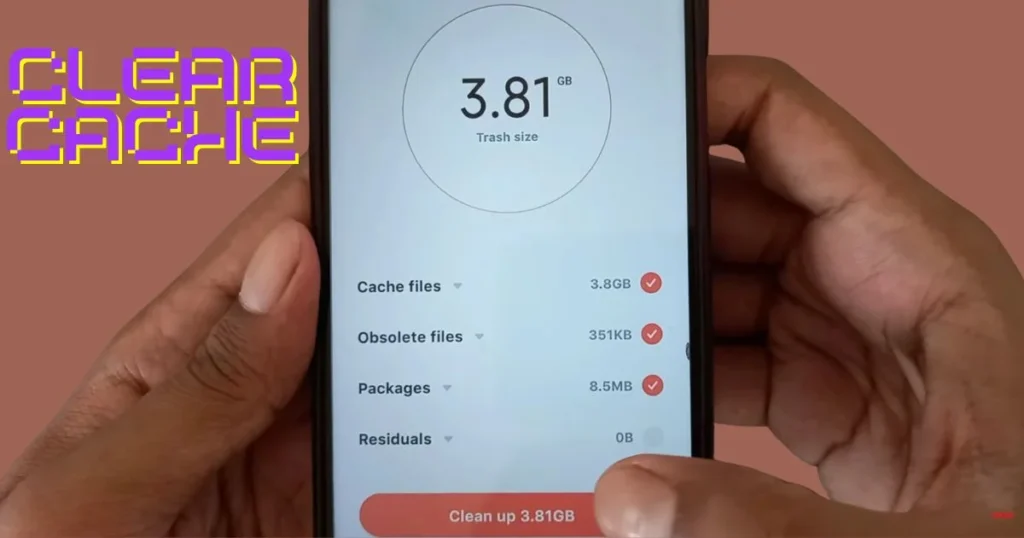
1. Clear the cache for individual apps.
- Go to Settings → Apps → All Apps.
- Tap on the apps taking up the most space (such as Chrome, WhatsApp, and Instagram).
- Tap Storage & Cache → Clear Cache.
How much space will you free up? Chrome’s cache alone takes up 500 MB to 1 GB, and WhatsApp takes 1 to 2 GB. I freed up 4.2 GB on my OnePlus phone by doing this.
Note: Do not press “Clear Data,” otherwise your login data will be lost. Only clearing the cache is safe.
2. Clean up junk using the Files by Google app (100% Free).
This is an official free tool from Google, and it comes pre-installed on most phones.
- Open Files by Google → Go to the Clean tab.
- View Junk files, Duplicate files, Old screenshots, and Large files, then tap Clean.
Example: My friend’s Pixel phone had 800 MB of old screenshots in the “Old screenshots” folder – gone with a single click.
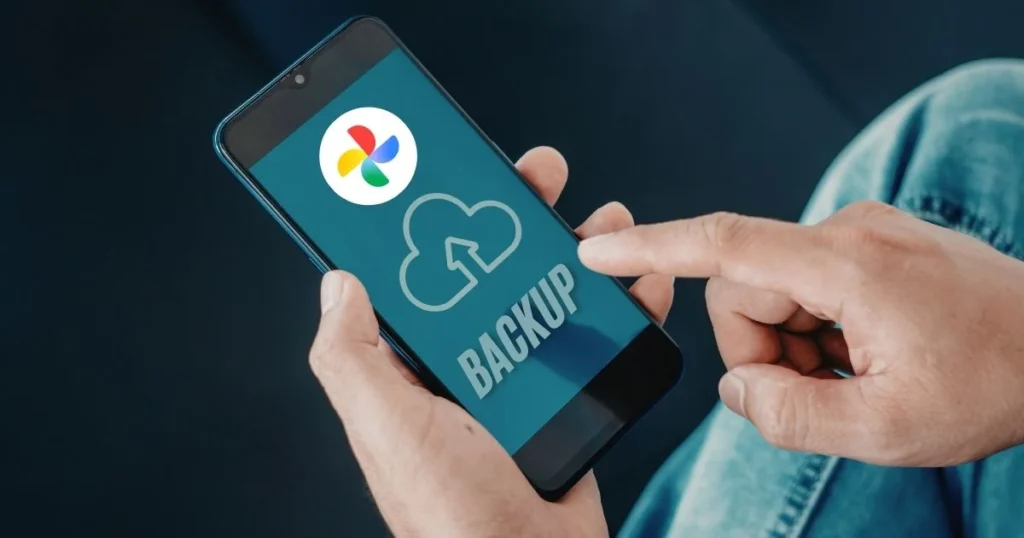
3. Delete local files after backing them up to Google Photos.
- Open Google Photos → Library → Utilities → Manage storage.
- After the backup is complete, tap the “Free up space” option.
You get 15 GB of free storage (shared with Gmail and Drive). The quality might be slightly lower, but most users don’t mind.
4. WhatsApp Media Management
Go to WhatsApp Settings → Storage and Data → Manage Storage, then selectively delete items by looking for “Larger than 5 MB” or “Forwarded many times.” Ensure you back up your important chats.
5. Downloads Folder and Old Files
Open the Downloads folder in the Files app and delete unwanted APKs, PDFs, and ZIPs.
6. Use an SD Card (if your phone supports it).
Some phones still feature a “Move to SD Card” option – use it to shift your photos and music.
Ways for iPhone Users to Free Up Storage Without Deleting Apps
iOS is a bit rigid, but the “Offload Unused Apps” feature is a game-changer.
1. Turn on Offload Unused Apps.
- Settings → App Store → Toggle “Offload Unused Apps” on.
- Or manually: Settings → General → iPhone Storage → Tap on an app → Offload App.
The app is removed, but your documents and settings remain saved in iCloud. Upon reinstallation, everything returns to its previous state. According to Apple’s official guide, this process works without any data loss.
2. iCloud Photos Optimize Storage
Go to Settings → [Your Name] → iCloud → Photos, and select “Optimize iPhone Storage.” The full-resolution versions remain in iCloud, while smaller versions are stored on your phone. 5 GB is free; if you need more, plans start at $0.99 per month.
3. Delete Large Attachments in Messages
iPhone Storage → Review Large Attachments → Delete. Often, 1–2 GB videos and GIFs are stored here.
4. Check offline downloads.
Delete downloaded content in apps such as Spotify, Netflix, Maps, etc.
5. Safari and System Cache
Safari → Settings → Clear History and Website Data (but keep passwords saved).
Android vs iPhone: Storage Management Comparison
On Android, clearing the cache offers greater flexibility but requires more manual effort. On the iPhone, the “Offload” feature is automatic, though it entails a heavier reliance on the cloud.
For Samsung or OnePlus users, the “Storage” section within Device Care offers additional benefits. On Pixel phones, the “Files by Google” app performs more effectively. With the release of iOS 18, the auto-cleanup functionality on the iPhone 16 series has been further enhanced.
Free Tools That Will Help You (No Cost)
- Files by Google – Completely free; includes a junk cleaner and duplicate finder.
- Storage Analyzer & Disk Usage – Shows exactly what is stored where, displayed in a pie chart.
- CCleaner (Free version) – $0; clears cache and junk files. The Fixtech team also recommends this app.
Know More: If your phone is overheating solely due to storage issues, be sure to read this article on fixtech.in: Mobile Overheating? 10 Tried-and-Tested Methods That Work . It explains how to make full use of the free version of CCleaner.
Tips for Avoiding Full Storage in the Long Run
- Establish a weekly routine to clear the cache.
- Keep auto-downloads turned off.
- Minimize 4K video recording or offload it to the cloud.
- Delete old backup files.
- If your phone is two years old, a factory reset (after creating a backup) should be your last resort.
Edge Case: If you are using a rooted phone, you can try advanced tools like SD Maid; however, this is not necessary for average users.
FAQs – Your Most Common Questions
Q1. Will clearing the cache delete my app data?
No. Only temporary files are removed.
Q2. Is Files by Google safe?
Yes, it is an official Google app.
Q3. Will using “Offload” on an iPhone delete my photos?
No, only the app’s binary files are removed.
Q4. How much storage space can I reclaim?
On average, 2–8 GB, depending on usage.
Q5. Is cloud backup expensive?
Google Photos offers 15 GB for free, and iCloud offers 5 GB for free. If you need more, plans start at $0.99 per month.
Final Thoughts
If you have followed the steps outlined above, your “phone storage full” problem will remain under control once and for all. I follow this routine every month, and my 128 GB phone always has 30–40% free space.
Give it a try yourself and check how much space you managed to free up. If you still encounter issues, please mention your specific phone model – I will provide further details.
The “phone storage full” problem will no longer be an issue for you!