
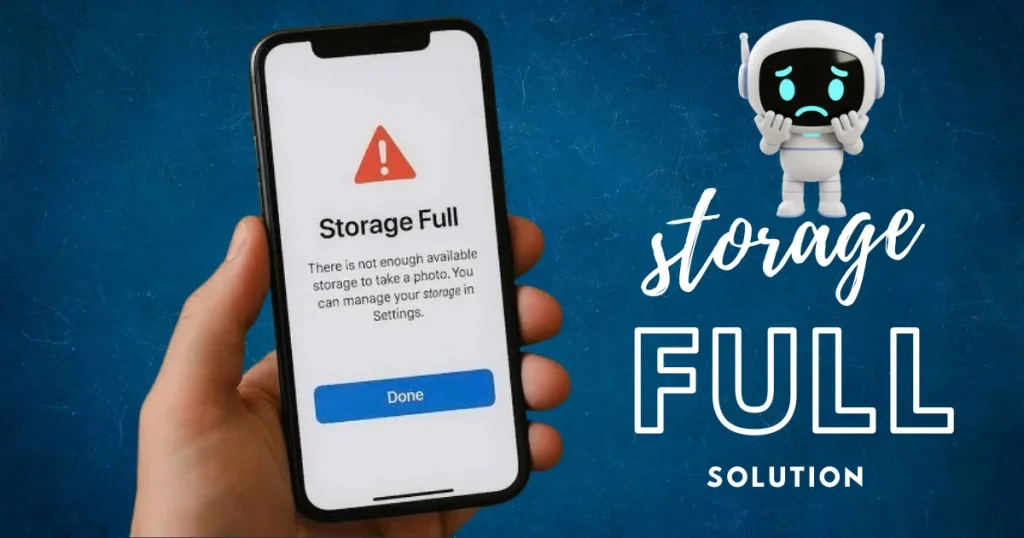
A “Storage full” notification pops up on your phone screen; you check your Files and Gallery – no photos, no videos, no large apps – yet your Android storage still shows as full. This isn’t a bug; it is a very common and baffling issue that plagues millions of Indian users. If you, too, feel like there is nothing left to delete, yet your storage remains full, this guide will break down the nine actual causes behind this problem – and provide solutions for them.
What is the real reason behind Android storage filling up?
Most people get frustrated wondering how their storage filled up when they haven’t saved anything new. In reality, a lot of data accumulates in places that aren’t immediately visible – such as app cache, system files, offline downloads, OTA updates, and duplicate media.
Locating and clearing these files might seem like a hassle, but once done, your phone feels as light and responsive as it was when new.
9 things that silently fill up your Android storage
Thing #1 – App cache: It’s invisible but takes up a lot of space
Every app – whether it’s YouTube, Instagram, or Zomato – creates a cache to help the app open faster. Over time, this cache grows significantly.
On a user’s phone, the YouTube cache alone can reach 3–4 GB, with Instagram’s cache taking up even more space separately.
How to clear the cache:
- Settings → Apps → Select an app → Storage → Tap “Clear Cache”.
- Or for all of them at once: Settings → Storage → Cached Data → OK.
Note: Clearing the cache does not log you out of your account, nor does it result in the loss of any personal data.
Thing #2 – WhatsApp’s hidden data
Given how extensively WhatsApp is used in India, it fills up storage space very quickly. The problem is that a large portion of this data – such as old videos, audio messages, and documents – is not easily visible in the ‘Files’ app.
WhatsApp media files are located at: Internal Storage → WhatsApp → Media. This directory contains separate folders like WhatsApp Images, WhatsApp Video, WhatsApp Audio, and WhatsApp Documents.
Here is how to clean it up:
- Open WhatsApp → Settings → Storage and Data → Manage Storage.
- Here, you can directly see how much data is associated with specific contacts or groups.
- Select and delete large files.
Thing #3 – A pile of duplicate photos and screenshots
Have you ever noticed the same photo appearing twice? This happens because some apps (like Google Photos) keep a copy both locally and in the cloud.
Additionally, the screenshots folder often contains screenshots you once took for a specific purpose but no longer need.
To find them:
- Open the Google Files app → Go to the “Clean” tab → Duplicate files and old screenshots are displayed separately.
- Review them one by one and delete the ones you don’t need.
Thing #4 – Downloaded OTA System Updates
Whenever Android downloads an update that fails to install or gets stuck, the update file remains on the phone. This file can range from 1 GB to 3 GB in size and stays completely hidden.
How to check for this:
- Settings → Software Update → Any downloaded update will appear here.
- If you do not wish to update right now, cancel the download – this will free up space.
Thing #5 – Forgotten offline downloads
Spotify offline playlists, downloaded YouTube videos, offline episodes from Netflix/Hotstar – all of these combined take up thousands of MBs of space.
How to remove them:
- YouTube: Open YouTube → Library → Downloads → Delete unwanted videos.
- Spotify: Spotify → Settings → Storage → “Delete Cache” or remove downloads from specific playlists.
- Netflix/Hotstar: Go to the app’s Settings → Downloads and remove unwanted content.
Thing #6 – Trash / Recently Deleted Folder
Many people don’t realize this – when you delete a photo or file, it doesn’t disappear immediately. It remains in the “Trash” or “Recently Deleted” folder for 30 days.
What does this mean? You might have deleted 500 photos, but they are still taking up storage space.
How to clear it:
- Open Google Photos → Library (at the bottom) → Trash → Tap “Empty Trash” at the top right.
- In Samsung Gallery: Gallery → “Three dots” menu → Trash → Empty.
Thing #7 – System Data and “Other” Storage
When you go to Settings → Storage, you see categories like “System,” “Apps,” and “Other.” The “Other” or “System” categories often contain large amounts of data that you cannot delete directly.
What is this?
- Fonts and themes (especially on Samsung)
- Auto-backup data
- System log files
- Leftover app data remaining after uninstallation
How to clean them:
- Samsung: Settings → Battery and Device Care → Storage → Clean Now.
- Stock Android: Settings → Storage → Free up space (Google Files app opens).
Item #8 – Old Backup Files
Many Android phones create local backups – especially when setting up a new phone or backing up app data. These backup files often remain in the internal storage for months.
How to find them:
- Open the Files app → Internal Storage → Look for folders named “Backup”, “MIUI Backup”, or “SamsungBackup”.
- If you have already backed everything up to Google, it is safe to delete these local backups.
Thing #9 – Unused apps
This might seem the most obvious, but the reality is that people often overlook apps that come pre-installed on the phone or ones they downloaded once but never opened again.
Every app takes up space not just for its APK file, but also for its own data, cache, and sometimes even a local database.
How to find them:
- Settings → Apps → Sort by “Size” at the top – apps taking up the most space will appear first.
- Uninstall apps you don’t use.
- For pre-installed apps that cannot be uninstalled, disable them; this stops updates and frees up space.
Best Free Tools to Clean Up Android Storage
If you don’t want to check everything manually, these free tools will come in handy:
1. Google Files (Files by Google) – Free
This is Google’s own app that identifies duplicate files, large files, and unused apps. Its “Clean” feature clears out a lot of clutter with just a single click.
2. SD Maid (Free + Pro version at ~$3.49)
SD Maid is a powerful cleaner that meticulously identifies system leftovers, orphaned files, and app residue. The free version is sufficient for most tasks.
3. Duple Photo Finder & Remover – Free
This app is excellent for finding duplicate photos. It identifies duplicates based on thumbnails, resolution, and file size.
4. Google One Storage Manager – Free
If you have a Google One account, its Storage Manager detects and displays useless data in your Google Drive, Gmail, and Photos.
If your Android phone repeatedly shows a “Storage Full” error and nothing seems to work, it could be a system-level issue. In that case, visit fixtech.in – here, you can find professional diagnosis and solutions for Android storage problems.
Is cloud storage a better solution?
If your phone’s storage keeps filling up and you don’t want to manually clear it every week, cloud storage is a smart, long-term solution.
The most widely used cloud storage options in India:
- Google Photos – 15 GB free (Google One offers 100 GB for $1.99/month)
- OneDrive – 5 GB free; 100 GB for $1.99/month with Microsoft 365
- iCloud – Not supported on Android, but great for iOS users
- Dropbox – 2 GB free; 2 TB for $9.99/month with the Plus plan
Tips:
- Set up Google Photos by turning on “Backup and Sync.” Once done, you can safely delete photos from your phone.
- If you have an older Pixel phone, it offered unlimited “High Quality” backup – this is no longer available, but your existing data will remain as is.
Special tips for Samsung, Redmi, and Realme users
Samsung Galaxy users:
Downloaded themes and wallpapers on Samsung phones can take up a significant amount of space. You can easily clear this using the “Clean Now” option found under Settings → Battery and Device Care → Storage.
Redmi / MIUI users:
MIUI comes with a built-in “Cleaner” (within the Security app), but it doesn’t always show everything. It is advisable to also install “Files by Google.”
Realme / OPPO users:
Clear cache and junk files via Phone Manager → Storage Cleaner. Additionally, go to Settings → Additional Settings → Storage to review data across different categories.
A quick plan to fix your storage in one go
If you need to free up space quickly today, follow this order:
- Empty the Trash/Recycle Bin – in both Google Photos and the Gallery.
- Clear WhatsApp media – WhatsApp → Manage Storage.
- Remove offline content from YouTube/Netflix – you don’t need offline files if you have internet access.
- Clear the cache – Settings → Storage → Cached Data.
- Find duplicate photos – using Google Files.
- Uninstall unused apps – sort them by size.
- Check for OTA updates – Settings → Software Update.
- Check for backup files – look for the ‘Backup’ folder in internal storage.
- Move photos to the cloud – enable Google Photos backup and delete the photos from your phone.
When should you consider that your phone needs more storage?
If you have already taken all the steps mentioned above and the “Android storage full” issue persists, it is likely that your phone simply has insufficient storage capacity.
Here are a few options:
- MicroSD Card – If your phone has an SD card slot (found in many budget phones), get a good 128 GB or 256 GB card. A Samsung EVO Plus 256 GB card costs around $25–30.
- OTG Pen Drive – A Type-C USB pen drive is an affordable and convenient solution for OTG-supported phones.
- Cloud Subscription – Get the Google One 100 GB plan for ~$1.99/month.
Whether you are facing issues related to the phone’s hardware limitations or the phone is running slowly despite having available storage, visit fixtech.in to get proper solutions.
FAQs – About Android storage full
Q1. What is “Other” storage in Android, and can it be deleted?
“Other” storage contains system files, logs, app residue, and miscellaneous data. It cannot be deleted directly, but it decreases when you clear the cache and remove unused apps.
Q2. What are the downsides of clearing the cache?
There are no downsides. Cache consists merely of temporary data generated to help apps open faster. Clearing it doesn’t cause you to lose login details or data – the app will simply open a bit more slowly the first time.
Q3. Will message history be lost if I delete WhatsApp data?
Deleting media (photos, videos) removes only those specific files; text messages and chat history remain safe. If you wish, you can back up the media to Google Drive or another storage location beforehand.
Q4. Does a factory reset fix storage issues?
Yes, a factory reset wipes everything and restores the phone to a like-new state – but it should be a last resort. Try all the steps mentioned above first. Be sure to perform a Google Backup and WhatsApp Backup before resetting.
Q5. Can apps be transferred to an SD card?
Some apps can be moved to an SD card – go to Settings → Apps → Select an app → Storage → Look for “Change.” However, not all apps offer this option, and running an app from an SD card might make it slightly slower.
Q6. Is it safe to delete photos from the phone after backing them up to Google Photos?
Yes, if “Backup & Sync” is enabled and the photos appear as “backed up,” it is perfectly safe to delete them from the phone. They will remain secure in the cloud.
Q7. How effective is “Device Care” on Samsung phones?
Samsung’s Device Care performs a quick cleanup, but for a deeper clean, manually clearing the cache for individual apps and checking data for apps like WhatsApp or YouTube is more effective.
Q8. Do cleaner apps (like Clean Master) actually work?
Most third-party cleaner apps end up taking up space themselves, running in the background, and draining the battery. An official tool like Google Files is better and safer than these.
Final Thoughts
There is no need to panic when you see the “Android storage full, nothing to delete” message. The real issue is that we often overlook the places where data quietly accumulates – such as the Trash, Cache, WhatsApp media, offline downloads, and OTA updates. Go through the nine points mentioned above one by one, and you will see the difference for yourself. If the problem persists, seek professional help – visit fixtech.in to get your phone properly checked. And remember, the “Android storage full” issue can always be resolved; you just need to look in the right places.