
Over the past few years, I have repeatedly encountered the USB Device Not Recognized issue on my own computer and on my friends’ computers. You wake up in the morning, ready to start work, plug in a pen drive or connect an external hard disk – and suddenly, that frustrating message pops up on the screen: “USB device not recognized.” It makes your heart sink, doesn’t it? Especially when that device is packed with essential files, project documents, or cherished photos of old memories. I am from Fixtech, and I have a passion for troubleshooting minor tech glitches. Today, I am providing you with a step-by-step guide that actually works. No useless theory – just methods that I have personally tested and recommended to hundreds of users.
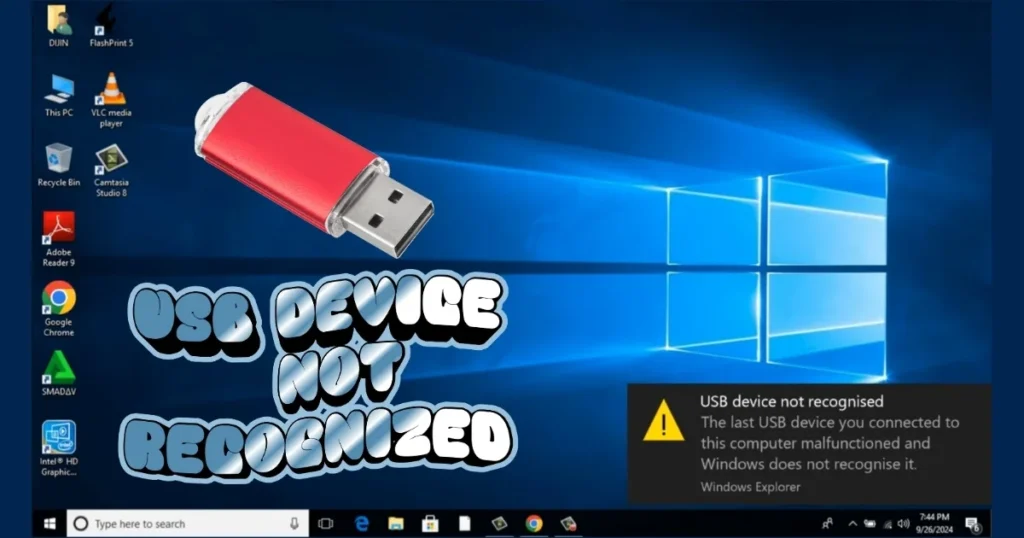
The “USB device not recognized” issue is so common that most users running Windows 10 or 11 have likely encountered it at some point. Sometimes the culprit is a pen drive; other times, it could be an external HDD, a printer, or even a smartphone charging cable. The good news, however, is that in 90% of cases, this problem can be resolved right at home. You just need to try the solutions in the correct sequence.
Why Is the USB Device Not Being Recognized? Understand the Real Reasons.
First, understand the root cause of the problem so that it does not recur. I have observed that, most of the time, this is caused by minor hardware or software glitches:
- Power Management Issue: The computer disables the USB port to conserve power.
- Outdated or Faulty Drivers: The Universal Serial Bus controllers have become outdated.
- Defective Cable or Port: The cable is damaged or worn out, or dust has accumulated in the port.
- Windows Update Conflict: A recent update interferes with USB support.
- Defective Device Itself: The pen drive’s internal chip has failed.
- Overload: Insufficient power supply when multiple USB devices are connected simultaneously.
For instance, whenever a friend of mine plugged a 2TB HDD into the USB 3.0 port on his Lenovo laptop, an error would immediately pop up. It later turned out that the power settings were the culprit. Similarly, the Fast Startup feature in Windows 11 can often confuse USB devices.
Before attempting to fix the “USB device not recognized” issue, be sure to perform these basic checks. It takes only 5 minutes, but in 70% of cases, the solution can be found right here.
Step 1: Basic Hardware Check – The Easiest and Most Effective
- Try a Different USB Port: Use the ports located on the back of your laptop. Front-facing ports often provide less power. Try both USB 2.0 (black) and USB 3.0 (blue) ports.
- Use a Different Cable: If you are using an external device, try connecting it with a new cable. High-quality USB cables can be found on Amazon for just $5–8. The internal wires in old cables can break without any visible external signs.
- Test on Another Computer: If the device works on a different PC, the problem lies with your system. If it doesn’t work on any computer, the device itself is defective.
- Disconnect All USB Devices and Restart: Remove all peripherals, shut down your PC, wait for 30 seconds, and then turn it back on. Reconnect your devices one by one.
I actually tried a Samsung T7 SSD myself once. There was an error in the first port, but it was recognized instantly in the second. A small detail, but it makes a big difference.
Step 2: Fix “USB Device Not Recognized” via Device Manager
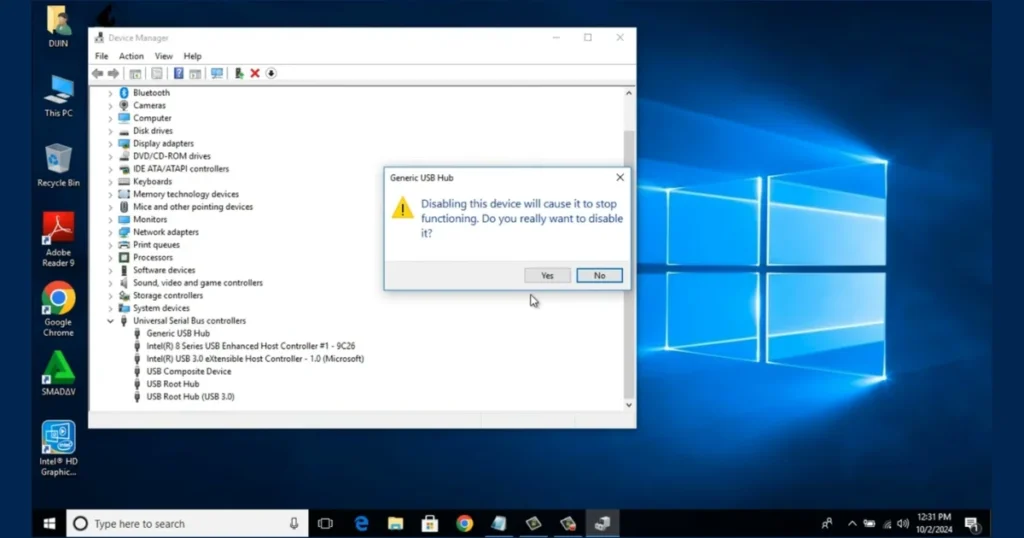
Windows Device Manager is the most powerful tool.
- Open Device Manager by pressing Windows key + X.
- Click on Universal Serial Bus controllers.
- Right-click on each USB Root Hub and Generic USB Hub → Properties.
- In the Power Management tab, uncheck “Allow the computer to turn off this device to save power.”
- If any device has a yellow exclamation mark, select Update driver → Search automatically.
If the driver is not updating, uninstall the device, then restart your PC. Windows will automatically install the new driver.
Comparison: These steps are slightly simpler in Windows 10, whereas in Windows 11, you sometimes need to display hidden devices. In the Command Prompt, type set devmgr_show_nonpresent_devices=1, open devmgmt.msc, and delete the grayed-out devices.
Step 3: Change Power Settings – Disable USB Selective Suspend
This is the most common culprit.
- Control Panel → Power Options → Change plan settings (Next to your plan).
- Change advanced power settings.
- USB settings → USB selective suspend setting → Disabled (Both Plugged in and On battery)
- Apply → OK।
Then, restart your PC. I had a Dell Inspiron where, because this setting was enabled, the pen drive would disconnect every time after 2–3 minutes. Now, it never happens.
Step 4: Fix using Windows Troubleshooter and Commands
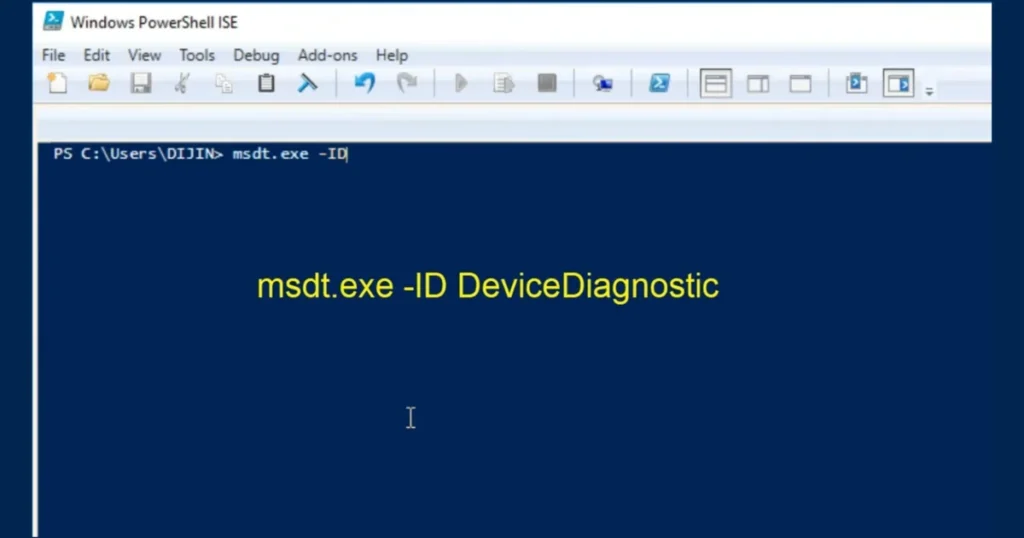
- USB Troubleshooter: Start → Settings → Update & Security → Troubleshoot → Other troubleshooters → Hardware and Devices → Run the troubleshooter।
- Or type in Run: msdt.exe -id devicediagnostic
Advanced Commands (in Admin PowerShell):
sfc /scannow– System Files Check and Repair.DISM /Online /Cleanup-Image /RestoreHealth– If SFC does not work.
These two commands take 10–15 minutes, but they fix the corruption.
Step 5: Assign a Drive Letter via Disk Management
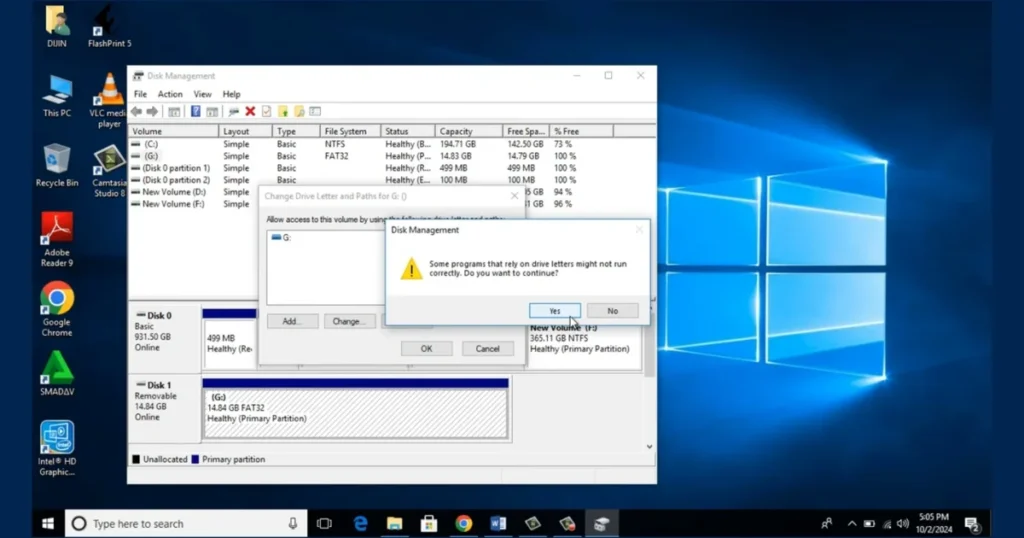
If the USB drive is visible but does not appear in File Explorer:
- Right-click Start → Disk Management.
- Find the USB drive (identify it by size).
- If it’s unallocated, select New Simple Volume → NTFS Format (back up your data first!).
- Change Drive Letter and Paths → Assign letter (F, G, etc.).
Example: My brother’s 128GB pen drive was visible in Disk Management, but it didn’t have a drive letter. It was fixed in 2 minutes.
Step 6: Free Tools That Provide Real Help
- TestDisk – Best for recovering and fixing partitions.
- DiskGenius – Checks and repairs bad sectors.
- H2testw – Tests USB speed and health (to check for fake capacity).
- Windows built-in Check – Right-click in Explorer → Properties → Tools → Check.
These tools are 100% free and contain no viruses. I always keep TestDisk on a USB drive for emergencies.
What should you do if there is a hardware problem?
- Buy a powered USB hub ($15–25) if you connect multiple devices.
- Update your motherboard chipset drivers (from the manufacturer’s website).
- Enable USB Legacy Support in the BIOS (by pressing F2/Del during boot).
Comparison: A cheap pen drive ($10) fails quickly, whereas a SanDisk Extreme ($25–40) lasts much longer.
Know More: If your laptop is experiencing other issues in addition to USB-related problems – such as failing to power on – read this guide on FixTech. You will find even more detailed hardware fixes there.
Prevention Tips – To Avoid Future Problems
- Always use “Safely Remove Hardware.”
- Keep USB ports clean (using compressed air).
- Perform Windows Updates regularly.
- Do not connect multiple USB devices simultaneously.
- Purchase devices from reputable brands.
Edge Case: If you are experiencing this issue on a Mac, check System Information → USB. On Linux, use the lsusb command. However, for most Windows users, the steps outlined above should suffice.
I created this guide with such detail because I know how frustrating and anxiety-inducing it can be when a USB device isn’t being recognized. However, if you follow the steps one by one, the issue will be resolved 99% of the time.
If the problem persists, please share your specific error code (e.g., Code 43) in the comments, and I will provide more tailored advice.
Now, a USB device not recognized will no longer be a problem for you. Give it a try today!
FAQs – USB Device Not Recognized
Q1. What should I do if a USB device is not recognized in Windows 11?
Disable Fast Startup and check the power settings for all USB Root Hubs.
Q2. The pen drive is visible, but the files won’t open?
Scan it using DiskGenius or TestDisk.
Q3. Is the external HDD not receiving power?
Purchase a powered USB hub ($20) or use a separate power adapter.
Q4. Is formatting necessary?
Only if you have a data backup and the drive is visible in Disk Management.
Q5. Can data be recovered using free tools?
Yes, TestDisk works in 80% of cases.
Q6. Will updating the BIOS help?
Sometimes yes, but it is risky. Do so only if necessary.
Q7. What is the difference between USB 3.0 and 2.0?
3.0 is faster but requires more power; therefore, issues may arise when using older ports.
Q8. How much will it cost to fix?
Mostly free. A new cable or hub costs $10–$25.
Q9. Is USB OTG not working on your Android phone?
Check the USB debugging settings in your phone’s settings, or replace the OTG cable.
Q10. When should I seek professional help?
If the device fails to work on three different computers and the data is critical.