
WhatsApp Backup: Receiving an ‘insufficient storage’ message even when there is space available on your phone (Android) can naturally be confusing. You check your phone’s settings and see 8GB or 10GB of free space – so where is this error coming from? The key here is to understand that WhatsApp backups are stored in two separate locations: the phone’s local storage and Google Drive. When a backup fails, the issue lies with one of these two – and since they have separate storage capacities, you might still encounter an error even if your phone has available space. In this article, we will systematically identify the root cause of the problem and show you how to fix it.
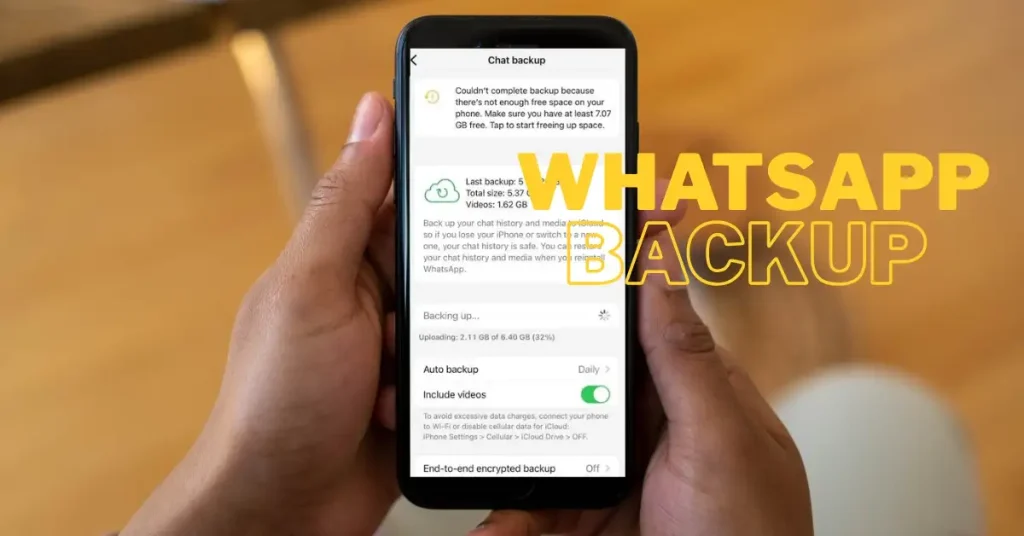
How does WhatsApp backup work? Let’s clarify this first.
WhatsApp on Android maintains two types of backups:
1. Local Backup – Stored in the phone’s internal storage.
WhatsApp automatically creates a local backup every night at 2:00 AM (the default time), which is stored at the following path:
Internal Storage → Android → media → com.whatsapp → WhatsApp → DatabasesThis folder contains files such as msgstore.db.crypt15 – these are encrypted backups. Backups from the last 7 days are stored here.
2. Google Drive Backup – In the Cloud
When you enable “Back up to Google Drive” in WhatsApp, the backup is uploaded to the Drive linked to your Google account. This backup is stored in a special section within Google Drive – one that isn’t typically visible in the Drive app – yet it still counts toward your storage quota.
And this is where the real problem begins.
Google Drive’s WhatsApp Policy Changed After 2023
This is the change that caused millions of users in India to suddenly start encountering this error.
Previously (before 2023): WhatsApp backups did not count toward Google Drive storage. In other words, regardless of the size of your backup, it did not affect your 15GB of free Google Drive storage quota.
Now (after 2023): Google has updated its policy – WhatsApp backups now count toward your 15GB of free Google Drive storage. If your Drive is already filled with photos, Gmail attachments, and Google Docs, there is no space left for a WhatsApp backup – even if there is still available storage on your phone.
This is the reason why users encounter the “Not enough storage” error for WhatsApp backups, even when there is still space available on their phone (on Android).
Step 1 – Check Google Drive Storage – Start the diagnosis here
First, check how much storage is actually left in your Google Drive.
Method A – From your phone:
- Open the Google Drive app.
- Look at the “Storage” section in the left sidebar or the storage bar at the bottom.
- Alternatively, open the Google One app – it provides a detailed breakdown.
Method B – Via browser:
- drive.google.com/settings Open it.
- You will see a storage breakdown below – Drive, Gmail, and Photos – all listed separately.
- The total used and total available space will be clearly visible.
Method C – WhatsApp Storage check:
- drive.google.com/drive/quota Open – The WhatsApp backup size is also displayed here.
If Google Drive shows 14.5GB/15GB used, the problem lies there – not in your phone storage. Google Drive is full.
If there is space available in Google Drive, the issue is with your local storage or WhatsApp settings. Read on.
How did your Google Drive storage fill up so quickly? – Common Culprits
In India, most users keep everything on a single Google account – Gmail, Google Photos, WhatsApp backups, and Google Drive documents. The 15GB limit gets used up very fast.
Top storage consumers you might not even be aware of:
- Gmail attachments: PDFs, photos, and documents stored in old emails – sometimes amounting to 3–4 GB.
- Google Photos: Backing up in “Original quality” consumes a significant amount of space.
- WhatsApp backup: If it includes video messages, saved status updates, or a large volume of media, the backup can reach 5–8 GB.
- Google Drive documents and files: Old files and shared documents that were never deleted.
- Google Forms responses and Sheets: These are automatically saved to Google Drive.
Free up Gmail storage:
Go to Gmail and type this into the search bar:
has:attachment larger:5mbThis search will display emails with attachments larger than 5MB. Review these and delete any that are unnecessary. Also, go into Google Photos to clear out duplicates and blurry photos.
Step 2 – Check the size of your WhatsApp backup
See exactly how much storage your WhatsApp backup is taking up:
In WhatsApp:
- Open WhatsApp → three dots (menu) → Settings
- Chats → Chat backup
- Here you will see:
- Backup size – how large the current backup is
- Google Drive backup – when it was last performed, and its size
- Include videos – if this toggle is turned ON, the backup size will be very large
WhatsApp backup size in Google Drive:
- Go to drive.google.com/drive/quota
- Check the WhatsApp entry – the exact GB/MB size will be displayed there
Fix 1 – Exclude Videos from Backups – The Most Effective Fix
Videos make up the largest portion of a WhatsApp backup. A single video can be 10–50 MB in size, and if you have hundreds of videos in your chats, the backup size can reach several gigabytes (GB).
Steps:
- WhatsApp → Settings → Chats → Chat backup
- “Include videos” toggle – turn this OFF
- The backup will now be created without videos
- Tap “Back Up Now” – the backup size will be significantly reduced
It makes a significant difference: for an average Indian user, a WhatsApp backup – including videos – is 4–6 GB in size. If videos are excluded, this drops to 500 MB–1.5 GB.
Fix 2 – Delete old WhatsApp backups in Google Drive
Sometimes, multiple old backups are stored in Drive, taking up extra space.
Steps:
- Open the Google Drive app.
- In the left-hand menu, look for the “Storage” section, then select “Backups.”
- Alternatively, in the Drive app, tap the three horizontal lines and select “Backups.”
- You will see an entry for your WhatsApp backup.
- Tap on it to view the details – if the backup is outdated, delete it.
Important: Take a fresh backup before deleting your WhatsApp backup. Once deleted, it will no longer be available for recovery.
Fix 3 – Clear WhatsApp Media from Your Phone – Fix Local Storage Issues
If local backups are failing, check your phone’s storage.
How much storage is WhatsApp itself using:
- Phone Settings → Apps → WhatsApp
- Check “Storage & cache” – this shows App size, User data, and Cache.
- Tap “Clear Cache” – this is safe; your chats will not be deleted.
Manually manage WhatsApp media:
- WhatsApp → Settings → Storage and data
- Tap “Manage storage”
- Here, you will see large files, forwarded media, and media from specific chats
- Select the unnecessary media and delete it
From Files by Google:
files.google.com. Install the app – it automatically scans the WhatsApp folder and identifies large, old files that can be safely deleted.
Fix 4 – Increase Google Account Storage – Google One Plan
If you need to back up your WhatsApp regularly and are running low on Drive storage, opting for a Google One plan is a practical solution.
Google One Plans (Available in India; priced in USD):
| Plan | Storage | Price |
|---|---|---|
| Free | 15 GB | $0 |
| Basic | 100 GB | ~$1.99/month or ~$19.99/year |
| Standard | 200 GB | ~$2.99/month |
| Premium | 2 TB | ~$9.99/month |
A practical recommendation for India: the 100GB plan (~$1.99/month) is sufficient for most users. It comfortably accommodates everything, including WhatsApp backups, Google Photos, and Gmail.
Subscribe. one.google.com
Fix 5 – Move your WhatsApp backup to a different Google account.
If your primary Google account is full and you don’t want to upgrade your plan, you can use a secondary Google account for your WhatsApp backup.
Steps:
- Add a new Google account to your phone – Settings → Accounts → Add account
- WhatsApp → Settings → Chats → Chat backup
- Tap on “Google account” – change the connected account
- Select the new account
- Tap “Back up now” – the backup will be saved to the fresh 15GB of free storage associated with the new account
⚠️ Warning: If you change your account, the existing Drive backup will remain with the old account. A fresh backup will begin on the new account. If the old backup is important, please save it elsewhere first.
Fix 6 – Restore from Local Backup – Google Drive not necessary
If this issue occurs because you want to back up before changing phones, local backup is a reliable alternative.
Where is Local backup manually:
In the phone’s internal storage:
Android → media → com.whatsapp → WhatsApp → DatabasesCopy the files in this folder to a PC or an external drive. When setting up your new phone, paste them into the same path; once you install WhatsApp, the data will be restored.
When to use this method:
- Google Drive is full, and I don’t want to purchase a plan
- The internet is slow, and the upload isn’t working
- Need to reinstall WhatsApp on the same phone
- A quick local restore is required
Ways to reduce the size of your WhatsApp backup
WhatsApp backup: ‘Not enough storage’ message, even though there is space available on your phone (Android) – to avoid this error permanently, it is essential to keep the backup size under control.
Change the backup frequency:
WhatsApp → Settings → Chats → Chat backup → “Back up to Google Drive”
- Switch from Daily to Weekly or Monthly.
- This will prevent frequent overwrites in the Drive.
Enable disappearing messages:
WhatsApp → Settings → Privacy → Default message timer
- Set to 24 hours, 7 days, or 90 days
- Messages will be deleted automatically – this keeps the backup size smaller
Clear old media manually:
Go to WhatsApp → Settings → Storage and data → Manage storage → Use the “Forwarded many times” filter – this displays media that has been forwarded and is likely unnecessary. Delete these in bulk.
Identify heavy chats:
Go to WhatsApp → Settings → Storage and data → Manage storage → Here, you will see a list of contacts and groups, with those consuming the most storage appearing at the top. Clear the media from groups where large videos are frequently shared.
Google Photos vs. WhatsApp Media – The Issue of Duplicate Storage
For many users in India, the WhatsApp Photos folder is automatically backed up to Google Photos. As a result, the same photos end up being stored in two places – within the WhatsApp backup and in Google Photos.
Check this:
- Open the Google Photos app → Library → WhatsApp folder
- If there are photos here, it means you have double storage usage.
Fix:
- Phone Settings → Google → Photos → Backup
- Exclude the WhatsApp folder under “Back up device folders.”
- This will prevent WhatsApp photos from being backed up to Google Photos, saving storage space by avoiding duplicates.
This is a practical way to save storage on Drive, which very few users know about.
Free tools that will be useful for this problem
| Tool | Feature | Link |
|---|---|---|
| Files by Google | Manage WhatsApp media and free up storage | files.google.com |
| Google One | Storage usage breakdown, plan upgrade | one.google.com |
| Google Drive Quota | View the exact storage breakdown | drive.google.com/drive/quota |
| WhatsApp Storage Manager | Built-in media manager within WhatsApp | WhatsApp → Settings → Storage and data |
About Files by Google: files.google.com – This is a free file manager app from Google that is very popular in India. It includes a “Clean” tab that automatically identifies duplicate files, large files, WhatsApp media, and unnecessary APKs, allowing for a safe cleanup with just a single tap. It also features “Nearby Share.” The app is particularly useful for addressing WhatsApp storage issues, as it can scan the WhatsApp folder directly to highlight old and redundant media.
For more solutions to real-world problems – covering Windows, Android, and WhatsApp – visit fixtech.in. You’ll find honest, detailed troubleshooting guides, tailored specifically for users in India.
FAQs – About WhatsApp backup storage issues
Q1. Why does my WhatsApp backup fail even though I have 10GB of space on my phone?
This is because WhatsApp’s Google Drive backup uses Google Drive storage, not your phone’s internal storage. If your Google account’s 15GB quota (shared across Gmail, Photos, and Drive) is full, the backup will fail, regardless of how much space you have on your phone. You can check your Drive storage at: drive.google.com/settings.
Q2. Can WhatsApp be backed up without using Google Drive?
Yes. A local backup is automatically created on your phone’s storage—specifically at: Android/media/com.whatsapp/WhatsApp/Databases. This backup does not depend on Google Drive. However, if your phone is lost or broken, the local backup will also be lost; this is why cloud backup is important.
Q3. How much storage does a WhatsApp backup typically require?
It depends on your usage. Text-only chats usually take 50–200MB. Chats with media (photos, audio) can take 500MB–2GB. If videos are included, it can range from 3–8GB or more. Excluding videos significantly reduces the backup size.
Q4. Is it safe to delete an old WhatsApp backup from Google Drive?
Yes, provided you have a current backup. Before deleting, ensure you perform a “Back up now” within WhatsApp. Once a backup is deleted from Google Drive, it cannot be restored from there. However, if you have a local backup, you can restore from that instead. Deleting the Drive backup will free up storage space.
Q5. Is a Google One plan necessary, or are there free alternatives?
Free alternatives include: excluding videos from the backup, cleaning up your Gmail, excluding the WhatsApp folder in Google Photos, or using a secondary Google account. These methods can allow you to continue backing up without needing a paid plan. A Google One plan (starting at ~$1.99/month) offers a simple, permanent solution that eliminates these concerns.
Q6. Will turning off the “Include videos” setting in WhatsApp cause issues during a restore?
Any videos that were excluded from the backup will not be included when you restore your data. Text messages, photos, voice notes, and documents will be restored. If videos are important, back them up manually to Google Photos or copy them to a PC.
Q7. I have more than one WhatsApp account—are their backups separate?
Yes. If you have two WhatsApp accounts on a dual-SIM phone—a primary and a secondary one—their backup settings and storage are separate. Each must be configured individually.
Q8. When does a WhatsApp backup occur—manually or automatically?
Both. Under WhatsApp → Settings → Chats → Chat backup → “Back up to Google Drive,” you can set up automatic backups to occur daily, weekly, or monthly. Selecting “Back up now” triggers an immediate manual backup. By default, automatic backups occur over Wi-Fi, not mobile data.
Q9. Is a WhatsApp backup encrypted?
Yes. WhatsApp offers an “End-to-end encrypted backup” option. By enabling this (via WhatsApp → Settings → Chats → Chat backup → “End-to-end encrypted backup”), your backup is protected by a password or a 64-digit key. This provides extra security, but please note that if you forget the password, you will not be able to restore your data.
Q10. If a WhatsApp backup fails, does the existing backup remain safe?
Yes. If a new backup attempt fails, the previous backup stored on Google Drive remains safe. An error simply means that the new backup could not be created; the existing one is not deleted. You can check the age of your last backup by going to WhatsApp → Settings → Chats → Chat backup.
One last point
Checking your phone’s storage won’t resolve this error. You need to check your Google Drive storage instead. This error is often confusing because people tend to conflate phone storage with Google Drive storage, even though they are entirely different. Regardless of how much space you have on your phone, if your 15GB Google Drive quota is full, WhatsApp cloud backups will not work. The solution is simple: either free up space on Google Drive (by clearing out Gmail, managing Google Photos, or excluding videos from the backup), purchase a Google One plan, or use a secondary account. Whichever fix you choose, be sure to manually select “Back up now” to confirm that the backup completes successfully. WhatsApp backup: encountering an “insufficient storage” message despite having available space on your phone (Android) – once you understand the root cause, this error is easy to fix.