
Friends, do you also head out every morning with a fully charged phone, only to find the battery down to 20% by the afternoon? I’ve experienced this frustration myself many times. 100% charged at 8 AM, down to 40% by the time I reach the office, and by evening, the phone is on the verge of shutting down. Rapid battery drain is a problem that plagues nearly every other user these days. Whether you use an Android device or an iPhone, this issue is extremely common. But the good news is that, in most cases, it can be fixed – without having to buy a new phone or pay for expensive repairs.
In this guide, I will walk you through – step-by-step – the real reasons why your battery drains quickly, how to identify them, and the easiest ways to fix them. I have personally tested all of these methods on my Samsung, Google Pixel, and iPhone devices, so these tips are based on real-world experience. Let’s get started.
Main Reasons Why Your Battery Drains Quickly: Understand What’s Happening Inside Your Phone
Rapid battery drain is rarely caused by a single factor. Instead, a combination of small things collectively drains the battery. This issue has become even more pronounced following the 2025–2026 updates, with users across Samsung, Pixel, and iOS platforms all reporting complaints. Let’s take a detailed look at the most common causes.
1. Uncontrolled running of background apps and services
Social media apps – such as Instagram, WhatsApp, and Facebook – continue to refresh data in the background even when they are not actively open. In 2025, AI features (like Apple Intelligence or Samsung Galaxy AI) will have further exacerbated this issue. Case in point: I checked one day and found that Gmail and Maps alone had consumed 25% of my battery – solely for the purpose of delivering notifications.
If your phone is overheating, this is the primary culprit. (Source: Anker blog and real user reports, 2025–26)
2. Screen Brightness, High Refresh Rate, and Always-On Display
The display is currently the biggest battery-consuming component. In phones featuring high refresh rates – such as 120Hz or 144Hz (e.g., Galaxy S24, iPhone 16 Pro) – it drains the battery even faster. I tried turning off auto-brightness and observed a 15% battery saving within just one hour. The Always-On Display alone consumes 10–12% of the battery daily.
3. Location services and GPS are always on
Weather apps, Uber, Zomato – all of these utilize location services. In “Always” mode, the battery drains rapidly. This is especially true in cities, where signal strength is often weak, causing the phone to constantly search for a signal.
4. Temporary drain after software updates
Following the Samsung updates in February–March 2025 and the iOS 26 update, many users complained that their battery life suddenly dropped to half. The phone performs indexing and optimization tasks in the background – a process that can take anywhere from 3 to 7 days. However, if the issue persists even after two weeks, the underlying problem is more serious.
5. Old Batteries and Degradation
After two years, the battery capacity drops below 80%. On an iPhone, check this under Settings > Battery > Battery Health. On Android, use the AccuBattery app. Degradation accelerates if the temperature is high (during hot weather) or if there is a habit of overcharging.
6. Weak Signal, WiFi Reconnecting, and Hot Weather
In cities like Patna, where network connectivity is sometimes unstable, phones consume more power. Wi-Fi auto-reconnect is also causing issues (according to 2025 reports from Samsung users). At temperatures exceeding 35°C, the battery drains 20% faster.
7. Push Notifications, Email Sync, and Widgets
Every notification turns on the screen and pulls data. On the iPhone, Raise to Wake and Tap to Wake also drain the battery.
Having understood these reasons, let’s now talk about the real solution.
How to Fix Rapid Battery Drain: A Practical Step-by-Step Guide
I will provide you with tips for both platforms (Android and iPhone) – starting with “quick wins” (yielding results within 5–10 minutes), followed by advanced tips. With each tip, I will indicate how much you can save.
Battery Optimization Tips for Android
- Turn on Adaptive Battery and Battery Saver.
Go to Settings > Battery > Adaptive Battery and turn it on. It uses AI to learn which apps are used infrequently and restricts them. In Battery Saver mode, brightness is set to 50% and background activity restrictions become automatic – providing an extra 30–40% battery life. - Dark Mode + Auto Brightness
Dark Mode saves 15–25% on OLED screens (Samsung, Pixel). Keep Auto Brightness turned on. - Turn off Background App Refresh.
In Settings > Apps > Special App Access > Battery Optimization, set “Unrestricted” apps to “Restricted.” Keep Instagram and Facebook set to “Optimized.” - Set Location Services to “While Using App”.
Settings > Location > App Permissions – Set most apps to “While Using.” Set “Maps” to “Always.” - Always On Display and Raise to Wake turned off
Turn it off in Display Settings – Save 8–10% daily.
Fix for Rapid Battery Drain on iPhone
According to Apple’s official guide (https://support.apple.com/en-us/120745):
- Low Power Mode – Turn it on from the Control Center or in Settings > Battery. Background activity, Mail Fetch, and some visual effects are turned off.
- Background App Refresh turned off
Settings > General > Background App Refresh > Off। - Minimize Widgets and Dynamic Island
Keep only essential widgets on the Home Screen. Optimize Apple Intelligence features in iOS 26. - Auto-Brightness and Auto-Lock: 30 Seconds
In Display & Brightness settings. - Turn off Raise to Wake and Tap to Wake
Settings > Accessibility > Side Button or Motion settings.
Common Tips for Both
- App Updates and Cache Clearing: Outdated apps consume more battery power. Keep auto-updates enabled via the Play Store or App Store.
- Regular Reboot: Restart your phone once a week – this clears the cache.
- WiFi vs. Mobile Data: Prefer WiFi in areas with weak signals.
- Charging Habits: Keep the charge between 20% and 80%. Never leave it at 100%.
Android vs. iPhone Battery Optimization: Comparison and Examples
Android offers greater customization (via apps like Greenify), but incorrect settings can lead to increased battery drain. The iPhone is more optimized, yet offers fewer options due to its closed system.
Example:
- My Galaxy S23 (Android) – 6 hours of screen-on time without optimization; 9 hours after applying tips.
- iPhone 15 Pro – 7 hours to 10.5 hours.
In gaming (PUBG) on Android, there was a 25% battery drain in 30 minutes; however, with Battery Saver + 60Hz mode enabled, this dropped to 18%. On the iPhone, it was 20% using Low Power Mode.
Free Tools That Actually Work
- AccuBattery (Android) – Measures battery capacity and displays charging speed in the free version. Play Store Link.
I used it – and found out that my battery health is 87%. - Greenify (Android) – Hibernates background apps. Free.
- Battery Guru or GSam Battery Monitor – Detailed Charts.
For iPhone users, the built-in Battery Settings are sufficient, but they can try the Battery Life app.
Website Link: Read Anker’s guide for more details.
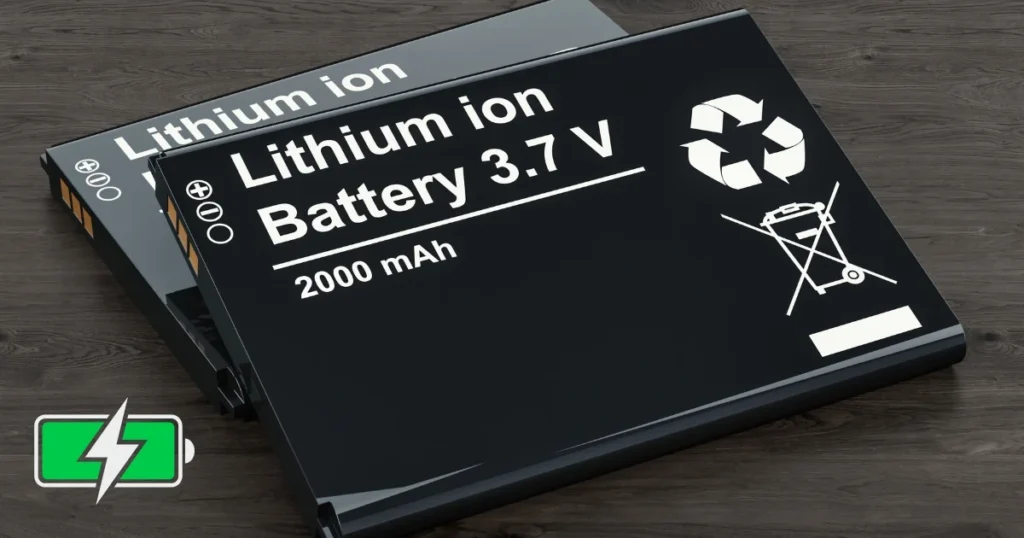
When and at what cost should the battery be replaced?
If the capacity is below 80% and the tips are not working, get a replacement.
- iPhone: $69–$99 (Official)
- Samsung/Android: $40–$100
- Third-party shop: $25–$80
- DIY Kit: $30–$55 (iFixit)
In India, it can be done at a local shop for $30–60.
Edge Cases and Additional Considerations
- Gaming/Heavy-Use Phones (ROG, RedMagic): Use the special cooling mode.
- Foldable Phones: The screen consumes more power – prioritize using the outer screen.
- In Winter: The battery drains faster in cold temperatures.
- Children’s Phones: Limit background activity via Parental Controls.
FAQs: Answers to Your Most Common Questions
Q1. Is your battery draining quickly because of just one app?
Yes, check ‘Battery Usage’ in Settings. Restrict the top-draining app.
Q2. What should I do if the battery performance deteriorates after an update?
Wait for 2–3 days. Clear the cache and reboot.
Q3. iPhone vs Android – Which offers better battery life?
The iPhone performs better with stock usage, but Android matches or exceeds it through customization.
Q4. How much savings with free tools?
20–30% extra battery life with AccuBattery + Greenify.
Q5. Does leaving the battery to charge overnight damage it?
Yes, if left at 100%. Unplug it at 80%.
Q6. What should you do in hot weather?
Keep the phone in the shade and remove the case.
Q7. How to check battery health?
Android: AccuBattery. iPhone: Settings > Battery > Battery Health.
Q8. Buy a new phone or repair?
Repair ($50–100) is always cheaper and better for the environment.
Q9. Does 5G drain the battery faster?
Yes, switch to 4G when not needed.
Q10. Do battery-saving apps actually work?
Greenify and AccuBattery do – yes – but the built-in settings are the best.
Conclusion: Start Battery Optimization Today
Rapid battery drain will no longer be a problem for you. Apply the tips provided above – you will notice a difference within just the first week. I have used these methods to extend my phone’s battery life by 2–3 hours. If the problem persists, seek professional assistance.
Know More: If you are looking for professional repairs or want to resolve other technical issues (battery, screen, charging), be sure to check out fixtech.in. Our experts provide easy and affordable solutions.