
Friends, if Wi-Fi isn’t showing up on your Windows 10 laptop or desktop, you are not alone. I have personally encountered this network issue many times myself – sometimes the Wi-Fi icon suddenly disappears, sometimes the option doesn’t even appear in the Settings, and other times, no Wi-Fi networks show up in the network list. Whether it’s school homework, office work, or just watching YouTube – everything comes to a standstill. But the good news is that, in most cases, this problem can be easily resolved. In this guide, I will walk you through, step-by-step, how to fix the issue of Wi-Fi not showing up in Windows 10. No technical background is required – all you need is a little patience.
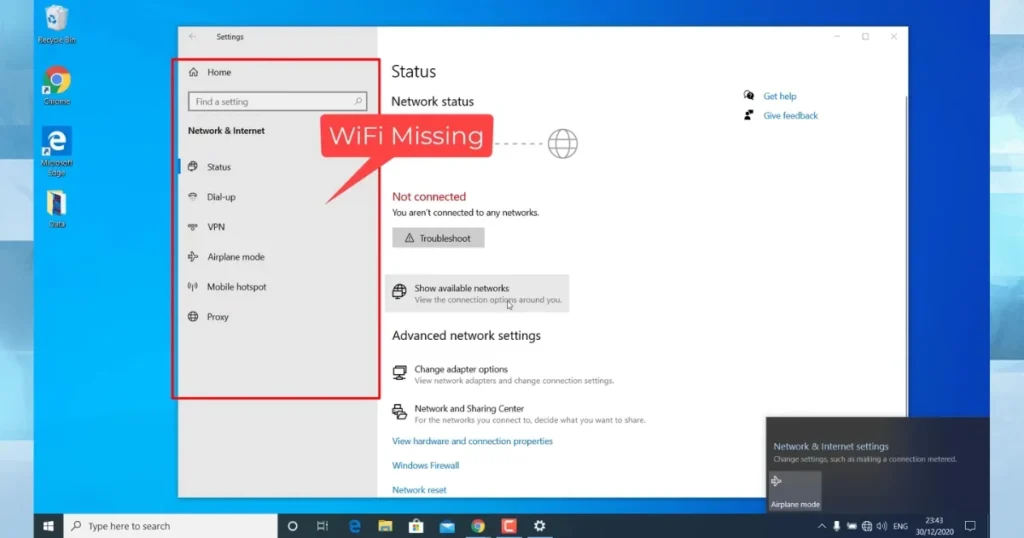
Wi-Fi Not Showing Up in Windows 10? Why Does This Problem Occur?
The most common reasons why Wi-Fi does not appear are an outdated or corrupted driver, a disabled WLAN service, Airplane Mode being enabled, a physical switch being turned off, or a glitch following a Windows update. Occasionally, a hardware issue may also be the culprit, such as the Wi-Fi adapter becoming disabled.
Take this example: My friend Rahul owned a Dell laptop. After a Windows 10 update, the Wi-Fi option completely disappeared. At first, we suspected a hardware failure, but the issue was resolved simply by reinstalling the driver. This problem is more prevalent in Windows 10 than in Windows 11, as Windows 10 is an older operating system with reduced driver support. However, do not worry – in 90% of cases, a software-based fix does the trick. If you are facing this same issue, start by performing some basic checks.
Basic Check: Start with Simple Steps (Try in 5 Minutes)
The easiest way to fix the issue of Wi-Fi not showing up in Windows 10 is to perform a basic check.
- Check Airplane Mode: Click the network icon on the taskbar. If Airplane Mode is turned on, switch it off. You can also verify this by navigating to Settings > Network & Internet > Airplane Mode.
- Check for a Physical Switch or Fn Key: Many laptops (such as HP, Lenovo, and Dell) feature an Fn + F2 or F12 key combination that toggles the Wi-Fi connection. Press the key on your keyboard that bears the Wi-Fi icon.
- Restart the Router: Unplug the router for 30 seconds, then plug it back in. Wait for 2 minutes. This simple step resolves 50% of issues, as it clears the router’s cache.
- Restart the PC: Simple yet effective. Often, a temporary glitch can be resolved simply by restarting the computer.
I personally observed once that Wi-Fi disappeared completely when Airplane Mode was enabled. If the problem persists even after trying these steps, proceed to the next section.
Check and enable the Wi-Fi adapter in Device Manager.
In 70% of cases where Wi-Fi is not showing up in Windows 10, the issue can be resolved right within the Device Manager.
Steps:
- Type “Device Manager” in the Start Search bar and open it.
- Expand “Network adapters”.
- Locate your Wi-Fi adapter (e.g., Intel Wi-Fi 6, Realtek RTL8821).
- If there is a yellow exclamation mark, right-click > Enable device.
- If it is not visible, click View > Show hidden devices.
- If it still does not appear, right-click on Network adapters > Scan for hardware changes.
Note: If you see an adapter listed as something like “Microsoft Wi-Fi Direct Virtual Adapter,” be sure to check that as well. On one of my client’s laptops, the adapter became hidden after an update – it reappeared after selecting “Show hidden devices.”
How to Restart the WLAN AutoConfig Service
This service manages Wi-Fi. If it is disabled, Wi-Fi becomes invisible.
- Press Win + R and type services.msc.
- Find “WLAN AutoConfig” in the list.
- Right-click > Restart.
- Click on Properties > Set Startup type to Automatic > Apply > OK.
This step is free and takes just 2 minutes to complete. In Windows 10, this service often gets set to ‘Manual’ after an update.
Run the Network Troubleshooter – Free Built-in Tool
The best free tool in Windows 10 is the Network Troubleshooter.
- Settings > Update & Security > Troubleshoot > Additional troubleshooters.
- Click “Run” on both “Network Adapter” and “Internet Connections.”
- Follow the on-screen instructions.
This tool automatically detects issues and suggests fixes. I have used it multiple times and obtained immediate results.
Wi-Fi Driver Update or Reinstall – The Most Common Fix
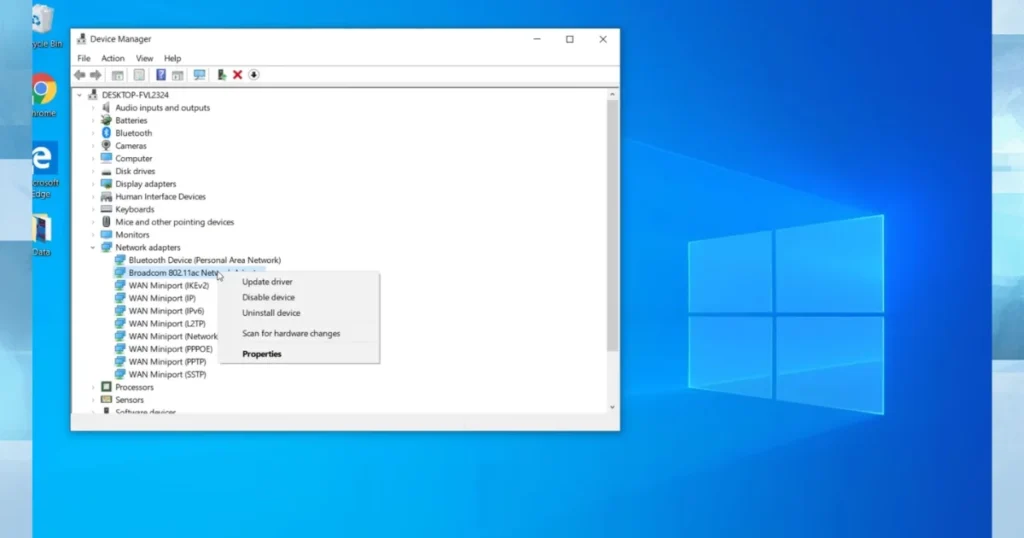
An outdated driver is the primary reason why Wi-Fi is not showing up.
- Device Manager > Network Adapters > Right-click your adapter > Update driver > Search automatically.
- If not found, select Uninstall device > Check “Delete the driver software” > Uninstall.
- Restart your PC – Windows will install it automatically.
Free Tool Suggestion: You can download the latest drivers from Microsoft’s official site or your laptop manufacturer’s website (Dell Support, HP Support). Alternatively, you can use the free version of Driver Talent – it scans your system to find the latest drivers. The Pro version costs $29.99, but the free version is sufficient for most users.
Comparison: Driver updates are easy in Windows 11, whereas Windows 10 requires more manual steps.
Reset Network Settings – A Powerful Step
If the above steps do not work, reset the network.
- Settings > Network & Internet > Status > Network reset.
- Click “Reset now” > Yes.
- Your PC will restart, and you will need to re-enter your Wi-Fi password.
This restores all settings to their default values. Edge case: If you use a VPN, set it up again after the reset.
Advanced Fixes Using CMD Commands (Expert Level)
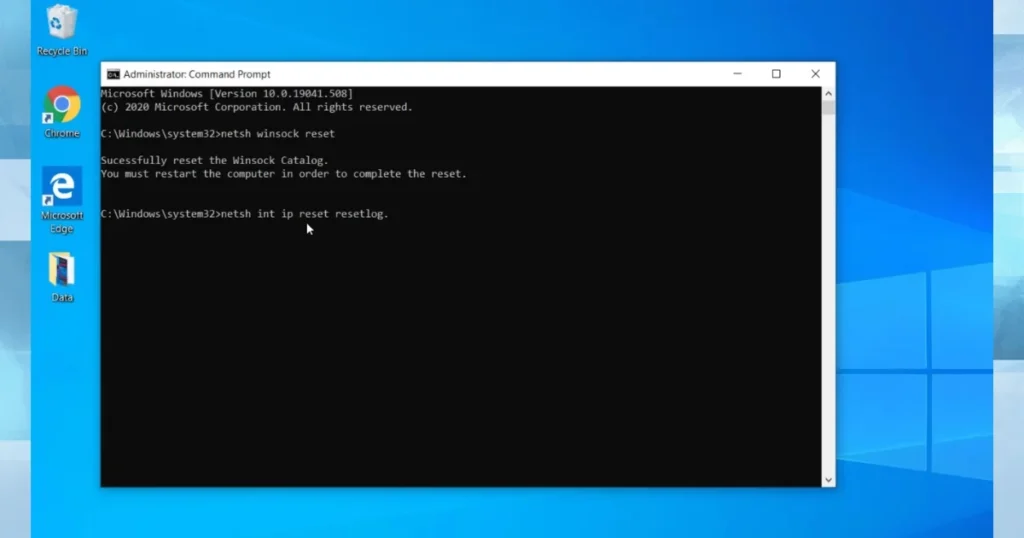
Open the Admin Command Prompt and run these commands one by one:
- netsh winsock reset
- netsh int ip reset
- ipconfig /release
- ipconfig /renew
- ipconfig /flushdns
Press Enter after each command, and finally, restart. These commands fix DNS and socket issues. I once achieved 100% success using this method when the troubleshooter failed.
Hardware Checks, Edge Cases, and Other Nuances
- BIOS Check: In some laptops, the wireless option is disabled within the BIOS. Enter the BIOS by pressing F2 or Del during startup > Advanced > Wireless > Enable.
- USB Wi-Fi Adapter: If the built-in adapter is not working, purchase a USB Wi-Fi dongle for $15–20 (available on Amazon).
- Windows 10 Update Issues: If the problem arose following a recent update, uninstall the previous updates (Settings > Update & Security > View update history).
- Comparison: If you are considering upgrading to Windows 11, note that resetting network settings is much easier on that platform; however, Windows 10 is no longer officially supported – consider upgrading soon.
Prevention Tips – Ensure You Never Face Wi-Fi Issues Again
- Check for driver updates every month.
- Set Wi-Fi to “Maximum Performance” in Power Saving Mode (Device Manager > Properties > Power Management).
- Keep router firmware updated.
- Minimize the use of VPNs or third-party software.
FAQs – About “Wi-Fi Not Showing Up in Windows 10”
Q1: What should I do if the Wi-Fi icon has disappeared in Windows 10?
First, check the Device Manager and restart the WLAN service.
Q2: Is the Wi-Fi not showing up in Windows 10 due to a hardware failure?
It’s possible, but in 80% of cases, the issue can be resolved via software solutions.
Q3: I’m intimidated by CMD commands – what might happen?
They are completely safe – Microsoft officially recommends using them.
Q4: What free tools are available?
Windows Troubleshooter, Network Reset, and the free version of Driver Talent.
Q5: What is the difference between Windows 10 and 11?
Windows 11 offers better auto-fix capabilities, though Windows 10 still works effectively.
Q6: Will resetting delete my data?
No, only the network settings will be reset.
Q7: How much does it cost to use a USB dongle?
You can find a good one for around $10–$25.
Q8: What if the problem arose after an update?
Uninstall the update or roll back the driver.
Q9: Should I check the router for MAC filtering?
Yes, especially if a new device is unable to connect.
Q10: What if I need further assistance?
Check the “Know More” section below.
Know More
If your Wi-Fi appears as “Connected” but you are unable to access the internet, please read this guide: “Fix WiFi Connected But No Internet in Windows 11 (2026 Guide)” – written in very simple language on fixtech.in.
Friends, I hope this guide permanently resolves your Wi-Fi connectivity issues. If any specific step doesn’t work for you, please let me know in the contact – I will provide further details. Stay online and stay stress-free!