
You open Windows Update and see “Optional updates available” – and the first question that pops into your mind is, “Should I install this or not?” This confusion regarding Windows 11 optional updates is very real. If you don’t install them, you fear missing out on something important; if you do, you worry your PC might crash or freeze. This guide aims to clear up that confusion: we will explore what optional updates are, which driver updates are essential versus those you can skip, and which ones to prioritize in specific situations.
First, let’s understand – what exactly are optional updates?
Updates in Windows 11 come in three categories:
1. Quality Updates (Mandatory):
These are security patches and bug fixes that Windows Update installs automatically. There is no option to skip them. They are released every month on Patch Tuesday (the second Tuesday).
2. Feature Updates:
These are major OS updates, such as moving from 24H2 to 25H2. They include new features and interface changes. After some time, these also become mandatory.
3. Optional Updates:
These are updates that Windows does not install automatically – you have to manually check for and install them. They mostly include:
- Driver updates – GPU, audio, network, and printer drivers
- Firmware updates – BIOS/UEFI and hardware firmware
- Preview updates – Preview of the following month’s quality update
- Feature experience packs – Minor feature additions
Windows 11 optional driver updates are kept optional because everyone’s hardware is different, and not every driver update is suitable for everyone.
Where can you find optional updates?
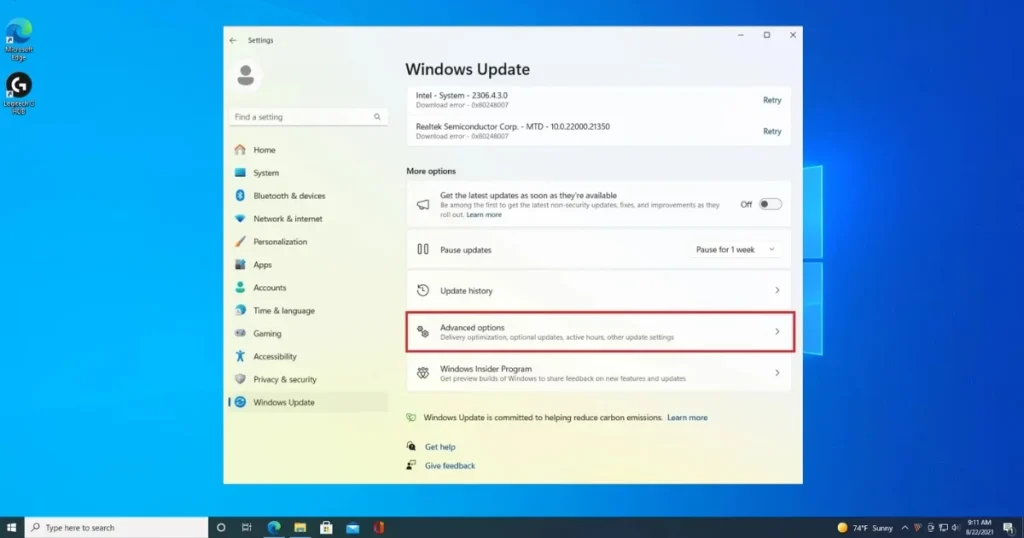
Go to Settings → Windows Update → Advanced options → Optional updates.
Here, available updates appear in three sections:
- Driver updates – Hardware drivers
- Windows updates – Preview and non-security updates
- Other updates – Firmware and miscellaneous updates
There is a checkbox next to each update – select the ones you want and install them.
The biggest misconception about driver updates
Many people think, “If a driver update is available, just install it – nothing bad will happen.”
This line of thinking isn’t always correct.
Driver updates can carry these risks:
- The new driver might not be compatible with older hardware.
- It could conflict with specific software or games.
- Audio, display, or network functions might stop working.
- The PC could get stuck in a boot loop (rare but possible).
On the other hand, there are also downsides to not updating drivers:
- Security vulnerabilities remain unpatched.
- Performance issues persist.
- Compatibility with new software or hardware is lacking.
So, the question isn’t “to install or not to install” – the question is “when and what to install.”
What kind of driver updates should definitely be installed?
1. GPU / Graphics Driver Updates – High Priority
If an NVIDIA, AMD, or Intel GPU driver appears in the optional updates, it is generally beneficial to install it – though with a bit of caution.
Install when:
- Games are crashing or experiencing FPS drops.
- There are issues with display flickering or screen tearing.
- A new game or software fails to run.
- A specific security patch is involved.
Stop when:
- Ensure everything is running smoothly, and the update is not brand new (it is safer to install it 2–3 weeks after release).
- If using a gaming laptop with both dedicated and integrated GPUs, installing the wrong driver can lead to issues.
A better approach: Instead of using Windows Update, update your GPU drivers directly via NVIDIA GeForce Experience, AMD Adrenalin, or Intel Arc Control – they provide updates optimized for your specific hardware.
🔗 NVIDIA: nvidia.com/en-us/geforce/geforce-experience
🔗 AMD: amd.com/en/technologies/software
🔗 Intel: intel.com/content/www/us/en/download-center
2. Audio Driver Updates – Medium Priority
Drivers for Sound Blaster, Realtek, or third-party audio devices may appear in the optional section.
Install them when:
- Sound has stopped or is distorted.
- The microphone is not working.
- Bluetooth headphones are not connecting.
- There are audio issues during video calls.
Skip when:
- The audio was working perfectly fine.
- The audio issue arose only after a recent update (in which case, rolling back – not a new update – is the solution).
This is particularly important in India, as the proper functioning of microphones and speakers is essential for work-from-home (WFH) and online classes.
3. Network / Wi-Fi / Ethernet Driver Updates – High Priority
Network driver updates should generally be installed.
Install when:
- Wi-Fi keeps disconnecting.
- Internet speed has suddenly slowed down.
- Ethernet port is not being recognized.
- VPN is not connecting.
Network drivers can also have security vulnerabilities; therefore, if the manufacturer has released an update containing a security fix, be sure to install it.
4. Bluetooth Driver Updates – Medium Priority
Install when:
- Bluetooth device is not pairing.
- There is audio lag in Bluetooth headphones.
- Bluetooth keyboard or mouse keeps disconnecting.
Skip when:
- Ensure Bluetooth is working properly.
5. Printer and Scanner Driver Updates – Low Priority (As needed)
Printer drivers fall under the optional section; install them only when:
- The printer is not being recognized.
- There is a print quality issue.
- The scanner software is not working.
If the printer is working correctly, skip these. Printer driver updates can sometimes disrupt an existing, functional configuration.
6. Firmware Updates – Very High Priority, but Proceed with Caution
Firmware updates – such as BIOS/UEFI updates, SSD firmware, or laptop battery firmware – are crucial but also carry the highest risk.
Make sure to install them when:
- It addresses a security vulnerability (such as Spectre/Meltdown fixes).
- It fixes a hardware stability issue.
- It is specifically recommended by the manufacturer.
Always keep these points in mind:
- Keep the laptop connected to AC power; a power failure during the firmware update could brick the device.
- Back up your data first.
- Read the update description carefully.
- Note down the current BIOS version so you can roll back if necessary.
7. Preview Updates – Generally Skip
Updates like “2025-XX Preview of Quality Update for Windows 11” appear in the optional section.
These are previews of the following month’s patch – they are currently in the testing phase.
Install them only if:
- You are in the Windows Insider Program.
- It might contain a fix for a specific bug that is personally affecting you.
For everyone else: Skip these and wait for the regular Patch Tuesday update.
Which driver updates should be skipped?
It is not necessary to install every update. Here are some situations where it is better to skip them:
1. Very new driver (within 1–2 weeks of release):
New drivers may contain bugs that are reported during the first few days. Waiting a little allows you to benefit from community feedback.
2. If the manufacturer’s driver is already installed:
If you have already installed the driver using a utility from HP, Dell, or Lenovo (such as HP Support Assistant, Dell Update, or Lenovo Vantage), there is no need to install the duplicate driver from Windows Update.
3. Risk of switching to a generic Microsoft driver:
Sometimes, Windows Update installs a generic Microsoft driver that is less capable than the manufacturer’s optimized driver.
4. Drivers for Specialized Hardware:
For drivers related to Thunderbolt controllers, specialized audio interfaces, or professional video cards, it is always best to download them from the manufacturer’s website.
Do this before updating drivers – Create a Restore Point
Creating a System Restore Point is the most important step before installing drivers.
How to create a System Restore Point:
- Search for “Create a restore point” in the Start Menu.
- The System Properties window will open.
- Click on the “Create” button.
- Give it a name, such as “Before driver update – [date]”.
- Click on Create.
If something goes wrong after installing the driver:
- System Properties → System Restore → Go back to that restore point.
This 5-minute task saves you from a huge headache.
Encountered a problem after a driver update? Try these solutions.
Method #1 – Driver Rollback:
- Win + X → Open Device Manager.
- Locate the problematic device (e.g., Display adapters).
- Right-click on it → Properties.
- Go to the Driver tab → Click “Roll Back Driver”.
- Select the reason and click OK.
Method #2 – System Restore:
- Control Panel → Recovery → Open System Restore.
- Select a restore point from before the driver installation.
- Next → Finish.
Method #3 – Uninstalling the Driver in Safe Mode:
If the PC won’t boot at all:
- Forcefully restart the PC three times – it will enter Windows Automatic Repair mode.
- Troubleshoot → Advanced Options → Startup Settings → Restart.
- Select Safe Mode.
- Uninstall the driver from Device Manager while in Safe Mode.
Free tools to manage optional updates
1. Driver Easy (Free version):
🔗 drivereasy.com
This tool automatically scans for outdated drivers and provides update recommendations. While the scan is available in the free version, the Pro version ($29.95/year) is required for updates; however, you can use the scan results to manually update the drivers by visiting the manufacturer’s website.
2. Snappy Driver Installer Origin (SDIO) – Free:
🔗 sdi-tool.org
This is a completely free and open-source driver management tool. By downloading an offline driver pack, you can install drivers even without an internet connection. It is very useful for users in India who have slow internet connections.
3. NirSoft DriverView – Free:
🔗 nirsoft.net/utils/driverview.html
This tool displays a list of all installed drivers, including their version, date, and manufacturer. It is useful for manually verifying a driver.
4. Device Manager (Built-in) – Free:
Win + X → Device Manager
Here, you can view all devices and their drivers. You can manually search for updates by right-clicking on any device and selecting “Update driver”.
5. Windows Update Catalog – Free:
🔗 catalog.update.microsoft.com
Microsoft’s official catalog for directly searching and downloading specific drivers or updates.
If your PC isn’t working properly, a device isn’t being recognized, or the system is crashing after a driver update, visit fixtech.in. They offer professional services for Windows 11 driver issues and system troubleshooting.
Decision Framework for Windows 11 Optional Updates
Follow this simple decision framework for every update:
Step 1 – Check the update type:
- Security fix? → Install it.
- Preview update? → Skip it (unless there is a specific need).
- Driver update? → Check later.
Step 2 – Is there any problem right now?
- Yes → Install the related driver update.
- No → Wait 2–3 weeks before installing.
Step 3 – Is there a better source from the manufacturer?
- NVIDIA/AMD/Intel GPU → Install via the manufacturer’s app.
- Laptop OEM (HP/Dell/Lenovo) → Install via the OEM utility.
- Generic device (keyboard, mouse) → Install via Windows Update.
Step 4 – Did you create a Restore Point?
- Yes → Install.
- No → Create a restore point first, then install.
Special tips for Indian users
1. Driver Updates on Slow Internet Connections:
If your internet connection is slow, schedule large GPU driver updates (500MB+) for the night.
Set the timing via Settings → Windows Update → Advanced options → “Schedule the restart”.
2. For a limited data plan:
Settings → Network → Wi-Fi → Select your network → Turn on “Metered connection.” This prevents optional updates from downloading automatically – you can choose to download them manually.
3. Office PCs and Shared Computers:
In an office environment, driver updates should be installed with the IT team’s permission. Installing the wrong driver can lead to work disruptions.
4. Gaming Laptops (for BGMI, Free Fire, and Valorant players):
GPU driver updates directly impact gaming performance. Update via NVIDIA GeForce Experience or AMD Adrenalin – these provide “Game Ready Drivers” that are not available through Windows Update.
Understand the complete timeline for Windows 11 optional updates
Microsoft’s optional update cycle is as follows:
- Patch Tuesday (second Tuesday of the month): Mandatory security updates.
- Preview Release (3rd or 4th week): Preview for the following month – appears in the optional section.
- Out-of-band updates: Emergency security fixes that can be released on any day.
- Driver updates: Released whenever hardware manufacturers push them – no fixed schedule.
Understanding this cycle makes decision-making easier. If you see a preview update, you know it will become mandatory next month, so you can wait for now.
🔗 Microsoft’s official release health dashboard: aka.ms/windowsreleaseinformation
Here, you can find information about every update, known issues, and release notes.
FAQs: Windows 11 optional driver updates
Q1. Is the PC safe if I don’t install Windows 11 optional updates?
Security updates are mandatory and install automatically. Optional updates mostly consist of drivers and preview fixes; skipping them poses no immediate security risk, though it could lead to hardware performance or compatibility issues.
Q2. Which is better: an optional driver update or a driver from the manufacturer’s website?
Drivers from the manufacturer’s website are generally more up-to-date and hardware-specific. Windows Update drivers are tested by Microsoft but are sometimes older versions. Manufacturer drivers are better for GPUs, while Windows Update is suitable for generic hardware.
Q3. Should all optional updates be installed at once?
Installing too many driver updates simultaneously makes it difficult to identify which specific update caused a problem. Install one or two, restart, and check them before moving on to the next ones.
Q4. What is the difference between “installing a driver via Windows Update” and “updating a driver via Device Manager”?
In Windows Update, you manually select and install the driver. In Device Manager, using “Update driver → Search automatically” prompts Windows to search for locally cached or online drivers. Both can yield similar results, but Windows Update offers more control over specific versions.
Q5. Is it necessary to install firmware updates?
Security-related firmware updates (such as Intel ME firmware or BIOS security patches) should definitely be installed. Performance-related firmware updates are optional, though it is best to follow the manufacturer’s recommendations.
Q6. What should I do if a Blue Screen of Death (BSOD) occurs after a driver update?
Boot into Safe Mode → Device Manager → Locate the problematic driver → Select “Roll back driver.” Alternatively, use System Restore to revert the system to the state it was in before the driver was installed.
Q7. Can I view the history of optional updates?
Yes – go to Settings → Windows Update → Update history; the list of all optional updates is available there. You also have the option to uninstall them from this section.
Q8. Is there a difference in optional updates between Windows 11 Home and Pro?
In the Pro edition, optional updates can be completely disabled via Group Policy. The Home edition lacks this option; you can only manually select or deselect them.
Quick Decision Chart – Windows 11 Optional Updates for Drivers
| Update Type | Action | Priority |
|---|---|---|
| Security Driver Fix | ✅ Install | High |
| GPU Driver (NVIDIA/AMD) | From the manufacturer’s app | High |
| Audio Driver (there is a problem) | ✅ Install | Medium |
| Network/Wi-Fi Driver | ✅ Install | High |
| Printer Driver (OK) | ⏭ Skip | Low |
| Firmware/BIOS | ✅ Carefully | High |
| Preview Update | ⏭ Skip | Skip |
| Bluetooth Driver (there is a problem) | ✅ Install | Medium |
| Generic USB Driver | ✅ Install | Low |
Final Thoughts
The confusion regarding whether or not to install optional driver updates on Windows 11 should now be resolved. The rule of thumb is simple: always install security-related driver updates, install GPU drivers via the manufacturer’s app, install firmware updates with caution, and skip preview updates. Make sure to create a Restore Point before every update – this small habit can save you from a major headache. And if a driver update causes a PC issue that doesn’t resolve on its own, visit fixtech.in to seek expert help; after all, managing Windows 11 optional driver updates correctly is just as crucial for your PC’s performance and security as installing mandatory updates.