
Everything was fine yesterday – a Windows update had installed, and the system was running normally. But today, when you turned on your laptop, drivers weren’t working, software was crashing, and you found yourself wishing you could simply go back to how things were. This is exactly the situation the Windows 11 “point-in-time restore” feature is designed for. It reverts your PC to a previous “safe state” without affecting your personal files, photos, or documents. Millions of users in India could benefit from this feature daily, yet many are either unaware of it or haven’t enabled it.
This guide is intended both for those currently facing issues and for those who want to be prepared in advance.
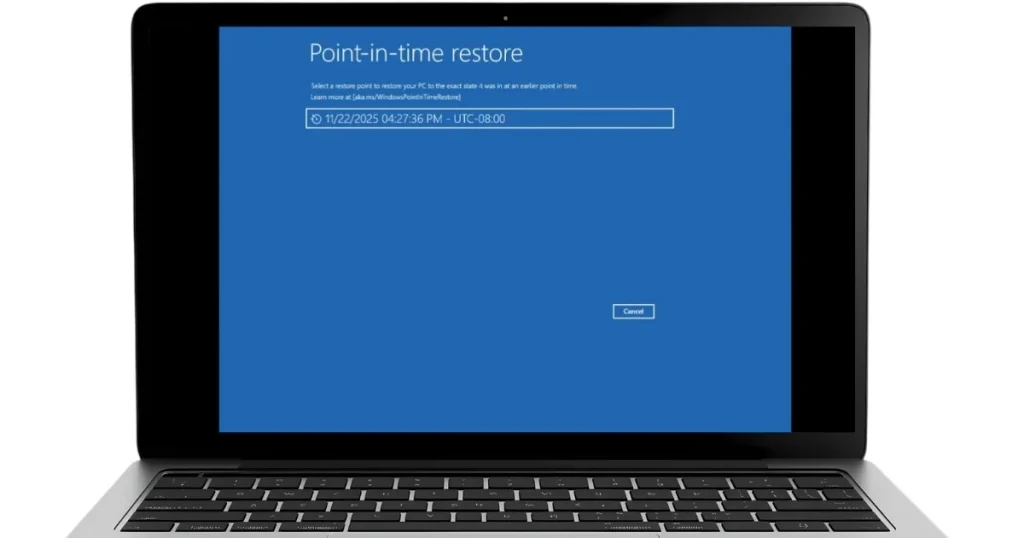
What is the Windows 11 point-in-time restore feature, and how does it work?
Simply put, this feature takes a snapshot of your Windows system. Whenever a major change is about to occur – such as installing a driver, a Windows update, or new software – Windows can automatically create a “Restore Point,” or you can create one manually.
If something goes wrong later, you can revert to that snapshot.
What gets restored:
- windows registry
- System files and settings
- Installed programs and drivers
- System configuration
What does not get restored:
- Your personal files (Documents, Photos, Downloads) – these remain safe
- Emails and browser bookmarks
- Files created after the restore point
Keep in mind – there is a difference between Windows 11 point-in-time restore and a full backup. This is a system recovery tool, not a personal data backup; a separate backup of your documents is necessary.
Steps for Windows 11 Point-in-Time Restore
Step 1 – Enable System Restore (Check this first)
In Windows 11, System Protection might be disabled by default – especially in new installations. First, check if it is turned on.
Steps to check and enable it:
- Search for “Create a restore point” in the Start menu and open it.
- The System Properties window will open; go to the System Protection tab.
- Locate the C: (System) drive in the list and check its status.
- If it shows “Off,” click the Configure button.
- Select “Turn on system protection.”
- Disk Space Usage slider – 5–10% is recommended (12–25 GB on a 256 GB SSD).
- Click Apply > OK.
Enable via command (Faster):
Open Win + X > Terminal (Admin) and type:
Enable-ComputerRestore -Drive "C:\"Important: Check this setting yourself after every Windows update – sometimes major updates reset it.
Step 2 – How to Create a Manual Restore Point
Creating a manual restore point is the smartest habit to adopt before installing major software, updating drivers, or tweaking Windows settings.
GUI Method:
- Click the Create button in the System Protection window (mentioned above).
- Type a description – something memorable:
- Example: “Before installing Photoshop – August 2026”
- Click Create.
- Within a few seconds, the message “The restore point was created successfully” will appear.
Instantly create using PowerShell:
Checkpoint-Computer -Description "Before Driver Update" -RestorePointType "MODIFY_SETTINGS"When are automatic restore points created?
- Upon Windows Update installation
- Upon driver installation/update
- Upon installation of certain applications (those using the MSI installer)
- Automatically every 7 days (if none has been created otherwise)
Step 3 – How to perform a Windows 11 point-in-time restore (in Normal Mode)
If Windows is starting normally and you need to restore:
Method 1: From System Properties
- Search for “Create a restore point” in the Start menu.
- Click the “System Restore” button.
- “Recommended restore” – Windows will automatically suggest the latest safe point.
- Or “Choose a different restore point” – select one yourself.
- Next > A list of available restore points will appear.
- Date and Time will be displayed
- Description (what you wrote or what Windows generated)
- Type (Manual / System / Install)
- Select a restore point.
- Click “Scan for affected programs” – this will show which programs will be removed and which ones will be restored.
- Next > Finish – the PC will restart.
- The restore process may take 15–45 minutes.
Method 2: From the Control Panel
Control Panel > Recovery > Open System Restore
Method 3: Using the Run command:
Win + R > Type rstrui.exe > Enter
Step 4 – Windows not working? Restore using Advanced Recovery
This section is for those whose Windows won’t even boot. A point-in-time restore for Windows 11 can also be performed from the Windows Recovery Environment (WinRE).
How to access WinRE:
Option A – If Windows loads partially:
- Settings > System > Recovery > Advanced startup > Restart now
Option B – On boot:
- Forcefully shut down the PC three times (by holding the power button) – on the third attempt, the Automatic Repair screen will appear.
Option C – From Windows installation media:
- Create a Windows 11 bootable USB
- Boot from the USB > Click “Repair your computer”
System Restore in WinRE:
- Click on Troubleshoot
- Select Advanced options
- Click on System Restore
- Sign in with your Microsoft account (if applicable)
- Select a restore point and follow the process
Step 5 – File History – Separate Backup for Personal Files
System Restore saves system files, whereas File History maintains a version history of your personal files.
Setup:
- Settings > System > Storage > Advanced storage settings
- Click Backup options > Add a drive
- Select an external drive or network location
- Turn on the “Automatically back up my files” toggle
- Set Frequency – Every hour is recommended
File restore from File History:
- Right-click on a file or folder.
- Select “Restore previous versions”.
- Choose a version based on the date.
Note: An external drive or a second partition is required for File History. Use it in conjunction with cloud backup.
Step 6 – OneDrive Version History – A Hidden Feature of Cloud Backup
If you use OneDrive, this is something you need to know. OneDrive automatically saves versions of every file for 30 days.
How to use it:
- Go to OneDrive.com
- Right-click on the file
- Select Version history
- Restore the desired version
OneDrive Personal plan – 5GB free.
Microsoft 365 Personal – 1TB OneDrive – $69.99/year.
For those in India who use Office 365 (through their college or office), this is already available.
Common Mistakes People Make Regarding Restore Points
Mistake 1: Not Enabling System Protection
It is often turned off by default on a fresh Windows 11 installation. Enabling it should be the first step.
Mistake 2: Allocating Too Little Drive Space
If you allocate only 1% of the space, only 1-2 restore points will be created, and older ones will be automatically deleted. Allocate 5-10% instead.
Mistake 3: Mistaking a Restore Point for a Full Backup
System Restore does not save personal files. A separate backup is necessary for documents and photos.
Mistake 4: Waiting Too Long After a Problem Occurs
If the system becomes unstable after installing a driver, perform a restore immediately. The longer you wait, the more changes will accumulate.
Mistake 5: Forgetting to Undo
System Restore can also be undone if a problem arises after the restoration process. You can find the “Undo System Restore” option within the same rstrui.exe process.
What’s New in Windows 11 – Checkpoint and Backup Features (2025-2026 Update)
In Windows 11 version 24H2 and the 2025 updates, Microsoft has introduced new recovery features that enhance Windows 11’s point-in-time restore capabilities:
Smart App Control Restore:
Improved ability to restore security settings.
Recovery Drive Improvements:
Settings > System > Recovery > “Create a recovery drive” – Now creates a faster and more comprehensive recovery USB drive.
Windows Backup App (Updated):
Settings > System > Storage > Backup – This app now manages OneDrive data, credentials, and settings in one place. Old settings are automatically restored when setting up a new PC.
Automatic Restore Points (Enhanced):
In Windows 11 24H2, the system automatically creates restore points more frequently – especially when a driver or system component is modified.
Best Practice – A Complete Backup Strategy
One should not rely solely on System Restore. A complete strategy:
3-2-1 Backup Rule (Simplified):
- 3 copies of important data
- 2 different storage types
- 1 offsite (cloud)
Practical setup for India:
| Layer | Tool | Cost |
|---|---|---|
| System Restore | Windows built-in | Free |
| File History | External HDD | HDD cost |
| Cloud Backup | Google Drive / OneDrive | Free tier |
| Full System Image | Macrium Reflect Free | Free |
Macrium Reflect Free – This is an excellent free tool that creates an image backup of the entire PC.
Download: macrium.com/macrium-reflect – A free version is available for home use.
AOMEI Backupper Standard – Another trusted free backup tool.
Download: aomeitech.com – The standard version is free.
Restore Points Taking Up Too Much Space? Manage Them: Here’s How
If your C drive is getting full, delete old restore points:
Method 1: Using Disk Cleanup
- Win + R > cleanmgr > select C drive
- Click “Clean up system files”
- “More Options” tab > System Restore and Shadow Copies > Clean up
Method 2: Delete only the old ones; keep the latest.
System Protection > Configure > Delete – This will delete all of them.
After this, create a manual restore point immediately.
Delete everything using PowerShell:
vssadmin delete shadows /for=c: /oldest(This deletes the oldest shadow copy)
Not restoring? Common errors and solutions.
Error: “System Restore did not complete successfully”
- The most common reason for this is the antivirus blocking the process.
- Solution: Restart in Safe Mode and try to restore.
(Shift + Restart > Troubleshoot > Advanced > Startup Settings > Safe Mode)
Error: “No restore points have been created”
- System Protection was turned off.
- Enable it and create a manual restore point.
Error: “System Restore is greyed out”
- Group Policy is restricting this (company-managed PC).
- Contact the IT admin.
Error: Windows did not boot after restore
- Try Startup Repair from WinRE.
- Or undo System Restore from WinRE.
You can find detailed guides on Windows recovery, backup, and troubleshooting at fixtech.in. The step-by-step tutorials there help resolve specific problems.
FAQs – About Windows 11 Point-in-Time Restore
Q1. Do files get deleted after performing a Windows 11 point-in-time restore?
No. System Restore does not touch personal files – such as Documents, Photos, Videos, or Downloads – at all. Only system files, the registry, and installed programs are affected.
Q2. How much space does a restore point take up?
It depends on the allocated space. If 5% of the C drive is allocated (approx. 12GB on a 256GB SSD), multiple restore points can be stored. Older ones are automatically deleted when the space fills up.
Q3. What if the problem worsens after the restore?
System Restore can be undone. Open rstrui.exe again, and you will find an “Undo System Restore” option.
Q4. Should a restore point be created every day?
Not necessarily. Windows automatically creates one during every major change. Creating a manual restore point before installing new software or drivers is sufficient.
Q5. Should System Restore be enabled on an SSD?
Yes, absolutely. System Restore has a minimal performance impact on modern SSDs and is very useful.
Q6. What is the difference between System Restore and System Reset (PC Reset)?
System Restore reverts the system to a past state while keeping files safe. System Reset effectively performs a fresh installation of Windows and removes files (depending on the chosen option). The two are very different.
Q7. Is the restore process affected by the laptop entering hibernate or sleep mode?
No. The PC restarts to fully complete the restore process, so the sleep state is irrelevant.
Final Thoughts
For any PC user – whether a student, freelancer, or office worker – Windows 11’s point-in-time restore serves as a safety net that can save you from major trouble. Enable System Protection, create a manual restore point, and set up File History today. This five-minute task could save you hours of headaches down the line. And remember, Windows 11’s point-in-time restore only works if it has been enabled beforehand; enabling it after a problem arises is simply too late.