
Do you work from home? There are noisy kids in the neighborhood, sounds drifting in from the kitchen, and traffic noise outside – yet you want Windows to pick up only your voice and ignore everything else. That is exactly what the Windows 11 Voice Isolation feature does. It is a genuinely impressive accessibility and productivity feature that Microsoft has integrated with Voice Access. With the rapid rise of remote work, online classes, and voice-based computing in India, the timing for this feature couldn’t be better.
In this tutorial, we will walk through the entire process: what Voice Access is, how Voice Isolation works, how to enable it, and tips for using it effectively – all step-by-step.
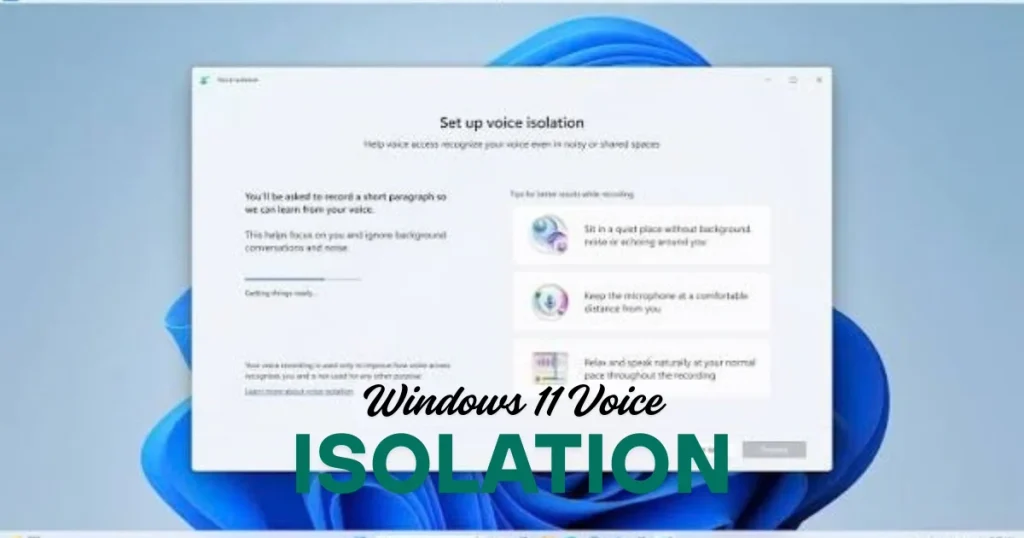
Voice Access and Voice Isolation – understand both separately
These two are often mixed up, but they are two different things:
Voice Access:
This is an accessibility feature of Windows 11 that lets you control your PC completely with voice. No mouse clicks, no keyboard – just say and Windows will do the trick. Type documents, open applications, browse the web, scroll – all by voice.
Voice Isolation (Windows 11 Voice Isolation):
It is an AI-powered microphone processing feature that separates your voice from background noise. It works with Voice Access but can also be used independently – in any app that uses a microphone.
Simply put:
- Voice Access = Controlling the PC using your voice
- Voice Isolation = Capturing only your voice while filtering out background noise
Windows 11 Voice Isolation is technically an AI-based microphone filter from Microsoft that operates in real time.
System Requirements – Check this first
Windows 11 Voice Isolation is not available on all devices. Check this:
Minimum Requirements:
- Windows 11 22H2 or later (Voice Access was originally introduced in 22H2)
- Voice Isolation: Fully stable in Windows 11 23H2 and 24H2
- Processor: Intel or AMD – best performance with a modern NPU (Neural Processing Unit), but also runs on the CPU
- RAM: 4GB minimum, 8GB recommended
- Microphone: Any built-in or external microphone
Check your Windows version:
- Win + R → winver → Enter
- It must be Version 22H2 (Build 22621) or higher.
Voice Access Language Support:
- English (US, UK, Australia, Canada, India) – supported
- Voice Access in Hindi is still limited
- But Voice Isolation is language-independent – it separates voice from noise; it doesn’t understand language.
Step 1: Enable Voice Access
Before using Windows 11 Voice Isolation, you need to set up Voice Access.
Setup Steps:
- Open Settings (Win + I)
- Click on Accessibility
- Scroll through the left-hand menu to find the Speech section
- Toggle Voice Access to On
- A language pack will be downloaded the first time you enable it – an internet connection is required
First Launch:
- The Voice Access bar will appear at the top of the screen.
- Confirm “Turn on Voice Access”.
- You will get the option to take a tutorial – this is recommended for new users.
Keyboard Shortcut:
- Win + H – Quickly toggle Voice Access (this may also open Dictation, depending on the build).
- Toggle using the microphone icon in the Voice Access bar.
Step 2: Enable Windows 11 Voice Isolation – Main Tutorial
Now, let’s enable the actual Voice Isolation feature. It can be accessed from two places:
Method A: Via System Settings (Easiest)
- Settings (Win + I) → System → Sound
- Find your microphone in the Input section
- Click on the microphone → Properties
- Look for the Audio enhancements section
- You will find the Voice isolation option here
- Toggle it on
Method B: Using the Taskbar Microphone Icon (Fastest)
In Windows 11, when an app is using the microphone:
- Click on the Microphone icon in the taskbar system tray
- Microphone settings panel will open
- Voice Isolation toggle will appear
- enable
Method C: From Control Panel Sound Settings
- Win + R → mmsys.cpl → Enter
- Go to the Recording tab
- Double-click on your microphone
- Enhancements tab → Voice Isolation checkbox ✅
Voice Isolation Mode Options:
Windows 11 offers two levels:
- Standard – Filters out common background noise (fan sound, keyboard clicks, mild traffic)
- Enhanced – Aggressive isolation – Blocks most background sounds, leaving only the primary voice
Enhanced mode consumes more CPU resources but is better suited for noisy environments such as Indian home offices, cafes, and busy areas.
Step 3: Control Voice Access using voice commands
Once Voice Isolation is enabled, Voice Access commands will work. Here are some commonly used commands:
Basic Navigation:
- “Click [item name]” – Click any visible button or link
- “Open [app name]” – Open the application, such as “Open Chrome”
- “Scroll down” / “Scroll up” – Scroll the page
- “Go back” – Browser back button
- “Close window” – Close the window
Typing and Dictation:
- “Type [text]” – Type text
- “Press Enter” – Enter key
- “Backspace” – Delete character
- “Select [word]” – Select Word
- “Delete that” – Delete last dictated text
Voice Access Control:
- “Voice Access sleep” – Turn off temporarily
- “Voice Access wake” – Turn back on
- “Turn off Voice Access” – Turn off completely
Number Overlay (very useful):
- “Show numbers” – A number appears on every clickable element on the screen.
- “Click [number]” – Clicks that specific element.
- This is useful when the element’s name is unknown.
Use Cases for Voice Access and Voice Isolation in India
Work-from-Home Professionals:
Millions of IT professionals, content creators, and freelancers in India work from home. Household sounds – such as family members, the clatter of dishes, the TV, and outside traffic – can disrupt meeting calls and interfere with voice commands.
Windows 11 Voice Isolation filters out these distractions so that:
- Voice commands are recognized accurately
- Clear audio is delivered to the other party during Microsoft Teams or Zoom calls
- There are fewer errors during dictation
Students:
Blocking background noise during online classes so that others’ voices aren’t picked up by the microphone. Dictating notes using Voice Access.
Accessibility Users:
For those unable to use a keyboard and mouse due to motor disabilities, the combination of Voice Access and Voice Isolation makes the PC genuinely accessible.
Hindi-Medium Content Creators:
Dictation is primarily done in English, but Voice Isolation improves microphone quality, which is also helpful for recording.
Microphone Enhancement Settings – Fine-tune with Voice Isolation
In Windows 11, certain additional settings work alongside Voice Isolation to further improve performance:
Microphone Gain and Levels:
- Settings → System → Sound → Input device → Properties
- Adjust the microphone slider in the ‘Levels’ tab.
- Setting it too high will cause distortion; 70–80% is recommended.
- Keep ‘Microphone Boost’ at +10 dB.
Noise Suppression (Additional Layer):
In Windows 11, Noise Suppression is a feature distinct from Voice Isolation:
- Sound Properties → Enhancements tab
- Enable the ‘Noise suppression’ checkbox.
- Using both Voice Isolation and Noise Suppression together yields better results.
Disable Exclusive Mode:
Sometimes, an app takes exclusive control of the microphone, preventing Voice Access from working:
- Microphone Properties → Advanced tab
- “Allow applications to take exclusive control of this device” – Uncheck
- Apply
Voice Access Training – For Better Accuracy
While Windows 11 Voice Isolation blocks noise, Voice Access accuracy improves further by “learning” your voice:
Voice Access Training Tips:
- Speak clearly – Issue commands clearly and at a normal pace; do not speak too fast.
- Consistent environment – Using the system in the same room allows it to learn your voice patterns.
- Correct microphone position – Maintain a distance of 30–45 cm from the built-in microphone.
- Avoid whispering – Voice Access does not work effectively with whispering.
Feedback Loop – Correct Errors:
- If Voice Access misinterprets a command, say: “Correct that”
- This improves the feedback model.
Advanced: Use Voice Isolation in Non-Voice-Access Apps
Here is a little-known feature: Windows 11 Voice Isolation isn’t just for Voice Access.
Microsoft Teams Calls:
- Teams can automatically use Windows Voice Isolation.
- Go to Teams Settings → Devices → Microphone → Enable Windows Audio enhancements.
- Alternatively, use Teams’ own noise suppression settings.
Zoom Calls:
- Set “Suppress background noise” → High in Zoom settings
- Plus Windows Voice Isolation = double layer protection
OBS Studio (for content creators):
- Windows Voice Isolation does not appear directly in the audio filters in OBS.
- But Windows-level Voice Isolation will be reflected in OBS’s recording.
- Make OBS’s own Noise Suppression filter (RNNoise) an additional layer
WhatsApp and Telegram Desktop:
- Windows Voice Isolation is automatically applied to these as well.
- Call quality improves significantly in noisy environments.
Troubleshooting – Voice Isolation/Voice Access not working?
Problem 1: Voice Isolation option not visible.
Solutions:
- Check the Windows build – version 22H2 or later is required.
- Install the latest patches via Windows Update.
- Update the audio driver – Device Manager → Sound → Update driver.
- Install the generic Microsoft driver if there is an issue with the OEM driver.
Problem 2: Voice Access is misrecognizing commands.
Solutions:
- Enable the “Enhanced” mode for Voice Isolation.
- Try using an external USB microphone – built-in laptop microphones are often directional.
- Physically reduce background noise – close the room door.
Problem 3: High CPU Usage
Voice Isolation, especially in Enhanced mode, uses the CPU:
- Check CPU usage in Task Manager
- Switch from Enhanced mode to Standard mode
- Close background apps
- Keep the laptop plugged in
Problem 4: Voice Access does not understand English (Indian accent)
This is a genuine concern. Voice Access does not always perfectly understand the Indian English accent.
Tips:
- Speak slightly more slowly and clearly.
- State commands using the exact wording.
- Use the Voice Access “Show numbers” overlay when clicking by name doesn’t work.
- Keep providing feedback – it improves over time.
Free tools that will provide a better experience with voice isolation.
1. NVIDIA RTX Voice / NVIDIA Broadcast (Free – NVIDIA GPU users):
If you have an NVIDIA GPU, it offers even more powerful noise cancellation than Windows Voice Isolation.
- Website: nvidia.com/en-us/geforce/broadcasting/broadcast-app – Free (RTX GPU required)
2. Krisp (Freemium):
AI noise cancellation that works on any microphone.
- Free plan: 60 minutes/week of noise cancellation
- Pro: $8/month
- Website: krisp.ai
3. SpeechNotes (Online – Free):
Browser-based voice dictation that also works in Hindi.
- Website: speechnotes.co – Free
4. Windows Speech Recognition (Built-in, Free):
Older but an alternative to Voice Access – Control Panel → Speech Recognition
- The voice training feature is more detailed.
Detailed guides on Windows 11 accessibility features, Voice Access setup, and audio optimization are available on fixtech.in.
Voice Isolation vs. Third-Party Noise Cancellation – Quick Comparison
| Feature | Windows Voice Isolation | Krisp | NVIDIA RTX Voice |
|---|---|---|---|
| Cost | Free (built-in) | Free limited/$8 month | Free (RTX GPU) |
| Installation | Zero – built-in | App install | App install |
| Quality | Good | Excellent | Excellent |
| CPU Usage | Medium | Medium | GPU (light CPU) |
| Works With | All Windows apps | All apps | All apps |
| Best For | General use | Professional | Content creation |
There is no additional cost for Windows Voice Isolation, and the quality is quite good. However, Krisp or NVIDIA Broadcast might be better options for professional podcasters or streamers.
FAQs – About Windows 11 Voice Isolation
Q1. Does Windows 11 Voice Isolation work without Voice Access?
Yes. Voice Isolation is a system-level microphone enhancement that works with any app – such as Teams, Zoom, WhatsApp Desktop, or recording software. While Voice Access utilizes it, Voice Isolation functions independently.
Q2. Does Voice Access understand commands in Hindi?
Currently, Voice Access operates primarily in English. Hindi support is limited, and in India, the best results are achieved using the English (India) accent. Microsoft may expand Hindi support in future updates.
Q3. How much battery does Voice Isolation consume?
The impact is minimal in Standard mode. In Enhanced mode, there may be an additional 5–10% battery drain on laptops. Enhanced mode is convenient to use when the device is plugged in.
Q4. Are Voice Access and Cortana the same thing?
No. Voice Access is an accessibility feature that allows you to control the entire PC. Cortana was an AI assistant (now deprecated) designed to answer specific queries. The two are completely different.
Q5. Will Voice Isolation work better with an external USB microphone?
Yes, significantly so. A high-quality directional USB microphone – such as the Fifine K670 ($30–40) or Blue Snowball ($50) – greatly improves the input quality for Voice Isolation. Built-in laptop microphones are omnidirectional, meaning they pick up sound from all directions.
Q6. Will others know if I have enabled Voice Isolation?
No. It is a local setting on your device. People on the call will simply experience better audio quality; no notification or indication is sent to them.
Q7. Is Voice Isolation available on Windows 10?
Windows Voice Isolation is a feature specific to Windows 11. Windows 10 includes Speech Recognition and basic Noise Suppression, but it lacks AI-based Voice Isolation.
Final Thoughts
Windows 11 Voice Isolation is a genuinely useful feature designed for people working in India’s noisy home offices, busy cafes, and crowded living spaces. It takes just five minutes to set up, and the benefits are felt immediately – Voice Access accuracy improves, calls become clearer, and dictation errors decrease. The combination of Voice Access and Voice Isolation is equally powerful for both accessibility and productivity. If you haven’t tried it yet, start by going to Settings → Accessibility → Speech → Voice Access – and don’t forget to enable Voice Isolation in the microphone settings. Windows 11 Voice Isolation is a “hidden gem” that you won’t want to give up once you’ve started using it.