
So, here’s the situation: you were updating Windows or perhaps installing new software when an error suddenly popped up on your screen: “0x80070057 – The parameter is incorrect.” There was no clear explanation and no obvious solution – just a cryptic code and a task brought to a standstill. Fixing error 0x80070057 isn’t as difficult as the code makes it seem, but it is essential to understand when, where, and why it occurs, as the causes and solutions vary depending on the situation. This error is particularly common in India, where many people still use laptops with older HDDs, often face low disk space on the C drive, and encounter registry issues caused by pirated software. In this tutorial, we will cover every scenario to ensure your Windows installation or update problem is resolved once and for all.
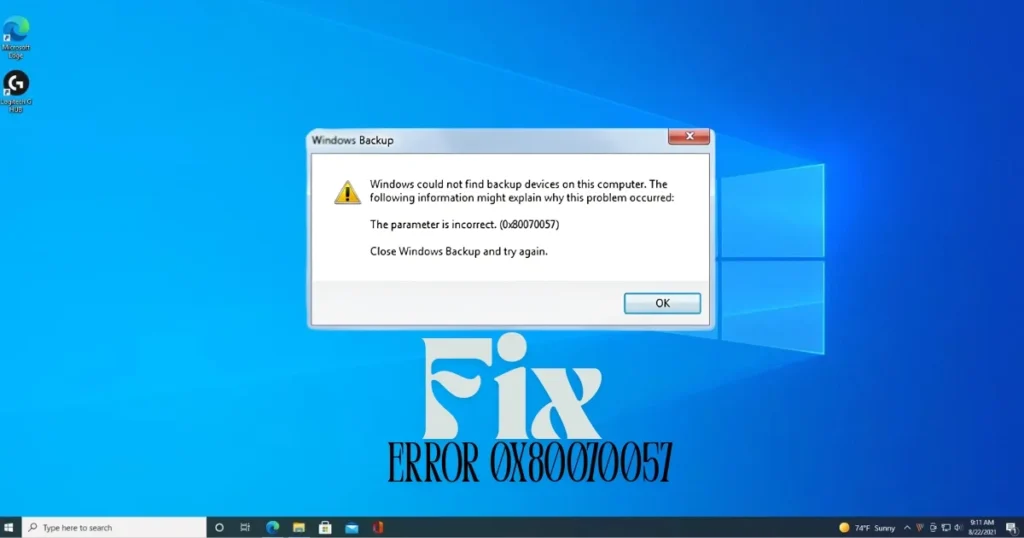
What exactly is error 0x80070057?
First, let’s understand what this error signifies. Windows error code 0x80070057 means “The parameter is incorrect” (HRESULT -2147024809). It can block Windows updates, software installations, and backup jobs across Windows 10, Windows 11, and Windows Server.
Error 0x80070057 is a generic Windows error code indicating an invalid parameter or a related issue. While this error can appear in various contexts within Windows, it always signifies a problem occurring during a task involving the operating system and a storage device.
Simply put – the information Windows requires to perform a specific task is either incorrect, corrupted, or missing entirely.
When does error 0x80070057 occur? (Different scenarios)
This error appears in various situations – not just one – and the accompanying message may differ slightly each time.
- “The parameter is incorrect” – This message appears when the Registry, which contains multiple key files, has reached its limit.
- “Something went wrong” – This indicates an error related to Microsoft Office.
- “Windows could not format a partition on disk 0” – This appears during installation preparation when selecting a partition and is a Registry or partition error.
- “There were some problems installing updates” – This indicates an installation/update issue related to Windows Update.
Common causes of 0x80070057
Error 0x80070057 is a generic Windows API error, which means it can come from many different subsystems. The most common Root Causes are: Corrupted Windows Update Cache (Damaged or Incomplete Files in the SoftwareDistribution Folder), Invalid or Missing Registry Parameter, Damaged System Files (.dll, .sys, .exe), Third-Party Software Conflict (Antivirus, VPN Clients, or Storage Drivers), and Disk Full or Insufficient Permissions.
Some other reasons that deserve special attention:
- Incompatibility with System Locale Format or Non-Unicode Program Language settings.
- If the Windows clock is out of sync, it can also trigger the 0x80070057 error.
- A very slow data transfer rate can also cause the 0x80070057 error during Windows data backup.
- FAT32 drives cannot store files larger than 4 GB and will immediately trigger the 0x80070057 error for any full system image.
Another major reason in India is a lack of space on the C drive. Many budget laptops come with 128GB or 256GB SSDs, and if there is less than 10GB of free space left on the C drive, Windows updates can fail.
Fixing 0x80070057 – Step-by-step methods
Now, let’s move on to the solutions. The methods listed below range from the simplest ones to more in-depth fixes.
Method 1: Free up disk space
Often, the easiest solution to the error is to free up disk space on the system. Windows requires storage space to execute tasks such as installing software or saving files. This error code may indicate that there is insufficient space to complete the requested process.
What to do:
- Ensure that the C: drive has at least 10GB or more of free space.
- Search for “Disk Cleanup” in the Start Menu and select “Run as administrator.”
- Select “Temporary Files,” “Windows Update Cleanup,” and “Recycle Bin,” then delete them.
- Move large files to an external drive or the cloud (Google Drive/OneDrive).
Method 2: Correct the Date & Time
If the Windows clock is out of sync, it can cause the 0x80070057 error. Check the clock on the Windows taskbar to see if the time and date are synchronized with the actual time and date.
Steps:
- Press Windows + I to open Settings.
- Go to Time & Language > Date & Time.
- Turn on both “Set time automatically” and “Set time zone automatically”.
- Click the “Sync Now” button to synchronize the Windows clock.
Method 3: Run the Windows Update Troubleshooter
The built-in troubleshooter automatically detects and fixes most causes of the 0x80070057 error related to Windows Update.
Steps:
- Open Settings by pressing Windows + I. Go to System → Troubleshoot → Other troubleshooters (Windows 11) or Update & Security → Troubleshoot → Windows Update (Windows 10). Click “Run” next to Windows Update. Follow the on-screen prompts and apply the suggested fixes. Restart your computer and try the update again.
Method 4: Reset the SoftwareDistribution Folder
This method is highly effective for resolving error 0x80070057. Situations such as an interrupted internet connection or a sudden PC shutdown can easily corrupt files within this folder, triggering error 0x80070057. When you rename or delete the SoftwareDistribution folder, the Windows Update Client automatically creates a new folder and downloads the updates from scratch.
Steps:
Open Command Prompt as an administrator and run the following commands one by one:
net stop wuauservnet stop bitsren C:\Windows\SoftwareDistribution SoftwareDistribution.oldren C:\Windows\System32\catroot2 catroot2.oldnet start wuauservnet start bits
Rename the Catroot2 folder as well – this is another folder required for Windows Updates.
After that, go to Settings > Windows Update > Check for Updates.
Method 5: Run SFC and DISM Scans
System File Checker (SFC) scans for and repairs corrupted Windows system files that might be passing invalid parameters.
SFC Scan:
Run sfc /scannow in Command Prompt (Admin). Wait for the scan to complete (it may take 5–15 minutes).
DISM Scan:
DISM repairs the underlying Windows Component Store – run it after SFC if the error persists.
DISM /Online /Cleanup-Image /CheckHealthDISM /Online /Cleanup-Image /ScanHealthDISM /Online /Cleanup-Image /RestoreHealth
Restart the PC after both scans.
Method 6: Run CHKDSK (Check for Disk Errors)
CHKDSK is a Windows tool that checks disks for logical issues capable of triggering errors like 0x80070057.
Steps:
Type chkdsk C: /f /r in Command Prompt (Admin) and press Enter. Type ‘Y’ to schedule the scan for the next restart. Restart your PC and wait for the scan to complete.
Note: Using CHKDSK can result in data loss, so it is advisable to back up your data first.
Method 7: Check the Decimal Symbol Setting
This is an unusual but effective fix. Go to Control Panel > Region > Additional Settings – the Decimal Symbol should be a period (.), not a comma. This affects certain Windows operations.
In India, regional settings sometimes default to a comma (,), which can cause issues with the Windows Update process.
Method 8: Registry Fix (CopyFileBufferedSynchronousIo)
A very slow data transfer rate can cause the 0x80070057 error during Windows data backup. If you have administrator rights, you can try to increase the rate by adjusting the buffering settings for the “CopyFile” function in the registry database.
Steps:
- Press Win + R, type “regedit”, and press Enter.
- Navigate to: HKEY_LOCAL_MACHINE\SOFTWARE\Policies\Microsoft\System
- Right-click in the right pane, select New > DWORD (32-bit) Value.
- Name it “CopyFileBufferedSynchronousIo” and set the value to 1. Click OK and restart your PC.
Warning: Incorrect changes to the Registry can cause system problems or necessitate a reinstallation of the operating system. Therefore, make changes only if you can accurately follow the provided steps.
Method 9: Temporarily Disable Antivirus/Third-Party Software
Sometimes, third-party applications – particularly antivirus software, backup programs, and performance tools – can prevent the Update Center from accessing required files. This situation can trigger the 0x80070057 error; therefore, if you encounter this error message during a Windows Update, temporarily disable these programs.
Security software sometimes intercepts installer API calls, causing parameter errors. Disable it briefly during the installation process and re-enable it immediately afterward.
Method 10: Perform a Clean Boot
Some users report that a single app can sometimes cause error code 0x80070057. If you haven’t installed such software, perform a clean boot to identify which software is causing the issue.
Steps:
- Press Win + R and type
msconfig. - Go to the Services tab and check the “Hide all Microsoft services” box.
- Click on “Disable all”.
- In the Startup tab, click on “Open Task Manager”.
- In the Task Manager’s Startup tab, select each enabled startup item and disable it.
- Restart your PC and try Windows Update.
Method 11: Check the Windows Installer Service
Open Services (services.msc), locate Windows Installer, and ensure it is set to ‘Manual’ and is ‘Running’.
Additionally, check that the Windows Update Service and BITS (Background Intelligent Transfer Service) are also in the ‘Running’ state.
Method 12: Run a Malware Scan
Malicious software can infect your PC through deceptive downloads, suspicious ads, or phishing emails. It can cause Error 0x80070057 by damaging critical system files, disrupting Windows services, or altering the registry. Running a full scan with a trusted antivirus program and up-to-date definitions can help detect and remove malware on Windows.
Method 13: Manually Install from the Microsoft Update Catalog
If a specific cumulative update keeps failing, download it manually from the Microsoft Update Catalog and install it using the standalone installer.
What to do:
- Go to catalog.update.microsoft.com
- Search for the KB number of the failed update (e.g., KB5044284).
- Download the file corresponding to your system architecture (x64/ARM64).
- Double-click the .msu file to install it.
Method 14: In-Place Repair Upgrade (Last Resort)
If none of the above solutions work, perform an In-Place Upgrade, which will upgrade the device to the latest version and repair all issues without deleting any files.
Download the Media Creation Tool ($0) from Microsoft’s official website, select “Upgrade this PC now”, and follow the instructions. It will repair Windows while preserving your files and apps.
Encountering error 0x80070057 during Windows installation?
If this error appears while formatting a partition during a fresh Windows installation, then:
- During a fresh install, this error often indicates a corrupted partition table. Delete all partitions within Windows Setup and allow Windows to create new ones.
- Unplug the installation USB and try again.
- Perform a manual cleanup using the Diskpart utility.
Some free tools that can help
- CrystalDiskInfo – Use this free tool to check SMART health status; it indicates the health of your hard drive or SSD. ($0)
- Windows Built-in Tools – sfc, DISM, chkdsk, Disk Cleanup – These are all pre-installed in Windows. ($0)
- Microsoft Update Catalog – For manually downloading and installing failed updates. (catalog.update.microsoft.com – $0)
- Autoruns (Microsoft Sysinternals) – To identify startup programs and services that may be causing interference. ($0)
Visit fixtech.in for more Windows troubleshooting guides and tips.
Some additional important points
- Try one fix at a time and test after each change.
- First, ensure you have a stable internet connection to download Windows Update files from Microsoft servers.
- Make sure you are logged in to an administrator account before running the Windows Update client again.
- Always create a backup of the Registry (File > Export) before making any changes to it.
- If this error occurs during disk operations, it could indicate early drive problems; be sure to check the health status using CrystalDiskInfo.
FAQs – About Windows Error 0x80070057
Q1: What does error 0x80070057 mean?
“Invalid Parameter” means Windows encountered unexpected data during an operation. It is a generic Windows error code indicating an invalid parameter or a related issue.
Q2: When does this error most commonly occur?
Most frequently during Windows Update failures, disk formatting issues, or backup errors. This error is common on Windows computers and usually appears when installing system updates, installing the Windows OS, or creating a profile in MS Outlook.
Q3: Can this error occur during Windows installation?
Yes. During a fresh installation, this error often indicates a corrupted partition table. Delete all partitions within the Windows Setup and allow Windows to create new partitions.
Q4: Is it safe to delete the SoftwareDistribution folder?
When you rename or delete the SoftwareDistribution folder, the Windows Update Client automatically creates a new folder and downloads updates from scratch. So yes, it is completely safe.
Q5: How long does CHKDSK take?
On a 500GB HDD: 1–3 hours. On an SSD: 15–30 minutes. Do not interrupt the process – allow it to complete fully.
Q6: Can this error cause data loss?
Although errors like 0x80070057 do not directly cause data loss, they can reveal underlying problems that might compromise your files. Therefore, always keep a backup of important data.
Conclusion
Fixing error 0x80070057 might seem complicated at first glance, but in most cases, it can be resolved through simple steps like freeing up disk space, resetting the SoftwareDistribution folder, or running SFC/DISM scans. If the Windows installation or update issue is more deep-seated – such as registry corruption, partition table issues, or conflicts with third-party software – then a registry fix, clean boot, or in-place repair upgrade might be required. Just remember: try the solutions one by one, test after each step, and back up your registry before making any changes. While this is a generic Windows API error that can stem from various sources, resolving 0x80070057 effectively is entirely possible.