
Has it ever happened that your Wi-Fi is connected, your phone or laptop shows full signal strength, and WhatsApp messages are going through, yet the moment you try to open a specific website, you’re met with nothing but errors? This issue is quite common in India, especially for users of ISPs like Jio, Airtel, BSNL, or Vi. If your websites aren’t loading, don’t panic – in this guide, we’ll explain the causes and solutions in simple terms.
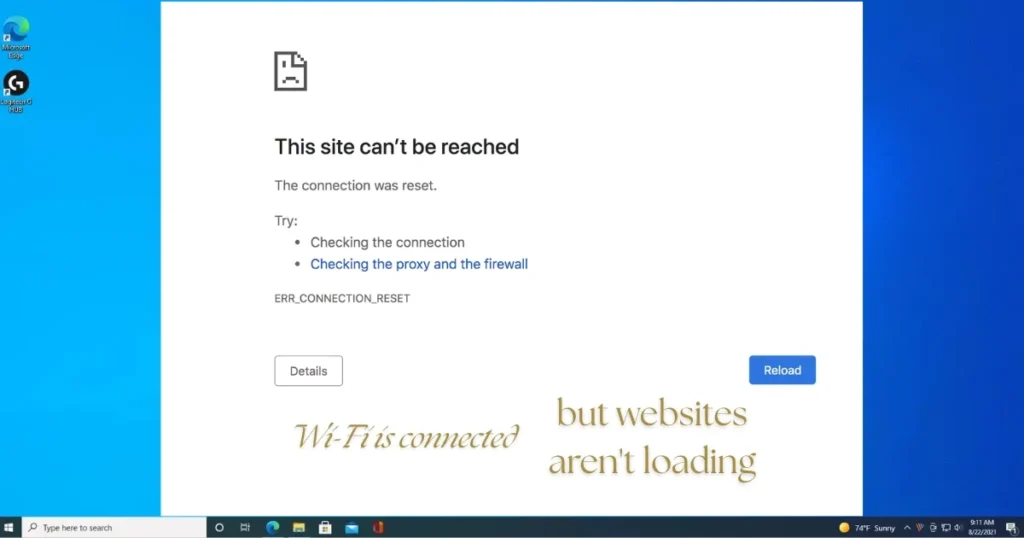
Why does this problem occur in the first place?
First, understand that if your Wi-Fi is connected but certain websites aren’t loading, it doesn’t necessarily mean your internet is faulty. Wi-Fi connects your device to your home router, which in turn connects to the internet via the modem and ISP. If any link in this chain breaks, you lose internet access, even though the local Wi-Fi connection remains active.
The main reasons for this are as follows:
- DNS (Domain Name System) issues – DNS translates website names (like “google.com”) into the numerical IP addresses that computers understand. If this process fails, the device cannot locate websites even though it is connected to Wi-Fi.
- Corrupted browser cache – If the DNS cache becomes corrupted, it can prevent you from accessing websites. Clearing it forces the computer to fetch fresh information.
- ISP-level blocking – In India, ISPs often block websites at the DNS level using “DNS poisoning,” where incorrect addresses are returned instead of the actual ones. Most Indian ISPs prefer DNS blocking because it is cheap and easy to implement.
- VPN or proxy interference – VPNs or proxy servers can sometimes interfere with the internet connection. Try disabling them temporarily to see if the internet connection is restored.
- Firewall or antivirus – Security software can sometimes be overly protective and block legitimate internet connections. Test this by disabling the firewall or antivirus for a few minutes.
First check this – where is the problem?
Before moving on to a fix, it’s important to determine whether the problem is with DNS, the browser, or the entire network.
Step 1: Test Ping
Open Command Prompt and type ping google.com and press Enter. If you don’t get a response, type ping 8.8.8.8. If the response comes from the IP address but not from the domain google.com, there is a DNS problem.
Step 2: Try another browser
If the website is not opening in Chrome, try opening it in another browser like Firefox or Edge. If it opens in another browser then the problem is only in your browser, not in the internet.
Step 3: Check on mobile data
If a particular website is not opening when connected to Wi-Fi, but other websites are working normally, and that website opens properly when connected to a mobile hotspot – then it is definitely a DNS or ISP-level issue.
Fix #1: Flush the DNS cache (the easiest method)
This is the first and most effective solution when Wi-Fi is connected but websites aren’t loading.
Flushing the DNS cache is one of the quickest ways to resolve common internet issues such as outdated website data, connection errors, or incorrect IP resolution.
On Windows:
Type “cmd” in the Windows search bar, right-click on Command Prompt, and select “Run as administrator.” Then, run the following commands one by one:
- ipconfig /flushdns (Clears the DNS cache)
- ipconfig /release (Releases the current IP address)
- ipconfig /renew (Requests a new IP address)
On Mac:
The process is slightly different on a Mac. Open Terminal and use the command sudo killall -HUP mDNSResponder.
Clear the Chrome browser’s DNS cache as well:
Type chrome://net-internals/#dns into Chrome’s address bar and press Enter. Then, click the “Clear Host Cache” button. This ensures Chrome fetches fresh DNS data.
This is necessary because Chrome might continue using its own cached results even after the OS DNS cache has been flushed.
Fix #2: Change DNS Server (Google DNS or Cloudflare DNS)
If your ISP’s DNS server isn’t working correctly or is blocking certain websites, switching to a public DNS server can be very helpful.
While your router usually assigns the DNS server, using a reliable public DNS server can sometimes improve both connectivity and speed. Google Public DNS (8.8.8.8 and 8.8.4.4) and OpenDNS (208.67.222.222 and 208.67.220.220) are popular choices.
How to change DNS on Windows:
Press the Windows Key + R, type ncpa.cpl, and press Enter. Right-click on your network connection > Properties > select Internet Protocol Version 4 (TCP/IPv4) > click Properties. Select “Use the following DNS server addresses” and enter 8.8.8.8 for the Preferred DNS server and 8.8.4.4 for the Alternate DNS server.
Cloudflare DNS (1.1.1.1) is also a great option; you can change this in your router settings as well – set the Primary DNS to 8.8.8.8 and the Alternate to either 8.8.4.4 (Google DNS) or 1.1.1.1 (Cloudflare DNS).
Switching to a neutral, third-party DNS provider often bypasses these blocks entirely. Public DNS servers like Google (8.8.8.8) or Cloudflare (1.1.1.1) are safe, free, and often faster than the default service provided by your ISP.
Changing DNS on mobile (Android):
- Settings > Wi-Fi > Long-press your connected network > Modify Network
- Go to Advanced Options > Set IP Settings to Static
- Enter 8.8.8.8 for DNS 1 and 8.8.4.4 for DNS 2
- Save and reconnect
Fix #3: Clear browser cache and cookies
Sometimes, the problem lies not with the DNS but with the browser’s own cache. Browsers save the IP addresses of visited sites so they load faster – but when these records become corrupted, the browser gets confused.
Clear cache in Chrome:
- Press Ctrl + Shift + Delete
- Select “All Time”
- Check “Cached images and files” and “Cookies and other site data”
- Click “Clear Data”
To open Developer Tools in Chrome, press Ctrl + Shift + I, go to the Network tab, check the “Disable Cache” option, and then refresh the page to bypass cached data.
Fix #4: Restart the router
It might seem very basic, but it works! Your home or office router also caches DNS queries. If multiple devices on the network are having trouble accessing a site, the issue might lie in the router’s cache. The easiest way to clear the router’s DNS cache is to restart it.
The correct method:
Unplug the power cord from the back of the router. Wait for at least 30–60 seconds – this allows the internal capacitors to fully discharge and clears the memory (including the DNS cache). Then, plug the power cord back in and let the router boot up completely; this may take a few minutes. Wait until the status lights stabilize (usually a solid green).
Fix #5: Check for ISP-level blocking (India-specific)
In India, it is quite common for certain websites to be accessible on one ISP but not on another. The Department of Telecommunications (DoT) issues blocking orders to hundreds of ISPs without specifying the technical method for blocking; consequently, each ISP implements these orders differently.
An analysis of 294 million domains across six ISPs in 2025 revealed 43,083 blocked domains, yet only 1,414 of these were blocked by all six ISPs. Despite receiving identical orders, ISPs do not block the exact same websites.
How to determine if your ISP is blocking access:
- Change your computer or router’s DNS settings. If the site opens after changing the DNS, it means your ISP was filtering the requests.
- Try opening the same site using mobile data (via a different ISP).
- Try using a VPN – a VPN encrypts your traffic and routes it through a secure server. If the site opens with the VPN enabled (whereas it wouldn’t before), it indicates that your ISP was blocking it.
Fix #6: Perform a Network Reset (Windows)
If all the above methods fail, use the Windows Network Reset option.
Open the Settings app and navigate to Network & Internet > Status > Network reset. Then, click the Reset button on the next screen and select ‘Yes’ at the confirmation prompt.
Note: This will reinstall all your network adapters and revert all network settings to their defaults, so make sure you have your Wi-Fi password handy.
Fix #7: Scan for Malware or Viruses
If webpages are not opening in any internet browser, your computer might be infected with a virus or malware. Certain types of malware and viruses prevent webpages from opening or loading in internet browsers.
Be sure to run a full scan using Windows Defender or a trusted antivirus program (such as Malwarebytes – a free version is available).
Free tools that can help you
When websites aren’t opening, use these free online tools to check whether the problem is on your end or the website’s end:
- DNSChecker.org – A free DNS propagation check service that verifies Domain Name System records against DNS servers in multiple regions worldwide.
- WhatsmyDNS.net – A free online tool that performs DNS lookups to display information about any domain from DNS servers across the globe.
- NSLookup.io – An online, web-based DNS client that queries the DNS records of a domain name and allows you to view all of a website’s DNS records.
- DownDetector.in – Check in real-time whether a service or website is down in India.
For more detailed troubleshooting guides, visit fixtech.in, where you will find solutions to all issues related to Wi-Fi, browsers, and networks.
Some other important points to keep in mind
- Check for HTTPS – ISPs or browsers may block older websites that still use HTTP. Try adding
https://to the URL. - Ensure the date and time are correct – If your system’s date and time are incorrect, SSL certificate verification may fail, preventing websites from loading.
- Disable browser extensions – Ad blockers or privacy extensions can sometimes prevent websites from loading. Try opening the site in Incognito mode to check.
- Clearing the DNS cache is safe and does not affect your saved passwords, browser history, or other personal data.
FAQs – Wi-Fi is connected but websites aren’t loading
Q1: Wi-Fi is connected, but certain websites won’t open – why?
This is a common network issue where a specific website loads normally on mobile data but fails to load on the default Wi-Fi network. The primary causes are usually DNS cache corruption or ISP-level blocking.
Q2: Does flushing the DNS cache cause any harm?
Clearing the DNS cache is safe; it does not affect your saved passwords, browser history, or other personal data. It simply removes outdated DNS information so the computer can fetch up-to-date DNS records.
Q3: How often should the DNS cache be flushed?
There is no strict rule, but it is advisable to flush it whenever you encounter connection issues or DNS errors, or after making changes to network configurations (such as switching DNS providers).
Q4: Does changing DNS increase internet speed?
Flushing the DNS does not automatically increase internet speed, but it can improve the user experience by removing outdated or corrupted entries.
Q5: Which is better: Google DNS or Cloudflare DNS?
Both are free and reliable. Google DNS (8.8.8.8) is more popular, whereas Cloudflare DNS (1.1.1.1) focuses more on privacy. Both perform well in India – you can choose the one that best suits your needs.
Q6: Websites aren’t opening on my mobile – what should I do?
First, clear your browser cache; then, “forget” the Wi-Fi network and reconnect. If the sites still don’t open, try changing the DNS settings as described above.
Q7: Can Incognito mode bypass ISP blocking?
Incognito mode means the browser does not store browsing history, login details, or cookies. However, it does not prevent ISP tracking. To bypass ISP blocking, change your DNS or use a VPN.
Final Thoughts
If your Wi-Fi is connected but websites aren’t loading, flushing the DNS cache or switching to a public DNS usually does the trick. Many users have reported that simply flushing the DNS cache resolved their issue. Since ISP-level blocking is a common cause in India, changing the DNS is often a necessary step. Follow the steps outlined above and use free tools to check your connection; if nothing works, contact your ISP’s customer service. For further troubleshooting assistance, be sure to visit fixtech.in – you’ll find detailed solutions there for issues like “Wi-Fi connected but no internet.”