
Did you run out of data by the end of the month without realizing where it all went? Or perhaps YouTube is running, but the buffering is so bad that the video keeps stuttering – even though you haven’t opened anything else? Tracking internet-consuming apps on Windows 11 isn’t as difficult as it seems. The real issue is that most people simply don’t know this information is already available within Windows; you just need to look in the right place. In this tutorial, we will show you, step-by-step, the methods and tools available in Windows 11 to identify exactly which apps are using your internet and how much data each app is consuming.
First, let’s understand – how does bandwidth theft occur?
Your internet connection is like a pipe. The more apps draw data through it, the less pressure remains for the others. Some apps keep consuming data in the background without you realizing it:
- Windows Update – Consumes the entire bandwidth when downloading large updates.
- OneDrive – Continuously uploads and downloads files if syncing is enabled.
- Microsoft Store – Silently updates apps.
- Google Chrome / Edge – Run tabs, extensions, and pre-fetch data in the background.
- Third-party apps – Antivirus software, backup tools, and game launchers (Steam, Epic Games) constantly consume some amount of bandwidth.
If left unchecked, a whole month’s data allowance can be consumed by these alone – especially in India, where broadband plans come with FUP (Fair Usage Policy) limits.
Method #1 – Check network usage via Task Manager (easiest)
This is the first and easiest method. The Windows 11 Task Manager shows exactly how much network bandwidth each app is currently using.
Steps:
- Press Ctrl + Shift + Esc – Task Manager will open.
- If it is in “Simple View,” click on “More details.”
- Go to the “Processes” tab.
- Look for the “Network” column in the list above – this shows how much data each process is using, measured in MB/s.
- Click on the “Network” column header – this will bring the app consuming the most data to the top.
What to see:
- If an unknown process is using too many MB/s, right-click on it and use “Search online” to find out what it is.
- Windows Update (MoUsoCoreWorker.exe), OneDrive.exe, msedge.exe – these are the common suspects.
One important point: Task Manager only shows real-time data – that is, what is happening right now. It does not show data from the past 24 hours or the last week.
Method #2 – Windows 11’s built-in Data Usage Settings
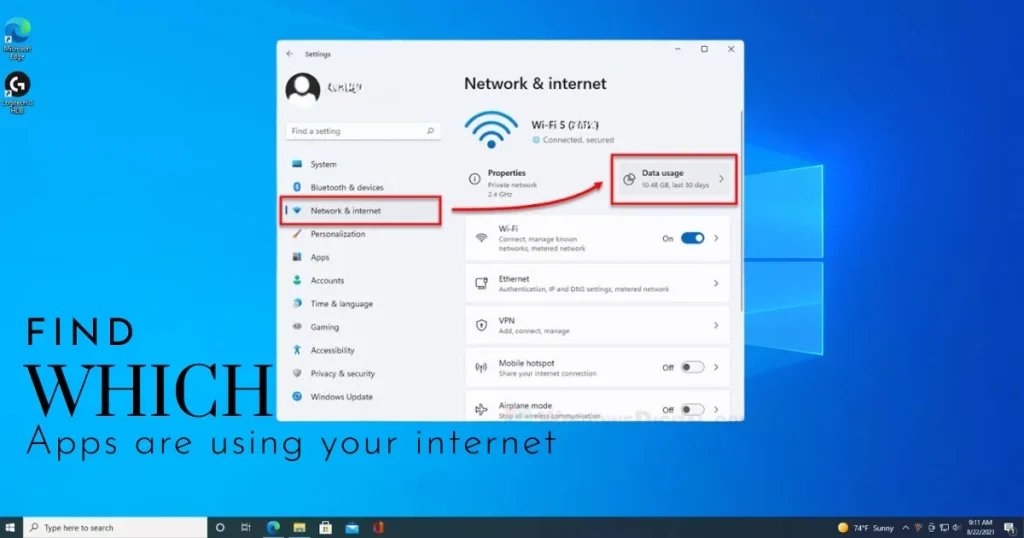
If you want to see how much data each app has used over the past 30 days, Windows 11’s Data Usage Settings is the best place to check.
Steps:
- Open the Start Menu → Go to Settings (the Win + I shortcut also works).
- Click on “Network & internet” on the left side.
- Scroll down and go to “Advanced network settings”.
- Click on “Data usage” there.
Here you will see:
- Total data usage (last 30 days)
- Individual breakdown for each app – how much data (MB or GB) was used by each
How to filter:
- You can switch between Wi-Fi and Ethernet at the top.
- Check the list to determine which apps are consuming excessive data.
This is a built-in and completely free method in Windows 11 – no extra software is required.
Method #3 – Resource Monitor – Go here for more details
Resource Monitor goes a step beyond Task Manager. It is a hidden gem in Windows that displays the TCP/IP connection for every process in real-time – showing exactly which server is sending or receiving data.
How to open it:
- Press Win + R → type resmon → press Enter.
Go to the Network tab:
- You will see three sections here:
- Processes with Network Activity – Which process is using the network
- Network Activity – Which process is sending/receiving data to/from which address
- TCP Connections – List of active connections
- Listening Ports – Which ports are open
Why this is useful:
Suppose a process is transmitting a large amount of data, but you don’t know what it is. Expanding that process in Resource Monitor will reveal which IP address or domain it is communicating with. A connection to an unknown foreign IP address could be suspicious.
Method #4 – Set up a Metered Connection in Windows 11
If you have limited mobile data and have connected your laptop to a hotspot, it is crucial to enable the Metered Connection setting. This prevents Windows and apps from consuming excessive data in the background.
How to enable Metered Connection:
- Open Settings → Network & internet.
- Select your Wi-Fi connection.
- Scroll down → Turn ON the “Metered connection” toggle.
After this:
- Windows Update will not automatically download major updates.
- OneDrive and some other apps reduce background syncing.
- Live Tile updates are disabled.
It is a small setting, but it has a big impact – especially when you are working on mobile data.
Method #5 – Monitor your entire network with GlassWire (Free Tool)
GlassWire is a highly popular and trusted tool for tracking apps that use the internet on Windows 11. Its basic version is completely free, and it displays network activity in a highly visual manner.
What GlassWire does:
- It displays a data usage graph for each app.
- It provides alerts when a new app accesses the network.
- It maintains a history of past data usage – allowing you to view activity from yesterday, the day before, or last week.
- You can also block suspicious connections (in the Pro version).
Download:
🔗 glasswire.com
The free plan offers quite a few features. If you need more control, the GlassWire Basic plan is available for $3.99/month.
Method #6 – Control Bandwidth with NetLimiter
If you want to control bandwidth rather than just monitor it, NetLimiter is the best choice. It is a powerful tool that allows you to limit the internet speed of individual apps.
Here’s what you can do with it:
- Cap the download/upload speed of a specific app.
- Completely block certain apps from accessing the internet.
- Create time-based rules (e.g., do not allow Windows Update to access the internet after midnight).
Download:
🔗 netlimiter.com
The trial version is free for 28 days. After that, you will need to purchase a one-time license for $29.99 – but this is a one-off payment.
Method #7 – Wireless Diagnostics and NetStat Command (Advanced)
If you are somewhat tech-savvy, you can view real-time network connections using the netstat command in the Command Prompt.
Steps:
- Type “cmd” in the Start Menu → Open it using “Run as administrator”.
- Type this command:
netstat -b 5This command will display a list of active network connections every 5 seconds and also indicate which app (executable) is establishing the connection.
How to read the output:
- [process_name.exe] – The app establishing the connection.
- Foreign Address – The server to which the connection is made.
- ESTABLISHED – The connection is active.
- LISTENING – Waiting for a connection.
This method is a bit technical, but it is the most reliable for detecting any suspicious activity.
How to control OneDrive and Windows Update?
A common complaint among most people in India is that OneDrive and Windows Update consume data without asking.
Ways to stop OneDrive from running in the background:
- Right-click the OneDrive icon in the system tray → Select “Pause syncing” (for 2, 8, or 24 hours).
- Or go to Settings → Apps → Startup → Disable OneDrive.
Ways to control Windows Update:
- Go to Settings → Windows Update → “Advanced options”.
- Click on “Delivery Optimization” → Turn OFF “Allow downloads from other PCs”. (This feature allows other computers to download updates from your PC – wasting data unnecessarily.)
- Set “Active hours” so updates download only at night.
Chrome and Edge – Hidden Browser Data Usage
You might not be aware, but Chrome and Edge use the network even in the background – even after you have closed the browser.
Disable background activity in Chrome:
- Chrome Settings → System → Turn OFF “Continue running background apps when Google Chrome is closed”.
In Edge:
- Edge Settings → System and performance → Turn off “Startup boost” and “Continue running background extensions”.
Additionally, if your browser has many extensions, they too can consume data in the background. Review your extensions regularly and remove the ones you don’t use.
How to identify and block suspicious apps?
Sometimes, an app you never installed might be using the network. This could be malware or adware.
Steps to detect it:
- Find the suspicious process using GlassWire or Resource Monitor.
- Search for the process name on Google.
- If it appears malicious, run a full scan using Windows Defender:
- Settings → Privacy & Security → Windows Security → Virus & threat protection → Quick Scan or Full Scan.
- Block any suspicious app using Windows Firewall:
- Settings → Privacy & Security → Windows Security → Firewall & network protection → “Allow an app through firewall” → Find the app’s name → Uncheck both checkboxes.
If you are experiencing suspicious network activity on your Windows 11 PC that you cannot handle yourself, visit fixtech.in – they offer professional services for Windows network troubleshooting and malware removal.
Summary of free tools – at a glance
| Tool | Work | Price | Link |
|---|---|---|---|
| Task Manager | Real-time network usage | Free (Built-in) | Built-in to Windows |
| Resource Monitor | Detailed process connections | Free (Built-in) | Built-in to Windows |
| GlassWire | Visual Network Monitor | Free (Basic) | glasswire.com |
| NetLimiter | Bandwidth control | Free Trial, Then $29.99 | netlimiter.com |
| Wireshark | Advanced packet analysis | Free | wireshark.org |
One thing about Wireshark – it is a somewhat technical tool that captures network packets. If you want to know what data an app is sending to which server, Wireshark is the best choice. However, GlassWire is much easier for beginners.
Quick Checklist – What to do if your internet is slow
If your internet suddenly becomes slow, follow this checklist:
- ✅ Open Task Manager → Sort by the Network column → Identify the process consuming the most bandwidth.
- ✅ Check Windows Update → Settings → Windows Update → Select “Pause updates” if a large update is downloading.
- ✅ Pause OneDrive → System Tray → Pause for 2 hours.
- ✅ Disable background activity for Chrome/Edge.
- ✅ Turn on “Metered Connection” if using mobile data.
- ✅ Check history using GlassWire → See which app consumed the most data.
- ✅ Block suspicious apps via Windows Firewall.
5 Habits to Keep Data Usage Low
Managing apps that use the internet on Windows 11 isn’t a one-time task – it requires cultivating certain habits:
- Check data usage settings every month – Settings → Network & internet → Data usage.
- Schedule Windows Updates using ‘Active Hours’ – to prevent updates from running during work hours.
- Set cloud sync apps to ‘Wi-Fi-only’ – restrict apps like OneDrive and Google Drive to Wi-Fi in their settings.
- Review browser extensions – remove unfamiliar extensions every 2–3 months.
- Close game launchers when not in use – launchers like Steam, Epic Games Launcher, and Battle.net continue downloading updates in the background.
FAQs – Which apps are using your internet
Q1. For how many days does Windows 11 show data usage history?
Windows 11’s built-in Data Usage settings display data for the past 30 days; older data is automatically reset. If you need a longer history, use third-party tools like GlassWire.
Q2. Can the internet be disabled via Task Manager?
You can stop a process’s activity by selecting “End Task” in Task Manager, but this is not a permanent fix. For a permanent block, use Windows Firewall or NetLimiter.
Q3. How much data does OneDrive use?
It depends on the size of your files. If you have synced large folders, OneDrive can consume gigabytes (GBs) of data. Check the Data Usage settings to see how much data OneDrive has used over the last 30 days.
Q4. Do Windows Defender updates consume a lot of data?
Yes, Windows Defender definition updates arrive daily and are small (a few MBs), but major antivirus updates or Windows feature updates can run into gigabytes (GBs).
Q5. Does enabling a Metered Connection stop Windows Updates?
Not completely, but large optional updates are not downloaded automatically. Security patches and critical updates may still be downloaded.
Q6. Which is better: GlassWire or NetLimiter?
They serve different purposes. GlassWire is better for monitoring – it provides visual graphs and alerts. NetLimiter is better for control – it allows you to set speed limits and block connections. You can use both simultaneously.
Q7. Can an app be permanently blocked from the internet in Windows 11?
Yes – you can permanently block any app from the internet by creating an outbound rule in Windows Firewall. Go to Windows Security → Firewall → Advanced Settings → Outbound Rules → New Rule → Program → Select the app’s .exe file → Block the connection.
Q8. What should I do if an unknown process is consuming a large amount of data?
First, search for the process name on Google. If it is not a legitimate Windows process, run a full scan using Windows Defender.
Final Thoughts
The internet is one of today’s most essential tools, and knowing exactly which apps are using it is just as important as checking your electricity meter. Tracking internet-consuming apps on Windows 11 is now easier than ever; tools like Task Manager, Data Usage Settings, Resource Monitor, and GlassWire allow you to get a complete picture. Simply set things up and adopt a few good habits, and both your data usage and internet speed will improve. If you notice any suspicious activity that you don’t understand, visit fixtech.in without delay to have your PC properly checked – because monitoring which apps use the internet on Windows 11 is crucial for both your privacy and security.