
Think about it: you order food from Swiggy, provide the address to the delivery person, and the food arrives. Job done. However, there is no need for Swiggy to continue tracking your location in the background for the next three days; in fact, that constitutes a blatant invasion of privacy. That is precisely why Google introduced an option on Android to share your precise location only for a limited time. This feature empowers you to decide that an app should access your exact location only while you are actively using it – not before, and not after.
The number of smartphone users in India has crossed the 800-million mark. Yet, the majority of them – especially in Tier 2 and Tier 3 cities – tap “Allow” on app permissions without actually reading them. This guide is for those who want to be a bit smarter about this and share their precise location with apps only when it is truly necessary.
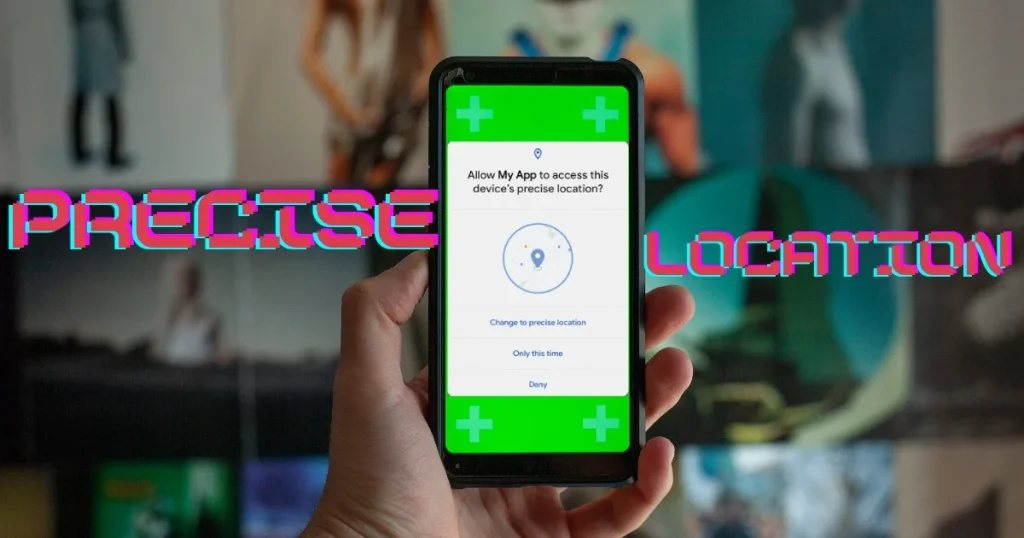
What is this feature, and which Android version is it available in?
The location permissions system in Android has improved with each version:
- Android 6.0 (Marshmallow) – Introduced runtime permissions; apps had to request permission for the first time.
- Android 10 – Introduced the “Only while using the app” option.
- Android 11 – Introduced the “Only this time” (one-time) option.
- Android 12 – Introduced the Precise vs. Approximate location option – i.e., exact GPS or just an approximate area.
On Android, granting “Precise location” for a limited time means sharing it only while using the app – not permanently.
Check your Android version:
Settings → About phone → Android version
What is the difference between Precise Location and Approximate Location?
It is important to understand this:
Precise Location:
- It uses a combination of GPS, Wi-Fi, and cellular networks.
- It indicates your exact location – such as “your home with an accuracy of 15 meters.”
- It is essential for navigation and delivery apps.
Approximate Location:
- It indicates the location within a radius of approximately 3 kilometers.
- It is sufficient for weather and local news apps.
- It is safer for privacy.
Which app deserves what level of location access:
| App Type | Do you need something precise? | Is the approximation close enough? |
|---|---|---|
| Ola/Uber | Yes | No |
| Swiggy/Zomato | Yes (at the time of delivery) | No |
| Google Maps | Yes | No |
| Weather app | No | Yes |
| No | No (better) | |
| News app | No | Yes |
| Shopping app | No | Yes (stores nearby) |
Step-by-Step: How to provide precise location on Android for a specific instance
Method 1: When installing a new app (easiest)
When an app requests location access for the first time, the pop-up contains two sections:
Section 1 – Precision:
- Use precise location (toggle on/off)
Section 2 – Duration:
- While using the app – When the app is open
- Only this time – Just this once
- Don’t allow – Absolutely not
Best combination for delivery apps:
✅ Precise location: ON
✅ Duration: While using the app
Best combination for weather apps:
✅ Precise location: OFF (Approximate)
✅ Duration: While using the app
Method 2: Change permissions for already installed apps
If you had previously selected “Always allow”:
For Stock Android (Pixel phones):
- Open Settings
- Go to Privacy
- Tap on Permission manager
- Select Location
- Tap on the app you want to change
- Turn off the “Use precise location” toggle or change the permission
For MIUI (Xiaomi/Redmi/POCO):
- Settings → Apps → Manage apps
- Find and tap on the app
- Permissions → Location
- Turn off the “Use precise location” toggle
For One UI (Samsung):
- Settings → Apps
- Select App → Permissions → Location
- Uncheck “Use precise location”
For ColorOS (Realme/OPPO):
- Settings → Apps → App management
- App → Permission → Location
- Set both precision and timing.
Method 3: Bulk Review from Privacy Dashboard
This is the hidden gem in Android 12+:
- Settings → Privacy → Privacy Dashboard
- Tap on Location
- You will see which apps accessed your location and how many times they did so in the last 24 hours
- Tap on any suspicious app to change its permissions directly
Many users in India are unaware that a shopping app might be checking their location even at 3 AM. The Privacy Dashboard exposes exactly this.
OEM-Specific Hidden Features – On Indian Phones
The most popular phones in India are Xiaomi, Samsung, Realme, and OPPO. These come with certain extra privacy features:
MIUI (Xiaomi/Redmi) Security App:
- Security app → Privacy protection → Manage permissions
- Here, you can view and change location permissions for all apps in one place.
- A ‘Fuzzy location’ option is also available – this is the MIUI version of approximate location.
Samsung One UI – Permission Usage Monitor:
- Settings → Security and privacy → Permission usage
- View the weekly report to see which app accessed your location and when.
Realme’s Privacy Space:
- Settings → Additional settings → Privacy management
- App-wise detailed control
“Only This Time” Permission – When should you use it?
“Only this time” is the most powerful option for granting temporary access to precise location on Android. Use it in these situations:
- Trying out a new app you don’t fully trust yet
- Omegle-style social apps where sharing your location is risky
- Placing a one-time order on a food app
- Temporary navigation – just to get to a destination
- An app that doesn’t normally ask for location but requires it for a specific feature
What happens in “Only this time”:
- The permission is automatically revoked as soon as the app is closed.
- The app will ask for permission again the next time it is opened.
- Tracking in the background becomes completely impossible.
Advanced Settings for Location-Based Privacy
Automatic Permission Reset:
Android 11+ includes an automatic feature:
Settings → Apps → [App name] → Permissions
If you have granted permission to an app but haven’t used it for 3 months:
- “Remove permissions if app is unused” is automatically turned ON.
- The app’s location permission gets revoked automatically.
Check out this feature:
- Settings → Privacy → Permission manager → Location
- Check the “Auto-reset unused apps” status under each app.
Location History and Google Account:
Google keeps a record of your location history if you have allowed it:
Steps to turn it off:
- open myactivity.google.com
- Data & privacy → Location History
- Select “Turn off”
- Or set to “Auto-delete” (3 months/18 months)
Also turn off Maps Timeline:
Google Maps → Profile picture → Your data in Maps → Delete all Location History
Free tools that will help with location privacy.
1. NetGuard – No-Root Firewall (Free):
This app lets you control which apps can send data over the internet. You can block apps that transmit location data.
- Download: GitHub – NetGuard – Completely free and open-source
2. Privacy Dashboard (Google – Built-in Free):
It is already built-in on Android 12 and later – as mentioned above. There is no need to install it separately.
3. Exodus Privacy (Free Online Tool):
Check which trackers are present in an app:
- Website: exodus-privacy.eu.org
- Search for the app name – all trackers and permissions will be listed.
- Free and no account required.
4. DuckDuckGo Privacy Browser (Free):
Using DuckDuckGo instead of Maps significantly reduces location tracking.
- Download: “DuckDuckGo” on Google Play Store – Free
5. Bouncer – Temporary App Permissions:
A paid but worth-it app:
- Permissions are automatically revoked as soon as the app moves to the background.
- Price: $1.99 (one-time)
- Download: “Bouncer” on the Google Play Store
Visit fixtech.in for more guides on Android privacy, location settings, and smartphone security – featuring practical tutorials.
India-Specific Warning: Beware of These Apps
Some popular apps in India access location data unnecessarily:
Free Cleaner/Booster Apps:
- There are thousands of “Phone Cleaner” apps on the Play Store that ask for your location – without any reason.
- Never grant them access to your location.
- It is better to uninstall them.
Unverified Shopping Apps:
- Avoid small or new e-commerce apps that ask for “Always allow” permissions.
- Grant permissions like “While using” only to verified apps such as Amazon or Flipkart.
Third-Party Keyboard Apps:
- If you use a third-party keyboard, never grant it access to your location.
A trick used by some apps:
Some apps reset permissions after an update and then ask for “Always allow” access. Check the Privacy Dashboard once a month.
Tips to further strengthen location privacy
Quick Checklist:
- ✅ Set location permissions for every app to “While using the app” – never “Always”
- ✅ Check the Privacy Dashboard monthly
- ✅ Allow permissions for unused apps to reset automatically
- ✅ Never grant precise location access to social media apps
- ✅ Set Google Location History to auto-delete (after 3 months)
- ✅ Turn on location only when opening Maps for navigation; keep it off otherwise
- ✅ Carefully read permission prompts when installing new apps
Quick Location Toggle:
Android features a location toggle in the Quick Settings panel (accessible by swiping down from the top). Turn off location once you are done using it – this is the most effective shortcut.
FAQs Precise location for a limited time on Android
Q1. What is the practical difference between “While using the app” and “Only this time”?
With “While using the app,” the permission is saved – the app will automatically access your location the next time you open it. With “Only this time,” the permission resets as soon as the app closes, and it will ask for permission again the next time.
Q2. Will turning off precise location cause issues with Ola/Uber?
Yes, delivery and ride-hailing apps require precise location. Grant them access to precise location, but set it to “While using the app” – not “Always.”
Q3. Does using a VPN improve location privacy?
A VPN hides your IP address but does not block GPS-based location tracking; they are two different things. Adjusting permission settings is the most effective way to ensure location privacy.
Q4. Is it safe to share location data with Instagram?
There is no need to grant Instagram access to your precise location. If you want to tag a location in a post, manually type the city name. Normally, there is no need to grant the app access to your approximate location either.
Q5. Can maps work offline if location services are turned off?
Google Maps offers an offline maps feature. Go to Settings → Offline maps and download your area. You will need to turn on location services while navigating, but not at other times.
Q6. Phones older than Android 11 don’t have the “Only this time” option – what should I do?
Android 10 includes the “While using the app” option. After using the app, manually revoke the location permission: Settings → Apps → [App name] → Permissions → Location → Deny.
Q7. Is the Privacy Dashboard available on every phone?
It is built into Android 12 and later versions. Older versions feature permission managers from manufacturers like Samsung and Xiaomi that provide similar information.
Final Thoughts
Your smartphone knows everything about you – where you go, when you go, how much time you spend, and where. This data is invaluable for companies. The option to give precise location for some time on Android is so that you can remain in control. Take 10 minutes today, open the Privacy Dashboard, and see which apps have access to your location. Immediately change the permission of the apps that are accessing it unnecessarily. This small step will make a big difference to your digital privacy – and smart use of precise location on Android over time makes you an informed smartphone user.