
The 0x80072ee7 error might look intimidating at first glance, but it is essentially a network-level error that occurs during Windows Update, Microsoft Store, or Windows Defender updates. Many users search for it because updates suddenly halt and this code appears – without any clear explanation. In India, this issue frequently affects users relying on home broadband, mobile hotspots, or office proxy networks. Sometimes, even a minor glitch with antivirus software or DNS settings can trigger this error.
In this guide, we will fully understand the 0x80072ee7 error and try out all the fixes, one by one.
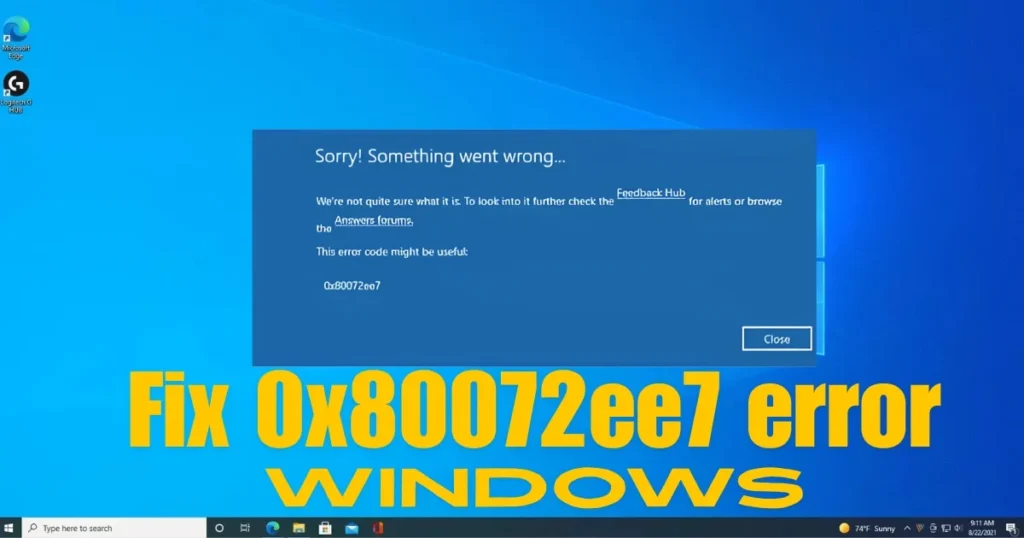
What does the 0x80072ee7 error mean?
This error code is associated with WININET_E_NAME_NOT_RESOLVED. It means that Windows is unable to resolve the name (domain name) of Microsoft’s update servers into an IP address.
In simple terms: your computer is trying to reach Microsoft’s servers, but the DNS is unable to resolve their address.
This error occurs in the following situations:
- Windows Update – At Settings > Windows Update > Check for updates
- Microsoft Store – While downloading or updating apps
- Windows Defender – During virus definition updates
- Microsoft 365 – During online activation or updates
Main causes of the 0x80072ee7 error
1. The DNS server is not working correctly.
The ISP’s DNS is unable to resolve Microsoft servers. This occasionally happens with providers in India such as BSNL, Airtel, and Jio.
2. Proxy settings are incorrect.
If the proxy is set manually or configured by software, update traffic fails to pass through it.
3. The hosts file has been edited.
If entries for Microsoft servers have been manually added to the hosts file, the connection might be blocked.
4. A firewall or antivirus is blocking it.
Third-party security software may block Microsoft update servers, deeming them suspicious.
5. The VPN is connected.
Some VPN servers have trouble accessing Microsoft update servers.
6. Windows Update components are corrupt.
Issue with the SoftwareDistribution folder or update services.
7. The date and time are incorrect.
An incorrect date or time causes SSL certificate verification to fail, preventing a connection to the server.
All ways to fix the 0x80072ee7 error
Fix 1 – Check your internet connection and restart the router
The most basic step, but one that shouldn’t be ignored.
What to do:
- Open your browser and go to google.com.
- If the internet is working fine, restart the router:
- Turn off the router.
- Wait for 60 seconds.
- Turn it back on.
- Restart your PC.
- Try Windows Update again.
Why:
Sometimes, the router’s DNS cache gets corrupted. Restarting it triggers a fresh DNS resolution.
Fix 2 – Change DNS Server – The most effective fix
This is the most common solution for the 0x80072ee7 error.
The ISP’s DNS often fails to resolve Microsoft servers. Switching to Google or Cloudflare DNS usually resolves this problem.
Steps:
- Win + R > ncpa.cpl > Enter
- Right-click on your active network adapter (Wi-Fi or Ethernet)
- Properties
- Internet Protocol Version 4 (TCP/IPv4) > Properties
- Select “Use the following DNS server addresses”
Google DNS ($0 – free):
- Preferred DNS: 8.8.8.8
- Alternate DNS: 8.8.4.4
Or Cloudflare DNS ($0 – free):
- Preferred DNS: 1.1.1.1
- Alternate DNS: 1.0.0.1
- Press OK
- Restart the PC
- Try Windows Update
Official reference:
Google Public DNS – developers.google.com
Fix 3 – Remove Proxy Settings
If a proxy is set manually, it can block Windows Update.
From Windows Settings:
- Settings > Network & Internet > Proxy
- If “Use a proxy server” is On, turn it Off.
- Keep “Automatically detect settings” On.
From the Command Prompt (in Admin mode):
netsh winhttp reset proxyThen verify:
netsh winhttp show proxy“Direct access (no proxy server)” should appear in the output.
Restart the PC.
Fix 4 – Check and Clean the Hosts File
If the Windows hosts file contains entries for Microsoft servers that point to the wrong IP address, the 0x80072ee7 error will occur.
How to open the hosts file:
- Open Notepad in admin mode (Start > Notepad > Right-click > Run as administrator)
- File > Open
- Type this path:
C:\Windows\System32\drivers\etc\hosts- Select “All Files” under File type.
- Open the hosts file.
What to look for:
If there are entries like this:
0.0.0.0 windowsupdate.microsoft.com
0.0.0.0 update.microsoft.com
So, that is the problem. Delete these lines or comment them out by adding a # at the beginning.
Save the file (Ctrl+S).
Restart your PC.
Fix 5 – Run Windows Update Troubleshooter
Microsoft’s built-in tool automatically detects and fixes common update errors.
Windows 11:
- Settings > System > Troubleshoot > Other troubleshooters
- Run next to Windows Update
Windows 10:
- Settings > Update & Security > Troubleshoot
- Additional troubleshooters > Windows Update > Run the troubleshooter
Apply the fix suggested by the troubleshooter and restart your PC.
Official link:
Windows Update Troubleshooter – Microsoft Support
Fix 6 – Reset Winsock and TCP/IP
Issues with the network stack can also cause the 0x80072ee7 error.
Run the following commands one by one in an elevated Command Prompt:
netsh winsock resetnetsh int ip resetipconfig /releaseipconfig /renewipconfig /flushdnsRestart the PC – this is an essential step.
Fix 7 – Restart Windows Update Services
If the update services are stuck or not running correctly:
In the Admin Command Prompt:
Stop the services:
net stop wuauserv
net stop cryptSvc
net stop bits
net stop msiserver
Rename SoftwareDistribution folder:
ren C:\Windows\SoftwareDistribution SoftwareDistribution.old
ren C:\Windows\System32\catroot2 catroot2.old
Restart the services:
net start wuauserv
net start cryptSvc
net start bits
net start msiserver
Restart your PC.
Why does it work?
It removes the corrupt or incomplete update cache, allowing Windows Update to start fresh.
Fix 8 – Temporarily Disable Antivirus and Firewall
Third-party antivirus software (Quick Heal, Kaspersky, Avast, Norton) sometimes blocks Microsoft servers.
What to do:
- Pause the antivirus for 10–15 minutes.
- Try running Windows Update.
- If the update succeeds, add the Microsoft Update domains to the antivirus exception list:
- *.microsoft.com
- *.windowsupdate.com
- *.windows.com
Windows Firewall check:
- Control Panel > Windows Defender Firewall
- Turn it off temporarily to test.
- If it works, allow the update servers in the firewall rules.
Fix 9 – Correct the Date and Time
Incorrect date/time causes SSL handshake failures and prevents the server connection from being established.
Steps:
- Right-click on the clock on the taskbar
- “Adjust date/time”
- Turn on “Set time automatically”
- Press “Sync now”
- Time zone: India Standard Time (UTC+5:30)
Restart the PC.
Fix 10 – Repair the system using SFC and DISM
Corrupted Windows files can also cause this error.
In the Admin Command Prompt:
sfc /scannowUpon completion:
DISM /Online /Cleanup-Image /RestoreHealthRestart the PC after both processes are complete.
An internet connection is required for DISM. If you encounter an error while using broadband, use a mobile hotspot during the DISM process.
Official guide:
System File Checker – Microsoft
Fix 11 – Disconnect the VPN
If the VPN is connected:
- Close the VPN app
- Disable the browser VPN extension
- Try Windows Update
A VPN sometimes causes issues when accessing Microsoft servers, especially if the VPN kill switch is active.
Fix 12 – Manually install the update from the Microsoft Update Catalog
If the automatic update is not working, download it manually.
Steps:
- Visit Microsoft Update Catalog: catalog.update.microsoft.com
- Search for the KB number of the update that is failing.
- Download it for your Windows version (x64 or x86).
- Install it manually (double-click the .msu file).
This is a workaround that comes in handy when automatic updates fail but security patches are essential.
Fix 13 – Run WSReset for Microsoft Store
If you are encountering the 0x80072ee7 error in the Microsoft Store:
- Win + R > wsreset.exe > Enter
- A blank window will open, and the Store will reset within a few seconds.
- The Store will open automatically.
If this doesn’t work:
- Settings > Apps > Microsoft Store > Advanced options > Reset
Useful Free Tools
| Tool | Feature | Price |
|---|---|---|
| Windows Update Troubleshooter | Automatic error detection | $0 |
| SFC / DISM | System file repair | $0 |
| DNS Jumper | Quick DNS change | $0 |
| WinMTR | Network path and DNS trace | $0 |
| Microsoft PC Manager | Basic system health check | $0 |
Visit fixtech.in for more Windows Update and network error guides.
With these habits, this error will occur less frequently.
- Always keep your DNS set to Google or Cloudflare.
- Regularly check proxy settings – especially after switching networks.
- Keep date and time settings on automatic.
- Do not allow unknown software to edit the hosts file.
- Whitelist Microsoft update domains in your antivirus software.
- If using a VPN, disconnect before performing updates.
FAQs
1. Are 0x80072ee7 and 0x8024402c the same error?
No, they are different. 0x80072ee7 is a DNS resolution failure, while 0x8024402c is a proxy or update server connection failure. However, the fixes for them overlap significantly.
2. Can this error occur without an internet connection?
No, an internet connection is required. However, the error can still occur if you have internet access but the DNS settings are incorrect.
3. Is it safe to edit the hosts file?
Yes, provided you are only removing incorrect entries. Make sure to back up the file first (copy it to a safe location).
4. Does this error occur on both Windows 11 and Windows 10?
Yes, on both. The fixes work for both as well.
5. What if this error appears in the Microsoft Store and all fixes fail?
Reinstall the Store using PowerShell:
Get-AppxPackage -allusers Microsoft.WindowsStore | Foreach {Add-AppxPackage -DisableDevelopmentMode -Register “$($_.InstallLocation)\AppXManifest.xml”}
6. Does this error occur more frequently on pirated Windows?
Yes. On pirated Windows, the hosts file is often edited to facilitate activation workarounds, which Microsoft servers then block. This problem rarely occurs on genuine Windows.
7. Is it safe to delete the SoftwareDistribution folder?
Do not delete it directly; rename it (e.g., by adding “.old”). Windows will create a new folder. You can manually delete the old folder after a few days.
Final Note
The 0x80072ee7 error might look intimidating, but in reality, it is usually just a minor DNS glitch. Changing the DNS (Fix 2), resetting the proxy (Fix 3), and checking the hosts file (Fix 4) – these three fixes combined resolve the 0x80072ee7 error for over 80% of users in India. The remaining fixes are for situations where the problem is slightly more complex. Follow the fixes in the given order, and Windows Update will soon return to normal.