
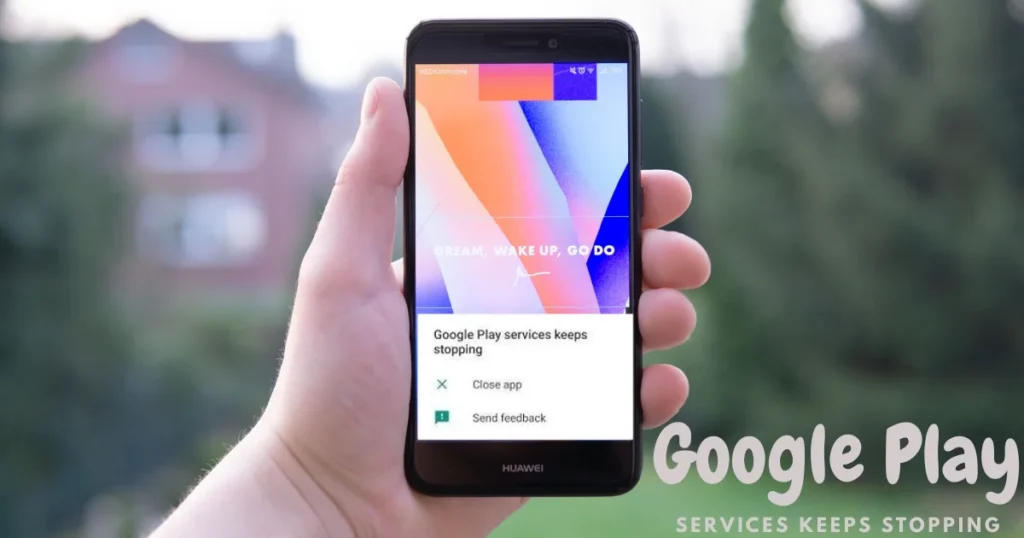
While using your phone, a pop-up suddenly appears – “Google Play Services keeps stopping” – and no matter how many times you press “OK,” the error returns shortly after. WhatsApp won’t open, Google Maps crashes, Gmail stops working, and some apps fail to launch altogether. It feels as though half the phone’s system has ground to a halt. In India, users of Redmi, Samsung, Realme, and Vivo phones encounter this issue most frequently – especially when a Play Services update gets stuck midway or the phone’s storage is nearly full.
In this guide, we will walk you through the steps to fix the “Google Play Services keeps stopping” error.
What is Google Play Services and why is it so important?
Google Play Services is a core background component of Android. It is not a standard app – it is the backbone of the Android ecosystem.
It is essential for the following functions:
- Google account authentication
- Push notifications (Gmail, WhatsApp, YouTube)
- Location services (Google Maps, Uber, Ola)
- Google Pay and UPI apps
- App updates and security patches
- Firebase services (on which thousands of apps depend)
Meaning: If Google Play Services isn’t running properly, almost every Google-dependent app will be affected.
Main reasons why Google Play Services keeps stopping
1. Outdated Play Services Version
The most common reason. If Play Services is outdated and a new Android version is installed, compatibility issues arise.
2. Corrupt Cache or Data
The stored cache for Play Services has become corrupt. This happens when an automatic update fails.
3. Storage is full.
If internal storage is more than 90% full, Play Services cannot update properly and crashes.
4. Google Account Sync Issue
There is an authentication problem with account syncing.
5. Android System WebView Crash
A less obvious reason for the “Google Play Services keeps stopping” error is that Google services fail in a cascade when Android System WebView crashes.
6. Bug in Recent Android Update
Compatibility issues with Play Services sometimes arise after an OTA update.
7. Battery Optimization is restricting Play Services.
Aggressive battery saver is killing Play Services in the background.
8. Third-party App Conflict
A recently installed app is conflicting with Play Services.
Ways to fix “Google Play Services keeps stopping”
Fix 1 – Restart the phone
Yes, it’s basic – but for temporary crashes like “Google Play Services keeps stopping,” it works in 25–30% of cases.
What to do:
- Press the Power button > Restart
- Wait for 2–3 minutes after restarting – Play Services initializes in the background
- Then check
If restarting doesn’t fix it, try the next fixes.
Fix 2 – Update Android System WebView – Do this first
This fix is very important. Google has officially confirmed that a buggy version of Android System WebView causes Google Play Services and other apps to crash.
Steps:
- Open the Google Play Store
- Type “Android System WebView” in the search bar
- If you see the Update button, update it immediately
If the Play Store isn’t opening:
- Settings > Apps > Show system apps
- Find Android System WebView
- Storage > Clear Cache
- Check update in Play Store
If the WebView is in an update loop:
- Settings > Apps > Android System WebView
- Select “Uninstall updates”
- Restart
- Then update from the Play Store
Official Google reference:
Google Play Help – App Crashes
Fix 3 – Clear the cache and data for Google Play Services.
This is the most effective fix that works for most users.
Steps:
- Open Settings > Apps
- Tap the three dots (⋮) and enable “Show system apps”
- Search for and open “Google Play Services”
- Tap on Storage
- Select “Clear Cache”
- Select “Clear Data” (or Manage Space > Clear all data)
- Restart the phone
Note: Clearing data may require you to re-authenticate your Google account. You will need to grant permissions to some apps again. However, personal data – such as photos and contacts – remains safe.
After clearing data:
- You might see a prompt to sign in to your Google account.
- Keep your password ready.
Fix 4 – Clear the Google Play Store cache and data as well.
Play Services and the Play Store are interconnected; if there is an issue with the Play Store, Play Services is also affected.
Steps:
- Settings > Apps > Show system apps
- Find Google Play Store
- Storage > Clear Cache
- Clear Data
- Restart
After that, open the Play Store and check.
Fix 5 – Update Google Play Services
Steps:
- Open Google Play Store
- Profile icon > Manage apps & devices
- See Google Play Services in the Updates available tab
- Update
If Google Play Services does not appear in the Play Store:
- This is normal – Play Services updates automatically in the background.
- Go to Settings > Apps > Google Play Services and note the version number.
- If the version is very old, try the next step.
Download APK manually (last resort):
- Go to APKMirror (apkmirror.com)
- Search for “Google Play Services”
- Download the latest version for your device architecture (arm64, armeabi) and Android version
- Install it
Fix 6 – Exempt Play Services from Battery Optimization
This fix is particularly important for users of MIUI, ColorOS, and Samsung One UI.
Aggressive battery optimization kills Play Services in the background. When it is killed unexpectedly, a crash popup appears upon restarting.
Samsung (One UI):
- Settings > Battery > Background usage limits
- Play Services should not be in “Sleeping apps” – if it is, remove it.
- Settings > Apps > Google Play Services > Battery > Select “Unrestricted”.
Xiaomi/MIUI:
- Settings > Apps > Google Play Services > Battery saver > “No restrictions”
- Settings > Battery > App battery saver > Google Play Services > No restrictions
Realme/ColorOS:
- Settings > Battery > Google Play Services > “Allow background activity”
Stock Android:
- Settings > Apps > Google Play Services > Battery > “Don’t optimize”
Fix 7 – Remove and re-add your Google account
Account sync issues can also cause the “Google Play Services keeps stopping” error.
Steps:
- Settings > Accounts (or Users & accounts)
- Tap Google
- Select your account
- Three dots > “Remove account”
- Confirm
- Restart the phone
- Settings > Accounts > Add account > Google
- Sign in with your email and password
If you have more than one Google account:
- Remove and re-add the primary account (the one linked to the Play Store and services).
Fix 8 – Free up storage
If internal storage is more than 90% full, Play Services cannot update or initialize properly.
Quick storage cleanup:
- Use the Files by Google app (free, $0):
- Automatically detect junk files
- Find duplicate photos
- Identify large, unused files
- Clean up WhatsApp media (this takes up the most space)
- Delete old APK files from the Downloads folder
- Delete local photos after backing them up to Google Photos
Keep at least 2-3 GB free.
Fix 9 – Test in Safe Mode
If a third-party app is causing a conflict:
Enter Safe Mode:
- Long press the power button
- Long press Power Off
- “Reboot to Safe Mode” – OK
Use it in Safe Mode for 15-20 minutes.
If Google Play Services does not crash in Safe Mode:
- A third-party app is causing the problem.
- Exit Safe Mode.
- Uninstall recently installed apps one by one.
Check these out in particular:
- Battery optimizer/cleaner apps
- Phone manager apps
- Custom launchers
- Memory booster apps
Fix 10 – Correct the Date and Time
An incorrect date or time causes authentication with Google servers to fail, leading to Play Services crashes.
Steps:
- Settings > General Management > Date and Time
- Turn on “Automatic date and time”
- Turn on “Automatic time zone”
Restart.
Fix 11 – Check for a Software Update
If the problem started after an Android update:
- Settings > Software Update > Check for updates
- Install if available
- Check the brand’s community forums – a bug-fix patch may have been released
If an update is not available:
- Find a workaround on brand forums:
- Xiaomi: en.miui.com
- Samsung: samsung.com/in/community
- Realme: c.realme.com
Fix 12 – Wipe Cache Partition (via Recovery Mode)
This clears the system cache – personal data remains safe.
Turn off the phone, then:
Samsung:
- Press Power + Volume Up
- Android Recovery > Select “Wipe cache partition” using the Volume buttons
- Confirm using the Power button
- Select “Reboot system now”
Xiaomi/Redmi:
- Press Power + Volume Up
- Mi Recovery > Wipe > Wipe Cache
- reboot
Realme/Oppo:
- Power + Volume Down
- Recovery mode > Wipe cache partition
Fix 13 – Factory Reset (Last Resort)
If everything else fails:
Back up your data first:
- Photos – Google Photos
- Contacts – Google Contacts sync
- WhatsApp – Google Drive backup
- Important files – cloud या PC
Factory Reset:
- Settings > General Management > Reset > Factory Data Reset
- Confirm
Useful Free Tools
| Tool | Feature | Price |
|---|---|---|
| Files by Google | Storage clean and junk removal | $0 |
| Google Play Store | Play Services and WebView update | $0 |
| APKMirror | Manual Play Services APK download | $0 |
| Malwarebytes Android | Malware scan | $0 |
| ADB Tool | Advanced clear cache (from computer) | $0 |
Visit fixtech.in for more Android troubleshooting guides.
Which phones are most affected?
Xiaomi/MIUI: MIUI’s aggressive battery management kills Play Services – Fix 6 is crucial.
Samsung: One UI has strict background app restrictions – set it to ‘unrestricted mode’.
Realme/Oppo: ColorOS has similar restrictions.
Older Android versions (8 or 9): The latest version of Google Play Services doesn’t run smoothly on older Android versions – try installing a slightly older version via APK manually.
FAQs – Google Play Services Keeps Stopping
1. Can Google Play Services be deleted?
No. It is a system app that cannot be deleted. However, you can uninstall its updates.
2. Does clearing data result in the loss of personal data?
No. Photos, contacts, and messages remain safe. Only authentication tokens and cached settings are reset.
3. Does Google Play Services work in Safe Mode?
Third-party apps do not run in Safe Mode, but system apps (including Play Services) do.
4. It keeps crashing even after updating – what should I do?
Uninstall updates for WebView and update it again. Then, clear the Play Services data. Re-add your Google account.
5. Could this problem be caused by hardware failure?
It is very rare. It is almost always a software issue.
6. How do I reset Play Services using ADB?
adb shell pm clear com.google.android.gms
This clears the data and cache of Play Services.
Final Thoughts
The “Google Play Services keeps stopping” error is certainly frustrating, but it is manageable. Updating Android System WebView, clearing the Play Services cache and data, and exempting the app from battery optimization – these three steps combined resolve the issue for the majority of Android users in India. Try these fixes in the order listed, and your phone should return to normal quickly.