
If you encounter the 0xc0000142 error – accompanied by the message “The application was unable to start correctly (0xc0000142)” – while opening an app, game, MS Office, Tally, Photoshop, or any other program, the cause is often a corrupted system file, Visual C++ package, .NET issue, compatibility problem, or a background software conflict. The steps provided below apply to both Windows 11 and Windows 10.
What is the first thing to understand when the 0xc0000142 error occurs?
The 0xc0000142 error does not necessarily mean your laptop is broken. Often, before an app launches, Windows fails to access certain necessary files, DLLs, or runtime components, or to obtain required permissions. The result – the app doesn’t start.
This issue is quite common in India, especially in the following cases:
- Using an outdated version of Office or cracked software
- An incomplete Windows update
- System files are getting corrupted due to a power outage or sudden shutdown
- Too many background apps are running on a low-end laptop
- A game, accounting software, GST utility, or design tool relying on outdated dependencies
The good thing is that on most systems, this can be fixed without reinstalling Windows.
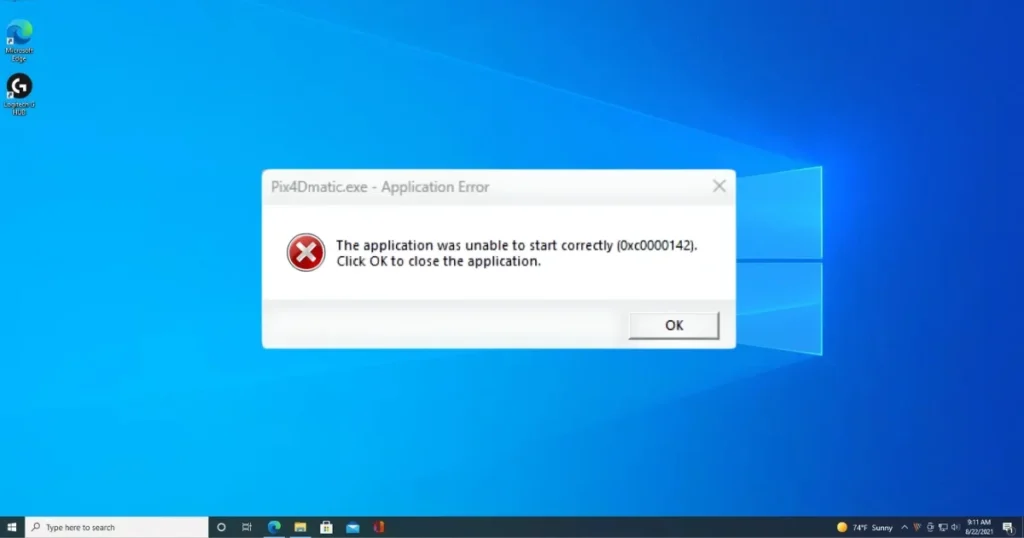
What is the 0xc0000142 error?
When Windows launches an application, it requires certain libraries, registry entries, runtime files, and user permissions. If any of these are missing, corrupt, incompatible, or blocked, this pop-up may appear:
“The application was unable to start correctly (0xc0000142). Click OK to close the application.”
This error is not limited to a single app. It can also appear on these:
- MS Office – Word, Excel, Outlook
- Games – Steam or Epic titles
- Adobe apps – Photoshop, Illustrator
- Tally or business software
- Custom enterprise apps
- Legacy 32-bit programs
Main causes of the 0xc0000142 error
It is important to understand the problem; only then can the right fix be found quickly.
1. Corrupt System Files
If Windows core files are corrupt, app startup may fail.
2. Microsoft Visual C++ Redistributable is missing or corrupt
Many apps depend on these packages. If they are broken, the app will not launch.
3. .NET Framework issue
Some Windows apps and business tools run on .NET.
4. Compatibility problem
Old software does not run properly on the new Windows version.
5. Lack of administrator permission
Some apps require elevated access to launch.
6. Antivirus or background overlay conflict
Sometimes, antivirus software blocks screen recorders, RGB tools, VPNs, or overlay applications.
7. Disk error or bad sectors
If there is corruption in the HDD/SSD, executable files do not load correctly.
Perform these quick checks before fixing the 0xc0000142 error.
Often, a simple step does the trick.
- Restart your PC.
- Relaunch the app.
- If the issue is with only one app, focus on that specific app.
- Check if there has been a recent Windows update or app update.
- If you are using a cracked version, try the official version first.
- Check if an antivirus scan or a disk-intensive task is running in the background.
If the issue is with only one app, try app-specific fixes first. If the same problem affects multiple apps, perform system-level troubleshooting.
1) Run the app as Administrator to fix the 0xc0000142 error.
This is the easiest fix and, surprisingly, often works.
How to do it:
- Right-click on the app icon
- Select ‘Run as administrator’
- Click ‘Yes’ if a pop-up appears
If this opens the app, apply the permanent setting:
- Right-click on the app
- Properties
- Compatibility
- Tick Run this program as an administrator
- Apply > OK
Why does it work?
Some apps access protected folders, the registry, or shared runtime files upon startup. They might be blocked under normal permissions.
2) Use Compatibility Mode
Older software – especially programs from the Windows 7 or 8 era – can trigger the 0xc0000142 error in Windows 10/11.
Steps:
- Right-click the app icon > Properties
- Open the Compatibility tab
- Check the box for “Run this program in compatibility mode for:”
- Select Windows 8 or Windows 7
- Apply > OK
- Then open the app
Extra tip:
- You can also check the “Disable fullscreen optimizations” option.
- It is useful for gaming apps.
3) Repair or reinstall the app
If the problem is with a specific piece of software, its installation might be corrupted.
Try repairing it first:
- Settings > Apps > Installed apps
- Select the problematic app.
- If a ‘Modify’ or ‘Repair’ option is available, use it.
If it is not a repair:
- Uninstall the app
- Restart the PC
- Install the fresh version from the official website
Keep in mind:
- Do not get setup files from random installer sites.
- Always download from official sources or trusted stores.
Specific steps for MS Office:
- Control Panel > Programs > Programs and Features
- Select Microsoft Office
- Change
- Quick Repair first
- If that doesn’t work, then Online Repair
Official guide:
Microsoft Office Repair Support
4) Fix corrupt system files by running SFC and DISM
If the 0xc0000142 error appears in multiple apps, this is a crucial step.
Open Command Prompt in Admin mode, then run these commands:
sfc /scannowafter this:
DISM /Online /Cleanup-Image /RestoreHealthThen restart the PC.
What happens because of this?
- SFC – repairs missing or corrupt system files
- DISM – repairs the Windows image
Official Microsoft source:
System File Checker Tool
Tip: If your home internet connection is unstable, you can use a hotspot while running the DISM command.
5) Reinstall Microsoft Visual C++ Redistributable
This fix is very important. Many games, Office tools, design apps, and business software applications run on the Visual C++ runtime.
What to do:
- Do not rush to uninstall older Visual C++ packages.
- Install the latest supported packages from Microsoft’s official site.
- Install both x64 and x86 versions.
Official link:
Latest Supported Visual C++ Redistributable
Why install both?
Even on 64-bit Windows, many apps run on 32-bit architecture.
6) Check .NET Framework and Windows Features
Some programs do not open correctly without .NET.
Steps:
- Type “Turn Windows features on or off” in the search bar.
- Open it.
- .NET Framework 3.5
- .NET Framework 4.8 Advanced Services
- Check these options.
- Click OK.
- Restart.
If a Windows component is disabled, the app startup may fail.
7) Perform Windows and driver updates
Outdated patches can also cause the 0xc0000142 error.
Check for Windows updates:
- Settings > Windows Update
- Check for updates
- Install all pending updates
Update your graphics driver as well, especially if the error occurs in a game or design software:
- Use the official tools from Intel, AMD, or NVIDIA, or the laptop brand’s website.
8) Identify software conflicts by performing a Clean Boot
Often, the problem lies not with the app itself, but with another background service.
Steps for a Clean Boot:
- Win + R
- Type: msconfig
- Services tab
- Tick Hide all Microsoft services
- Click on Disable all
- Then Open Task Manager in Startup tab
- Disable all non-essential startup apps
- restart
Now, open the problematic app and check.
If the app opens now, the conflict is with third-party software, such as:
- antivirus
- RGB utility
- screen recorder
- overlay software
- keyboard/mouse driver suite
Official source:
Microsoft Clean Boot Guide
9) Try temporarily disabling antivirus and security tools.
Perform this step only for testing purposes.
- Pause the third-party antivirus.
- Open the app.
- If the app runs, add it as an exception in the antivirus.
Important:
Do not keep the antivirus permanently disabled. Disable it only temporarily for checking purposes.
10) Check for disk errors – Run CHKDSK
If your laptop uses an older HDD or has frequently hung or shut down unexpectedly, disk errors could be the cause.
Run this in the Admin Command Prompt:
chkdsk C: /f /rIf the system drive is in use, Windows will schedule a scan upon restart. Press ‘Y’ and restart.
Why is this useful?
If an executable file or DLL is stuck in a bad sector, the application might fail to launch.
11) Advanced fix – Check the LoadAppInit_DLLs value in the Registry
This is a somewhat advanced step. Proceed with it only if the previous fixes fail.
First, back up the registry:
- Win + R
- regedit
- Enter
- Save a backup via File > Export
Now, go to this path:
HKEY_LOCAL_MACHINE\SOFTWARE\Microsoft\Windows NT\CurrentVersion\Windows
Look for LoadAppInit_DLLs on the right side.
- If the value is 1, change it to 0.
- Click OK.
- Restart the PC.
Note: Make only the changes in the Registry that are listed above. Do not experiment further.
12) Test by creating a new Windows user profile
Sometimes, apps fail to launch if the current user profile is corrupt.
Steps to create a new user:
- Settings > Accounts > Other users
- Add account
- Create a local account
- Sign in with it and try running the same app.
If the app opens correctly in the new profile, the old user profile might be partially corrupt.
Free tools for resolving the 0xc0000142 error
| Tool | Work | Price |
|---|---|---|
| SFC | system files repair | $0 |
| DISM | Windows image repair | $0 |
| Microsoft PC Manager | basic cleanup and health check | $0 |
| Process Explorer | Help in identifying background process conflicts | $0 |
| Malwarebytes Free | malware scan | $0 |
If you need detailed Windows troubleshooting guides, you can check out fixtech.in. You will find practical fixes there, explained in simple language.
Links to official sources and useful references
These links are useful, especially if you want to cross-check official instructions:
- Microsoft SFC guide – https://support.microsoft.com/windows/use-the-system-file-checker-tool-to-repair-missing-or-corrupted-system-files
- Microsoft Clean Boot – https://support.microsoft.com/topic/how-to-perform-a-clean-boot-in-windows
- Office Repair – https://support.microsoft.com/office/repair-an-office-application-7821d4b6-7c1d-4205-aa0e-a6b40c5bb88b
- Visual C++ Redistributable – https://learn.microsoft.com/en-us/cpp/windows/latest-supported-vc-redist
What can be done to avoid the 0xc0000142 error?
Adopting these habits will help minimize this problem in the future:
- Avoid using cracked software.
- Do not shut down your laptop abruptly.
- Install Windows updates if any are pending.
- Keep at least 15–20% of storage space free.
- Do not use unknown DLL fixer tools.
- Use only official app installers.
- Do not run antivirus software and random optimizer apps simultaneously.
FAQs – Windows error 0xc0000142
Is the 0xc0000142 error caused by a virus?
Not always, but yes, malware can affect system files or DLLs. If you are experiencing other strange issues on your system, you should definitely run a scan.
Does this error occur only in MS Office?
No. It can appear in Office, games, Adobe apps, Tally, browsers, or custom software.
Is it necessary to reinstall Windows?
No. In most cases, the issue can be resolved using SFC, DISM, reinstalling Visual C++, app repair, or a clean boot.
Should both x86 and x64 versions of Visual C++ be installed?
Yes, especially on 64-bit Windows. Many apps still run on 32-bit architecture.
What if the 0xc0000142 error appears only in Excel or Word?
First, try the Office Quick Repair, then the Online Repair. After that, check for updates.
Is the registry fix safe?
Yes, but only if you change the correct value and create a backup beforehand.
Tried everything, but the app still won’t open?
Then do this:
# clean boot
# new user profile
# fresh reinstall
# check official support forum
# and if needed, consult the app-specific guide on fixtech.in
Final Note
If a pop-up appears immediately upon opening the app and halts its operation, there is no need to panic. The steps provided above are arranged from simple to advanced, allowing you to find the correct fix step-by-step without unnecessary tinkering. In most cases, solutions such as administrator mode, repair install, SFC, DISM, Visual C++, and clean boot resolve the issue. Exercise a little patience, do not skip any steps, and it is highly likely that your 0xc0000142 error will be resolved quickly.