
Some errors strike at the exact moment you need the internet the most. Whether an online meeting is about to start, you need to send an urgent file, or you’re racing against a deadline, suddenly, the screen displays: “Error Code 0x800704cf – The network location cannot be reached.” That is the precise moment one’s patience snaps. You likely landed here while searching for a fix for the 0x800704cf error, and I assure you, you’ve come to the right place. Just last week, a relative called me: “Hey, my laptop is connected to Wi-Fi, but the internet isn’t working, network sharing isn’t happening, and I’m seeing this strange error code.” I asked, “0x800704cf?” He replied, “Yes, that’s the one!” It is a fairly common issue, especially in India, where broadband connections, Wi-Fi routers, and Windows laptops are widely used.
In this guide, we will break down this error completely – understanding why and when it occurs, and most importantly, how to fix it. We’ll cover every step in detail and in simple language.
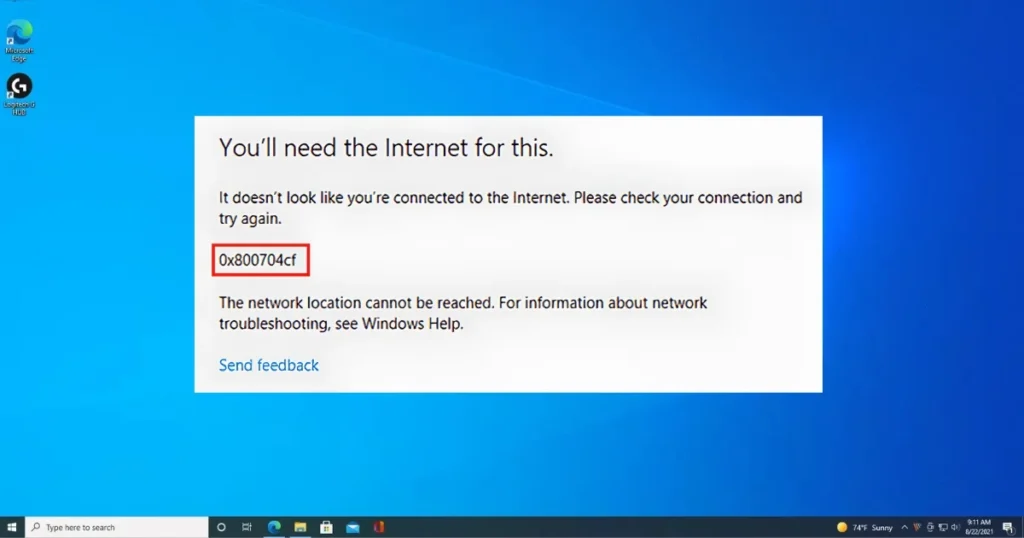
Error Code 0x800704cf – What is this error?
First, let’s understand what this error code actually indicates.
0x800704cf is a Windows network error. It means your computer cannot access a network location. Simply put, your laptop or desktop is connected to the network (via Wi-Fi or a LAN cable), but:
- The internet is not working, or
- Other computers on the network are not visible, or
- Shared folders or printers cannot be accessed, or
- Microsoft Store or other online services are not working
This error can occur on both Windows 10 and Windows 11. It often appears when opening the Microsoft Store, syncing OneDrive, or mapping a network drive.
Why does the 0x800704cf error occur? – Main causes
There can be several reasons behind this error, not just one. Since the solution for each cause differs, it is important to understand them first:
1. The network adapter settings are incorrect.
Sometimes, network adapter settings change after a Windows update or a software installation – specifically, the TCP/IP and DNS settings.
2. The TCP/IP stack has become corrupted.
TCP/IP is the protocol your computer uses to communicate with the Internet. If it becomes corrupted – due to software conflicts, sudden shutdowns, or viruses – the 0x800704cf error can occur.
3. Network drivers are outdated or corrupt.
Network errors can occur if the driver for the Wi-Fi or LAN card is outdated, corrupt, or becomes incompatible following a Windows update.
4. Windows Firewall or security software is blocking it.
Sometimes, Windows Firewall or third-party antivirus/firewall software blocks network traffic.
5. Microsoft Account Sync Issue
If you are logged into Windows with a Microsoft Account and there is an issue with account synchronization, this error may appear in the Microsoft Store and other services.
6. Network Discovery is turned off.
If you are trying to access other computers or printers on the network and Network Discovery is turned off, this error occurs.
7. DNS server not responding
In India, the DNS servers of ISPs (such as Airtel, JioFiber, and BSNL) sometimes become slow or fail to respond. This can also lead to network errors.
Fixing the 0x800704cf Error – Step-by-Step Methods
Now, let’s get down to business. All the methods are listed below, one by one. Start from the top – in most cases, the issue is resolved within the first 3 or 4 methods.
Method 1 – Check Network Adapter Settings
This is the first and most basic step. Often, certain essential network components get unchecked, making the 0x800704cf error seem difficult to fix, though it is actually quite simple.
Steps:
- Press Win + R, type ncpa.cpl, and press Enter.
- The Network Connections window will open.
- Right-click the network adapter currently in use (Wi-Fi or Ethernet) and select Properties.
- Ensure the following three items are checked (✓):
- Client for Microsoft Networks
- File and Printer Sharing for Microsoft Networks
- Internet Protocol Version 4 (TCP/IPv4)
- If any of them are unchecked, check them.
- Click OK.
- Restart the computer.
Doing just this resolves the error for many people. These are the basic components without which the network does not function properly.
Method 2 – Reset the TCP/IP stack
If the TCP/IP stack has become corrupted, it needs to be reset. This is the most commonly used fix for network errors.
Steps:
- Right-click the Start button > Open Terminal (Admin) or Command Prompt (Admin)
- Type these commands one by one (press Enter after each command):
netsh winsock resetnetsh int ip resetipconfig /releaseipconfig /renewipconfig /flushdns- Restart the computer after running all the commands.
- Now check whether the error has been resolved.
What do these commands do:
- netsh winsock reset – Resets the Winsock catalog (the basic layer of network communication)
- netsh int ip reset – Resets the TCP/IP stack
- ipconfig /release – Releases the current IP address
- ipconfig /renew – Obtains a new IP address
- ipconfig /flushdns – Clears the DNS cache
Method 3 – Update or Reinstall the Network Adapter Driver
An outdated or corrupt network driver is also a major cause of this error.
Steps to update the driver:
- Press Win + X and open Device Manager
- Click on “Network adapters” to expand the list
- Right-click on your WiFi adapter (e.g., Intel Wi-Fi, Realtek, Qualcomm) and select “Update driver”
- Select “Search automatically for drivers”
- If an update is found, install it
- Restart your computer
If updating doesn’t work, reinstall the driver:
- Right-click the WiFi adapter in Device Manager > Uninstall device
- Check “Delete the driver software for this device” (if visible)
- Click Uninstall
- Restart the computer
- Windows will automatically reinstall the driver
If the driver is not installed automatically:
- Download the driver from your laptop brand’s website (Dell, HP, Lenovo, Asus)
- Download it using another computer or phone and copy it to a USB drive
- Install it
Method 4 – Change DNS Server (Use Google DNS or Cloudflare DNS)
In India, ISP DNS servers often cause issues. Switching to Google DNS or Cloudflare DNS can resolve many network problems.
Steps:
- Win + R > ncpa.cpl > Enter
- Right-click on the WiFi or Ethernet adapter > Properties
- Double-click on “Internet Protocol Version 4 (TCP/IPv4)”
- Select “Use the following DNS server addresses”
- Enter these values:
Google DNS:
- Preferred DNS: 8.8.8.8
- Alternate DNS: 8.8.4.4
Or Cloudflare DNS (faster):
- Preferred DNS: 1.1.1.1
- Alternate DNS: 1.0.0.1
- Press OK
- Restart the computer
This is a $0 solution, and often, fixing the 0x800704cf error is just that simple.
Method 5 – Run the Windows Network Troubleshooter
Windows has a built-in troubleshooter that automatically detects and fixes network problems. It doesn’t always work, but there is no harm in trying.
Steps:
- Go to Settings > System > Troubleshoot > Other troubleshooters
- Click “Run” next to “Network and Internet” (or “Internet Connections”)
- Let the troubleshooter run
- If a problem is found, click “Apply this fix”
- Restart
In Windows 10:
- Settings > Update & Security > Troubleshoot > Additional troubleshooters > Internet Connections > Run the troubleshooter
Method 6 – Turn on Network Discovery and File Sharing
If this error occurs while accessing other computers or shared folders on the network, it might be due to Network Discovery being turned off.
Steps:
- Go to Control Panel > Network and Sharing Center > Change advanced sharing settings
- Under “Private (current profile)”:
- Select “Turn on network discovery”
- Select “Turn on file and printer sharing”
- Enable the settings under “Guest or Public” as well, if needed
- Under “All Networks”:
- Select “Turn on sharing so anyone with network access can read and write files in the Public folders”
- Select “Turn off password-protected sharing” (if using a home network)
- Click “Save changes”
Method 7 – Check by temporarily turning off Windows Firewall
Sometimes, Windows Firewall blocks network traffic. To check this:
Steps:
- Go to Control Panel > Windows Defender Firewall
- Click on “Turn Windows Defender Firewall on or off” on the left side
- Select “Turn off” for both Private and Public networks
- Click OK
- Now check the network
If turning off the firewall resolves the error:
- This means the firewall was blocking something.
- Turn the firewall back on.
- Go to “Allow an app through Windows Defender Firewall” and allow the necessary apps/services.
Important: Do not keep the firewall turned off for long – it poses a security risk. Turn it off only for testing purposes, then turn it back on.
Method 8 – Sign out of your Microsoft account and sign back in
If this error is occurring with the Microsoft Store, OneDrive, or Windows account syncing, then:
Steps:
- Go to Settings > Accounts > Your info
- Click on “Sign in with a local account instead”
- Enter your password and switch to a local account
- Restart the computer
- Now go back to Settings > Accounts > “Sign in with a Microsoft account instead”
- Log in with your Microsoft account
This process refreshes the account sync, and often the error gets resolved.
Method 9 – Run SFC and DISM scans
If Windows system files are corrupt, network services are also affected.
Steps:
- Open Command Prompt (Admin)
- Run this first:
sfc /scannow- It will take 10–15 minutes – let it complete.
- Then run this:
DISM /Online /Cleanup-Image /RestoreHealth- It may take 20–30 minutes – an internet connection is required (if the internet isn’t working, connect via a mobile hotspot).
- Restart.
Method 10 – Perform a Network Reset (Windows 11/10)
This method restores all network settings to their default values. All network adapters are reinstalled, and settings are reset.
Steps:
- Go to Settings > Network & Internet > Advanced network settings > Network reset
- Click on “Reset now”
- The computer will restart automatically
- You will need to re-enter the Wi-Fi password after the restart
Note: After the Network Reset:
- All saved Wi-Fi passwords will be erased
- VPN settings will be reset
- Network sharing settings will revert to the default
So, make a note of the Wi-Fi password somewhere first.
Method 11 – Disable IPv6
In some cases, IPv6 (Internet Protocol Version 6) causes issues, especially with certain ISPs in India that do not yet fully support IPv6.
Steps:
- Win + R > ncpa.cpl > Enter
- Right-click on the WiFi/Ethernet adapter > Properties
- Uncheck “Internet Protocol Version 6 (TCP/IPv6)”
- Click OK
- Restart
Method 12 – Check for Windows Updates
Sometimes, a pending Windows update contains the fix for a network bug.
Steps:
- Settings > Windows Update > Check for updates
- Install any updates that appear
- Pay special attention to “Cumulative Update” and “Driver Update”
- Restart
If the internet isn’t working, connect to a mobile hotspot and download the update.
Free tools that help fix the 0x800704cf error
| Tool name | What does it do | Price |
|---|---|---|
| Windows Network Troubleshooter | It automatically detects and fixes network problems. | $0 (Built-in) |
| SFC / DISM | Repair system files. | $0 (Built-in) |
| TCP/IP Reset Tool (netsh) | Resets the network stack. | $0 (Built-in) |
| Snappy Driver Installer | It automatically searches for and updates drivers. | $0 (Open Source) |
| WinMTR | Traces the network connection – identifies where the problem lies. | $0 (Free) |
For a more detailed guide and Windows network troubleshooting, visit fixtech.in – you will find many useful guides related to Windows 10/11 there.
Some important points to keep in mind
1. Check by turning off the VPN
If you are using a VPN (such as Proton VPN, Windscribe, or any other), turn it off and check the network. VPNs sometimes alter network settings, which can cause this error.
2. Restart the router.
It seems very basic, but it works. Unplug the router’s power cable, wait for 30 seconds, and then plug it back in. In India, this often works for Airtel, JioFiber, and BSNL routers.
3. Check third-party antivirus software.
Antivirus programs like Kaspersky, Norton, and Quick Heal sometimes block network traffic. Try disabling them temporarily to check. Windows Defender is quite good – a separate antivirus isn’t always necessary. Microsoft Defender costs $0.
4. Check proxy settings.
- Settings > Network & Internet > Proxy
- If “Use a proxy server” is on, turn it off (unless required for an office network).
- Keep “Automatically detect settings” turned on.
In which situations does the 0x800704cf error occur?
It is important to understand this because different solutions work for different situations:
Situation 1 – No internet connection at all
→ Method 2 (TCP/IP Reset), Method 4 (Change DNS), Method 10 (Network Reset)
Situation 2 – WiFi is connected but shows “No Internet”
→ Method 4 (Change DNS), Restart router, Method 3 (Update driver)
Situation 3 – Network sharing (with other PCs/printers) is not working
→ Method 1 (Adapter settings), Method 6 (Enable Network Discovery)
Situation 4 – Error occurring in the Microsoft Store
→ Method 8 (Re-sign in to Microsoft Account), Method 2 (TCP/IP Reset)
Situation 5 – OneDrive or Microsoft 365 is not syncing
→ Method 8 (Re-sign in to account), Method 4 (Change DNS), Method 7 (Check Firewall)
FAQs – About Fixing Error 0x800704cf
Q1: Does the 0x800704cf error occur only in Windows?
Yes, it is a Windows-specific error code. It does not occur on Mac, Linux, or mobile devices. It can appear on Windows 7, 8, 10, and 11.
Q2: Is my data at risk because of this error?
No. It is a network connectivity error; your files, photos, and documents are all safe. It simply means the network isn’t working.
Q3: Will performing a Network Reset delete my Wi-Fi passwords?
Yes. A Network Reset reverts all network settings to their defaults. All saved Wi-Fi passwords, VPN configurations, and network profiles will be erased. Therefore, make sure to note down your passwords beforehand.
Q4: Is changing the DNS safe? Will it cause issues for my ISP?
It is completely safe. Changing the DNS is entirely legal and secure. Google DNS (8.8.8.8) and Cloudflare DNS (1.1.1.1) are both reliable and widely used in India. It makes no difference to your ISP.
Q5: I’ve tried all the methods, but the 0x800704cf error persists – what should I do now?
In this case, try a Windows Reset (Keep my files): Settings > System > Recovery > Reset this PC > Keep my files. This will reinstall Windows while keeping your files safe, though you will need to reinstall your software. You can find more advanced solutions on fixtech.in.
Q6: Can this error also be caused by a hardware malfunction?
Yes, in very rare cases, this error can appear due to a faulty Wi-Fi card or LAN port. If software fixes don’t work, try using a USB Wi-Fi adapter ($5–$10); if the network works with it, then your built-in Wi-Fi card is likely faulty.
Q7: I am encountering this error on an office network – what should I do?
Firewall rules, Group Policy, and proxy settings differ in an office network. Consult your IT administrator first; manually resetting the network or disabling the firewall on an office laptop is not advisable.
Final Thoughts
Fixing the 0x800704cf error isn’t as difficult as the technical name suggests. In most cases, simply resetting TCP/IP, changing DNS settings, or checking network adapter configurations does the trick. This guide is designed for Windows users in India facing this error with ISPs like Airtel, JioFiber, BSNL, or others. Try the 12 methods mentioned above one by one – one of them is bound to solve your problem. And if a friend or family member is dealing with network issues, do share this article – because fixing the 0x800704cf error is no longer a hassle!