
A blue screen, white text, and the message “DRIVER_POWER_STATE_FAILURE” displayed in large letters – this “Blue Screen of Death” (BSOD) is particularly alarming when it appears suddenly while you are working on something important or waking your laptop from sleep mode. In India, this error is frequently reported on HP, Dell, Lenovo, Asus, and Samsung laptops – often arising from driver compatibility issues following a Windows Update. Upon encountering this error, the PC automatically restarts, only to display the same BSOD again – a frustrating loop to be stuck in.
In this guide, we will fully understand the “DRIVER_POWER_STATE_FAILURE” error and explore every possible fix.
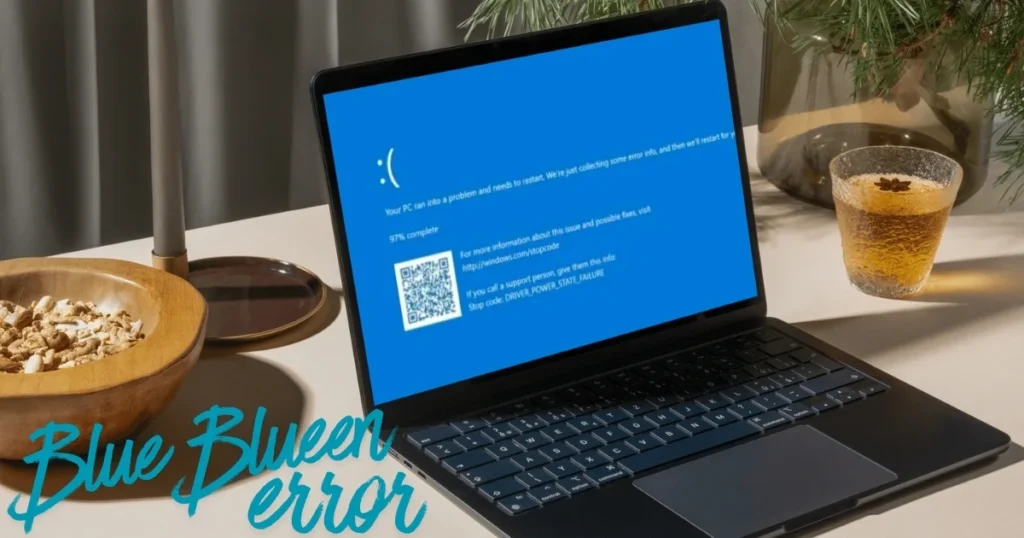
What is DRIVER_POWER_STATE_FAILURE?
It is a Windows BSOD error indicating that a hardware driver failed to properly handle a power state transition.
In simple terms: When Windows enters sleep, hibernate, or shutdown modes – or wakes up from them – every hardware component (such as the WiFi card, GPU, or USB controller) must switch to a specific power state. If a driver fails to manage this transition, Windows crashes and displays this BSOD error.
This BSOD occurs in the following situations:
- Upon closing and opening the laptop lid
- When waking from sleep mode
- When resuming from hibernation
- When connecting or disconnecting the power charger
- After a Windows Update
- When connecting new hardware or a peripheral
Main causes of DRIVER_POWER_STATE_FAILURE
1. Outdated or Corrupt Driver
The most common reason. Graphics drivers, WiFi drivers, or USB drivers – any of these might be failing to handle power management correctly.
2. Driver Conflict After Windows Update
Windows Update sometimes installs driver updates that are not compatible with the hardware.
3. Third-party Software Conflict
A recently installed piece of software – such as a VPN, antivirus, or overclocking tool – is causing a conflict at the driver level.
4. Fast Startup Feature
The Windows “Fast Startup” feature sometimes conflicts with the driver power state.
5. BIOS Settings – Power Management
If the power settings in the BIOS are incorrect, the driver receives wrong signals.
6. Hardware Problem
This BSOD can also occur due to a physical issue with the RAM, SSD, or any other hardware component.
7. Overheating
When a laptop overheats, the processor throttles, which can lead to conflicts in the driver power state.
All ways to fix DRIVER_POWER_STATE_FAILURE
Fix 1 – Roll back recently installed drivers
If this BSOD started after an update, rolling back the driver is the most effective fix.
Steps:
- Win + X > Open Device Manager
- Check the devices that consume high power:
- Display adapters (GPU)
- Network adapters (WiFi)
- Universal Serial Bus controllers
- Sound, video, and game controllers
- Right-click the adapter in each category > Properties
- Go to the Driver tab > Check the “Roll Back Driver” button
- If the button is available, click it
- Select a reason > Yes
- Restart the PC
Is the “Roll Back Driver” option greyed out?
This means there is no previous driver version available. In that case, try Fix 2.
Fix 2 – Update or Reinstall Display and Network Drivers
For the Display Driver (GPU):
NVIDIA users:
- NVIDIA official site: nvidia.com/drivers
- Select your GPU model
- Download the latest driver
- First, uninstall the old driver: Device Manager > Display Adapters > Right-click > Uninstall device
- Check the box for “Delete the driver software for this device”
- Restart
- Install the new driver
AMD users:
- AMD official site: amd.com/support
- Follow the same process.
Intel integrated graphics:
- Download the latest Intel graphics driver from the laptop brand’s website.
For WiFi/Network Driver:
- Device Manager > Network adapters
- Right-click on the WiFi adapter > Update driver
- Or download the latest wireless driver from the laptop brand’s website:
- Dell: dell.com/support
- HP: support.hp.com
- Lenovo: support.lenovo.com
- Asus: asus.com/support
Fix 3 – Disable Fast Startup
The Windows Fast Startup feature can cause conflicts with driver power states.
Steps:
- Control Panel > Power Options
- Click “Choose what the power buttons do” on the left side
- Untick “Turn on fast startup (recommended)”
- Click “Save changes”
Shut down the PC (do not restart it) and turn it back on.
Why does this work?
With Fast Startup enabled, Windows does not shut down completely; instead, it enters a hybrid state. This leads to conflicts during driver power transitions.
Fix 4 – Prevent the driver from entering sleep mode in Power Management settings
Windows puts devices into sleep mode to conserve battery. This is what causes the DRIVER_POWER_STATE_FAILURE error.
For USB devices:
- Device Manager > Universal Serial Bus controllers
- Right-click on each “USB Root Hub” > Properties
- Power Management tab
- Untick “Allow the computer to turn off this device to save power”
For the Network Adapter:
- Device Manager > Network adapters
- WiFi adapter > right-click> Properties
- Power Management tab
- Untick “Allow the computer to turn off this device to save power”
Click OK and restart the PC.
Fix 5 – Set the Power Plan to High Performance
The Balanced or Power Saver plans employ aggressive power management, which can cause driver issues.
Steps:
- Control Panel > Power Options
- Select “High Performance”
- If it is not visible, click “Show additional plans”
Or from Command Prompt (Admin):
powercfg -setactive 8c5e7fda-e8bf-4a96-9a85-a6e23a8c635cRestart the PC.
Fix 6 – Repair System Files using SFC and DISM
Corrupt system files can also cause a DRIVER_POWER_STATE_FAILURE error.
In an elevated Command Prompt:
sfc /scannowUpon completion:
DISM /Online /Cleanup-Image /RestoreHealthRestart the PC after both are complete.
Official guide:
System File Checker – Microsoft Support
Fix 7 – Run Windows Update and check for driver updates
Steps:
- Settings > Windows Update > Check for updates
- Go to “Advanced options > Optional updates”
- Check “Driver updates” section
- Install available driver updates
- Restart
Paradoxically, sometimes a new update itself fixes the BSOD.
Fix 8 – Find the exact driver using Event Viewer
It is important to identify the specific driver causing the DRIVER_POWER_STATE_FAILURE error.
Steps:
- Win + X > Event Viewer
- Windows Logs > System
- Check for Error and Critical events
- Filter events around the time the BSOD occurred
Or use WinDbg / BlueScreenView (free, $0):
- Download BlueScreenView (nirsoft.net/utils/blue_screen_view.html)
- It analyzes minidump files.
- It shows the name of the driver responsible for the BSOD.
For example, if you see nvlddmkm.sys – it indicates an NVIDIA driver problem; athwbx.sys – a Qualcomm WiFi driver issue.
Update or reinstall that specific driver.
Fix 9 – Uninstall Problematic Software
If the BSOD started after installing software:
Common culprits:
- VPN software (NordVPN, Cisco VPN)
- Antivirus/Security suite (McAfee, Norton, Quick Heal)
- Overclocking tools (MSI Afterburner, Intel XTU)
- RGB lighting software (Asus Aura, Razer Synapse)
- Old drivers from third-party driver update tools
Steps:
- Settings > Apps > Installed apps
- Uninstall recently installed software
- Restart
- Check if the BSOD reappears
Fix 10 – Update the BIOS
A BIOS update improves hardware power management.
Steps:
- Check your laptop model’s BIOS version:
- Win + R > msinfo32 > Enter
- Check the BIOS Version/Date
- Visit the laptop brand’s website:
- Dell: dell.com/support
- HP: support.hp.com
- Lenovo: support.lenovo.com
- Download the latest BIOS
- Perform the update by carefully following the instructions
Note: Keep the laptop connected to power during the BIOS update. Never perform a BIOS update while running on battery power.
Fix 11 – Check RAM
Faulty RAM can also cause a BSOD.
Windows Memory Diagnostic:
- Win + R > mdsched.exe > Enter
- “Restart now and check for problems”
- The PC will restart and perform a memory test.
- View the results in Event Viewer.
MemTest86 (free, $0):
- Download from memtest86.com
- Create a bootable USB drive
- Run the test overnight
- If errors appear, the RAM will need to be replaced
Fix 12 – Find conflicts by performing a clean boot
Steps:
- Win + R > msconfig > Enter
- Services tab > Check “Hide all Microsoft services”
- Click “Disable all”
- Startup tab > Open Task Manager
- Disable all startup items
- Restart
If a BSOD does not occur during a Clean Boot, then a third-party service is causing the issue. Identify it by enabling them one by one.
Official Microsoft guide:
How to perform a clean boot
Fix 13 – Disable Hibernation
In the Admin Command Prompt:
powercfg -h offHibernation will be completely disabled. This will prevent the DRIVER_POWER_STATE_FAILURE from being triggered by hibernation.
Restart and test.
Useful Free Tools
| Tool | Feature | Price |
|---|---|---|
| BlueScreenView | BSOD analysis of BSOD dump files | $0 |
| MemTest86 | RAM testing | $0 |
| WhoCrashed | Identifying the cause of BSOD | $0 |
| HWMonitor | Temperature and hardware health check | $0 |
| Driver Booster Free | Scanning for outdated drivers | $0 |
Visit fixtech.in for more BSOD and Windows troubleshooting guides.
FAQs – About error DRIVER_POWER_STATE_FAILURE
1. Does DRIVER_POWER_STATE_FAILURE cause data loss?
You might lose unsaved work, but stored files – such as documents and photos – remain safe. Make a habit of keeping regular backups.
2. This BSOD only occurs during sleep/wake – why?
The driver fails during the power state transition between sleep and wake (or hibernation). Fix 3 (disabling Fast Startup) and Fix 4 (Power Management settings) specifically address this issue.
3. Which driver should I look for in BlueScreenView?
The .sys file listed in the highlighted (red/pink) row is the responsible driver. Google its name to identify which piece of hardware it belongs to.
4. Will reinstalling Windows fix this?
Usually, yes. However, it won’t help if the issue is caused by a hardware problem (like faulty RAM or SSD). Try the software fixes first.
5. Is a BIOS update necessary?
It isn’t strictly necessary, but you should try it if other fixes fail. Perform the BIOS update carefully and ensure the power supply isn’t interrupted.
6. Does this error occur on desktop PCs as well?
Yes, but it is more common on laptops because they undergo more frequent power state transitions (sleep, hibernate, battery usage).
Final Thoughts
DRIVER_POWER_STATE_FAILURE isn’t as complicated as it sounds. In most cases, a combination of three fixes – rolling back the driver, disabling Fast Startup, and adjusting Power Management settings – resolves this BSOD. Using BlueScreenView to identify the specific driver is the smartest approach. Try these fixes in order, and you’ll quickly put DRIVER_POWER_STATE_FAILURE behind you.